Turbo Apex Debug enhances your Salesforce debugging by allowing you to customize log prefixes, delimiters, and automatically include details like line numbers and method names. Streamline your debugging with options for both manual and automated setups, tailored to your needs.
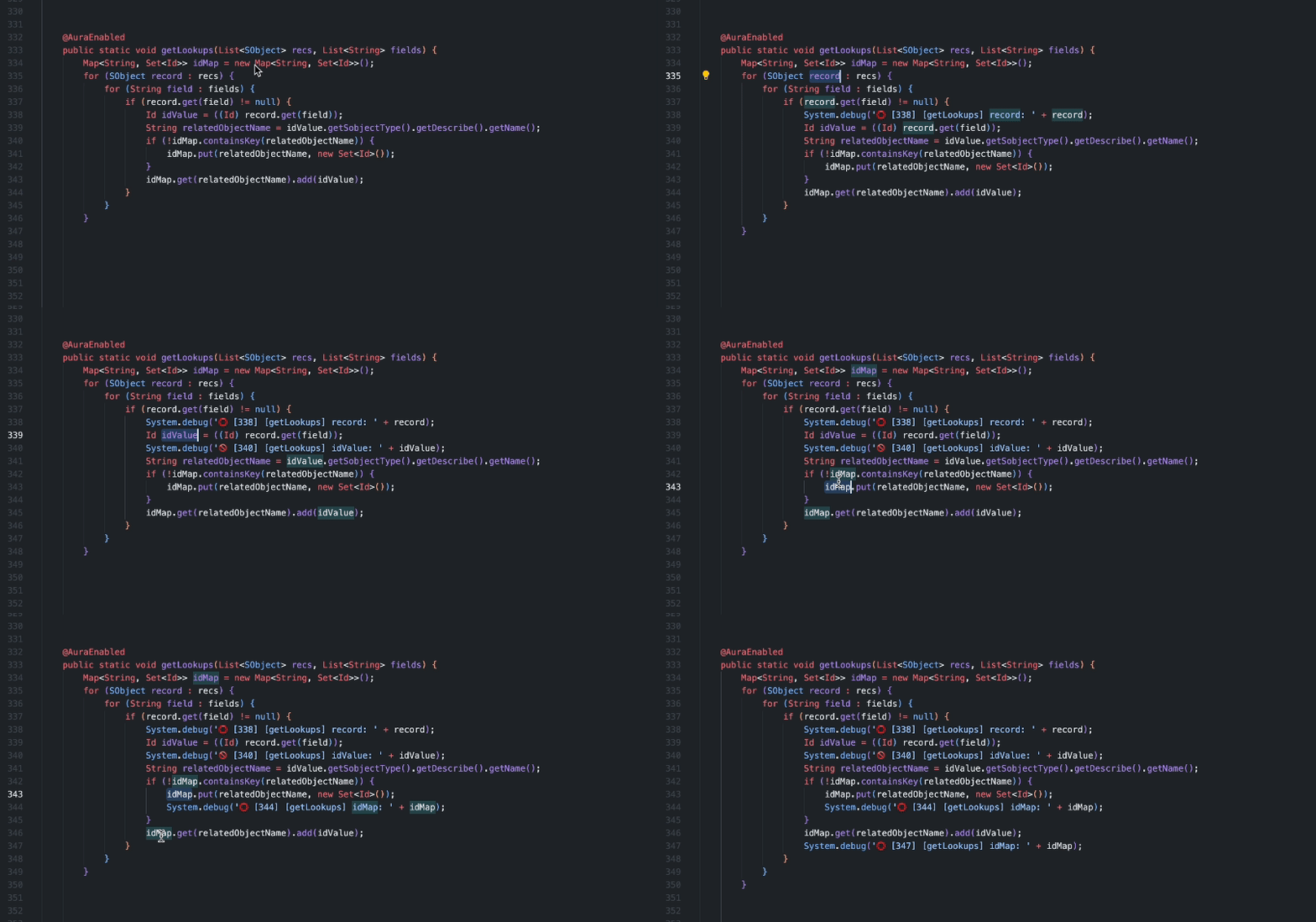
- .cls
- .trigger
- .apex
- Customizable Prefixes: Define your own set of prefixes for log and error messages.
- Automatic Detail Inclusion: Easily include line numbers, entity names, and method names in your debug statements.
- Flexible Delimiters: Set your preferred delimiter to separate prefixes from messages.
- Manual or Randomized Prefix Selection: Choose prefixes manually or let the extension select them randomly from your list.
- Turbo Apex Debug: Log;
Command:
turbo-apex-debug.log; Shortcut:ctrl+alt+l; - Turbo Apex Debug: Remove all logs;
Command:
turbo-apex-debug.removeAll; Shortcut:ctrl+alt+d.
You can always change command's keybinding by going to ctrl+shift+p -> Preferences: Open Keyboard Shortcuts -> turbo-apex-debug
Adjust settings in your settings.json file or use the Settings UI to customize your debugging experience.
-
turboApexDebug.logMessagePrefixesCustomize the prefixes that appear before your debug messages. These symbols help you quickly identify the nature of the log entry. Leave empty if no prefix is needed. -
turboApexDebug.errorMessagePrefixesDefine specific prefixes for error messages. Leave empty if no prefix is needed. -
turboApexDebug.logMessageDelimiterSpecify the character or symbol that separates the log statement. -
turboApexDebug.promptPrefixEnable this option to manually select a prefix for your debug messages when prompted. When disabled, a random prefix will be chosen from the provided list, if available. -
turboApexDebug.includeLineNumAutomatically include the line number in debug statements. -
turboApexDebug.includeEntityNameAutomatically include the entity name (class or trigger) in debug statements. -
turboApexDebug.includeMethodNameAutomatically include the method name in debug statements. Disabled for triggers.
If you use Turbo Console Log for .js/.ts files, you can configure a single shortcut to work with both Turbo Console Log and Turbo Apex Debug:
- Open
keybindings.json(ctrl+shift+p->Preferences: Open Keyboard Shortcuts (JSON)) - Add the following:
  {
    "key": "ctrl+alt+l",
    "command": "turboConsoleLog.displayLogMessage",
    "when": "resourceExtname != '.cls' && resourceExtname != '.trigger' && resourceExtname != '.apex'"
  },
  {
    "key": "ctrl+alt+l",
    "command": "turbo-apex-debug.log",
    "when": "resourceExtname != '.js' && resourceExtname != '.ts'"
  },
  {
    "key": "ctrl+alt+d",
    "command": "turboConsoleLog.deleteAllLogMessages",
    "when": "resourceExtname != '.cls' && resourceExtname != '.trigger' && resourceExtname != '.apex'"
  },
  {
    "key": "ctrl+alt+d",
    "command": "turbo-apex-debug.removeAll",
    "when": "resourceExtname != '.js' && resourceExtname != '.ts'"
}Contributions are welcome! Please feel free to submit a pull request or open an issue on the GitHub repository to report bugs, suggest features, or ask questions.