Setup Guide
- Windows 10 21H2
- Windows 11 23H2+
Immediate display configuration, HDR and Sandbox support (Patreon-only) are only available on Windows 11 23H2+!
- Download Duo, either from GitHub or Patreon.
- Should your browser give you a warning message, choose to Keep the file anyway.
- Execute the downloaded file and follow the on-screen-instructions to finish installing it.

- Optional: Download and install ViGEmBus for gamepad support.

- Open the start menu, search for Duo Manager and execute it.

- Optional: Click on Unlock Patreon Benefits and follow the on-screen-instructions to unlock your Patreon benefits if you haven't done so yet.

- Create your first instance.
- To make the initial set-up easier, toggle the instance's Auto Start setting.
- Click on the Start button in the left pane to start Duo.

- Navigate to your instance via the left pane.

- Wait for the Pair New Client button to light up, and click on it.

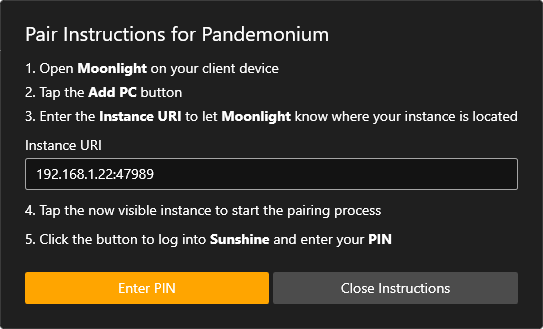
- Follow the on-screen-instructions to pair your Moonlight client.
At this point, your client is paired to your new instance, and you're ready to play games.
If you're new to using Moonlight, now might be a good time to check their Wiki as well.
- Open the start menu, search for Duo Manager and execute it if you haven't already.
- Click on the New button in the left pane and follow the on-screen-instructions to create a new instance.

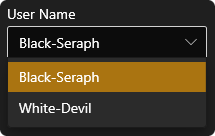
- Choose a local user account from the User Name list.
- Enter the chosen user's password into the Password text box.
- Optional: Adjust other instance parameters as needed.
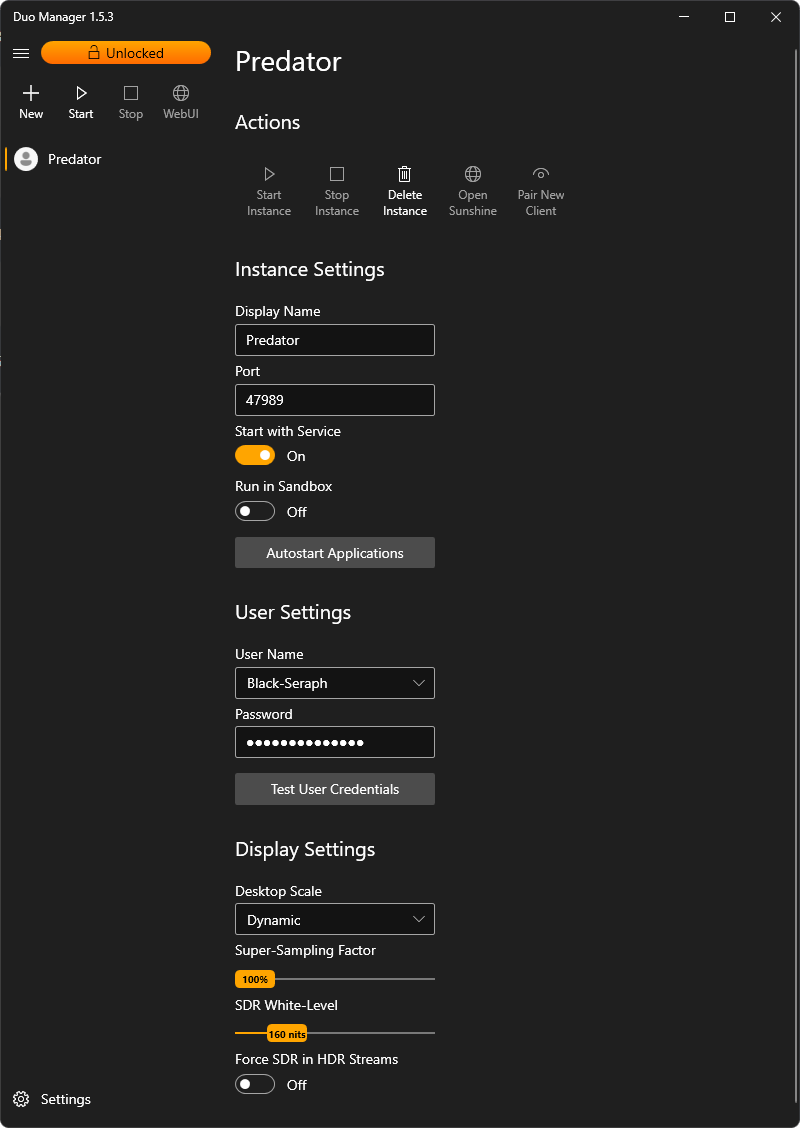
If you've enabled Patreon benefits on Windows 11 version 23H2 or later, you'll notice a new instance setting called Run in Sandbox.
Enabling this option will fully isolate the instance from your host system by running it within the Windows Sandbox.
This feature is particularly useful for dual-boxing certain games, enhancing gamepad isolation, or granting less tech-savvy friends access to a gaming environment without the risk of them inadvertently affecting your host system.
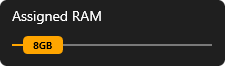
The Assigned RAM can be changed to any value between 10% and 100% (memory overcommitment) under Settings.
Sandboxed instances will, by default, reset on shutdown, unless the Persistent Storage option under Settings has been toggled on.

This setting is experimental and can result in loss of data after certain Windows Updates.
By default, the instance user's Steam library, Epic Games library, and home folder will be accessible, allowing you to access your existing game library, documents and save games without the need for file duplication.
Additional folders can be shared with the Sandbox by clicking on the Manage Shared Folders button under Settings.

For further customization, you can place a PowerShell script named customize.ps1 in C:\Program Files\Duo\assets\sandbox which will get executed during Sandbox initialization.

By default Duo's WebUI listens on port 38299, but this port can be changed under Settings.
It is suggested to bookmark the WebUI link on a companion device of choice for easy remote starting & stopping of instances.

HDR is only available on Windows 11 23H2 or newer, with enabled Patreon benefits!
- Ensure you've worked your way through the Quick Setup Instructions.
- Install the latest Moonlight Flatpak on your Steam Deck OLED.
- Add Moonlight as a non-Steam game on your Steam Deck OLED.
- Start Moonlight on your Steam Deck OLED in game mode, enable HDR in the settings, and pair it to your Duo instance.