PSTeams is available as a PowerShell module from PowerShell Gallery. Its current source is evolving into reusable MessageX libraries for Teams, Slack, and Discord while keeping familiar commands such as Send-TeamsMessage and Send-DiscordMessage and adding provider-native commands such as Send-SlackMessage.












PSTeams helps you send rich notifications to Microsoft Teams from PowerShell on Windows, Linux, and macOS. It can build and send classic Office 365 connector cards, Adaptive Cards, Hero Cards, List Cards, and Thumbnail Cards.
PSTeams uses a cleaner architecture:
MessageX.Coreowns provider-neutral delivery results, message references, capability flags, and classified errors.MessageX.Teamsowns Microsoft Teams composition and delivery.MessageX.Slackowns Slack incoming-webhook, Web API, and Block Kit messaging without SlackNet or Newtonsoft.Json.MessageX.Discordowns Discord incoming-webhook and bot REST delivery, embeds, attachments, and interaction verification without Discord.Net, NetCord, or Newtonsoft.Json.MessageX.PowerShellexposes thin provider-native binary PowerShell cmdlets over those libraries.PSTeamsremains the PowerShell module users install and import.
- Send Microsoft Teams notifications through incoming webhooks and workflow webhooks.
- Describe whether a Workflow URL delivers to a channel, group chat, or chat without claiming conversation access that the URL does not provide.
- Configure proxy, timeout, cancellation, and product user-agent behavior for webhook delivery.
- Compose classic connector-card messages with sections, facts, images, buttons, and activity fields.
- Compose Adaptive Cards with containers, columns, tables, images, media, mentions, rich text, actions, and fallback text.
- Compose Hero, Thumbnail, and List cards with typed cmdlets.
- Convert message objects to JSON before sending, which is useful for testing, logging, and CI validation.
- Keep authenticated Microsoft Graph lifecycle and governed Teams chat/channel delivery in GraphEssentialsX rather than duplicating that client in MessageX.Teams.
- Send Slack text and initial Block Kit messages through fixed-destination incoming webhooks or an authenticated bot connection.
- Address Slack channels, private channels, direct messages, multiparty conversations, and user IDs through provider identifiers supported by
chat.postMessage. - Reply in Slack threads and retain the returned channel and timestamp as a durable
MessageReferencefor later lifecycle work. - Send Discord messages through incoming webhooks or bot REST to channels, threads, and one-to-one DMs.
- Compose Discord embeds and attachments, control mentions with a safe notify-nobody default, and retain durable message/channel/thread references.
- Verify Discord interaction request signatures through an owned API while keeping Bouncy Castle types internal.
- Keep the PowerShell module surface familiar while moving implementation into reusable C# cmdlets.
PSTeams works on Windows, Linux, and macOS through PowerShell Gallery. Installation does not require administrative rights when you install for the current user.
Install for the current user:
Install-Module PSTeams -Scope CurrentUserInstall for all users from an elevated PowerShell session:
Install-Module PSTeamsUpdate an existing installation:
Update-Module -Name PSTeamsAfter updating, restart any PowerShell session that already imported PSTeams so the new binary module is loaded.
If PSTeams is used in production automations, test new versions before rolling them out broadly.
Runtime dependency on PSSharedGoods has been removed from the module shell. Development tooling may still use helper modules such as PSWriteColor, but the shipping module is being kept as self-contained as possible.
Send a classic connector-card notification through an incoming webhook:
$target = New-TeamsWebhookTarget -Uri $Env:TEAMS_WEBHOOK_URL
$section = New-TeamsSection `
    -ActivityTitle 'PSTeams' `
    -ActivitySubtitle 'Build notification' `
    -ActivityText 'The release pipeline completed successfully.' `
    -ActivityDetails @(
        New-TeamsFact -Name 'Environment' -Value 'Production'
        New-TeamsFact -Name 'Result' -Value 'Passed'
    )

$message = New-TeamsMessage -Title 'Deployment completed' -Text 'PSTeams notification' -Sections $section
Send-TeamsMessage -Message $message -Target $target
Send an Adaptive Card through a Workflow that is configured to deliver to a channel:
$target = New-TeamsWebhookTarget `
    -Uri $Env:TEAMS_WORKFLOW_URL `
    -Workflow `
    -Destination Channel `
    -DisplayName 'Release channel'

$card = New-TeamsAdaptiveCard -Body @(
    New-TeamsAdaptiveTextBlock -Text 'Deployment completed' -Weight Bolder
)
$message = New-TeamsMessage -Summary 'Deployment completed' -AdaptiveCard $card
Send-TeamsMessage -Message $message -Target $target -TimeoutSeconds 30 -PassThru
The destination value is descriptive metadata. Workflow URLs remain send-only: they do not provide message IDs, replies, updates, deletes, or inbound events.
Render the same message as JSON when you want to validate payloads in tests or CI:
$message | ConvertTo-TeamsJsonCreate and preview a Slack Block Kit message:
$target = New-SlackConversationTarget -ConversationId 'C0123456789' -DisplayName 'Release alerts'
$message = New-SlackMessage -Text 'Deployment completed' -Blocks @(
    New-SlackSection -Markdown '*Deployment completed*'
    New-SlackDivider
)

$message | ConvertTo-SlackJson -Target $target
Send through a Slack bot connection without placing its token in normal output:
$token = Read-Host 'Slack bot token' -AsSecureString
$connection = New-SlackConnection -BotToken $token -WorkspaceId 'T0123456789'
Send-SlackMessage -Message $message -Target $target -Connection $connection -PassThru
For a fixed-destination Slack incoming webhook, use New-SlackWebhookTarget or the simple Send-SlackMessage -WebhookText ... -WebhookUri ... parameter set. Webhook URLs and bot tokens are credentials and should come from a secret store.
Create and preview a Discord message without allowing content to notify mentions by default:
$target = New-DiscordChannelTarget `
    -ChannelId '123456789012345678' `
    -GuildId '223456789012345678' `
    -DisplayName 'Release alerts'

$message = New-DiscordMessage -Content 'Deployment completed' -Embeds @(
    New-DiscordSection -Title 'Release' -Description 'The deployment completed successfully.' -Color 0x2EB886 -Fields @(
        New-DiscordFact -Name 'Environment' -Value 'Production' -Inline
    )
)

$message | ConvertTo-DiscordJson -Target $target
Send through a Discord bot connection without placing its token in normal output:
$token = Read-Host 'Discord bot token' -AsSecureString
$connection = New-DiscordConnection -BotToken $token
Send-DiscordMessage -Message $message -Target $target -Connection $connection -PassThru
For fixed-destination delivery, use New-DiscordWebhookTarget or the simple Send-DiscordMessage -Text ... -WebhookUri ... parameter set. New-DiscordEmbed, New-DiscordField, and New-DiscordThumbnail remain aliases for familiar PSDiscord builder names. Webhook URLs and bot tokens are credentials and should come from a secret store. Bot DMs should be user-initiated or otherwise expected, not unsolicited bulk messages.
- .NET 8.0 and .NET 10.0 for modern cross-platform use
- .NET Framework 4.7.2 for Windows PowerShell 5.1 scenarios
- PowerShell 7 on .NET 10 uses the .NET 10 binary build; PowerShell 7 on .NET 8 uses the .NET 8 binary build.
- Windows PowerShell 5.1 uses the .NET Framework 4.7.2 binary build during development.
- Packaged module builds are produced by
Build\Build-Module.ps1through PowerForge/PSPublishModule. Development builds are unsigned by default; signing is an explicit release-gate choice.
The historical script-function implementation is preserved on the legacy branch for reference and maintenance history. New development should target MessageX.Core, provider libraries such as MessageX.Teams, MessageX.Slack, and MessageX.Discord, MessageX.PowerShell, and binary cmdlets rather than adding new PowerShell wrapper functions.
While I didn't spent much time creating WIKI, working on Get-Help documentation, I did write 4 articles that should help you get started.
First 3 articles are for version 0.X.X-1.X.X, and last one is small introduction to new versionF.
- PSTeams – PowerShell Module
- PSTeams – Send notifications to MS Teams from Mac / Linux or Windows
- Sending Messages to Microsoft Teams from PowerShell just got easier and better
- Introducing PSTeams 2.0 – Support for Adaptive Cards, Hero Cards, List Cards and Thumbnail Cards
If you find this project helpful, please consider supporting its development. Your sponsorship will help the maintainers dedicate more time to maintenance and new feature development for everyone.
It takes a lot of time and effort to create and maintain this project. By becoming a sponsor, you can help ensure that it stays free and accessible to everyone who needs it.
To become a sponsor, you can choose from the following options:
Your sponsorship is completely optional and not required for using this project. We want this project to remain open-source and available for anyone to use for free, regardless of whether they choose to sponsor it or not.
If you work for a company that uses our .NET libraries or PowerShell Modules, please consider asking your manager or marketing team if your company would be interested in supporting this project. Your company's support can help us continue to maintain and improve this project for the benefit of everyone.
Thank you for considering supporting this project!
While WebHook Notifications in theory only support Office 365 Connector Card it's possible to do more than that.
- Supported in 0.X.0 - 1.0.X
- Office 365 Connector Card - The Office 365 Connector card provides a flexible layout with multiple sections, fields, images, and actions. This card encapsulates a connector card so that it can be used by bots. See the notes section for differences between connector cards and the O365 card.
- Supported in 2.X.X
Below you can find how to send them and what they display. You should be aware that while I've added some features, not all of them will work in Teams such as submitting data, or using inputs (they may display data but not really do anything). It's still work in progress and things may change and get new features.
Adaptive Cards are most advanced cards. There's lots of options available. Make sure to review:
Here's some code / output:
New-AdaptiveCard -Uri $Env:TEAMSPESTERID -VerticalContentAlignment center {
    New-AdaptiveContainer {
        New-AdaptiveColumnSet {
            New-AdaptiveColumn {
                New-AdaptiveImage -Url "https://adaptivecards.io/content/cats/3.png" -Size Medium -AlternateText "Shades cat team emblem" -HorizontalAlignment Center
                New-AdaptiveTextBlock -Weight Bolder -Text 'SHADES' -HorizontalAlignment Center
            } -Width Auto
            New-AdaptiveColumn {
                New-AdaptiveTextBlock -Text "Sat, Aug 31, 2019" -HorizontalAlignment Center -Wrap
                New-AdaptiveTextBlock -Text "Final" -Spacing None -HorizontalAlignment Center
                New-AdaptiveTextBlock -Text "45 - 7" -HorizontalAlignment Center -Size ExtraLarge
            } -Width Stretch -Separator -Spacing Medium
            New-AdaptiveColumn {
                New-AdaptiveImage -Url "https://adaptivecards.io/content/cats/2.png" -Size Medium -HorizontalAlignment Center -AlternateText "Skins cat team emblem"
                New-AdaptiveTextBlock -Weight Bolder -Text 'SKINS' -HorizontalAlignment Center
            } -Width Auto -Separator -Spacing Medium
        }
    }
} -Speak 'The Seattle Seahawks beat the Carolina Panthers 40-7'
Output

Or something more advanced with hidden data, multiple actions and so on:
New-AdaptiveCard -Uri $Env:TEAMSPESTERID {
    New-AdaptiveContainer -Style Emphasis -Bleed {
        New-AdaptiveColumnSet {
            New-AdaptiveColumn -Width Stretch {
                New-AdaptiveTextBlock -Text '**EXPENSE APPROVAL**' -Weight Bolder -Size Large
            }
            New-AdaptiveColumn -Width Auto {
                New-AdaptiveImage -Url "https://adaptivecards.io/content/pending.png" -AlternateText 'Pending' -HeightInPixels 30 #-HorizontalAlignment Right
            }
        }
    }

    New-AdaptiveContainer {
        New-AdaptiveColumnSet {
            New-AdaptiveColumn -Width Stretch {
                New-AdaptiveTextBlock -Text 'Trip to UAE' -Wrap -Size ExtraLarge
            }
            New-AdaptiveColumn -Width Auto {
                New-AdaptiveActionSet {
                    New-AdaptiveAction -Title 'LINK TO CLICK' -ActionUrl 'https://adaptivecards.io'
                }
            }
        }
    }
    New-AdaptiveTextBlock -Text "[ER-13052](https://adaptivecards.io)" -Spacing Small -Size Small -Weight Bolder -Color Accent

    New-AdaptiveFactSet -Spacing Large {
        New-AdaptiveFact -Title "Submitted By" -Value "**Matt Hidinger**  matt@contoso.com"
        New-AdaptiveFact -Title "Duration" -Value "2019-06-19 - 2019-06-21"
        New-AdaptiveFact -Title "Submitted On" -Value "2019-04-14"
        New-AdaptiveFact -Title "Reimbursable Amount" -Value '$ 400.00'
        New-AdaptiveFact -Title "Awaiting approval from" -Value "**Thomas**  thomas@contoso.com"
        New-AdaptiveFact -Title "Submitted to" -Value "**David**  david@contoso.com"
    }

    New-AdaptiveContainer -Style Emphasis -Spacing Large {
        New-AdaptiveColumnSet {
            New-AdaptiveColumn {
                New-AdaptiveTextBlock -Text 'DATE' -Weight Bolder
            } -Width Auto
            New-AdaptiveColumn {
                New-AdaptiveTextBlock -Text 'CATEGORY' -Weight Bolder
            } -Width Stretch
            New-AdaptiveColumn {
                New-AdaptiveTextBlock -Text 'AMOUNT' -Weight Bolder
            } -Width Auto
        }
    } -Bleed

    New-AdaptiveColumnSet {
        New-AdaptiveColumn -Width Auto -Spacing Medium {
            New-AdaptiveTextBlock -Text '06-19' -Wrap
        }
        New-AdaptiveColumn -Width Stretch {
            New-AdaptiveTextBlock -Text 'Air Travel Expense' -Wrap
        }
        New-AdaptiveColumn -Width Auto {
            New-AdaptiveTextBlock -Text '$300.00' -Wrap
        }
        # Special column with Action and hidden items
        # Notice ActionTargetElement which triggers automatically ToggleVisibility for those mentioned
        New-AdaptiveColumn -Spacing Small -VerticalContentAlignment Center -Width Auto {
            New-AdaptiveImage -Id 'chevronDown1' -Url "https://adaptivecards.io/content/down.png" -WidthInPixels 20 -AlternateText "Details collapsed"
            New-AdaptiveImage -Id 'chevronUp1' -Url "https://adaptivecards.io/content/up.png" -WidthInPixels 20 -AlternateText "Details collapsed" -Hidden
        } -SelectActionTargetElement 'cardContent1', 'chevronDown1', 'chevronUp1'
    }

    # Notice this will be hidden initially and shown with the action from above
    New-AdaptiveContainer -Hidden -Id 'cardContent1' {
        New-AdaptiveTextBlock -Text '* Leg 1 on Tue, Jun 19th, 2019 at 6:00 AM.' -Subtle -Wrap
        New-AdaptiveTextBlock -Text '* Leg 2 on Tue, Jun 19th, 2019 at 7:15 PM.' -Subtle -Wrap
        New-AdaptiveContainer -Style Good {
            # This should be an input type, but not yet added - not sure if it makes sense, as inputs are not working for webhooks
            New-AdaptiveTextBlock -Text 'Some more data in good color' -Subtle -Wrap
        }
    }

    New-AdaptiveColumnSet {
        New-AdaptiveColumn -Width Auto -Spacing Medium {
            New-AdaptiveTextBlock -Text '06-19' -Wrap
        }
        New-AdaptiveColumn -Width Stretch {
            New-AdaptiveTextBlock -Text 'Auto Mobile Expense' -Wrap
        }
        New-AdaptiveColumn -Width Auto {
            New-AdaptiveTextBlock -Text '$100.00' -Wrap
        }
        # Special column with Action and hidden items
        # Notice ActionTargetElement which triggers automatically ToggleVisibility for those mentioned
        New-AdaptiveColumn -Spacing Small -VerticalContentAlignment Center -Width Auto {
            New-AdaptiveImage -Id 'chevronDown2' -Url "https://adaptivecards.io/content/down.png" -WidthInPixels 20 -AlternateText "Details collapsed"
            New-AdaptiveImage -Id 'chevronUp2' -Url "https://adaptivecards.io/content/up.png" -WidthInPixels 20 -AlternateText "Details collapsed" -Hidden
        } -SelectActionTargetElement 'cardContent2', 'chevronDown2', 'chevronUp2'
    }

    # Notice this will be hidden initially and shown with the action from above
    New-AdaptiveContainer -Hidden -Id 'cardContent2' {
        New-AdaptiveTextBlock -Text '* Contoso Car Rentrals, Tues 6/19 at 7:00 AM' -Subtle -Wrap
        New-AdaptiveContainer -Style Warning {
            # This should be an input type, but not yet added - not sure if it makes sense, as inputs are not working for webhooks
            New-AdaptiveTextBlock -Text 'Some more data in warning color' -Subtle -Wrap
        }
    }

    New-AdaptiveColumnSet {
        New-AdaptiveColumn -Width Auto -Spacing Medium {
            New-AdaptiveTextBlock -Text '06-21' -Wrap
        }
        New-AdaptiveColumn -Width Stretch {
            New-AdaptiveTextBlock -Text 'Excess Baggage Cost' -Wrap
        }
        New-AdaptiveColumn -Width Auto {
            New-AdaptiveTextBlock -Text '$50.38' -Wrap
        }
        # Special column with Action and hidden items
        # Notice ActionTargetElement which triggers automatically ToggleVisibility for those mentioned
        New-AdaptiveColumn -Spacing Small -VerticalContentAlignment Center -Width Auto {
            New-AdaptiveImage -Id 'chevronDown3' -Url "https://adaptivecards.io/content/down.png" -WidthInPixels 20 -AlternateText "Details collapsed"
            New-AdaptiveImage -Id 'chevronUp3' -Url "https://adaptivecards.io/content/up.png" -WidthInPixels 20 -AlternateText "Details collapsed" -Hidden
        } -SelectActionTargetElement 'cardContent3', 'chevronDown3', 'chevronUp3'
    }

    # Notice this will be hidden initially and shown with the action from above
    New-AdaptiveContainer -Hidden -Id 'cardContent3' {
        New-AdaptiveTextBlock -Text 'More data' -Subtle -Wrap
        New-AdaptiveContainer -Style Attention {
            # This should be an input type, but not yet added - not sure if it makes sense, as inputs are not working for webhooks
            New-AdaptiveTextBlock -Text 'Some more data in warning color' -Subtle -Wrap
        }
    }

    New-AdaptiveColumnSet -Spacing Large -Separator {
        New-AdaptiveColumn {
            New-AdaptiveTextBlock -Text "Total Expense Amount" -Wrap -HorizontalAlignment Right
            New-AdaptiveTextBlock -Text 'Non-reimbursable Amount' -Wrap -HorizontalAlignment Right
            New-AdaptiveTextBlock -Text 'Advance Amount' -Wrap -HorizontalAlignment Right
        } -Width Stretch
        New-AdaptiveColumn {
            New-AdaptiveTextBlock -Text '$450.38' -HorizontalAlignment Right
            New-AdaptiveTextBlock -Text '(-) 50.38' -HorizontalAlignment Right
            New-AdaptiveTextBlock -Text '(-) 0.00' -HorizontalAlignment Right
        } -Width Auto
    }

    New-AdaptiveContainer -Style Emphasis {
        New-AdaptiveColumnSet {
            New-AdaptiveColumn {
                New-AdaptiveTextBlock -Text 'Amount to be Reimbursed' -Wrap -HorizontalAlignment Right
            } -Width Stretch
            New-AdaptiveColumn {
                New-AdaptiveTextBlock -Text '$ 400.00' -Weight Bolder
            } -Width Auto
        }
    } -Bleed

    New-AdaptiveColumnSet {
        New-AdaptiveColumn -VerticalContentAlignment Center -WidthInWeight 1 {
            New-AdaptiveTextBlock -Text 'Show history' -Wrap -HorizontalAlignment Right -Id 'showHistory' -Color Accent
            New-AdaptiveTextBlock -Text 'Hide history' -Wrap -HorizontalAlignment Right -Id 'hideHistory' -Color Accent -Hidden
        } -SelectActionTargetElement 'cardContent4', 'showHistory', 'hideHistory'
    }

    New-AdaptiveContainer -id 'cardContent4' -Hidden {
        New-AdaptiveTextBlock -Text '* Expense submitted by **Matt Hidinger** on Mon, Jul 15, 2019' -Subtle -Wrap
        New-AdaptiveTextBlock -Text '* Expense approved by **Thomas** on Mon, Jul 15, 2019' -Subtle -Wrap
    }
} -Action {
    # This won't really work as submit doesn't work in
    New-AdaptiveAction -Type Action.Submit -Title 'Approve'
    New-AdaptiveAction -Type Action.Submit -Title 'Reject'
} -Verbose
Output

Here's a simple way to send List Cards to Teams using WebHook
- List Items do not support
tapTypeimBack. When clicked action is not taken - List Items do not support
tapAction. It's there, but doesn't work. - List Items do not support type
file. It displays, but no action is taken. It's better to useresultItem
Code
New-CardList {
    New-CardListItem -Type file -Title 'Report' -SubTitle 'teams > new > design' -TapType openUrl -TapValue "https://contoso.sharepoint.com/teams/new/Shared%20Documents/Report.xlsx" -TapAction editOnline
    New-CardListItem -Type resultItem -Title 'Report' -SubTitle 'teams > new > design' -TapType openUrl -TapValue "https://contoso.sharepoint.com/teams/new/Shared%20Documents/Report.xlsx"
    New-CardListItem -Type resultItem -Title 'Trello title' -SubTitle 'A Trello subtitle' -TapType openUrl -TapValue "http://trello.com" -Icon "https://cdn2.iconfinder.com/data/icons/social-icons-33/128/Trello-128.png"
    New-CardListItem -Type section -Title 'Manager'
    New-CardListItem -Type person -Title "John Doe" -SubTitle 'Manager' -TapType imBack -TapValue "JohnDoe@contoso.com" -TapAction whois
    New-CardListButton -Type openUrl -Title 'Show' -Value 'https://evotec.xyz'
} -Uri $Env:TEAMSPESTERID -Title 'Card Title'
Output

Here's a simple way to send List Cards to Teams using WebHook
- Hero Buttons (
New-HeroButton)do not support button type other thenopenUrl- When using Type
imBackaction is not taken - When using Type
filebutton is not displayed
- When using Type
- Using more than 3 buttons causes carousel for card. I've blocked it out, as all that happens is text is doubled/image is doubled but buttons don't show up over 3
Code
New-HeroCard -Title 'Seattle Center Monorail' -SubTitle 'Seattle Center Monorail' -Text "The Seattle Center Monorail is an elevated train line between Seattle Center (near the Space Needle) and downtown Seattle. It was built for the 1962 World's Fair. Its original two trains, completed in 1961, are still in service." {
    New-HeroImage -Url 'https://upload.wikimedia.org/wikipedia/commons/thumb/4/49/Seattle_monorail01_2008-02-25.jpg/1024px-Seattle_monorail01_2008-02-25.jpg'
    New-HeroButton -Type openUrl -Title 'Official website' -Value 'https://www.seattlemonorail.com'
    New-HeroButton -Type openUrl -Title 'Wikipeda page' -Value 'https://www.seattlemonorail.com'
    New-HeroButton -Type openUrl -Title 'Evotec page' -Value 'https://www.evotec.xyz'
} -Uri $Env:TEAMSPESTERID
Output

Here's a simple way to send Thumbnail Cards to Teams using WebHook
- Images are not supported in buttons, you can send them but it's not displayed
- imBack action is not supported in buttons, you can send them but once you click it an notification message appears
Code
New-ThumbnailCard -Title 'Bender' -SubTitle "tale of a robot who dared to love" -Text "Bender Bending Rodríguez is a main character in the animated television series Futurama. He was created by series creators Matt Groening and David X. Cohen, and is voiced by John DiMaggio" {
    New-ThumbnailImage -Url 'https://upload.wikimedia.org/wikipedia/en/a/a6/Bender_Rodriguez.png' -AltText "Bender Rodríguez"
    New-ThumbnailButton -Type imBack -Title 'Thumbs Up' -Value 'I like it' -Image "http://moopz.com/assets_c/2012/06/emoji-thumbs-up-150-thumb-autox125-140616.jpg"
    New-ThumbnailButton -Type openUrl -Title 'Thumbs Down' -Value 'https://evotec.xyz'
    New-ThumbnailButton -Type openUrl -Title 'I feel luck' -Value 'https://www.bing.com/images/search?q=bender&qpvt=bender&qpvt=bender&qpvt=bender&FORM=IGRE'
} -Uri $Env:TEAMSPESTERID
Output

$TeamsID = 'YourCodeGoesHere'
$Button1 = New-TeamsButton -Name 'Visit English Evotec Website' -Link "https://evotec.xyz"
$Fact1 = New-TeamsFact -Name 'PS Version' -Value "**$($PSVersionTable.PSVersion)**"
$Fact2 = New-TeamsFact -Name 'PS Edition' -Value "**$($PSVersionTable.PSEdition)**"
$Fact3 = New-TeamsFact -Name 'OS' -Value "**$($PSVersionTable.OS)**"
$CurrentDate = Get-Date
$Section = New-TeamsSection `
    -ActivityTitle "**PSTeams**" `
    -ActivitySubtitle "@PSTeams - $CurrentDate" `
    -ActivityImage Add `
    -ActivityText "This message proves PSTeams Pester test passed properly." `
    -Buttons $Button1 `
    -ActivityDetails $Fact1, $Fact2, $Fact3
Send-TeamsMessage `
    -URI $TeamsID `
    -MessageTitle 'PSTeams - Pester Test' `
    -MessageText "This text won't show up" `
    -Color DodgerBlue `
-Sections $Section- When executed from Linux
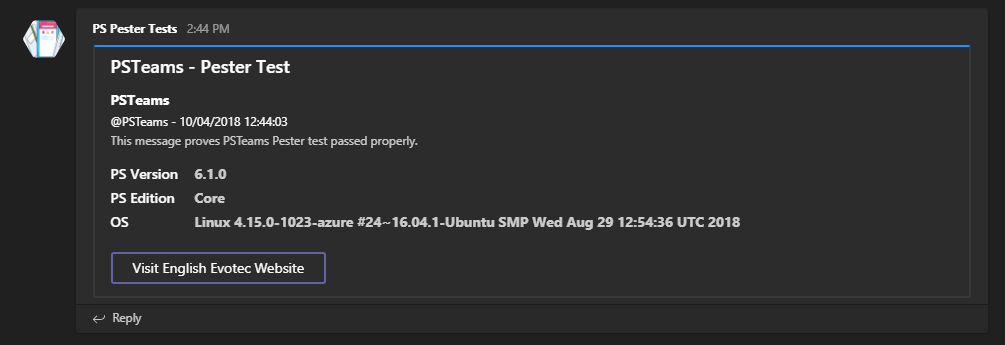
- When executed from Windows
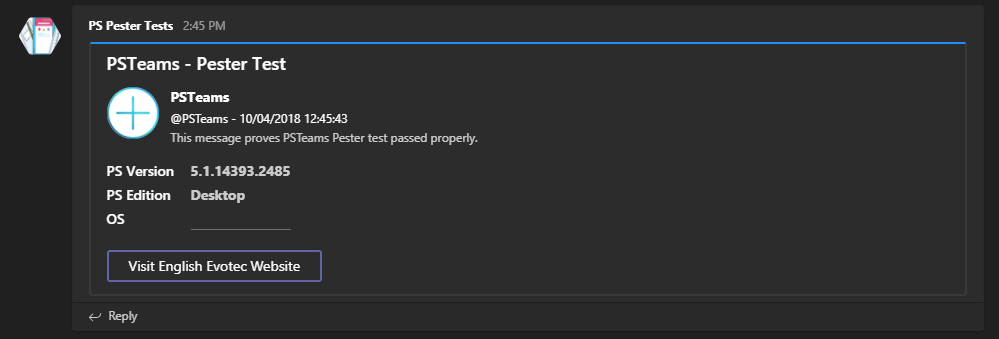
- When executed from MacOS
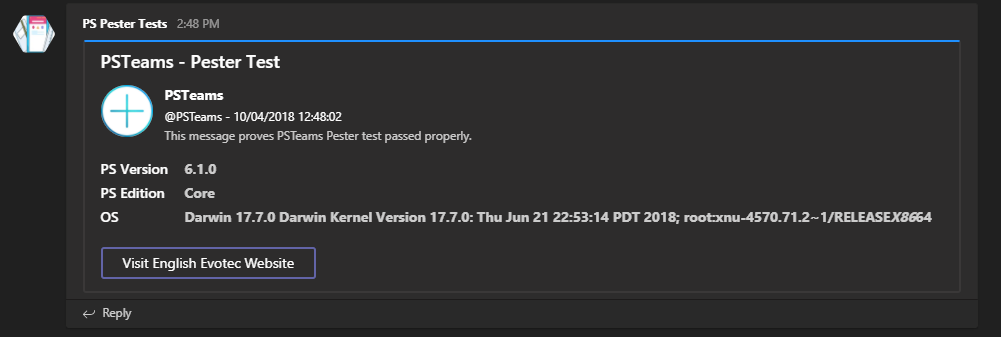
- And this is more advanced option sent by PSWinReporting
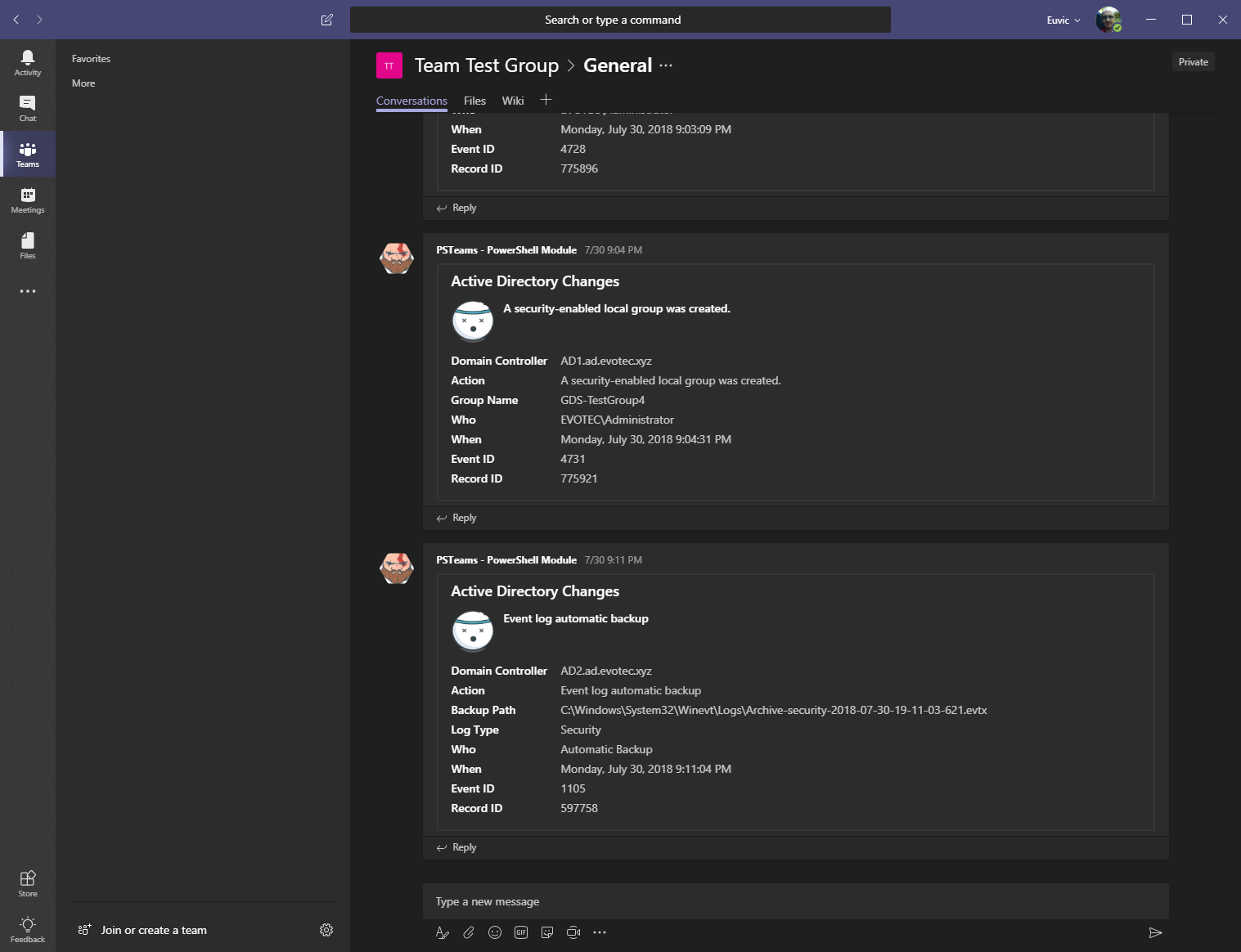
The public adaptive surface is binary-backed through MessageX.PowerShell. Commands such as New-AdaptiveCard, New-AdaptiveContainer, New-AdaptiveColumn, New-AdaptiveColumnSet, New-AdaptiveTable, and the rest of the New-Adaptive* family are cmdlets rather than script functions.
If you prefer the typed surface directly, the New-TeamsAdaptive* cmdlets now expose the richer card and layout options too:
$card = New-TeamsAdaptiveCard `
    -FallbackText 'Build failed' `
    -MinimumHeight 140 `
    -Language 'en' `
    -VerticalContentAlignment center `
    -BackgroundUrl 'https://example.test/background.png' `
    -BackgroundFillMode Cover `
    -AllowImageExpand `
    -FullWidth `
    -Body @(
        New-TeamsAdaptiveContainer `
            -Style Emphasis `
            -Bleed `
            -MinimumHeight 120 `
            -Spacing Medium `
            -Items @(
                New-TeamsAdaptiveColumnSet `
                    -Style Good `
                    -Bleed `
                    -Columns @(
                        New-TeamsAdaptiveColumn -WidthInWeight 2 -Items @(
                            New-TeamsAdaptiveTextBlock -Text 'Pipeline failed' -Weight Bolder -Color Attention
                        )
                        New-TeamsAdaptiveColumn -Width auto -Items @(
                            New-TeamsAdaptiveImage -Url 'https://example.test/status.png' -AltText 'Status'
                        )
                    )
            )
    ) `
    -Actions @(
        New-TeamsAdaptiveOpenUrlAction -Title 'Open build' -Url 'https://example.test/build/42'
        New-TeamsAdaptiveSubmitAction -Title 'Acknowledge'
        New-TeamsAdaptiveShowCardAction -Title 'Details' -Body @(
            New-TeamsAdaptiveTextBlock -Text 'Nested details'
        ) -Actions @(
            New-TeamsAdaptiveSubmitAction -Title 'Confirm'
        )
    )

$message = New-TeamsMessage -Summary 'Build notification' -AdaptiveCard $card
$json = $message | ConvertTo-TeamsJson
Dedicated typed examples live under Examples\MessageCard\MessageCard-Typed.ps1 and Examples\Adaptive Card\AdaptiveCard-TypedActions.ps1.
Typed wrapper-card models are now available as well:
$target = New-TeamsWebhookTarget -Uri 'https://example.test/webhook'
$heroCard = New-TeamsHeroCard -Title 'Seattle Center Monorail' -Images @(
    New-TeamsCardImage -Url 'https://example.test/monorail.jpg' -AlternateText 'Monorail'
) -Buttons @(
    New-CardListButton -Type OpenUrl -Title 'Official website' -Value 'https://example.test'
)

Send-TeamsMessage -HeroCard $heroCard -Target $target

$json = $heroCard | ConvertTo-TeamsJson
$wrapped = $json | Send-TeamsMessageBody -Uri 'https://example.test/webhook' -Wrap -Supress:$false -WhatIf
Typed wrapper-card direct sending currently targets incoming and Workflow webhooks.
Authenticated Microsoft Graph lifecycle, discovery, paging, throttling, and governed writes belong to GraphEssentialsX. MessageX.Teams intentionally does not carry a second Graph client. MessageX will add an optional thin adapter after GraphEssentialsX is available as a consumable package; Workflow delivery remains usable without it.
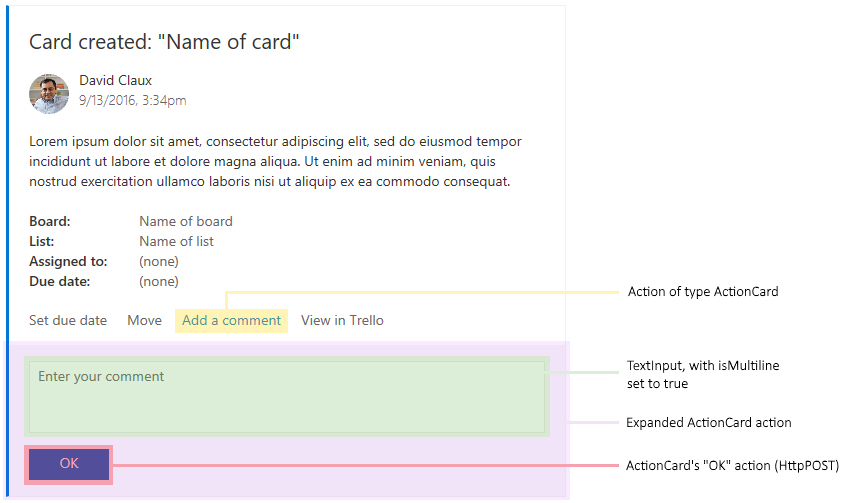
This module uses Message Cards to send information to Teams. You can find out what is supported in Legacy actionable message card reference just in case you would like to help out with development of this module.
Additional links:
- https://docs.microsoft.com/en-us/microsoftteams/platform/concepts/cards/cards-format
- https://docs.microsoft.com/en-us/outlook/actionable-messages/message-card-reference
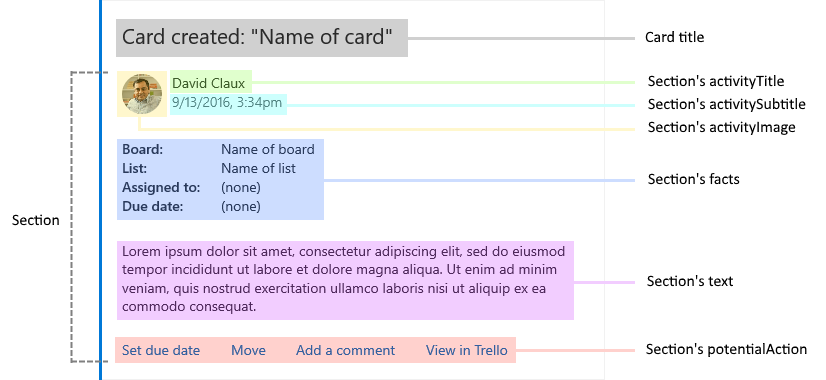
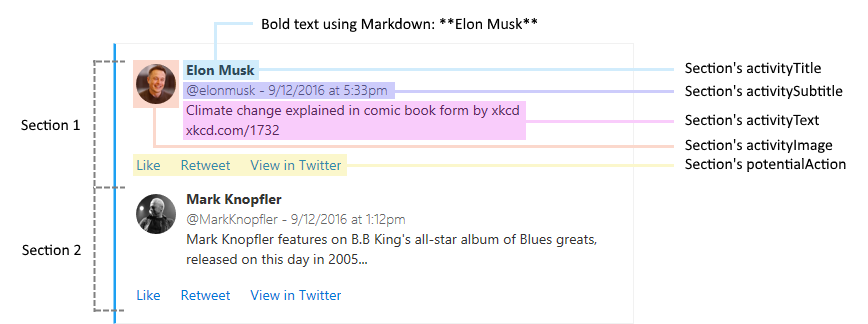
Send-TeamsMessage -Verbose {
    New-TeamsSection -ActivityTitle "**Elon Musk**" -ActivitySubtitle "@elonmusk - 9/12/2016 at 5:33pm" -ActivityImageLink "https://pbs.twimg.com/profile_images/782474226020200448/zDo-gAo0.jpg" -ActivityText "Climate change explained in comic book form by xkcd xkcd.com/1732"
    New-TeamsSection -ActivityTitle "**Mark Knopfler**" -ActivitySubtitle "@MarkKnopfler - 9/12/2016 at 1:12pm" -ActivityImageLink "https://pbs.twimg.com/profile_images/1042367841117384704/YvrqQiBK_400x400.jpg" -ActivityText "Mark Knopfler features on B.B King's all-star album of Blues greats, released on this day in 2005..."
    New-TeamsSection -ActivityTitle "**Elon Musk**" -ActivitySubtitle "@elonmusk - 9/12/2016 at 5:33pm" -ActivityImageLink "https://pbs.twimg.com/profile_images/782474226020200448/zDo-gAo0.jpg" -ActivityText "Climate change explained in comic book form by xkcd xkcd.com/1732"
} -Uri $TeamsID -MessageSummary 'Tweet'