Repository navigation
1. Installation
Foxy Video Scraping: Real-Time Web Scraping, OCR, Data Labeling & Modeling with Export to Databases and Spreadsheets
Foxy is a versatile tool compatible with Linux, Windows, and macOS. It allows real-time web scraping, OCR (Optical Character Recognition), data labeling, and modeling, with export capabilities to databases and spreadsheets.
- Linux: Ubuntu 24.04 LTS
- Windows: Windows 11 Professional
1. Download from this link and unzip the Foxy.zip file.
2. These are the system folders.

Files starting with w correspond to PowerShell commands for Windows. Run w-foxy-install.ps1 using Windows PowerShell.
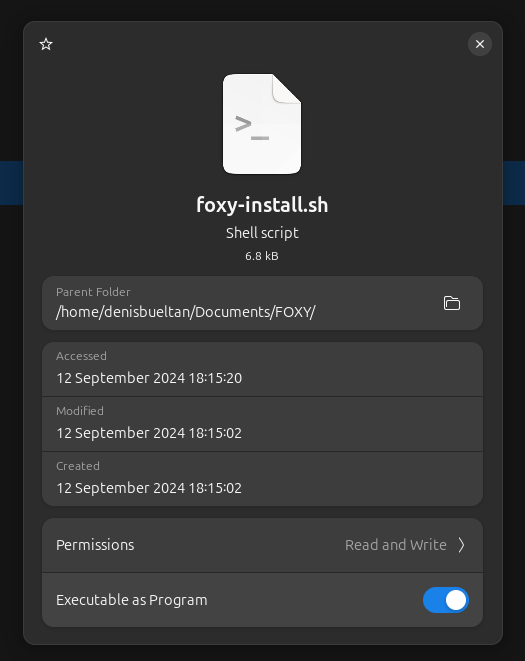
Use foxy-install.sh. Make sure to set executable permissions for the script before running it.
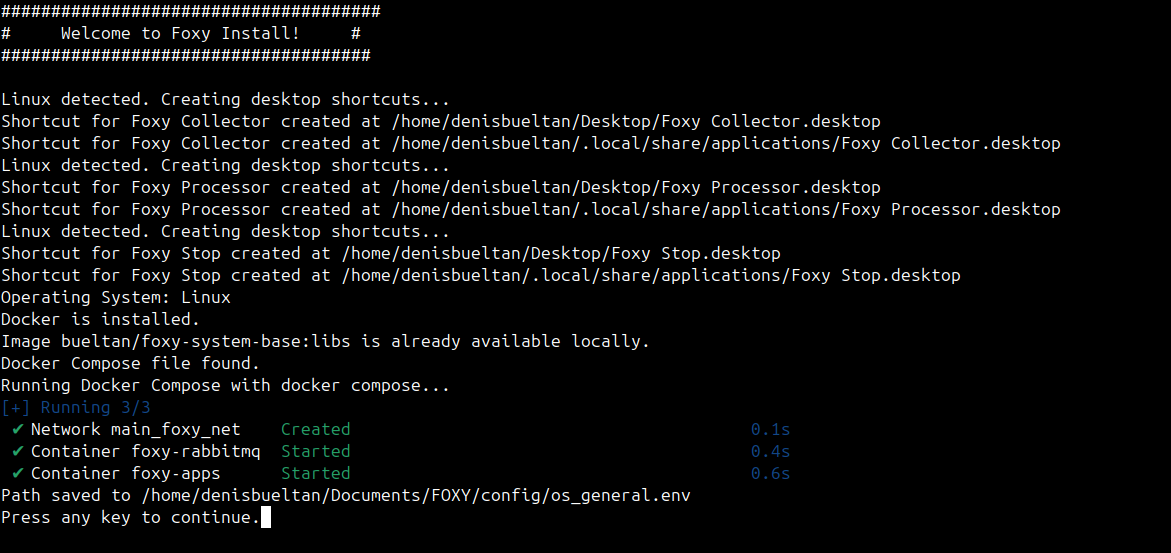
Foxy runs inside Docker containers, ensuring that your main operating system remains untouched while keeping your data and other applications secure.
-
Docker: Ensure that Docker Engine is running.
For more information, visit the Docker Website.
To install Docker on Windows, follow these steps:
-
Download Docker Desktop:
- Visit the Docker Desktop for Windows page and download the installer.
-
Install Docker Desktop:
- Run the installer and follow the instructions. This will enable Hyper-V and WSL 2 (Windows Subsystem for Linux) if they are not already enabled.
-
Enable Hyper-V and WSL 2:
- Open Control Panel → Programs → Turn Windows features on or off.
- Check the boxes for Hyper-V and Virtual Machine Platform.
- Restart your computer.
-
Install WSL 2:
- Open PowerShell as an administrator.
- Run
wsl --installto install WSL and set version 2 as the default. - Restart your computer if necessary.
-
Configure Docker Desktop to Use WSL 2:
- Open Docker Desktop.
- Go to Settings → General and ensure "Use the WSL 2 based engine" is enabled.
- Under Resources → WSL Integration, enable integration with your Linux distributions.
-
Verify the Installation:
- Open a terminal (cmd, PowerShell, or WSL).
- Run
docker --versionto confirm Docker is installed correctly. - Run
docker run hello-worldto test Docker. You should see a welcome message.
To install Docker on macOS, follow these steps:
-
Download Docker Desktop for Mac:
- Visit Docker Desktop for Mac and download the installer.
-
Install Docker Desktop:
- Open the downloaded
.dmgfile and drag the Docker icon to the Applications folder.
- Open the downloaded
-
Open Docker Desktop:
- Go to the Applications folder and double-click Docker to start it.
-
Verify Installation:
- Open a terminal and run
docker --version. - Run
docker run hello-worldto verify the installation.
- Open a terminal and run
To install Docker on Linux, refer to the Docker Linux Install Guide.
-
VLC Media Player:
Required for video processing. Download it from VLC Official Site. -
Image Editors:
- Windows: Paint
- Linux: Pinta
- macOS: Paintbrush