Repository navigation
Exporting
The Export menu turns a document into whatever comes next: a Word file for an editor, a PDF to print, an e-book, a Substack post, or Markdown, Pandoc and LaTeX for other tools. Citations, footnotes, figures, tables, equations and cross-references carry through to every format. This page covers each export, the settings that shape them, and the abstract and keywords.
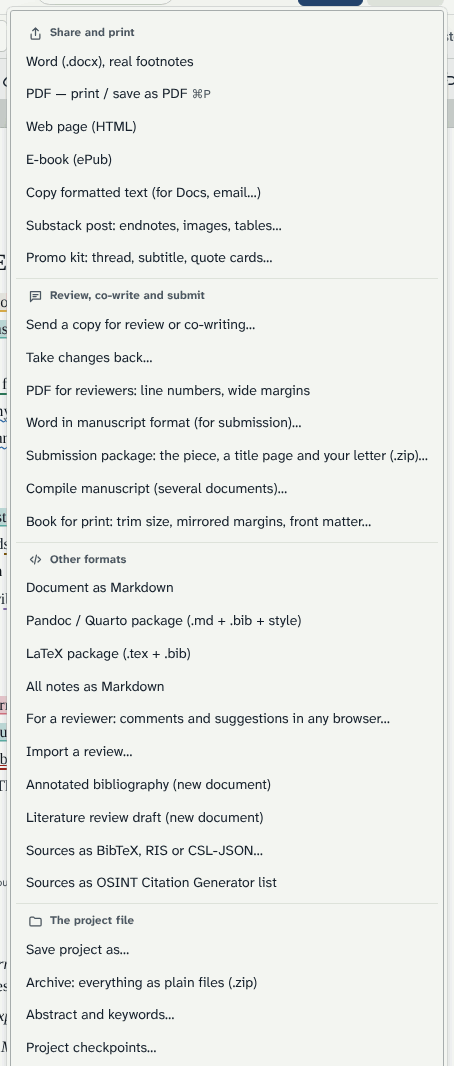
The menu is grouped by what you’re doing:
- Share and print: Word, PDF, web page, e-book, formatted text, Substack, promo kit.
- Review, co-write and submit: send a copy, take changes back, the reviewer PDF, manuscript format, compile, a submission package, a book for print.
- Other formats: Markdown, Pandoc, LaTeX, notes, the annotated bibliography and your sources.
- The project file: save as, the plain-file archive, the abstract and keywords, checkpoints, lock and GitHub backup. See Projects, saving and privacy.
Each export works on the document that’s open. To put several documents together, use Compile manuscript (below).
Page setup in the document bar controls the exported page, separately from how the page looks on screen (that’s in Settings):
- the title block (author, date, and a subtitle, course or publication line), with a button for the abstract and keywords;
- font (book serif, Times or sans-serif), size (11, 12 or 13) and line spacing (single, 1.5 or double);
- paper for PDFs: US Letter or A4;
- the bibliography: only sources cited, every source in the project, or none, and whether to group it by source type;
- the document’s word target, and whether it’s front matter, a chapter or back matter in a manuscript;
- PDF notes: footnotes at the foot of each page, with running heads (book style), or endnotes collected before the bibliography;
- Add an index (PDF, Word, ePub and web page);
- This is a video script, for run time and timecodes;
- what happens to margin notes: Word comments in Word files, a separate Marginalia page at the end, or left out;
- indented first lines and page numbers in PDFs.
Settings controls only what you see while you write, so a double-spaced manuscript doesn’t have to read double-spaced on screen.
Word files have real footnotes that Word numbers and lays out itself, a proper bibliography, figures with captions, tables, and headings Word recognizes as headings (so its navigation pane and table of contents work).
- Suggestions you’ve made in Suggest mode go in as tracked changes, and margin notes as Word comments.
- Equations go in as Word equations, editable in Word’s equation editor; numbered ones keep their numbers.
- Cross-references are links to the caption, equation or heading.
- An index, if you add one, goes in as Word index fields that build when Word opens the file.
Coming back the other way, Import Word (Docs tab) brings in a .docx with its footnotes, images, tables and equations, and turns an editor’s tracked changes into suggestions and their comments into margin notes on the same words.
PDF — print / save as PDF (Ctrl+P) lays the document out as pages, with footnotes at the foot of each page, then opens your browser’s print window. Choose Save as PDF as the destination. The PDF has real, selectable text. Book-style PDFs have running heads, and a list of figures or an index, if you add them, gets real page numbers. Page setup can collect the notes as endnotes instead.
One self-contained .html file, with notes as links, figures inside the file, and equations drawn sharply at any size. It’s a good format for sending a draft to someone who doesn’t have Word, or for publishing.
Like every web page Anabasis saves (the reviewer’s page, dashboards, a comparison of drafts, the fact-check sheet), it carries its own content security policy: it runs only the scripts written into it and loads nothing from the internet, so it’s safe to open and to pass on.
An ePub with tappable notes, a table of contents from your headings, figures, and equations that scale. It opens in Apple Books, Kobo, Calibre and most readers. (Kindle reads ePub when sent through Send to Kindle.)
Copies the document to the clipboard with its formatting and notes, to paste into Google Docs, an email or a content management system.
Copies the document ready to paste into Substack’s editor. Notes become a numbered Notes section with links, figures stay images, and tables are drawn as images, because Substack has no tables. Equations come as TeX in dollars, to paste into Substack’s equation block. The .zip package has the post and every image, in case something doesn’t paste.
Drafts what goes around a published piece: a numbered thread for X, Bluesky, Threads, Mastodon or LinkedIn with a counter on every post, a Substack subtitle and search description, and quote cards (square, wide or portrait) as PNG images.
Send a copy for review or co-writing… saves a copy of the whole project as a file, with a note for your collaborator. They open it in Anabasis (the web page or the downloaded file; no account), work as usual, save, and send the file back. Take changes back… compares their file with what you sent and what you’ve written since: their edits come in as suggestions under their name, ready to accept or reject, and their notes, sources, margin notes and images are added. Where you both changed the same paragraph, you see the two side by side and choose. Everything passes through files you send yourself; nothing goes through a server.
When a reader doesn’t have Anabasis, and you don’t want them to need it, use Export → For a reviewer…. It makes one web page of the open document, with a note to the reader if you like (“Thanks for reading this. I’m most worried about the second section.”). Send the file however you like.
The reviewer opens it in any browser, on any computer, with nothing to install. They select words and choose Comment, or Suggest a change to replace or delete them (or click a spot to suggest an insertion). Their notes are listed beside the text, and they survive closing the page, so they can read in more than one sitting. Save my review downloads a small file to send back to you.
Export → Import a review… takes that file:
- Comments go in the margin under the reviewer’s name.
- Changes go in as suggestions by the reviewer, to accept or reject as in Suggest mode.
- Each note is found by its words and the words around them, so it lands in the right place even after you’ve kept writing.
- A draft is saved before anything changes, so you can always go back.
- Any note whose words have gone from the document is listed, with what it said, so nothing is lost.
Numbers every line (starting again on each page), widens the outer margin for handwritten notes, and marks each page “Review copy” with the date, so comments can say “p. 4, line 12”.
Sets what agents and editors expect: Times New Roman 12, double-spaced, one-inch margins, indented paragraphs, # for section breaks, “Surname / Short title / page” at the top of each page after the first, and a first page with your name, contact details, rounded word count, title and byline. Footnotes stay; margin notes are left out. Your contact details are kept in this browser’s settings, never in the project file.
Compile manuscript… joins documents in binder order into one Word file, Word in manuscript format, PDF, reviewer PDF, Markdown, ePub, HTML or a new document in the project. Choose which documents to include, the manuscript’s title and its citation style. Notes number continuously, short forms carry across chapters, and figures and cross-references are renumbered for the whole book, so a chapter’s Figure 1 becomes whatever it is in the manuscript.
Export → Submission package… (or Build a package… in Submissions) builds everything an outlet asks for in one .zip:
- The piece as Word. For blind review, tick Anonymize: your name in the text becomes “[Author]”, and comments, suggestions, the title block and your name in the file’s properties are left out. The summary says how many times your name appears.
- A title page, as a separate file: the title, your name, affiliation and contact details, the word count without notes and references, and the abstract and keywords if the document has them.
- Your letter: a cover letter, pitch or query, and for a book proposal or query a synopsis or proposal. Choose a document you’ve written, or New … from a template; the template’s [Title], [word count], [Name] and [Journal] are filled in for you.
- A read-me listing what’s in the package.
Choose the kind (journal article, magazine piece or op-ed, book proposal, query to an agent) and the right pieces are ticked. The package goes on your Submissions list as planned, so you can mark it sent when it goes.
Export → Book for print… lays out the whole project as a print-ready PDF for KDP, IngramSpark or a printer:
- Trim size: 5 × 8, 5.25 × 8, 5.5 × 8.5, 6 × 9, 6.14 × 9.21, 7 × 10 or 8.5 × 11 in, A5, Demy or Royal, with optional 0.125 in bleed.
- Mirrored margins with a wider inside margin for the gutter. The summary estimates the page count and says the inside margin KDP asks for at that length.
- Chapters open on a right-hand page, with “Chapter 1” above the title. Documents marked front matter come first and back matter last.
- Running heads with the book’s title on left-hand pages and the chapter’s on right-hand pages, left off each chapter’s first page.
- Page numbers in roman numerals through the front matter, starting again at 1 with the first chapter.
- Made for you: a half title, a title page, a copyright page (with publisher, ISBN, edition and any notice) and a contents page with page numbers.
- Footnotes at the foot of the page, the bibliography at the end, and no stranded first or last lines.
Choose the font, size and leading, and print to PDF from the browser’s dialog. The settings are kept with the project.
Insert → Lists has a Contents, a List of figures, a List of tables and a List of equations. Put one where the cursor is and it fills itself in as you write: headings by level, or each figure, table or numbered equation with its caption. A click goes to the entry. In web pages and e-books they become links, PDFs add the page numbers, and Word gets a Contents field that fills in when the file opens.
Page setup → Number paragraphs numbers each paragraph, in the page and in every export (as [12] in Word and Markdown), for policy papers, legal writing and reviews that cite “¶ 12”. Number lines numbers every line in the page, in PDF and in Word, where numbering starts again on each page.
The document as Markdown, with [^1] footnotes that Obsidian and most Markdown tools understand, and equations as $…$ and $$…$$.
The document as Markdown with citations as [@key, p. 12], its bibliography (.bib) and its citation style (.csl), ready for pandoc --citeproc or Quarto. Use it when the writing will finish in a journal’s own pipeline.
A main.tex with BibLaTeX \autocite commands, \ref and \label for cross-references, equation environments for numbered equations, and the .bib file, ready for Overleaf or latexmk -xelatex.
- All notes as Markdown writes every note to one Markdown file.
- Annotated bibliography makes a new document from each source’s Annotation field.
- Literature review draft makes a new document from the literature grid: a section for each theme, with each source’s summary cited.
- Sources as BibTeX, RIS or CSL-JSON… for Zotero, EndNote, Mendeley or JabRef; all sources, or only those cited in the open document.
- Sources as OSINT Citation Generator list, to audit them in that tool.
Abstract and keywords… (Export menu, under The project file, or the button at the top of Page setup) builds an abstract a part at a time, then lets you read it as a whole. It’s kept with the document and, while Include is on, goes under the title in every export.
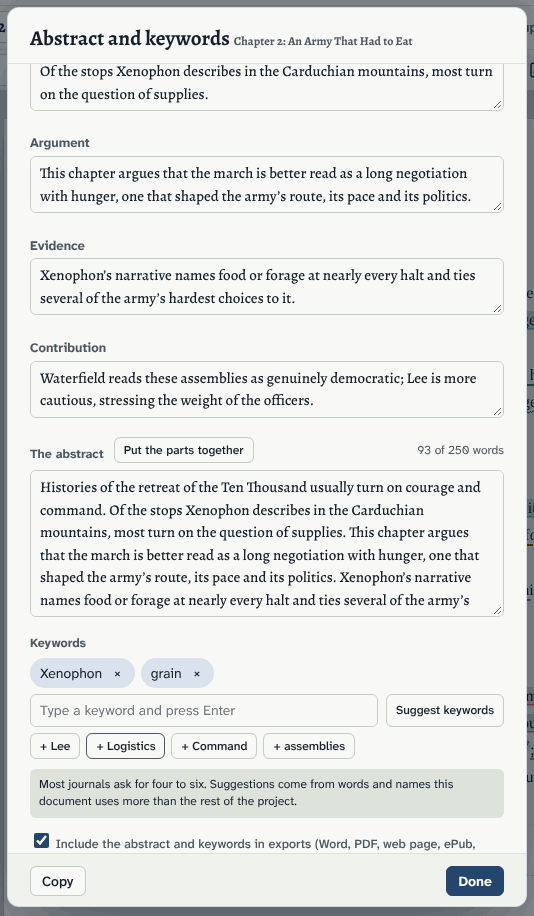
- Choose the kind of piece. Each has its own parts:
- Research article: background, aim, method, findings, conclusion.
- Essay or chapter: context, question, argument, evidence, contribution.
- Report, brief or white paper: purpose, scope, findings, recommendations.
- Write it whole: no parts, one box.
- Write a sentence or two for each part. Each box says what the part is for.
- Or choose Suggest from the draft, which fills the empty parts with sentences you’ve already written that sound like each part: a sentence that begins “This chapter argues” for the argument, one with “drawing on” or “archives” for the method. They’re your own words, to rewrite as a summary; Anabasis doesn’t write anything for you.
- The abstract shows the parts put together. Edit it there as a whole once the parts are right; Put the parts together rebuilds it from the parts.
- Set the word limit (100 to 350 words, or none). The count turns red when you’re over.
Type a keyword and press Enter, or choose Suggest keywords: the names and terms this document uses more than the rest of the project, so a chapter on supply gets grain and Trapezus, not army. Click a suggestion to add it. Most journals ask for four to six.
With Include on, the abstract and keywords go under the title in Word (as their own paragraphs), PDF, web page, ePub and Markdown, in the Pandoc package’s front matter, and in LaTeX’s abstract environment. Copy copies them to paste into a journal’s submission form.
When people you interviewed or write about asked not to be named, keep their real names in your project and let the exports change them.
- In Names & spellings (Docs tab, or Outline → Names & spellings → Manage…), add the person with their real name.
- Give them a Pseudonym, and list Other forms to replace: a surname on its own, a first name, a nickname.
- Make sure Use pseudonyms in exports is ticked.
Every export (Word, PDF, web page, e-book, Markdown, Pandoc, LaTeX, Substack, copy formatted text) then uses the pseudonym for every form of the name, including in footnotes, captions and alt text. The draft, your notes and the project file keep the real names.
Record each person’s consent in the same row: given, asked and not yet answered, declined, withdrawn, or not needed for a public figure. Anyone named in a draft whose consent is pending, declined or withdrawn is flagged in the Outline, so it’s checked before the piece goes out.
A pseudonym replaces a name, not the details around it. Someone can still be recognized from their job, town or story; read the draft for those too.
Exporting to a web page, an e-book or Word reminds you if the Accessibility check found anything: figures without alt text, skipped heading levels, tables without a header row, or vague link text. See Checking the draft.
- Send Word to editors, PDF to readers. Word keeps your notes, suggestions and comments editable; PDF looks the same everywhere.
- Save a draft before you send. Drafts in the document bar keeps a fixed copy named for where it went, so you can compare what comes back.
- Keep the archive for the long term. Formats change; plain Markdown and BibTeX in a zip will still open in twenty years.