Repository navigation
Languages and Translation
Anabasis writes in 27 languages, and it has the tools a translator needs: notes that keep the original beside your translation, a glossary that checks your renderings as you write, standard transliteration tables, a palette of special characters, and a workspace for translating a passage segment by segment.
Page setup → Language sets the language of a document. Everything that depends on language follows it:
- Spell-checking in the browser, and Proofread.
- Quotation marks: “English”, „Deutsch“, « français », «русский», 「日本語」. Smart quotes as you type and Proofread’s quotation checks use the document’s marks.
- Citation terms. Citations and the bibliography are formatted with the language’s CSL locale, so an editor is “Hrsg.” in German and a translator “trad.” in French. The style doesn’t change; its words do.
- Direction. Arabic, Hebrew, Persian and Urdu run right to left, in the page and in every export.
- Word counts. Chinese and Japanese count characters, as their publishers do.
- Reading aloud uses a voice for the language when your computer has one.
- Exports. Word files, web pages and e-books are marked with the language, so Word’s own spell-checker and screen readers get it right.
Select a quotation or a name and choose Mark → Language of this passage…. The passage is spell-checked and read aloud in its own language, runs in its own direction, and keeps its language in Word, web and e-book exports. Choose Same as the document to clear it.
Select text and choose Mark → Transliterate… (or Transliterate in the command search). Pick a system, check the result, and Replace the selection or copy it.
| Language | Systems |
|---|---|
| Russian | ALA-LC (Library of Congress), BGN/PCGN, or simple (no diacritics) |
| Ukrainian | National (2010), ALA-LC |
| Bulgarian | The official system (2009) |
| Serbian | Cyrillic to Serbian Latin |
| Greek, modern | ELOT 743 |
| Greek, ancient | ALA-LC, with rough breathings as h and long vowels marked |
| Arabic | ALA-LC, for the letters as written (short vowels that aren’t written can’t be guessed) |
Anabasis picks a system from the script it sees, or the one you’ve recorded in the research journal, and remembers the one you last chose.
Special characters (⌘/Ctrl Alt O, or Special characters in the command search) opens a palette that stays open while you work. Its tabs hold accented Latin letters, Greek (with a builder for breathings, accents and iota subscripts), Cyrillic, transliteration marks such as ā ḥ ṣ ʿ ʾ, punctuation, and for scientific and academic writing: math (± ≤ ∑ ∫ ∂ ∇), logic and sets (∀ ∃ ∈ ⊆ ℝ), superscripts and subscripts (² ₂), units and science (µ Å ℃ ⇌ ↑) and scholarly marks (§ ¶ † ‡ ⁂, and thin, hair and figure spaces, shown with a visible stand-in). Click a character to insert it where you were typing, in the page or in any field. Capitals switches the case.
Type a name in the search box at the top, such as integral, subscript 2, therefore or angstrom, to find a character in any tab; Enter inserts the first match.
A note of kind Translation has fields for:
- the original, and its language;
- its transliteration, if you want it;
- your translation, in the note’s text;
- who translated it: you, or another translator by name.
When you insert a translation note, it goes in the way you’ve chosen in the research journal:
- your translation in the text, the original in the note (the default);
- your translation in the text, the original in brackets after it;
- the original in the text, your translation in the note;
- your translation alone.
The note adds “My translation.” or “Trans. Name.” for you, after the citation.
Research → Journal → Translation records the decisions a translation rests on:
- the languages you translate from and into, and the transliteration system you follow;
- how translation notes are inserted, and whether to say “My translation.”;
- a glossary: each term in the original, how you render it, renderings you’ve decided against, and a note on why.
The glossary is checked as you write. Outline → Glossary lists every place where a term appears in a rendering you’ve decided against, in reading order; click one to go there, or Replace it with your rendering. Matching ignores accents and breathings, so ἐπιμελητής is found as ἐπιμελητὴς too.
Note on translation writes a front-matter note from what you’ve recorded: the languages, whose translations they are, the transliteration system, and the glossary’s main decisions. Glossary makes a document of the glossary; CSV saves it for a spreadsheet.
For anything longer than a quotation, use Research desk → Translate.
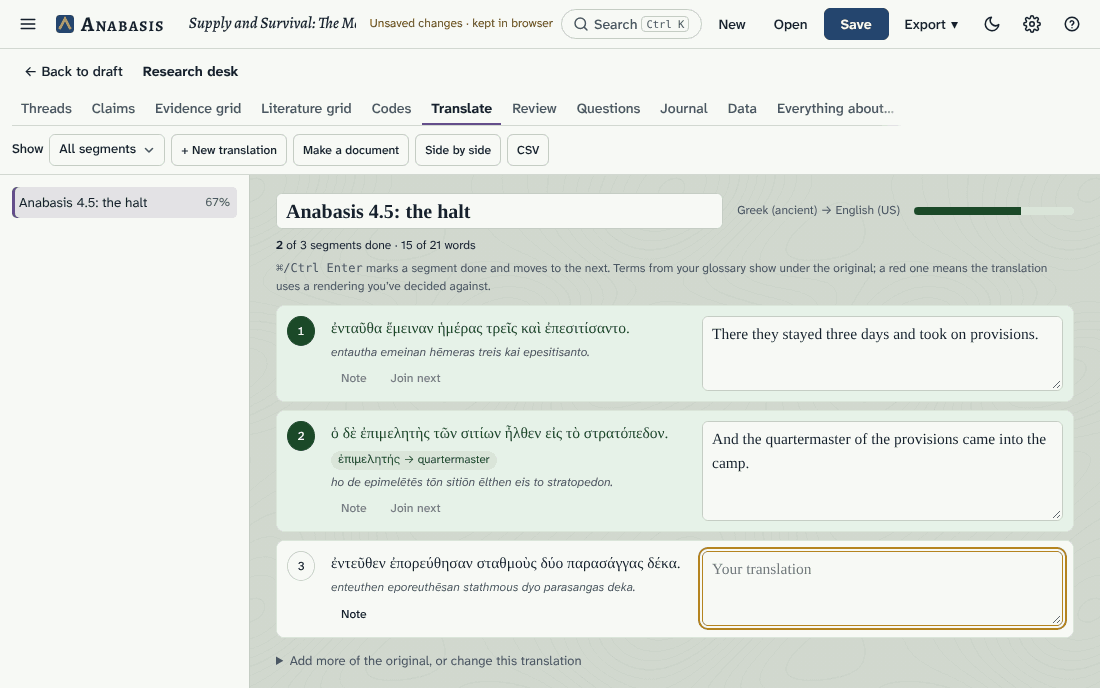
- New translation: give it a title, choose the languages and the source it comes from, paste the original, and split it into paragraphs or sentences.
- Each segment shows the original, its transliteration, and the glossary terms it contains with the rendering you decided on. Type your translation beside it.
- ⌘/Ctrl Enter marks a segment done and moves to the next. A segment you’ve started is a draft until you mark it done.
- As you type, a glossary term turns green when your translation uses your rendering and red when it uses one you’ve decided against.
The side list shows each translation and how much is done. Above the segments you can filter to what’s left, see the words and segments done, Join next to merge a segment with the one after it, or make a Note from a segment: a translation note with the original, its language and your translation, cited to the source.
When you’re finished:
- Make a document: your translation as a new document, with untranslated segments highlighted in the original so nothing is missed.
- Side by side: a two-column table, the original (marked with its language) beside the translation.
- CSV: the segments, for a spreadsheet or another tool.
Translations are kept in the project file.