Here you can find a code for a lambda function that finds the latest file from a folder, moves it to a new folder and starts two workflows inside of AWS Glue.
For the lambda function to work you need to do the proper configurations. First you need to create or find an existing role inside of AWS IAM with the areas of AWS that you need access to change. I will show here step by step of how I created my role and what permissions it has.
To create a role go to the area "roles" inside of IAM and select "Create":

Select the first option in the "trusted entity type" area:

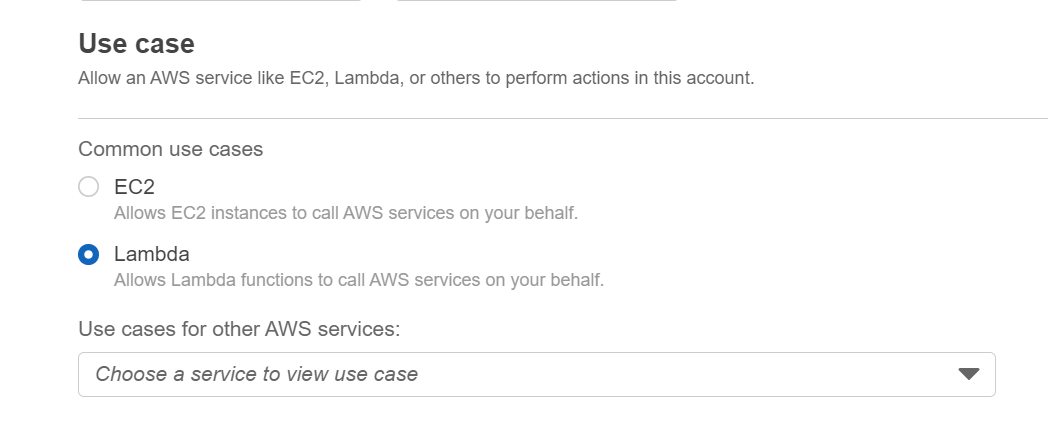
Select Lambda as an option for the area "use case":
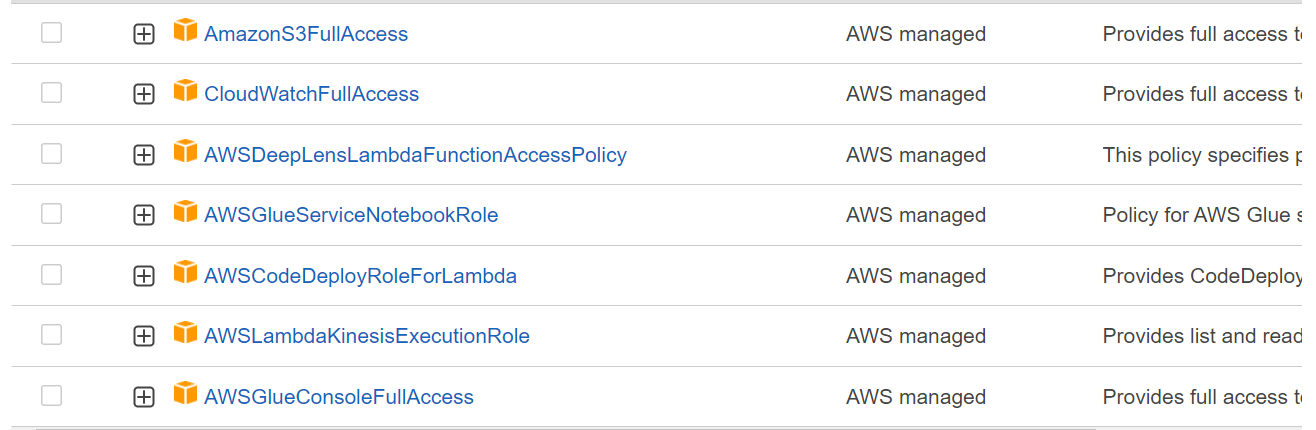
After that you will need to select the permissions you need for the project. Just select them all and click next in the end of the page. In this case we are going to use these permissions:
In the end create a name for you role, review everything and click create role.
The role is ready so now you need to create the function.
Go to Lambda in AWS and click create function. After that select "author from scratch" in the first area and also create the name of your function:

Select the language that you are going to write your function. In this case Pyhton 3.9:

For permissions you can search for the role that you created previously:

Go to your function and add a trigger so it knows when to start the function. My function was created to be triggered when a file gets posted in a the "OLDEST FOLDER" as you can see on the code. So lets go to the step by step.
To create a trigger select S3 as a source:

Put the name of the bucket that you are using for the project and add the prefix or suffix of the folder that you want. I added a prefix "OLDEST FOLDER/" for this project:

Don't forget to a acknowledge the following message and click add:

Add the code in this area of your function and click test:

When you click on test it will open a pop-up with the test configurations. Add a name for your test and select if you want to share the test with others or not:

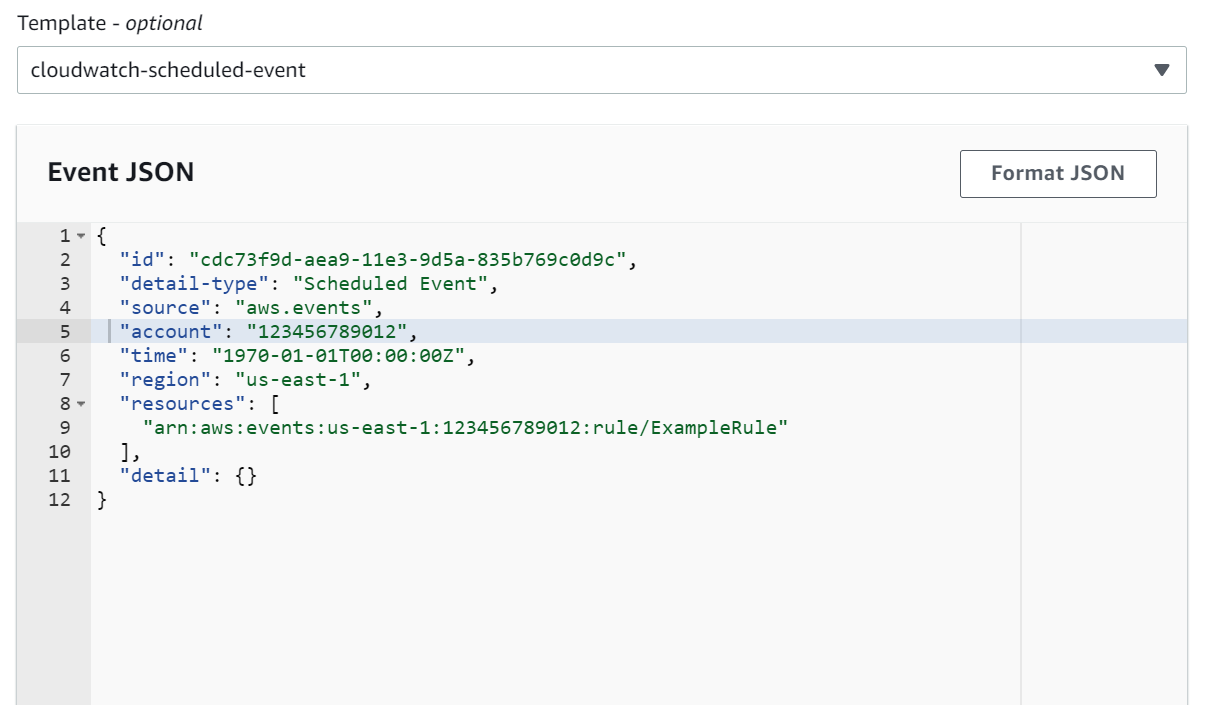
For the test template I used cloudwatch:
You can check the results of your test in the execution results tab:

Click deploy if you have the approval to do so and all done!!