Automated Analysis
#Automated Analysis Organization All automated analysis is run through the auto_anlys_gui application, which handles multiple aspects of the automated analysis, including post processing, writing logs, and displaying/suggesting training contingency information.
#How to Use auto_anlys_gui
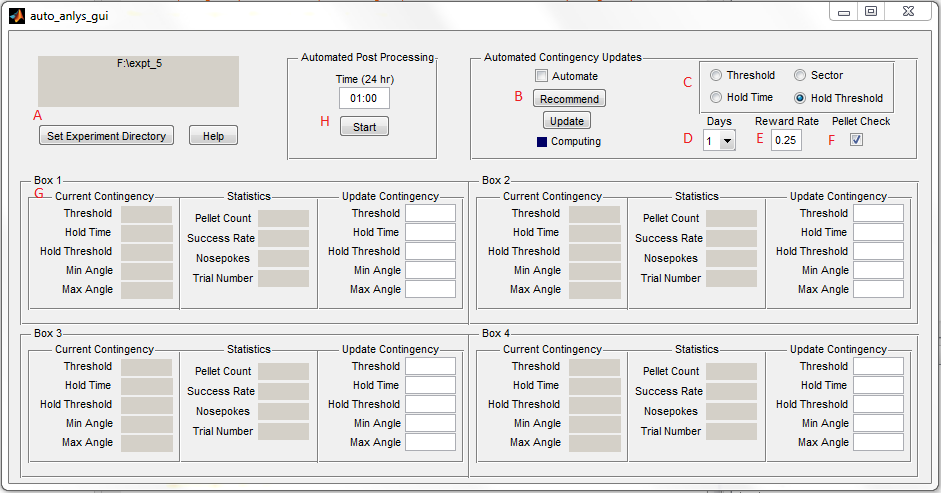 A: First select an experiment directory. Data to be analyzed should be in a subdirectory called 'data' (See Core Analysis for more information about expected file organization).
B: Once an experiment directory has been selected, and provided there are folders in the directory containing analyzed data (See Core Analysis for what this constitutes), the recommend button will retrieve information about mice performance and display them on the panels G for all 4 boxes if available. It will also recommend contingency updates based on the parameters specified by C, E, F. The blue computing flag is to indicate when the GUI is busy retrieving this information.
Currently, the GUI supports automatic contingency updates. This is what the automate checkbox and "Update" button do. However, since automatic contingency updates are not supported by the LabVIEW software at this time, the GUI simply just writes text files to the experiment directory and stores old contingency writings to a folder called ArchivedContingencies in the experiment directory.
C :
A: First select an experiment directory. Data to be analyzed should be in a subdirectory called 'data' (See Core Analysis for more information about expected file organization).
B: Once an experiment directory has been selected, and provided there are folders in the directory containing analyzed data (See Core Analysis for what this constitutes), the recommend button will retrieve information about mice performance and display them on the panels G for all 4 boxes if available. It will also recommend contingency updates based on the parameters specified by C, E, F. The blue computing flag is to indicate when the GUI is busy retrieving this information.
Currently, the GUI supports automatic contingency updates. This is what the automate checkbox and "Update" button do. However, since automatic contingency updates are not supported by the LabVIEW software at this time, the GUI simply just writes text files to the experiment directory and stores old contingency writings to a folder called ArchivedContingencies in the experiment directory.
C :