Java program with GUI for user to copy & paste or directly type text and get its word frequencies This program was written in 2017 and is being uploaded in 2021 for my personal records
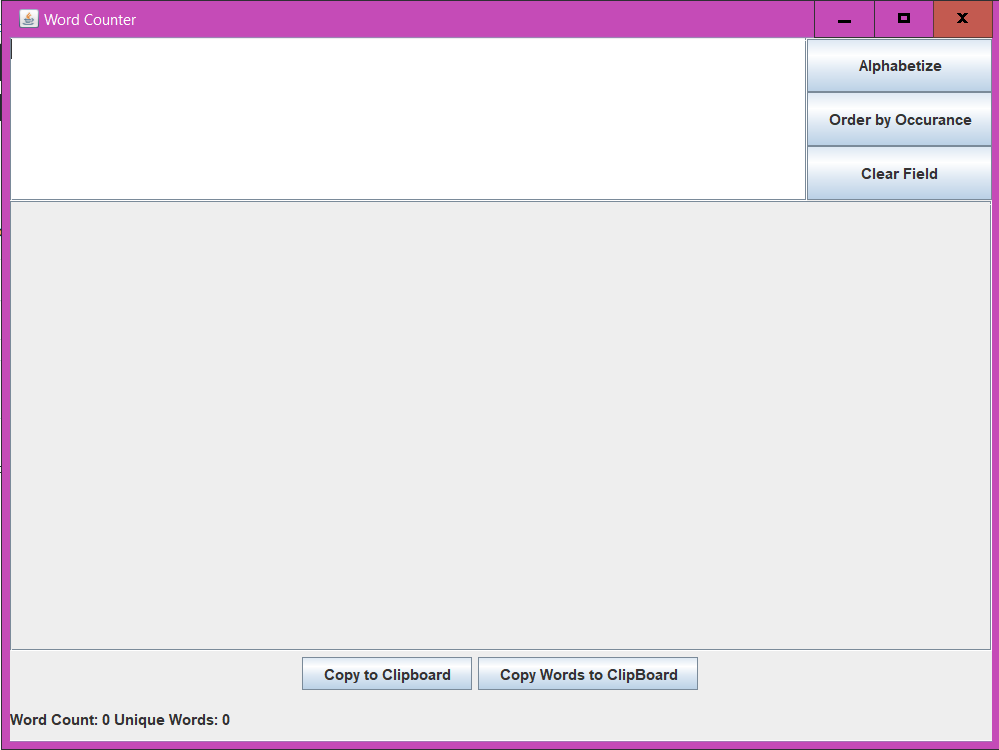 Image Description: Screenshot of the GUI on initial startup. Text Input and Output Field are blank. Total and Unique word counters both show 0 in the bottom left-hand corner.
- Alphabetized list of words and their frequencies
- List of words and their frequencies sorted by frequency (and then alphabetically)
- Alphabetized list of words (no freqency)
- List of words sorted by frequency (no frequency)
- Overall word count
- Unique word count
Alphabetize - Orders words alphabetically and prints them & their frequencies to the Output Field.
Order by Occurance - Orders words by # of occurances, organizing ties alphabetically, and prints them & their frequencies to the Output Field. Ordering by occurance sorts the numbers alphabetically (ie like: 1,10,11,12,2,3,4,5,6,7,8,9) instead of by value.
Clear Field - Clears the Text Input field.
Copy to Clipboard - Copies text in the format of "word1: freq1; word2: freq2; [...]; wordN: freqN;" to your clipboard so you can paste elsewhere. Order is as shown in the Output Field.
Copy Words to ClipBoard - Copies text in the format of "word1 word2 [...] wordN" to your clipboard so you can paste elsewhere. Order is as shown in the Output Field.
Text Input - Top Left. Can right click to paste or manually type in text. Right clicking in here brings up a menu to cut, copy, paste, and select all. Undo on the right click menu functions for 'cut'.
Text Processing Buttons - Top Right. All 3 buttons are defined above (see "Buttons in Interface").
Output Field - Middle. Output text is printed here upon pressing Alphabetize or Order by Occurance. No direct interactive functionality enabled.
Copy Options Buttons - Lower Middle. Allows copying of text printed in Output Field.
Word Count Total & Unique - Lower Left. Displays the number of unique words and number of total words represented in the Output Field.
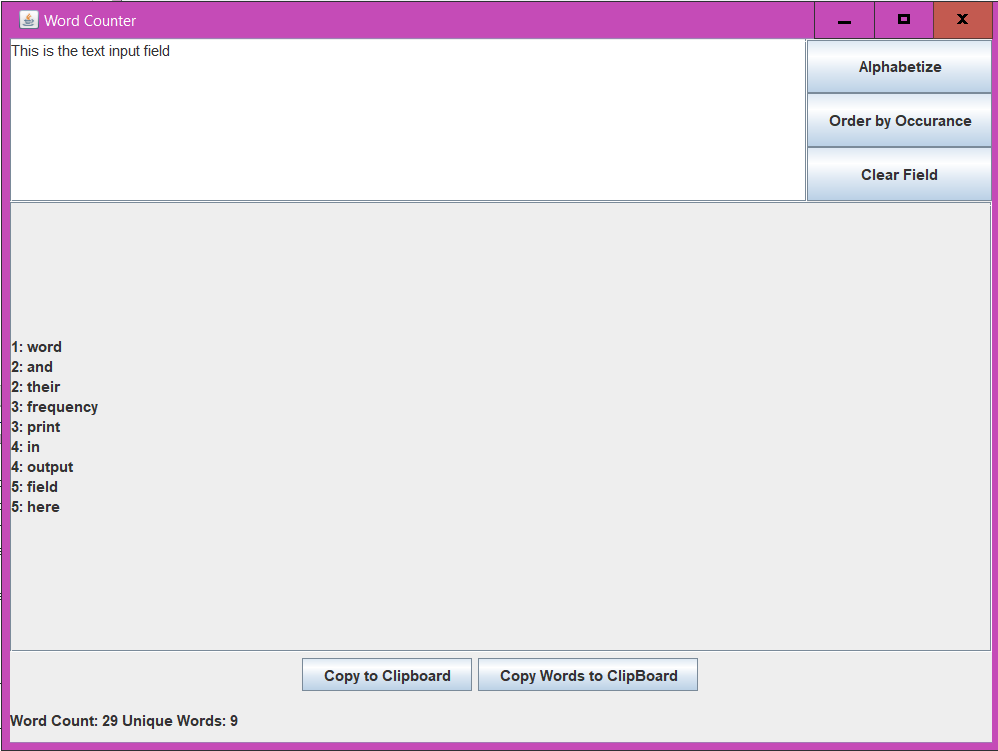 Image Description: Interface with Input Text and Output Field labeled in-program. Input Text reads "This is the text input field", Output Field reads " words and their frequency print in output field here". Officially, Output Field exactly says "1: words; 2: and; 2: their; 3: frequency; 3: print; 4: in; 4: output; 5: field; 5: here; ". Word Count is 29, Unique Words is 9.
- Not optimized to handle large amounts of input text.
- Only handles A-Z;a-z characters.
- Characters outside of this range will be deleted.
- If multiple spaces happen in a row after the aforementioned deletion, each extra one will be counted as a word
- Accented letters will be ignored (ie "çava" will be recognized as "ava").
- Will not automatically categorized misspelled words with the properly spelled word.
- Ordering by frequencies sorts frequency integers alphabetically instead of by value.
- And probably more. I wrote this during a 3-hr lab period as a tool for my group to use in a psych research class when access to our original tool got denied.
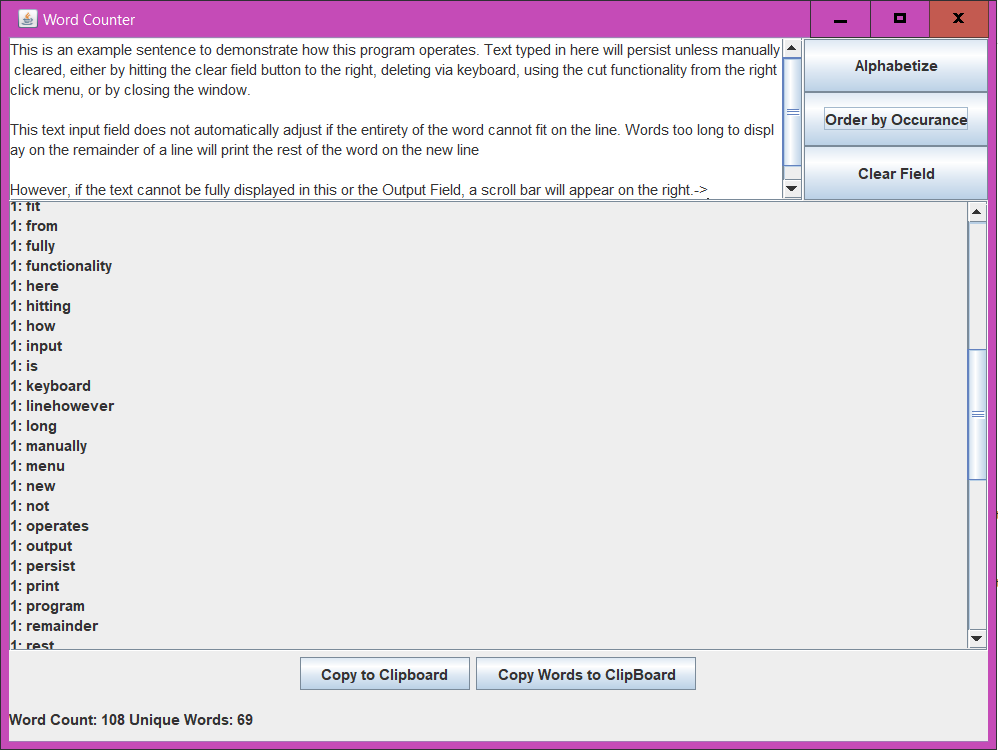 Image Description: Screenshot of the GUI with input text saying :
"This is an example sentence to demonstrate how this program operates. Text typed in here will persist unless manually cleared, either by hitting the clear field button to the right, deleting via keyboard, using the cut functionality from the right click menu, or by closing the window.
Image Description: Screenshot of the GUI with input text saying :
"This is an example sentence to demonstrate how this program operates. Text typed in here will persist unless manually cleared, either by hitting the clear field button to the right, deleting via keyboard, using the cut functionality from the right click menu, or by closing the window.
"This text input field does not automatically adjust if the entirety of the word cannot fit on the line. Words too long to display on the remainder of a line will print the rest of the word on the new line
"However, if the text cannot be fully displayed in this or the Output Field, a scroll bar will appear on the right.->" Text was processed using the order by occurance button and is displayed in the output box, which was scrolled down a bit to demonstrate the scroll functionality. Word Count is 108 and Unique Words is 69. Full Output Field reads "15: the; 1: adjust; 1: an; 1: appear; 1: automatically; 1: bar; 1: be; 1: button; 1: clear; 1: cleared; 1: click; 1: closing; 1: cut; 1: deleting; 1: demonstrate; 1: display; 1: displayed; 1: does; 1: either; 1: entirety; 1: example; 1: fit; 1: from; 1: fully; 1: functionality; 1: here; 1: hitting; 1: how; 1: input; 1: is; 1: keyboard; 1: linehowever; 1: long; 1: manually; 1: menu; 1: new; 1: not; 1: operates; 1: output; 1: persist; 1: print; 1: program; 1: remainder; 1: rest; 1: scroll; 1: sentence; 1: too; 1: typed; 1: unless; 1: using; 1: via; 1: windowthis; 1: words; 2: a; 2: by; 2: cannot; 2: if; 2: in; 2: line; 2: or; 2: word; 3: field; 3: of; 3: right; 3: text; 3: this; 3: to; 3: will; 4: on; "(as gathered by the 'Copy to Clipboard' button. Each "word: frequency" pairing is on a new line in the image)
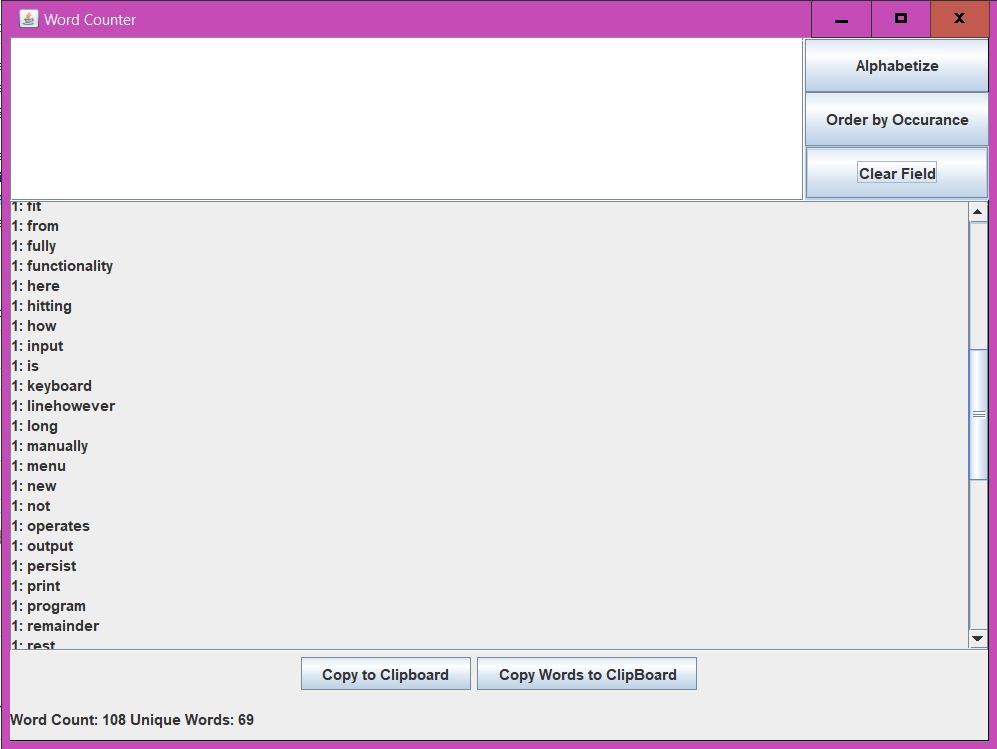 Image Description: Screenshot of the GUI, same as above but this time after the "Clear Field" button was pressed. Input text box is clear but output display and word counts remain the same.
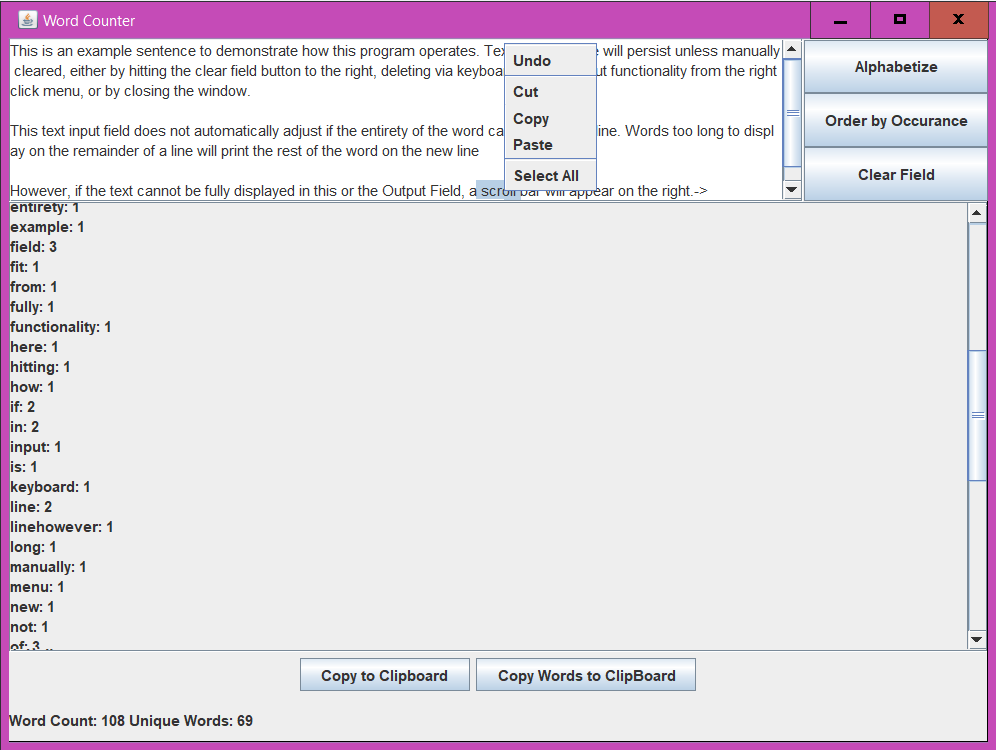 Image Description: Screenshot of the GUI displaying the input text and output text with the same input text as earlier. This time, the Output Field displays the words sorted alphabetically and the right click menu is displayed as if it was clicked in the Text Input. All right click menu buttons are enabled. Full Output Field reads "a: 2; adjust: 1; an: 1; appear: 1; automatically: 1; bar: 1; be: 1; button: 1; by: 2; cannot: 2; clear: 1; cleared: 1; click: 1; closing: 1; cut: 1; deleting: 1; demonstrate: 1; display: 1; displayed: 1; does: 1; either: 1; entirety: 1; example: 1; field: 3; fit: 1; from: 1; fully: 1; functionality: 1; here: 1; hitting: 1; how: 1; if: 2; in: 2; input: 1; is: 1; keyboard: 1; line: 2; linehowever: 1; long: 1; manually: 1; menu: 1; new: 1; not: 1; of: 3; on: 4; operates: 1; or: 2; output: 1; persist: 1; print: 1; program: 1; remainder: 1; rest: 1; right: 3; scroll: 1; sentence: 1; text: 3; the: 15; this: 3; to: 3; too: 1; typed: 1; unless: 1; using: 1; via: 1; will: 3; windowthis: 1; word: 2; words: 1; " (as gathered by the 'Copy to Clipboard' button. Each word: frequency is on a new line in the image)
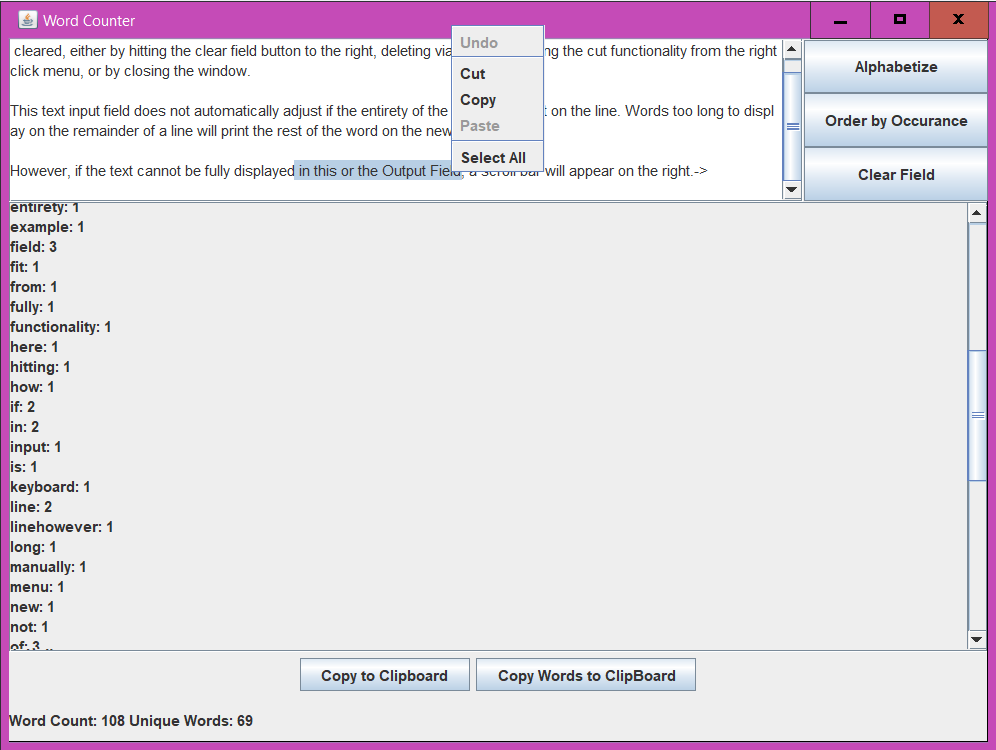 Image Description: Screenshot of the GUI displaying the same input and output as before. Text Input is scrolled down to show its scroll functionality. Right click menu is displayed and some of the text is highlighted so that only 'Cut', 'Copy', and 'Select All' are enabled.