Usage
Peak Viewer allows peaks identified using GunShotMatch to be examined to ensure they are well formed and properly resolved.
The main Peak Viewer window looks like this:
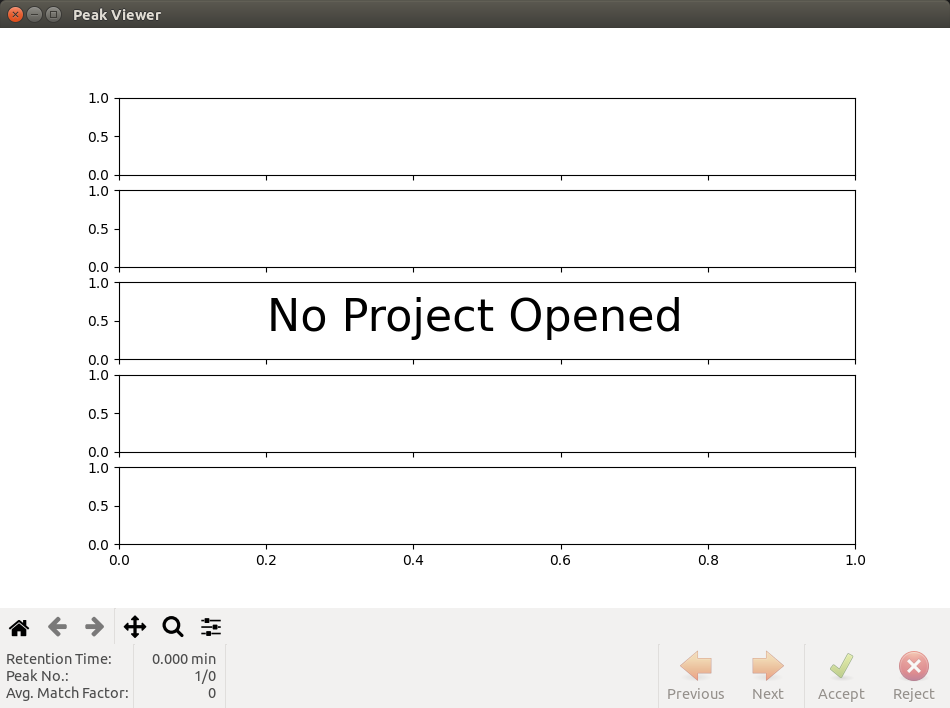

A project can be loaded by opening the File menu and selecting Open / Open Project. This will open a file selection dialog. Alternatively the keyboard shortcut Ctrl+O can be used, or a file can be dragged and dropped onto the Peak Viewer window.
From this menu the project can also be saved (Ctrl+S) or Peak Viewer exited (Ctrl+Q).
Once a project has been loaded the window will look like this. The various controls are annotated.


The peaks can be navigated using the Next and Previous buttons, or the keyboard arrow keys. The Reject button will mark the peak as rejected, which allows it to be excluded from future data processing, and puts a visual "REJECTED" stamp on the display (see the image below). The Accept button will remove this mark if it is set. In either case the view will advance to the next peak if there is one. The peaks can also be navigated using the Peak menu, which also includes options for jumping to the start and end of the peak list.
At the bottom left of the window are shown the mean retention time of the peak (averaged from the retention times of the aligned peaks), the mean match factor against the NIST library, and the number of the peak. Next to that is shown the most likely compound responsible for the peak. The name of the currently loaded project is shown in the window's title bar.
Immediately below the chromatograms is the view toolbar. This allows the chromatograms to be panned and zoomed (in the x-axis only). The home, left and right buttons reset the view, and jump to previous views from panning or zooming, respectively. To the right of this toolbar the retention time and intensity of the current mouse location are shown. The retention time of the apex of each peak is marked with a vertical red line.

Finally, the Help menu provides a link to this wiki and an About dialog, containing the version of Peak Viewer and its dependencies. These can be copied to paste into bug reports.


