🏗️ Self-Built — Fully automated to recruit role-specific AI employees and build the org.
⚙️ Self-Run — Fully automated to assign tasks, drive handoffs, and keep moving toward your goal.
🌱 Self-Grown — Learns from every task, builds organizational memory, always delivers smarter.







- Real-World Applications
- When To Use OpenOPC
- How OpenOPC Works
- Quick Start
- Office UI Guide
- CLI Guide
- Configuration
- Ecosystem And Sharing
- Roadmap
- Acknowledgements
OpenOPC covers nine core verticals — from AI development and software engineering to finance, sales, media, e-commerce, and education. Whatever the industry, OpenOPC assembles the right team and delivers end-to-end.
|
🤖 AI Tech & Research Model training & evaluation, Agent development, LLM apps & AI infrastructure |
💻 Software Development Android apps, SaaS MVPs, websites, mini programs & game development |
📈 Financial Investment Investment memos, market maps, due diligence & IC decision packages |
|
🚀 Sales Growth
Outbound sales, deal strategy, proposals & channel expansion |
🎬 Content & Media
Video production, short-form content, scripts, storyboards & multi-platform cuts |
🤝 Industry Assistants
Copilots for support, real estate, legal intake, HR onboarding, retail |
|
🧾 Accounting & Finance
Bookkeeping, financial reporting, tax compliance, budgeting & risk review |
🛍️ Brand & E-commerce
Brand planning, product selection, store ops, user growth & retention |
🎓 Education & Training
Curriculum design, knowledge base, learner management & content production |

🎬 Video Production |

📈 Investment Research |
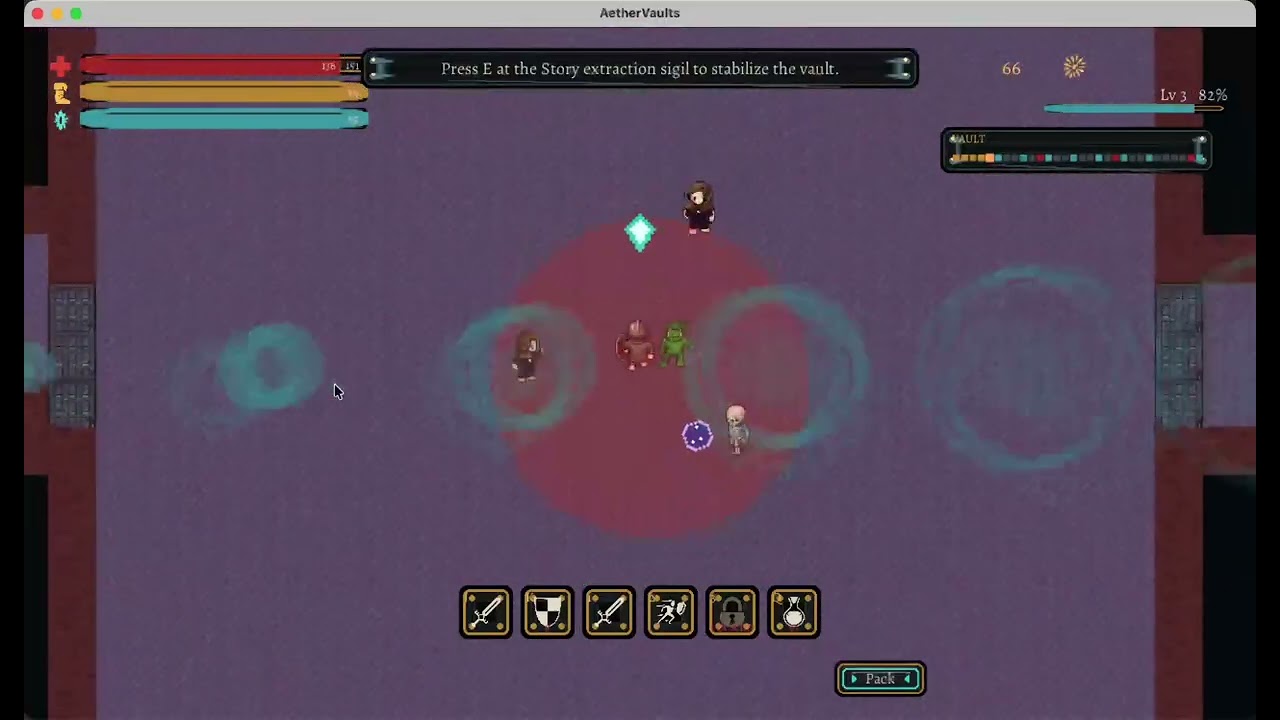
🎮 Game Prototype |
OpenOPC assembles a AI company around complex, real-world tasks — through three tightly coupled mechanisms: Self-Built staffs the organisation, Self-Run executes the work, and Self-Grown learns from the outcome.

1. Self-Built — Staffing the Organisation
Before any work begins, the right people must be in place. Given a goal, OpenOPC:
- 🌿 Drafts the org chart — deriving the roles and reporting structure the task demands.
- 🎯 Fills each role — a recruiter agent chooses between reusing an existing employee (shaped by prior projects) and onboarding a fresh hire from the talent pool.
💡 Experienced employees carry accumulated context; fresh hires offer a clean slate when a role demands it.
⚙️ 2. Self-Run — Executing the Work
With the team assembled, Self-Run orchestrates its members toward a finished deliverable. The central challenge is not raw execution but efficient collaboration under uncertainty, which manifests in two distinct problems.
🔀 Dynamic collaboration orchestration. Real work cannot be fully planned upfront. OpenOPC addresses this through a work-item state machine, where each item's phase determines:
- 📋 Its kanban column — where it stands in the workflow.
- 👑 Its owner — the role responsible at that phase.
- ✅ Its runnability — whether it is ready to proceed.
A manager decomposes items, assigns, and reviews results — accepting, reworking, or escalating — across five modes: execute, delegate, review, integrate, and rework. Decomposition defines a dependency DAG, so:
- ⚡ Independent items proceed in parallel.
- ⏳ Dependent items wait until prerequisites are resolved.
🔗 Dependency resolution and rejection propagate as structured phase transitions, eliminating ad-hoc coordination.
🛡️ Handling blockers surfacing mid-run. Not all obstacles are visible upfront. OpenOPC resolves them at two levels:
- 💬 Within the team — a blocking message pauses the sender, activating the role best positioned to resolve it.
- 📡 Beyond the team — when a blocker exceeds the team's authority, the runtime escalates to the human owner, invoking human judgment precisely when needed.
🖥️ The kanban and office views render this orchestration in real time.
🌱 3. Self-Grown — Learning from the Run
Execution generates raw experience; Self-Grown turns it into lasting improvement, guided by two principles.
🏅 Attributing outcomes to the right roles. Crediting the whole company teaches nothing. Instead, OpenOPC:
- 🔍 Resolves user feedback into per-employee evaluations.
- 🎯 Updates only roles that owned the relevant work items — credit and blame land where they were earned.
📖 Distilling trajectories into knowledge. Execution traces are too noisy to learn from. OpenOPC therefore:
- 💡 Distils each role's tasks into high-signal lessons, stored in its private experience profile.
- 📚 Promotes recurring lessons into shared playbooks, which new hires inherit from the outset — compounding organisational knowledge over time.
How this maps to the UI
Org -> Teamedits the company architecture and roles.Org -> Employeeshires talent into vacant roles.Team Roster -> Deployturns a hired employee into a visible office agent.- The Workspace composer selects the Task Mode execution agent.
- The role inspector can set runtime policy and preferred external agent for Company Mode roles.
- During execution, Workspace
Agentsand the Execution Progress panel show which role is active, which work item it owns, and which execution agent is doing the concrete work.
uv is the recommended setup path for OpenOPC. It can install/manage Python, create the project virtualenv, and run commands against that environment without mixing OpenOPC dependencies into your global Python.
OpenOPC requires Python >=3.10; the examples below use Python 3.12.
For direct one-off work, OpenOPC also includes Task Mode, a LobeChat-like single-agent workspace using OpenOPC Native, Codex, Claude Code, Cursor, or OpenCode.
Recommended: uv environment setup
macOS
# Install uv with Homebrew, or use the official standalone installer.
brew install uv
# curl -LsSf https://astral.sh/uv/install.sh | sh

cd /path/to/OpenOPC
uv python install 3.12
uv venv --python 3.12
source .venv/bin/activate
Linux
curl -LsSf https://astral.sh/uv/install.sh | sh
source "$HOME/.local/bin/env"

cd /path/to/OpenOPC
uv python install 3.12
uv venv --python 3.12
source .venv/bin/activate
Windows PowerShell
powershell -ExecutionPolicy ByPass -c "irm https://astral.sh/uv/install.ps1 | iex"

cd C:\path\to\OpenOPC
uv python install 3.12
uv venv --python 3.12
.\.venv\Scripts\Activate.ps1
Windows Command Prompt
winget install --id=astral-sh.uv -e
:: Or run the standalone installer from cmd:
:: powershell -ExecutionPolicy ByPass -c "irm https://astral.sh/uv/install.ps1 | iex"

cd C:\path\to\OpenOPC
uv python install 3.12
uv venv --python 3.12
.venv\Scripts\activate.bat
# Install OpenOPC into the uv-managed environment
uv pip install -e .
# Optional but recommended for browser tools
uv run python -m playwright install chromium
# Initialize local config, memory, skills, projects, and workspace folders
uv run opc init
# Add an API key in .opc/config/llm_config.yaml
# or configure the env var named by llm.api_key_env.
# Launch the browser UI
uv run opc uiOpen http://localhost:8765 by default.
# Interactive CLI
uv run opc chat -p demo

# One-shot task mode
uv run opc chat -p demo --mode task --agent codex "Refactor this module and run focused tests"

# Company mode with the built-in Corporate architecture
uv run opc chat -p demo --mode company --company-profile corporate "Plan, implement, review, and document this feature"

# Non-interactive scripting / CI style usage
uv run opc exec -p demo --mode task --agent native --json "Summarize the current repo status"
Install notes
- Python:
>=3.10. Current required dependencies do not all publish Python 3.9-compatible releases. uvis recommended for local development and release testing. If you prefer classic pip, create and activate a Python>=3.10virtualenv, then runpython -m pip install -e ..- If virtualenv activation is blocked, stay unactivated and run commands with
uv run .... - See the official
uvinstallation and Python management docs for alternative package managers and managed Python details. - Node.js:
>=18is needed when the Office UI frontend must be built. opc uiauto-installs missingaiohttp/aiosqliteand auto-builds the frontend if needed.- If you have not installed external agent CLIs yet, run
opc init --no-external-agent-preflightto skip the first-run external-agent checks. - Browser tools are native Playwright tools. Install Chromium with
python -m playwright install chromiumbefore asking agents to browse pages.
Development setup (build from source)
python -m pip install -e .
python -m pytest

cd opc/plugins/office_ui/frontend_src
npm install
npm run typecheck
npm run build
The frontend build output is served from opc/plugins/office_ui/frontend_dist/.
Expand the Office UI guide — visual tour, workspace, company mode, kanban, office, org
Start it with:
opc ui
opc ui --port 9000 --project demo
opc ui --rebuildScroll horizontally to browse the Office UI walkthrough. Each screenshot keeps its short guide text attached.
 Workspace And Setup. Choose or create a project, start
 New Chat, then select Company or Task plus the matching organization or agent. In Company Mode, pick role employees and execution agents, or let OpenOPC auto-recruit.
 Execution Progress. Track every role's state, then click a role or work item to inspect detailed execution records, tool activity, handoffs, reviews, and runtime metadata.
 Kanban. Supervise each agent's concrete tasks and work items as they move through planning, execution, review, blockers, and completion.
 Org Control. Tune existing organizations, adjust roles and reporting lines, review runtime policy, or create a new organization.
 Talent Market. Browse talent templates, inspect candidate details, and recruit employees into vacant roles when the company needs more capability.
 Office View. Watch the organization as an animated office, with each role/agent showing status, current task, active tool, seat, and runtime activity.
The Office UI has three primary pages:
| Page | What you do there |
|---|---|
| Workspace | Main working surface: session list, kanban board, chat, task details, role progress, comms, and team cockpit. |
| Office | Visual office map: agents appear as characters, can be selected, moved, assigned to seats, and inspected. |
| Org | Company architecture: switch corporate/saved orgs, create new organizations, edit roles, hire talent, apply architecture presets, and import/export configs. |
The Workspace page is the default screen.
| Area | What to look for |
|---|---|
| Left sidebar | Project sessions, activity, unread counts, and new chat creation. |
| Center board | Kanban cards. In Task Mode, a card is normally one task-backed chat session. In Company Mode, the board follows the selected runtime session and shows delegated work items. |
| Right panel | Context panel with tabs such as Chat, Agents, Info, Comms, and Team. Collapse, resize, or maximize it while work is running. |
| Composer | Send messages, attach files, choose mode, choose company architecture, and in Task Mode choose the execution agent. |
- Create or select a project from the top project selector.
- In Workspace, click
New Chat. - In the composer, choose
TaskorCompany. - For Task Mode, choose the agent:
OpenOPC Native,Codex,Claude Code,Cursor, orOpenCode. - For Company Mode, choose
Corporateor a saved org architecture. - Send the brief.
Once the first message is sent, the mode and task agent are locked for that chat. Use the locked-mode popover to continue in a new chat with a different mode.
Company Mode turns one brief into a runtime session plus role-owned work items.
| Tab | What it shows |
|---|---|
Chat |
Parent conversation, final responses, runtime progress cards, checkpoint replies, stop/continue/done controls, and links into work-item execution. |
Agents |
Role rollup: active/waiting/pending/done roles, current tool, role work items, filters, search, and links to detailed execution progress. |
Info |
Status, assignees, role identity, employee assignment, selected execution agent, timing, and developer details. |
Comms |
Role inboxes, unread/read/sent messages, meetings, decisions, and recent communication failures. |
Team |
Runtime cockpit: teams, seats, approvals, unread communication, recovery state, and stop controls for the current run. |
To inspect the detailed workflow for a role, open a company-mode session and click a role/work item in the Chat progress card or Agents tab. The Execution Progress panel shows each work item, its status, activity sections, tool progress, handoffs, review targets, and execution turn metadata.
- Task Mode: the kanban is a project-level board. You can quick-create tasks in
Todo, start them, and inspect each task from the right panel. - Company Mode: the active board follows the selected runtime session. Cards represent company work items and move from planning/execution/review/done according to backend runtime state.
- Manual drag between status columns is intentionally restricted when runtime owns the state. Same-column reorder is supported where applicable.
Use the Office page when you want a visual view of the running team.
- Click an agent character or row to inspect status, current tool, current task, role, office, and seat.
- Use the office/seat controls to move an agent.
- Sub-agents can be shown or hidden.
- Agents created from employees or templates appear in the office and are persisted in
.opc/ui_state.db.
The Org page is where company structure becomes runnable.
| Sub-tab | Purpose |
|---|---|
Team |
View/edit the role graph, table, role inspector, roster, saved org selector, export package flow, and deploy hired employees to the office. |
Runtime |
Tune runtime teams, seats, final decider, delegation strategy, and runtime policy. Corporate is read-only; saved orgs are editable. |
Architecture |
Browse built-in architecture presets, preview/apply packages, manage installed packages, and import/export YAML. |
Employees |
Search talent templates, view details, hire into vacant roles, and staff the company. |
To create a new company: open Org, click New organization, enter a name, add at least two members with responsibilities and reporting lines, review, and create. OpenOPC saves it automatically and switches the composer to Company / <your org>.
To recruit: import talent templates first, then open Org -> Employees, search a template, click Hire, choose a vacant role, and deploy the employee from Team Roster if you want it visible in the Office page.
opc talent import /path/to/agency-agentsWhere project files live
OpenOPC separates runtime/config state from deliverable workspace files.
| Path | Meaning |
|---|---|
.opc/config/ |
Local config copied from config/ by opc init. |
.opc/memory/ |
Global and project markdown memory. |
.opc/projects/<project>/ |
Project runtime metadata and task stores. |
.opc/ui_state.db |
Office UI chat, channels, and visual agent state. |
../OpenOPC_workplace/<project>/ |
Default project workplace. Agents should write durable project files here. |
../OpenOPC_workplace/<project>/.opc-comms/ |
Internal company-mode comms mailboxes, meetings, and tool-result scratch space. |
Set OPC_HOME=/path/to/opc-home if you want config and runtime state outside the repo.
Expand the CLI guide — common commands and interactive slash commands
OpenOPC exposes both high-level natural-language commands and lower-level UI/service commands.
Conceptually OpenOPC has two execution modes: task and company. Some lower-level CLI/service commands still expose org as a compatibility selector for Company Mode with a saved organization architecture; in the UI this appears as Company plus an architecture choice.
# Chat
opc chat
opc chat -p demo --mode task --agent native "Inspect the failing tests"
opc chat -p demo --mode company --company-profile corporate "Ship this change with review"

# Scriptable execution
opc exec -p demo --mode task --agent codex --stream-json "Run the migration check"
opc exec -p demo --mode company --company-profile corporate "Draft the research report"

# Project lifecycle
opc project list
opc project create demo
opc project switch demo

# Sessions
opc session list -p demo
opc session create "New feature" -p demo --mode company
opc session send <task_id> "Continue with implementation" -p demo
opc session stop <task_id> -p demo
opc session continue <task_id> "Proceed after review" -p demo

# Runtime inspection
opc runtime status -p demo
opc runtime logs <task_id> -p demo
opc work-item list -p demo
opc work-item show <work_item_id> -p demo
opc comms state <task_id> -p demo

# Recruitment
opc talent import /path/to/agency-agents
opc talent hire <template_id> <role_id> -p demoRun opc chat, then use slash commands:
/status
/mode task
/mode company corporate
/agent codex
/project switch demo
/session list
/runtime --full
/logs <task_id> --full
/comms <task_id> --full
/org
/talent list
/market list
See docs/cli-chat-slash.md for the full command table.
CLI command groups
| Group | Examples |
|---|---|
opc project |
list, show, create, switch, rename, delete --yes |
opc session |
list, create, show, config, send, rename, delete --yes, stop, continue, resume, complete |
opc mode |
show, set task, set company --profile corporate, set org --org <id> for a saved-org company run |
opc kanban |
view, task create, task update, task move, task assign, task status, task delete --yes |
opc agent |
list, create, create-from-template, import-employee, detail, move, delete --yes |
opc org |
info, export, import, saved list/save/load/delete, role add/update/bulk-add/delete, policy update, strategy update, reset --yes |
opc talent |
list, employees, import, hire, scan, import-selected, employee-detail, import-agent |
opc market |
presets, browse, preview, apply-preset, export, install, list, uninstall --yes |
opc runtime |
status, checkpoints, logs, run |
opc recovery |
scan, resume, cancel --yes, retry |
opc channels |
status, login, start, stop |
Most service-style commands accept --project/-p and --json.
For saved organization architectures, some CLI/service commands currently use org as a compatibility selector even though the conceptual runtime is still Company Mode:
opc exec -p demo --mode org --org hku_research_lab "Draft the research report"
opc session create "Research sprint" -p demo --mode org --org hku_research_labRun opc init once from the repo root. It creates .opc/, copies the template config from config/, creates memory/skills/log folders, and optionally creates the first project.
Expand configuration — config files, LLM keys, external agents, channels, browser/MCP, troubleshooting
| File | Purpose |
|---|---|
.opc/config/llm_config.yaml |
Default model, LiteLLM/OpenRouter-compatible API base, API key, env var indirection, routing, fallback, temperature, token limit. |
.opc/config/system_config.yaml |
Runtime behavior, browser tools, native runtime, compaction, verification, permissions, sandbox, and safety settings. |
.opc/config/agent_config.yaml |
External agent command paths, preferred order, model flags, session modes, timeouts, approval modes, and native subagent profiles. |
.opc/config/channel_config.yaml |
External messaging providers and credentials. Inbound sender lists are deny-by-default. |
.opc/config/company_corporate_config.yaml |
Built-in corporate company architecture template. |
.opc/config/company_orgs/org_<id>_config.yaml |
Saved custom company architectures used by Company Mode. |
.opc/config/org_index.yaml |
Active saved company architecture selector. |
After opc init, edit .opc/config/llm_config.yaml in the repo-local OPC home. If you set OPC_HOME, edit $OPC_HOME/config/llm_config.yaml instead.
The template leaves secrets empty. Configure either a literal key or an env var:
llm:
  default_model: "openai/gpt-5.4"
  api_base: "https://openrouter.ai/api/v1"
  api_key: ""
  api_key_env: "OPENROUTER_API_KEY"
Then:
export OPENROUTER_API_KEY="..."
opc status
You can also use provider-specific env vars such as OPENAI_API_KEY or ANTHROPIC_API_KEY if your model/provider configuration expects them.
Task Mode can explicitly select an execution agent:
opc chat -p demo --mode task --agent codex "Implement the change"Available values are native, codex, claude_code, cursor, and opencode. Configure command names, flags, timeouts, session reuse, and approval behavior in .opc/config/agent_config.yaml.
In Company Mode, roles can prefer external agents through their role config or the Org role inspector. A role can use auto, native, or external execution strategy, with an optional preferred external agent.
pip install -e .[channels-feishu]
opc init
opc channels login feishu
Edit .opc/config/channel_config.yaml:
channels:
  feishu:
    enabled: true
    app_id: "cli_xxx"
    app_secret: "..."
    encrypt_key: ""
    verification_token: ""
    react_emoji: THUMBSUP
    allow_from:
      - "ou_xxx"
Then:
opc channels status
opc channels start -p demo
# or run the long-lived engine + channel runtime:
opc run -p demo
Feishu uses the lark-oapi WebSocket client. app_id and app_secret are required; encrypt_key and verification_token are optional unless your tenant/app configuration requires them. Keep allow_from explicit; an empty list denies all inbound messages.
Other channel providers
| Provider | Install extra | Runtime | Required fields |
|---|---|---|---|
| Telegram | channels-telegram |
polling | token |
| Slack | channels-slack |
socket | bot_token, app_token |
| Discord | channels-discord |
socket | token |
| DingTalk | channels-dingtalk |
socket | client_id, client_secret |
channels-email |
polling | IMAP/SMTP fields, consent_granted |
|
| Matrix | channels-matrix |
sync/polling | homeserver, access_token, user_id |
channels-qq |
socket | app_id, secret |
|
channels-whatsapp |
bridge | bridge_url |
|
| Mochat | channels-mochat |
bridge | base_url, claw_token, agent_user_id |
Useful commands:
opc channels login slack
opc channels status
opc channels start -p demo
opc channels stop
opc run -p demo
See docs/channels.md and docs/channel-bridges.md.
Browser tools and MCP servers
Browser tools:
python -m playwright install chromiumConfigure launch behavior in .opc/config/system_config.yaml:
system:
  browser:
    mode: embedded   # embedded | chrome | auto
    headless: true
    chrome_channel: chrome
    user_data_dir: ""
Native browser tools include browser_navigate, browser_snapshot, browser_click, browser_type, browser_wait_for, browser_scroll, browser_select_option, browser_evaluate, browser_take_screenshot, and browser_close.
MCP servers can be added under mcp_servers in system_config.yaml. Local servers use stdio commands; remote servers use HTTP/SSE-style URLs. Discovered tools are registered with a server prefix to avoid collisions.
Office UI does not open or looks stale
opc ui --rebuildIf the browser still shows stale UI state, hard refresh the page. If a previous process died mid-run, restart opc ui first so in-memory locks are released.
A task appears stuck
Start with a server restart and browser hard refresh. If persisted task state is still dirty, use the reset helper:
python scripts/reset_stuck_task.py --project <project> --session <session_id> --apply
python scripts/reset_stuck_task.py --all --apply
External agent is not available
Run:
opc statusCheck .opc/config/agent_config.yaml for command names such as codex, claude, cursor-agent, and opencode. Disable or reprioritize agents you do not have installed.
Channel provider receives no messages
Check:
- The provider extra is installed, for example
pip install -e .[channels-feishu]. - The provider is
enabled: true. - Required credentials are filled.
allow_fromcontains the sender IDs you expect.opc channels statusreports the provider as configured and available.
Everything OpenOPC builds is yours to keep, reuse, and share — organizations, employees, talent templates, skills, and channels are just files. Import a popular talent library, reuse a team across projects, or package a whole company as a shareable .opcpkg.
# Hire from a talent library (e.g. agency-agents) into a role
opc talent import /path/to/agency-agents
opc talent hire <template_id> <role_id> -p demo

# Reuse or share a whole organization
opc org export --json > my-org.yaml
opc market export --id hku_lab --name "HKU Lab" --output-dir packages
opc market install packages/hku_lab.opcpkgOpenOPC is moving quickly. The areas below reflect active development priorities — each grounded in real gaps identified during early usage.
| Area | Planned direction |
|---|---|
| Role-level skills | Role config already carries skill_refs, and the Org UI surfaces skill metadata today. The next step is letting users select which skills mount to which roles directly from the Org page — feeding into a broader self-evolving skill ecosystem. |
| Secretary settings | The secretary will grow into a stronger configuration and memory steward: owning OPC system memory, analysing and comparing projects, and providing guided setup for OpenOPC YAML configuration. |
| Company-mode channels | External channels will evolve beyond simple chat entrypoints into richer company-mode workflows — with role-aware notifications, structured approvals, and cross-platform collaboration. |
| CLI parity | The CLI is functional today, but the Office UI remains the more complete surface. Upcoming work targets org editing, company-mode inspection, failure recovery, and long-running runtime control from the terminal. |
| TUI | A full terminal UI is under consideration once CLI parity matures. The Office UI remains the primary interface in the meantime. |
| Market and presets | More architecture presets, recruitable talent packs, import/export workflows, and a package marketplace for sharing and discovering community-built components. |
| Runtime polish | Continued improvements to recovery, checkpointing, execution-progress visibility, and visual documentation — making long company runs more observable and resilient. |
OpenOPC is built with gratitude for several open-source projects that helped shape its agent design, skill structure, and talent template ecosystem:
- openai/codex for inspiring practical coding-agent workflows and execution patterns.
- BloopAI/vibe-kanban for inspiration around kanban-centered agent work management and task visibility.
- msitarzewski/agency-agents for the talent-template foundation. All talent templates included in this repository are imported from
agency-agents. - HKUDS/nanobot for inspiration around skill-oriented agent design and
SKILL.md-style organization.