


A macOS menu bar app that monitors your ChatGPT Codex usage in real-time.
- Features
- Requirements
- Installation
- Getting Your API Token
- Usage
- Status Colors
- Troubleshooting
- License
- Real-Time Monitoring — Track your Codex usage directly from the macOS menu bar
- Multi-Account Support — Monitor multiple Codex accounts with easy switching
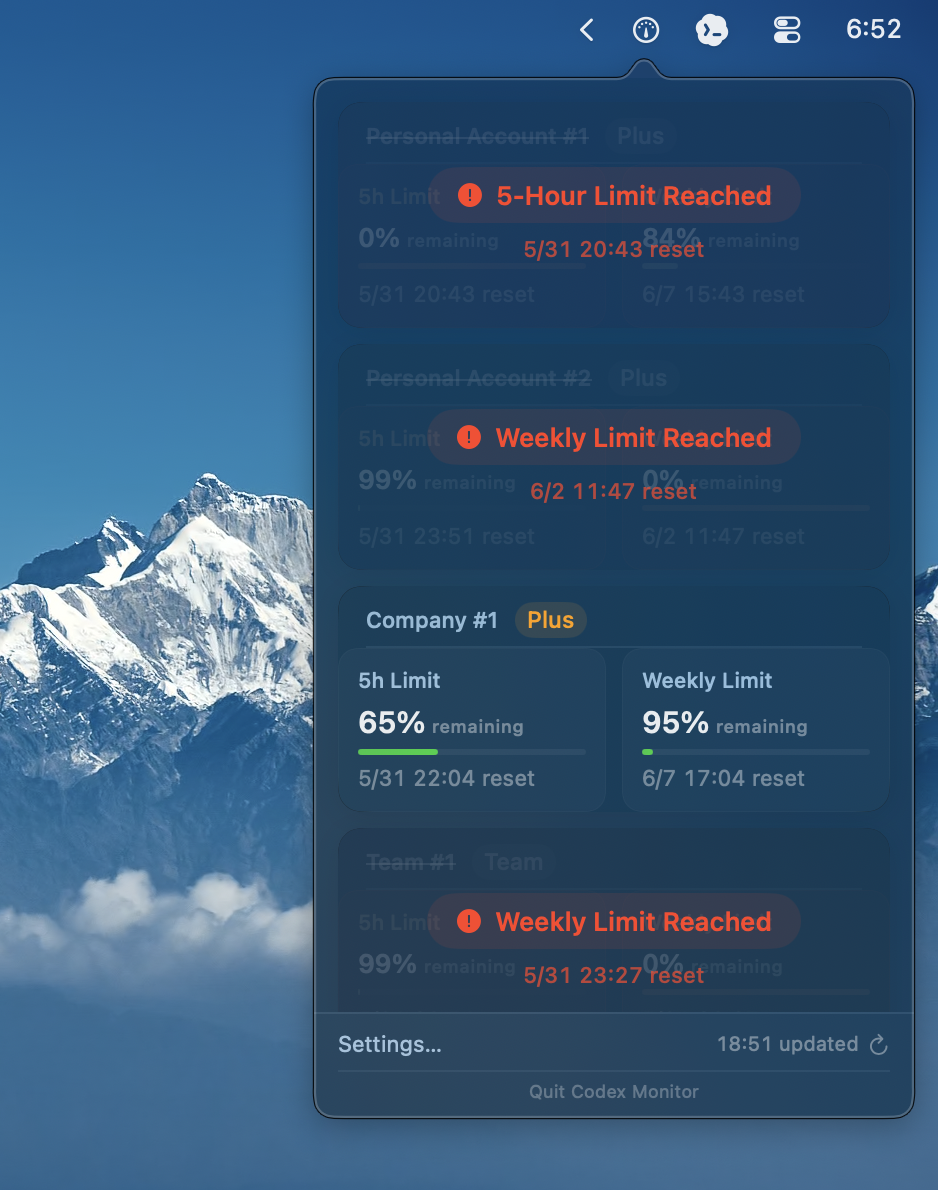
- Usage Visualization — See quota usage with color-coded status indicators
- Limit Reached Alert — Visual overlay when 5-hour or weekly limit is reached, with reset countdown
- Smart Notifications — Get notified when quota is low or when an account recovers from limit
- Auto Account Sync — Automatically detect and add local Codex accounts on launch
- Multi-Language — English, 中文, 日本語
- Update Notifications — Get notified when a new version is available on GitHub
- macOS 15.0+
- Xcode 16+ (for building from source)
- Swift 6.0+
- Go to Releases
- Download the
CodexMonitor-x.x.x.dmgfile - Open the DMG and drag CodexMonitor to your Applications folder
- Launch CodexMonitor — it will appear in your menu bar
Note: The app is signed with an Apple Development certificate. On first launch, macOS may show a security warning — right-click the app and select "Open" to bypass it.
git clone https://github.com/HanryYu/codex_multi_monitor.git
cd codex_multi_monitor
make install
Or manually:
swift build -c release
cp -f .build/release/CodexMonitor /Applications/CodexMonitor.app/Contents/MacOS/
open /Applications/CodexMonitor.appCodexMonitor can automatically detect and manage your Codex accounts. Simply launch the app — it will scan local auth data, import accounts, and handle token refresh and deduplication automatically.
If you use cc-switch or rotate tokens manually, CodexMonitor will keep accounts in sync without extra steps.
- Open chatgpt.com/codex/cloud/settings/analytics in your browser and log in
- Open Developer Tools (
⌘⌥Ion Mac) → Network tab - The page will automatically load usage data — look for a request to
wham/usage - Click the request → Headers → copy the
Authorization: Bearer ***value - Paste the token (without
Bearerprefix) into CodexMonitor
If you have Codex CLI installed, extract the token locally:
cat ~/.codex/auth.json | python3 -c "import sys,json; d=json.load(sys.stdin); print(d['tokens']['access_token'])"Copy the output and paste it into CodexMonitor.
- Launch CodexMonitor from your Applications folder
- Click the menu bar icon to see your accounts
- Accounts are auto-detected on launch — or click + to add manually
- The app refreshes data every 30 seconds automatically
| Color | Meaning |
|---|---|
| 🟢 Green | > 50% quota remaining |
| 🟡 Yellow | 20-50% quota remaining |
| 🔴 Red | < 20% quota remaining |
When a limit is reached (5-hour or weekly), the status area shows a "Limit Reached" overlay with the estimated reset time.
Menu bar icon not showing?
- Check Activity Monitor — the app may already be running. Force quit and relaunch.
"No accounts found" on first launch?
- Make sure you've used Codex locally at least once, or add your token manually via the + button.
DMG won't open / "unidentified developer"?
- Right-click → Open, or go to System Settings → Privacy & Security → Allow Anyway.
GPLv3 — © 2025 Henry Yu