For End Users
No Python, no terminal, no setup beyond running an installer or extracting a zip.
Note: FFmpeg is required for audio/video conversions. If you attempt one without it, the app will show you the download command.
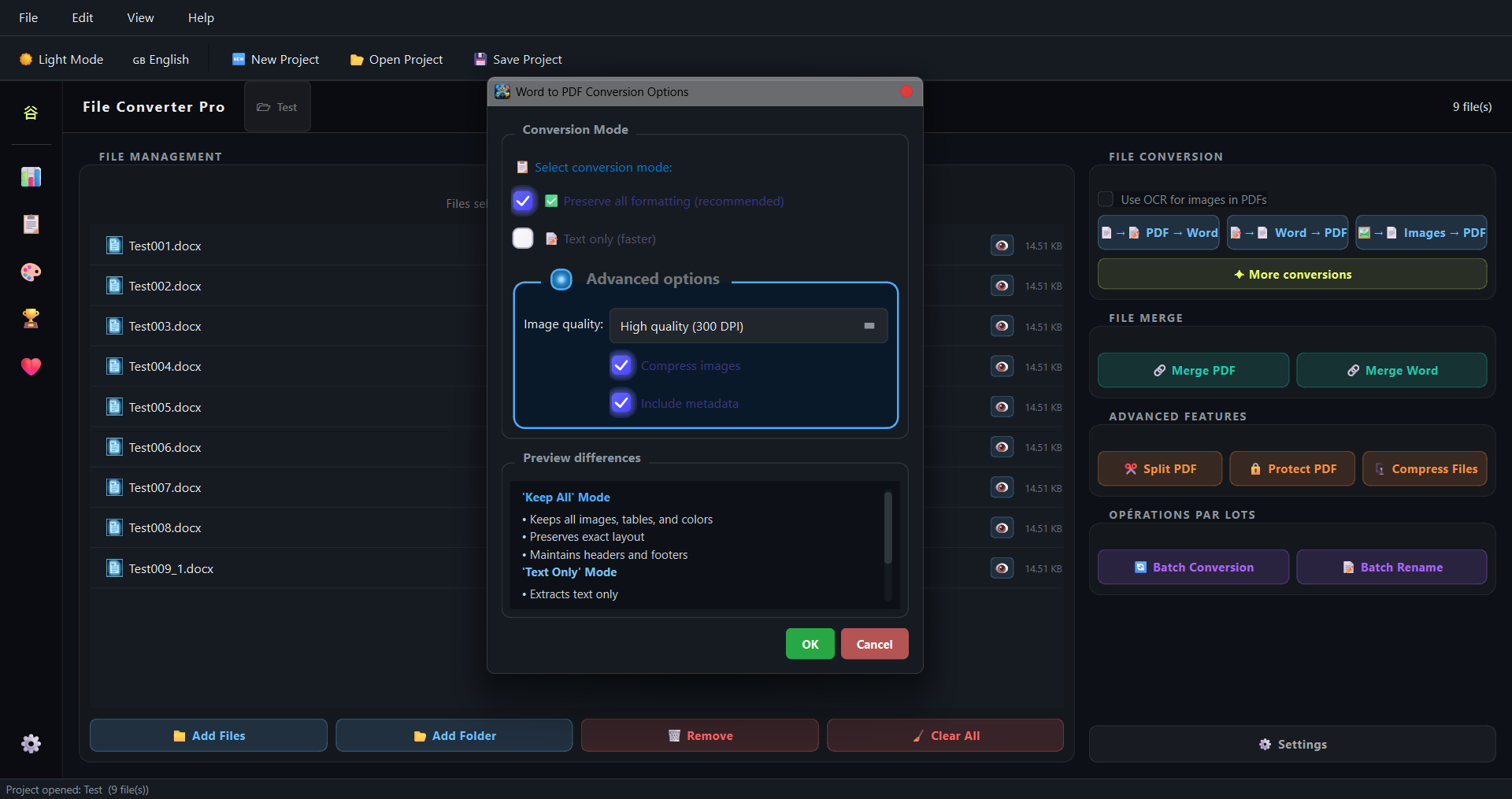
| Component | Requirement |
|---|---|
| OS | Windows 10 or Windows 11 (64-bit) |
| RAM | 4 GB minimum / 8 GB recommended |
| Disk | ~300 MB free |
| Display | 1280 × 720 or higher |
| Dependencies | None (fully self-contained) |
Download the latest FileConverterPro_Setup_v1.0.6.exe from the Releases page and run it.
The installer:
- Supports both English and French during setup
- Runs without administrator rights
- Targets 64-bit Windows only (Windows 10 / 11)
- Optionally creates a Desktop shortcut
- Optionally associates
.fcprojproject files with the app - Offers to add a Windows Defender exclusion for the install folder (recommended) Once installed, launch from the Start Menu or Desktop shortcut.
Download the portable .zip from the Releases page, extract it anywhere, and run File Converter Pro.exe directly.
All settings, history, and achievements are stored in the same folder. Move the folder, everything moves with it.
⚠️ The portable version does not create automatic file associations for.fcprojfiles. You can still open project files via File → Open Project inside the app, or via Open with → File Converter Pro.
Installer:
$f="$env:TEMP\fcp.exe"; Invoke-WebRequest "https://github.com/Hyacinthe-primus/File_Converter_Pro/releases/latest/download/FileConverterPro_Setup_v1.0.6.exe" -OutFile $f; Start-Process $f "/SILENT" -Wait; Remove-Item $fPortable:
$z="$env:TEMP\fcp.zip"; $d="$env:USERPROFILE\Downloads\FileConverterPro"; Invoke-WebRequest "https://github.com/Hyacinthe-primus/File_Converter_Pro/releases/latest/download/File_Converter_Pro_v1.0.6.zip" -OutFile $z; Expand-Archive $z -DestinationPath $d -Force; Remove-Item $z; Start-Process explorer.exe $dRun as a regular user, no admin needed. The installer installs silently and cleans up. The portable version extracts to your Downloads folder and opens it automatically.
File Converter Pro works out of the box with zero dependencies. Every conversion has a built-in fallback. Installing any of these makes the app detect and use them automatically. No configuration needed.
| Tool | What it unlocks | Where to get it |
|---|---|---|
| Microsoft Office | Pixel-perfect DOCX/XLSX/PPTX → PDF via COM. Required for legacy .ppt. |
Microsoft 365 or standalone Office |
| LibreOffice | High-quality PPTX/XLSX → PDF when Office isn't installed. | Download |
| Pandoc | Better TXT / RTF / EPUB → PDF quality; RTF → DOCX with proper formatting. | Download |
| MiKTeX | Enables Pandoc's LaTeX pipeline for best typographic output. Install alongside Pandoc. | Download |
| wkhtmltopdf | Best HTML → PDF rendering (full CSS, fonts, local images). | Download |
Quality tiers at a glance:
PPTX → PDF:   PowerPoint COM  ›  LibreOffice CLI  ›  python-pptx + ReportLab
XLSX → PDF:   Excel COM       ›  LibreOffice CLI  ›  ReportLab native
TXT  → PDF:   ReportLab       ›  pypandoc  (needs Pandoc + MiKTeX for LaTeX output)
HTML → PDF:   wkhtmltopdf     ›  WeasyPrint        ›  ReportLab
RTF  → DOCX:  Word COM        ›  pypandoc          ›  striprtf + python-docx
It is strongly recommended to add the File Converter Pro folder to your Windows Defender exclusion list. The installer offers to do this automatically.
Why? The app bundles:
- A
ffmpegbinary (commonly flagged by heuristic scanners) - A PyInstaller-compiled executable (another common false-positive trigger) The app makes no outbound network calls during conversions. Any flag is a false positive.
Portable version, add exclusion manually:
Add-MpPreference -ExclusionPath "C:\Your\Folder\File Converter Pro"If you get "application control policy blocked this file":
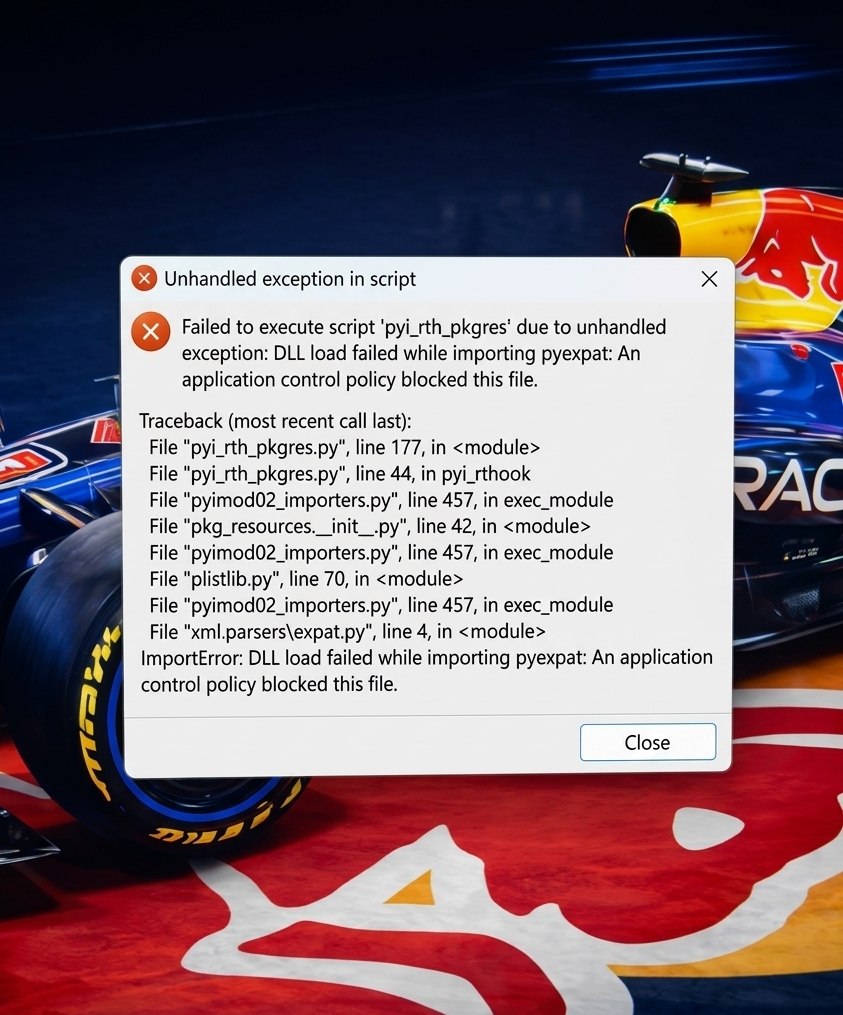
Run this in a PowerShell terminal as Administrator, replacing the path with yours:
Get-ChildItem -Path "C:\Your\path\to\File Converter Pro" -Recurse | Unblock-FileThis removes the Zone.Identifier mark Windows adds to downloaded files, which can prevent DLLs from loading. Note: adding a Defender exclusion alone does not fix this. They are separate mechanisms.
When you first launch File Converter Pro.exe, a black terminal window may flash briefly before disappearing.
This is completely normal. It is caused by FFmpeg initializing. It runs no hidden scripts and makes no network calls. The GUI appears immediately after.