A collaborative virtual machine where players take turns in controlling it.
Live demo: https://socket-io-computer-beta.vercel.app/
It works by running qemu on the server-side and streaming the image binary data to the browser.
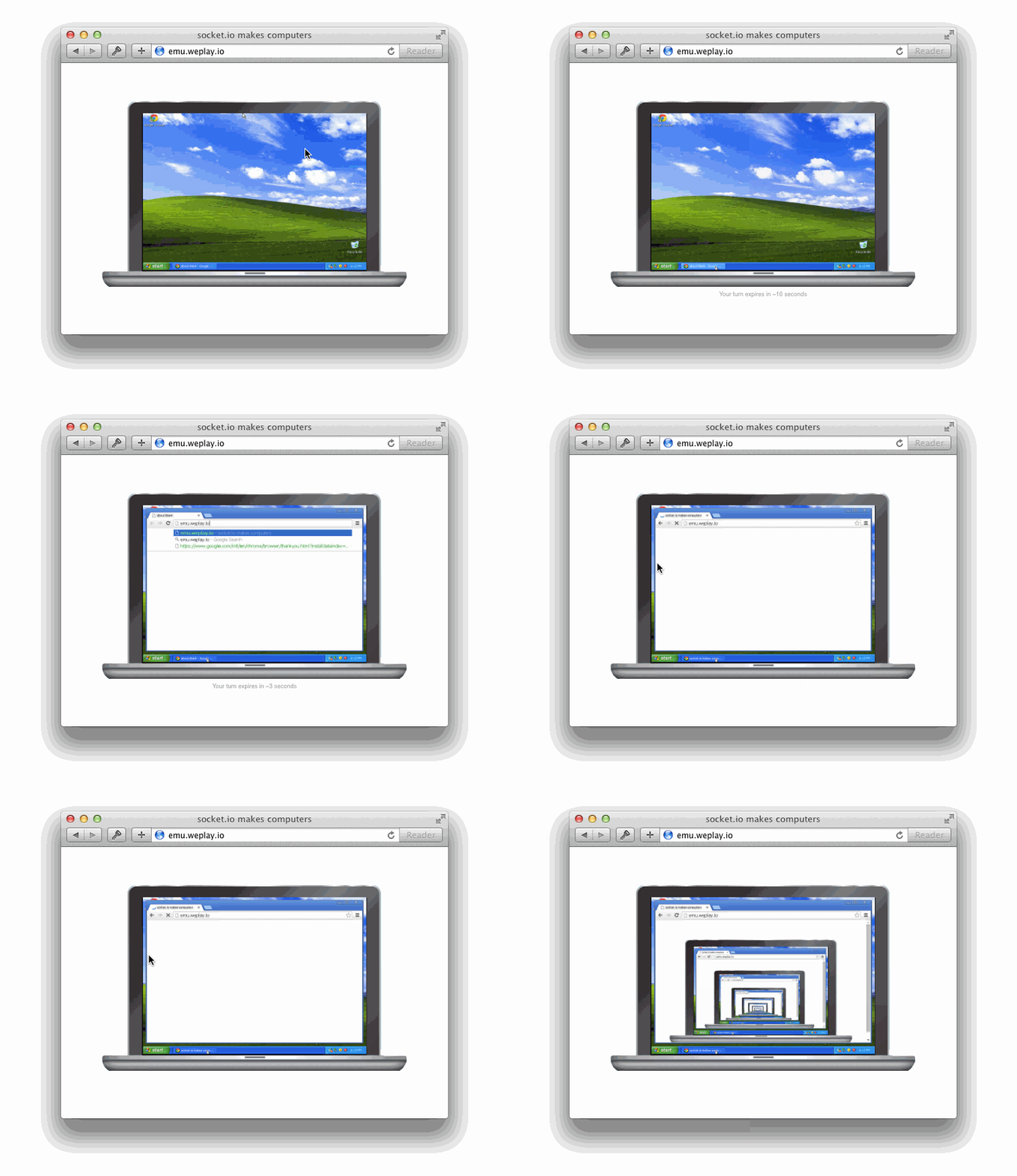
In order to run socket.io-computer you must have the following
dependencies installed:
qemuredis-server
On the mac, all of the above are available on homebrew.
First you should create an image onto which you'll load (install) the
operating system ISO. We'll call it for this example winxp.img.
$ qemu-img create -f qcow2 winxp.img 3GThen you can run the additional needed processes:
# web server
$ node app.js

# io server
$ node io.js

# qemu instance
$ COMPUTER_ISO=winxp.iso COMPUTER_IMG=winxp.img node qemu.js

# emulator communication process
$ COMPUTER_IMG=winxp.img node emu-runner.js
Then point your browser to http://localhost:5000.
Create a local images directory with the disk image and installer ISO
expected by docker-compose.yml:
mkdir -p images
qemu-img create -f qcow2 images/disk.qcow2 3G
# put your installer at images/install.iso
Then run the stack:
docker compose up --buildThe web UI is exposed on http://localhost:5000 and Socket.IO is exposed on
http://localhost:6001. The QEMU service binds VNC and monitor ports inside
the Compose network; the emulator service connects to them as qemu:5900 and
qemu:4444.
On a remote VPS, set COMPUTER_IO_URL to a browser-reachable hostname or IP
instead of localhost:
COMPUTER_IO_URL=http://YOUR_VPS_IP_OR_HOSTNAME:6001 docker compose up --buildIf port 5000 is already in use on the host, remap it:
COMPUTER_WEB_HOST_PORT=55000 \
COMPUTER_IO_URL=http://YOUR_VPS_IP_OR_HOSTNAME:6001 \
docker compose up --build
Fly.io can host the real demo backend as one always-on Machine. The Fly start script runs Redis, the web server, Socket.IO, presence, QEMU, and the emulator worker in one container, then exposes a single HTTPS endpoint through Fly.
Create the app and volume:
fly launch --no-deploy
fly volumes create computer_data --size 10 --region iad
Deploy it:
fly deployThe app expects the VM disk at /data/disk.qcow2. If it is missing, the start
script creates a blank disk, but a blank disk will not boot a useful OS. Put a
prepared qcow2 disk there for an actual demo. An installer ISO at
/data/install.iso is optional; when it is absent QEMU boots from disk only.
Fly serves the app over HTTPS, and /socket.io is proxied to the internal
Socket.IO worker, so COMPUTER_IO_URL can be omitted for a pure Fly deployment.
For a Vercel frontend pointed at Fly, set Vercel COMPUTER_IO_URL to your Fly
app URL, for example https://socket-io-computer.fly.dev.
Vercel can host the public web entrypoint for a real demo, but the VM backend still needs to run as the Docker stack because it uses QEMU, Redis, VNC, and a long-lived Socket.IO server. Deploy the Docker backend first, put TLS in front of the Socket.IO port, then set this Vercel environment variable:
COMPUTER_IO_URL=https://YOUR_BACKEND_HOSTLeave the Vercel root directory and output directory blank. Vercel runs
npm install and npm run vercel-build, then serves app.js as the web
entrypoint. The browser connects directly to COMPUTER_IO_URL, so the backend
URL must be HTTPS/WSS when the Vercel site is HTTPS. For this deployment, Caddy should expose Socket.IO at https://mail.mickai.me/socket/ and proxy it to the backend on port 6001.
Example Caddy config:
mail.mickai.me {
  handle_path /socket/* {
    reverse_proxy 127.0.0.1:6001
  }
}
With handle_path, browser requests to /socket/socket.io are stripped to /socket.io before they reach the Socket.IO server.
For the backend, keep using Docker Compose on the VM host:
COMPUTER_IO_URL=https://YOUR_BACKEND_HOST docker compose up --buildMIT