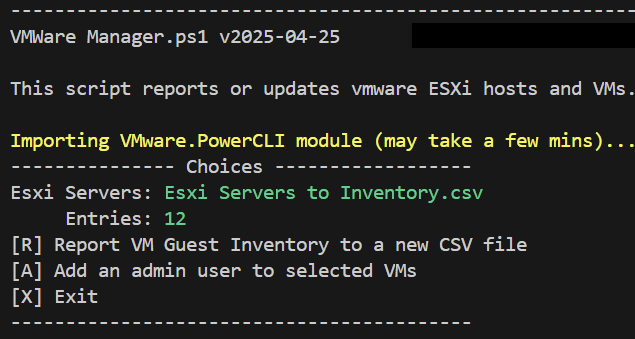
VMWare Manager.ps1 is a PowerShell menu script designed to manage your VMWare ESXi servers. It is intended for smaller environments - it does not use vCenter.
User guide: Click here
Download from GitHub as ZIP
Or Go to GitHub here and click Code (the green button) > Download Zip
- Retrieve a CSV report of ESXi servers, their VMs and settings.
- Add additional administrators to your ESXi servers.
Before using the script, ensure the following:
- Powershell Module: The program will prompt you to install the VMware VMware.PowerCLI module. VMware PowerCLI Docs
Open a powershell admin prompt and enter:Install-Module -Name VMware.PowerCLI -Scope AllUsers - Esxi Servers to Inventory.csv: A list of your servers. A starter file will be created if needed.
- Clone or download this repository.
- Place the
VMWare Managerfolder in a directory of your choice.
- Double-click
VMWare Manager.cmdor run theVMWare Manager.ps1in PowerShell. - On the menu choose R generate a Report CSV file.
- Use that CSV file to plan updates to your SSIDs.
- On the menu choose A to add more admins to your servers.
Notes:
The script is careful about making changes, so that it can be run repeatedly, skipping items that are already OK.
Use the Report menu to export a CSV report of your servers.
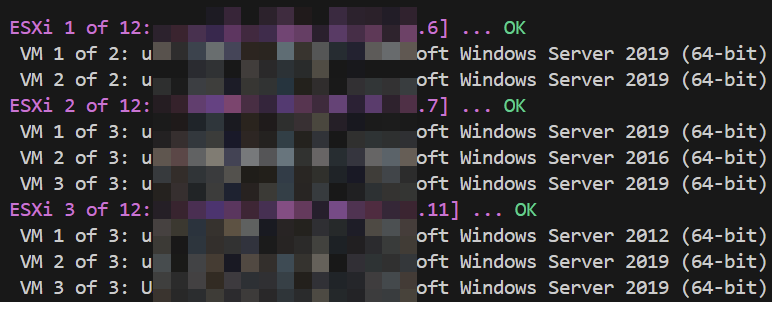
Adds an additional User (with password) as Administrator role to your servers.
If the user already exists, the password is not touched but the user is added to the Administrator role.
If everything is already OK, it is simply reported as such.
More info here: www.itautomator.com