Go to Releases and expand "Assets" on the latest release.
Download CobaltCoreEditor.zip and extract it into any folder.
Run "CobaltCoreEditor.exe" from the folder you extracted it to.
Make sure "Game Folder" and "Profile Folder" are set to the correct locations.
First ensure you have the correct "Profile" selected. These correspond to slot 0-3 in the game.

You can press "Open Containing Folder" to access the the savefile of your current selected profile and see any potential backups.
The importer works best if you start right after beginning a new loop. That means right after pressing "Start Run" on this screen:
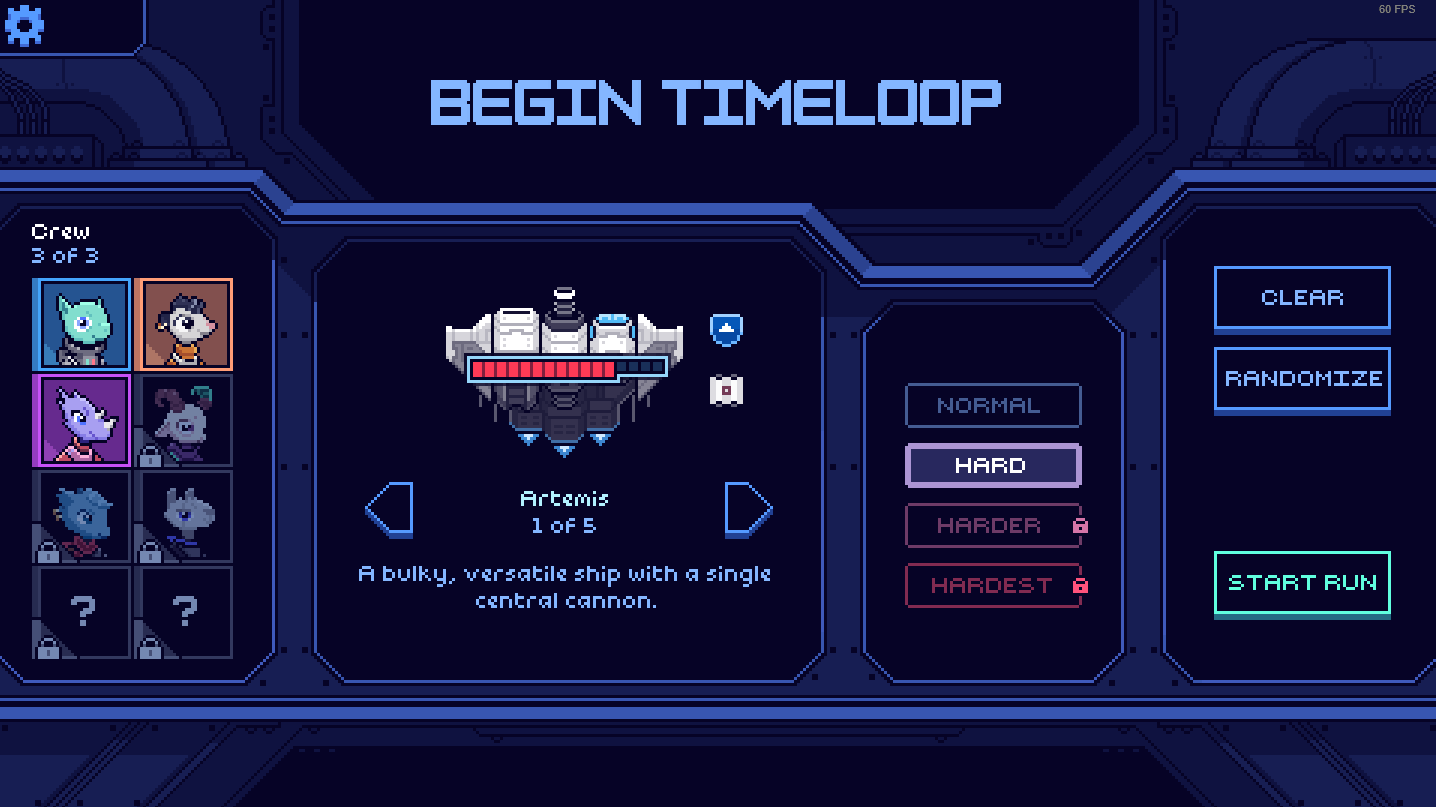
After you begin a new timeloop at your selected difficulty, either close the game completely, or select a different profile. Otherwise the game will override whatever ship you select to import.
The import section looks like this:
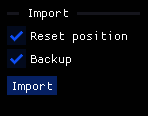
- If you have "Reset Position" checked, the ship will be set back to the starting position of the current sector.
- If you have "Backup" checked, your profile will create a backup in the same folder. This is useful to prevent you from accidentally ruining your save-file permanently.
If you press Import you can select a savefile from anywhere on your computer, but it's suggested that you instead use the Quick Import below that looks like this:
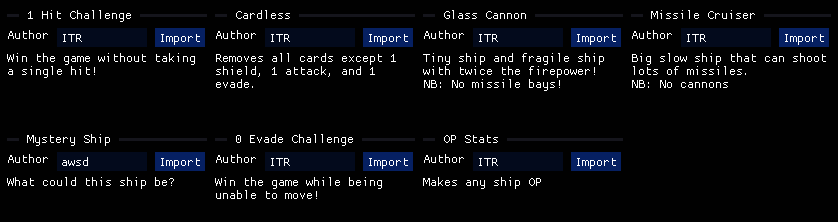
If you press Import the ship will automatically be imported to your selected savefile.
To add more ships to this list, add them to the "ShipDiffs" folder in your games folder. To see this folder press "Open Containing Folder" next to "Export" in the Export Section.
This section is scrollable, so you can put as many ships in the folder as you want.
The exporter will export your currently selected slot as a ShipDiff. This is best combined with manual save editing, but can also be used to share interesting parts of your savefile. There are two sections needed for exporting. The Export Info section looks like this:
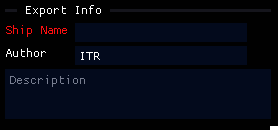
This is the info that will be shown in the Quick Import section. You need to enter a ship name, but the author and description can be left empty. If you want to modify an already generated ship mod you need to manually edit the exported file in a text editor.
The second section is the Export section, and looks like this:
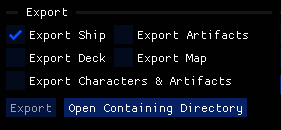
- If "Export Ship" is checked, the stats of the ship, as well as its part layout, will be exported.
- If "Export Artifacts" is checked, the ship artifacts will be exported, but not character artifacts.
- If "Export Deck" is checked, all cards you currently have in your deck will be exported.
- If "Export Map" is checked, the current map and ship position will be exported.
- If "Export Characters & Artifacts" is checked, the selected characters and character artifacts will be exported.
Pressing "Export" will export your save with the selected settings into your ShipDiffs folder. You can press "Open Containing Directory" to see your exported save-files.