Today you're learning the basics of HTML (HyperText Markup Language), which is the foundation of every website on the internet. We'll be building a simple fan page about The Lord of the Rings.
HTML is a markup language that tells web browsers how to display content. It uses tags to structure text, images, links, and other elements on a webpage.
Tags are keywords surrounded by angle brackets, like <tagname>. Most tags come in pairs:
- Opening tag:
<tagname> - Closing tag:
</tagname>
The content goes between these tags: <tagname>content</tagname>
<!DOCTYPE html>
<html lang="en">
<head>
    ...
</head>
<body>
    ...
</body>
</html>
Every HTML page needs these parts:
<!DOCTYPE html>- Tells the browser this is an HTML5 document<html>- The root element that contains all other elements<head>- Contains information ABOUT the page (not displayed on the page itself)<body>- Contains everything that WILL be displayed on the page
<head>
    <meta charset="UTF-8">
    <meta name="viewport" content="width=device-width, initial-scale=1.0">
    <title>The Lord of the Rings - Fan Page</title>
</head>
<meta charset="UTF-8">- Tells the browser how to read characters (supports emojis, special characters, etc.)<meta name="viewport"...>- Makes the page display properly on different screen sizes<title>- Text that appears in the browser tab (not on the page itself)
<head>
    <meta charset="UTF-8">
    <meta name="viewport" content="width=device-width, initial-scale=1.0">
    <title>The Lord of the Rings - Fan Page</title>
</head>
<meta charset="UTF-8">- Tells the browser how to read characters (supports emojis, special characters, etc.)<meta name="viewport"...>- Makes the page display properly on different screen sizes<title>- Text that appears in the browser tab (not on the page itself)
<h1>The Lord of the Rings</h1>
<h2>About the Series</h2>
<h3>Interesting Facts</h3>
Headings organize your content:
<h1>- Main title (most important, largest) - use only ONE per page<h2>- Major sections<h3>- Subsections- Goes down to
<h6>(smallest)
Think of them like an outline - H1 is your title, H2 is your main points, H3 is your sub-points.
<p>The Lord of the Rings is an epic fantasy adventure...</p>The <p> tag creates a paragraph of text. Browsers automatically add spacing above and below paragraphs.
Unordered Lists (bullet points):
<ul>
    <li>The Fellowship of the Ring</li>
    <li>The Two Towers</li>
    <li>The Return of the King</li>
</ul><ul>= Unordered List (creates bullets)<li>= List Item (each bullet point)
Note: There's also <ol> for Ordered Lists (numbered lists). Same structure, just starts with <ol> instead of <ul>.
<ol>
    <li>The Fellowship of the Ring</li>
    <li>The Two Towers</li>
    <li>The Return of the King</li>
</ol><img>The Lord of the Rings is an epic fantasy adventure...</p>The <img> tag is used for adding an image to a page. For accessibility, you should always add alt tags to your images, which provide spoken context to users utilizing screen readers. Browsers automatically ...
- Links (
<a>tags) to connect pages
- Tables to organize data
- Forms for user input
-
Tags Must Be Properly Nested
- Tags need to be properly nested, meaning that an opening tag should usually... need a short sentence or two description explaining how to know the scoping.
- ✅ Correct:
<p>This is <strong>bold</strong> text.</p> - ❌ Wrong:
<p>This is <strong>bold</p></strong> text.
-
Most
tagsNeed Accompanying Closingtags- Opening:
<p> - Closing:
</p>- Notice the
/in the closing tag
- Notice the
- Opening:
-
Indentation Matters for Readability
- Child elements should be indented inside parent elements
- (e.g.,
tdinsidetrandtrinsidetable)
- (e.g.,
- This doesn't affect how the page looks, but makes code easier to read
- Child elements should be indented inside parent elements
-
Case Doesn't Matter for
tags(but lowercase is standard)<P>and<p>both work- As a best practice, always use lowercase for
tag text
-
Always Follow (at least) WCAG AA Accessibility Standards
- This is important to ...
- Stuff here...
- Save your file with a
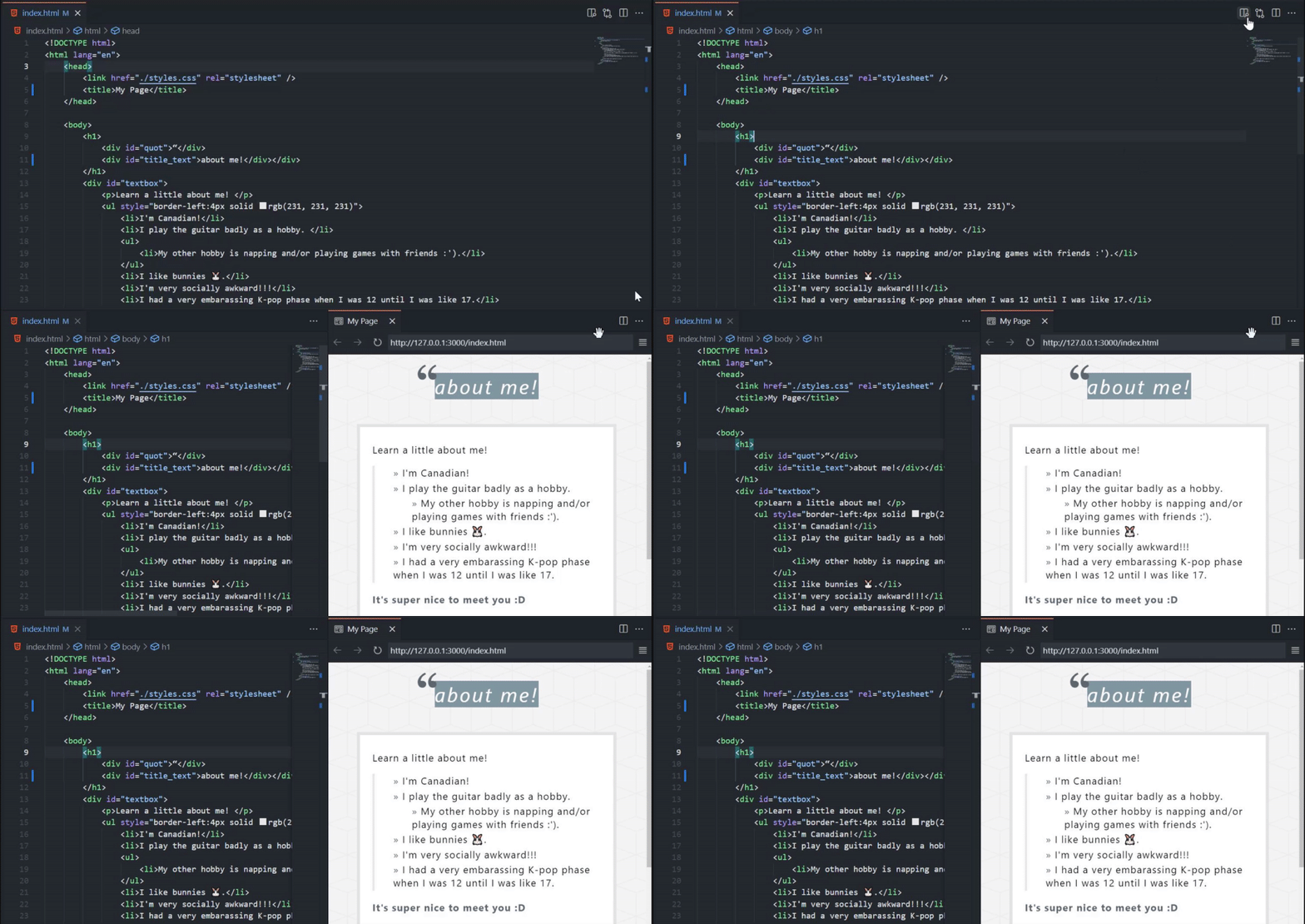
.htmlextension (likeindex.html) - Open the file with a web browser (double-click it, or right-click → Open With → Browser)
- You can also click the
Show Previewbutton in VS Code (if you have theLive Previewextension installed).
- You can also click the
- The browser (or extension) will render your HTML into a formatted webpage!
Later on, you'll learn:
- CSS to make your page look beautiful (colors, fonts, layouts)
- (OUTSIDE SCOPE OF THIS COURSE) - JavaScript/TypeScript to make your page interactive (buttons that do things, animations, etc.)
Create your own HTML page to:
- Display the title to your favorite book, movie, game, or band
- Add a new
<h2>section - Create a list of your favorite characters, albums, or facts
- Add a paragraph explaining why you like it
Remember: Save the file and refresh your browser to see changes!
Q: What if I forget to close a tag? A: The browser will try to guess what you meant, but it might look wrong or not render at all. Always close your tags!
Q: Do spaces in my HTML matter?
A: Browsers usually ignore extra spaces and line breaks in your HTML unless in a text-specific tag, like <p> or <span>. The tags control spacing, not the spaces you type.
Q: Can I have multiple <h1> tags?
A: Technically yes, but best practice is to use only one <h1> per page as your main title.
Q: How do I add comments in HTML?
A: Use <!-- comment here --> - the browser will ignore anything between <!-- and -->.
If you get an error like:
> git push origin main:main
error: RPC failed; HTTP 400 curl 22 The requested URL returned error: 400
send-pack: unexpected disconnect while reading sideband packet
fatal: the remote end hung up unexpectedly
You can try temporarily changing the buffer size (especially if you are pushing images):
git config --global http.postBuffer 1048576  # Resets to 1 MB
git config --global http.postBuffer 2097152  # Sets buffer to 2 MB
git config --global http.postBuffer 5242880  # Sets buffer to 5 MB
git config --global http.postBuffer 10485760  # Sets buffer to 10 MB
git config --global http.postBuffer 524288000  # Sets buffer to 500 MB