FlexIt: Functional Overview
Puzzle Game to Help Web Developers Learn CSS FlexBox
Each puzzle you play starts with a blank workspace along with an already completed design to the right of it. The goal is to recreate that design from scratch. In the process of creating, you get to visually see different FlexBox properties along the way.
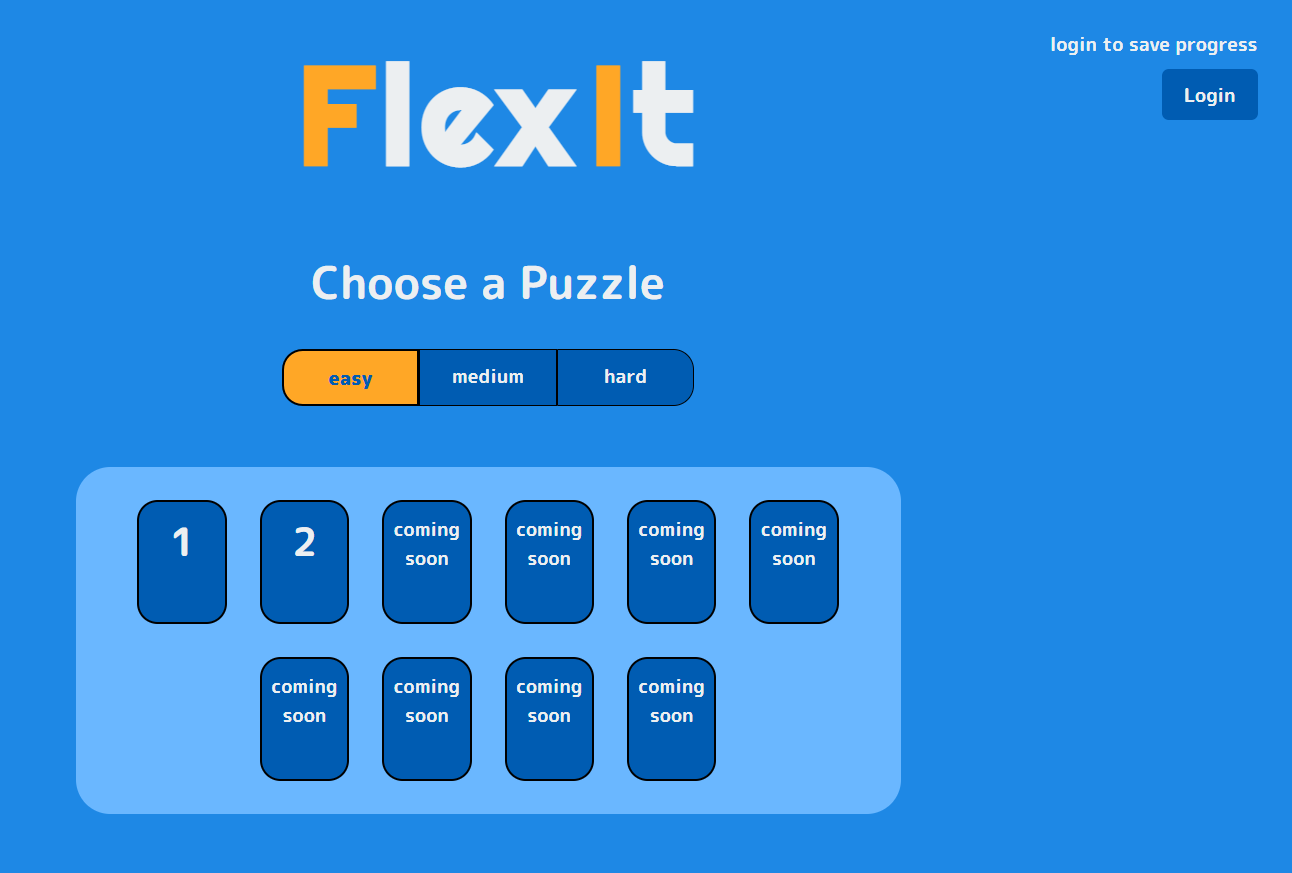
The initial screen allows us to toggle between easy, medium, and hard puzzles. Below the toggle options are the available puzzles to choose from. We are also presented with a login option in the top-right, which uses the secure Auth0 platform to allow a user to register/login in order to save their progress in puzzles and keep track of their completed puzzles.
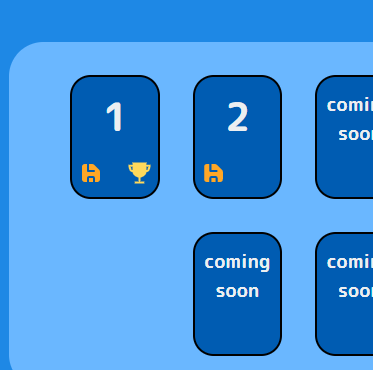
Once logged in, completed puzzles have a trophy icon in their bottom right, and puzzles with saved progress have a disk icon in their bottom left
Once a puzzle is chosen, you are taken to the puzzle play screen. This screen can be divided into three sections which are discussed in detail below.
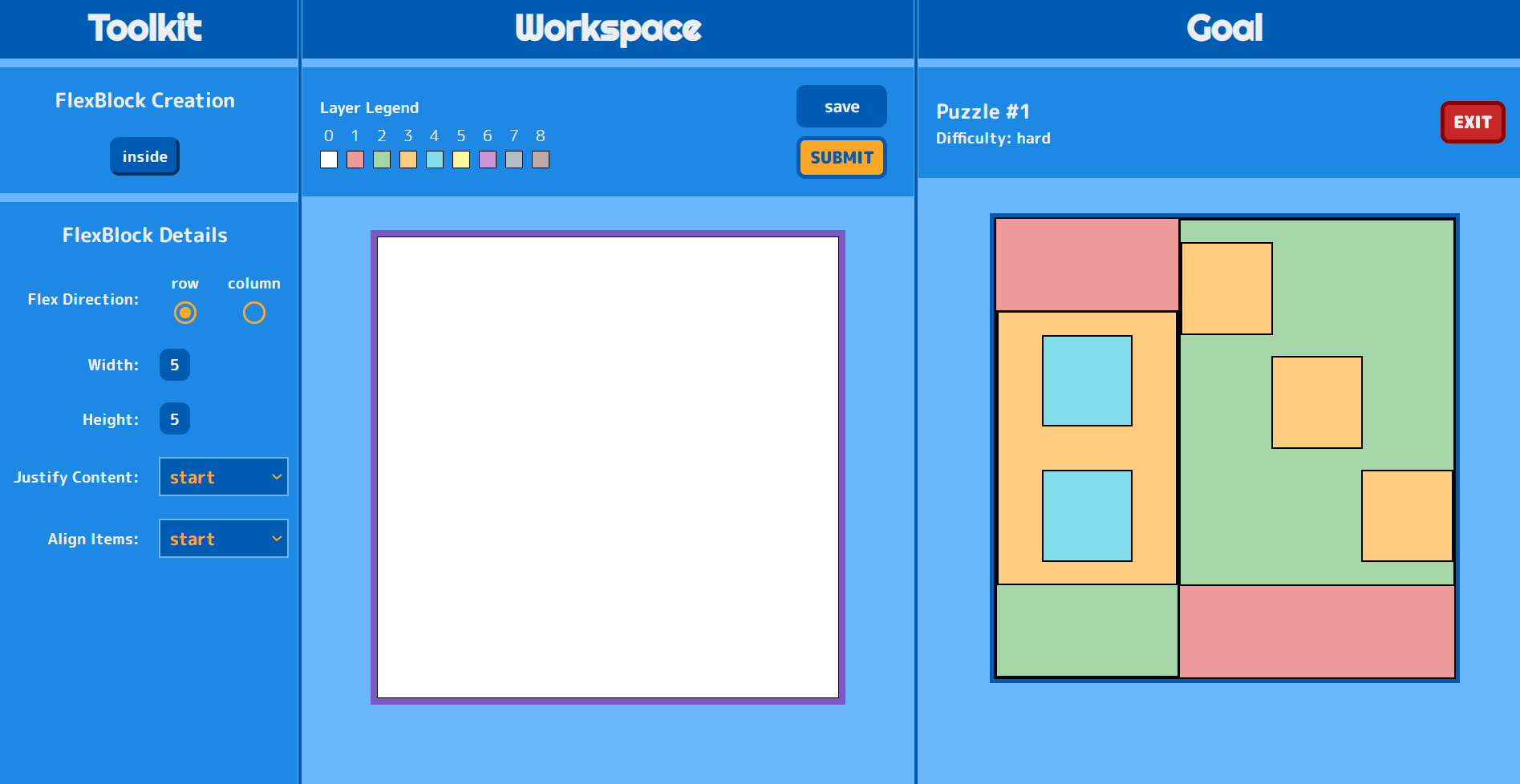
The rightmost area titled “Goal” shows the completed puzzle that we will try to recreate and match. We can see the puzzle name and difficulty listed above it, as well as an exit button to return us to the home screen without any further saving.
The central area titled “Workspace” is where we can see our work in progress. The primary area starts off as a blank white canvas. As we continue to add and modify the building blocks of our creation, we will see them either appear, change size, or change location in this area. There is a layer color legend above the canvas. Whenever a puzzle block is placed within another puzzle block, it will change color to better help the user identify how deeply nested inside of other blocks it is (in other words: how many layers deep it is). There is also a save button for saving your current progress, and a submit button for checking to see whether your puzzle matches the goal puzzle. If your puzzle matches it, then you will have successfully completed this puzzle and will be directed back to the home screen.
The left area titled “Toolkit” is where we can create and modify the building blocks we use to recreate the goal design. It has two sections labeled Creation and Details. Depending on your space availability, you will have the creation options to create a new block inside your current block, after your current block, or before it. The Details section will discussed in further detail later. But for now, you can know that it’s where you control the direction, dimensions, justification, and alignment for your building blocks.