StreamerBot
Using the Plugin in Streamer.bot
For setting up the Minecraft server, please see the Getting Started page.
Make sure that you have Streamer.bot installed before following guide!
- Inside Streamer.bot, navigate to the
Servers/Clientstab. - Click the sub-tab
Websocket Clients. - Inside the window, add a new Host, by right-clicking and pressing
Add. - Inside the popup window, set the
NametoMinecraft WebSocket Server. - Inside the popup window, set the
Hosttows://{localhost}:{8887}. (please replace{localhost}with your host, and{8887}with your port number) - Click
Ok.
You will be changing message actions later. Don't worry!
In this guide, you will be setting up the 'basics' of connecting to the WebSocket server, listening to events, and sending commands.
If this sounds like a lot, don't worry! 99% of this is already done for you!
Actions Download (Requires being in the streamer.bot discord to navigate to the message).
- Import the actions above.
- Navigate to the
MC WS Messageaction, you should see the following:
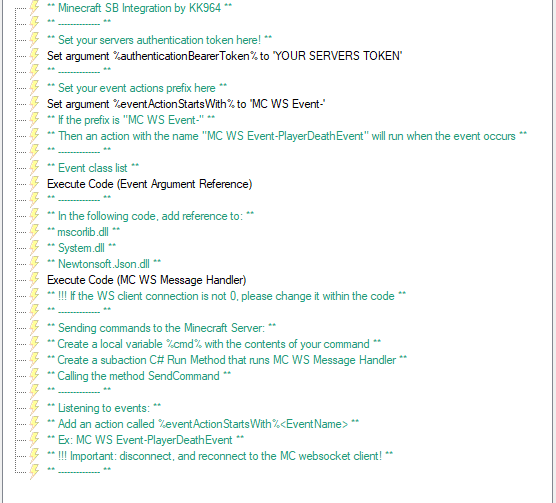
- If you have a authentication token on the server, you need to change the %authenticationBearerToken% to the token.

- Go back to the
Websocket Clientstab, and edit theMinecraft WebSocket Serverclient. Change theMessageto theMC WS Messageaction.
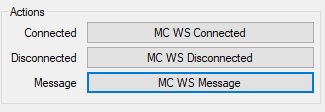
- Connect the websocket client to the server.
- Create a new action named
MC WS Event-{event name}. Events List - Add any sub-actions you want to the action.
You have 2 ways to send commands to the server.
C#:
CPH.WebsocketSend("Command {command}");Sub-Actions:
- Define a variable named
cmdand set it to the command you want to send. - Add a C# Method subaction, and call
MC WS Message Handler, and set the method toSendCommand.