Settings
Open via ☰ Menu → File → Settings... or the ⚙ toolbar button.
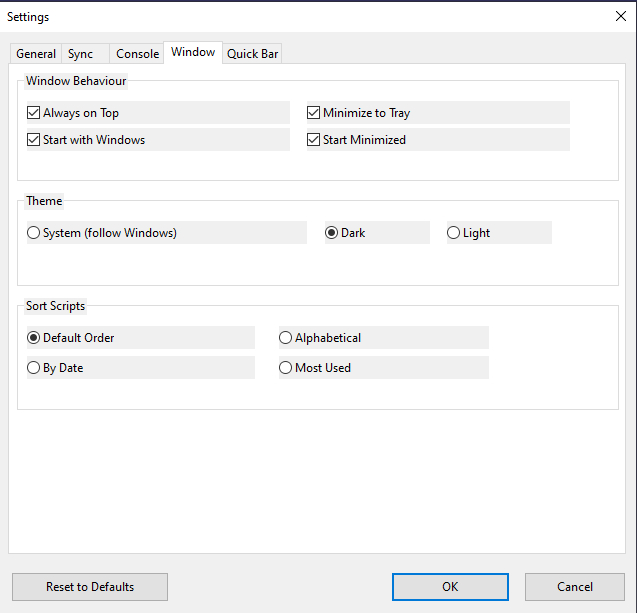
The Settings dialog has five tabs:
Full path to python.exe. Click Browse... to locate it. If left blank the app auto-detects Python from your PATH and common installation locations.
Where downloaded scripts are stored locally. Defaults to %APPDATA%\CatiaMenuWin32\scripts. Click Browse... to change it.
Optional Personal Access Token. Increases the GitHub API rate limit from 60 to 5,000 requests/hour and is required for private repositories.
Tick Use token and paste the token into the field. To generate a token: GitHub → Settings → Developer Settings → Personal Access Tokens → Fine-grained tokens. Give it read-only access to public repositories.
| Setting | Default | Description |
|---|---|---|
| Sync on startup | On | Download latest scripts when the app starts |
| Always download latest before running | Off | Always fetch newest script before execution |
| Check for updates on startup | On | Notify when a newer app version is available |
| Auto-install updates | Off | Download and install new versions automatically; also applies when using Help → Check for Updates… manually |
| Auto-refresh every N hours | 6 | Background sync interval (0 = disabled) |
| Setting | Default | Description |
|---|---|---|
| Show Python console | Off | Open a visible console when running scripts |
| Keep console open | On | Keep console open after script finishes (cmd /k mode) |
| Keep Deps console open | Off | Keep dependency install window open until manually closed |
| Repeat on double-click (main window) | On | Enable repeat mode for scripts in the main window |
| Setting | Default | Description |
|---|---|---|
| Always on Top | On | Keep main window above other applications |
| Minimize to Tray | On | Hide to system tray instead of taskbar when minimised |
| Start with Windows | On | Launch automatically at login via registry autorun |
| Start Minimized | On | Start hidden in the tray |
| Theme | System | Dark, Light, or follow Windows setting |
| Sort Scripts | Default Order | Default, Alphabetical, By Date, or Most Used |
Note: Theme, Always on Top, Window behaviour, and Sort Scripts are also accessible via ☰ Menu → View and ☰ Menu → Window without opening Settings.
| Setting | Default | Description |
|---|---|---|
| Enable Quick Launch Bar | On | Show the floating icon toolbar |
| Orientation | Vertical | Vertical (stacked column) or Horizontal (row) |
| Stay on Top with Target App | On | Auto-elevate bar when the target app is in the foreground |
| Target App | CATIA V5 |
Window-title substring to watch; empty = always visible, no topmost |
| Target Exe | CNEXT.exe |
Process executable name to match alongside Target App; click Browse… to pick via file dialog; empty = any process |
| Repeat on double-click (Quick Bar) | On | Enable repeat mode for Quick Bar buttons |
The bar is sourced from your ⭐ Favourites tab. Right-click the bar for its own context menu, or access all options via ☰ Menu → View → Quick Bar.
See User Guide — Quick Launch Bar for full behaviour details.
The Reset to Defaults button resets all settings to their factory defaults. Script sources (extra repos and local folders) are not affected.