Repository navigation
Overlays
NeoPedal has 93 overlays (called widgets in the settings files). Turn them on and configure them on the Overlays page: see Getting Started. Every option is described in the settings reference.
To give the settings of one overlay or of several to someone else, use Share on the Overlays page or in Overlay Options: see Share overlay settings.
The pictures of the Overlays page, of Overlay Options and of the setup wizard show each overlay on a simulated race: a GT3 mid race at Road Atlanta, in a 20 car multi-class field. Your game data, presets and running overlays are never touched by these pictures, even while you race. In Overlay Options, the live preview is drawn with your unsaved values: zoom it from 50 % to 300 % (buttons under it, Ctrl+wheel, double click to switch between actual size and fit) and widen the panel with the button at its bottom right. A zoomed overlay is drawn at that size, as the global overlay scale does, so text stays sharp. The preview plays the overlay on the simulated race driving a corner in a loop (inputs, speed, gear, G force, brakes heating up, tyres, loads and suspension moving), in the race situation you choose; the play button under it pauses on the still picture. Hovering a card of the Overlays page plays it the same way. Overlays showing a fixed sample (driver lists such as Relative and Standings, chat, flags and notifications out of a race situation) and lap traces stay still; values that do not change within a corner (fuel, weather, wear, standings) stay as they are.
On the game screen, overlays show only real game data. The sample content of Chat, Spotter, Race Notifications and Pit Lane Helper is drawn only in edit mode (right-click an overlay > Edit Mode), to place the overlay.
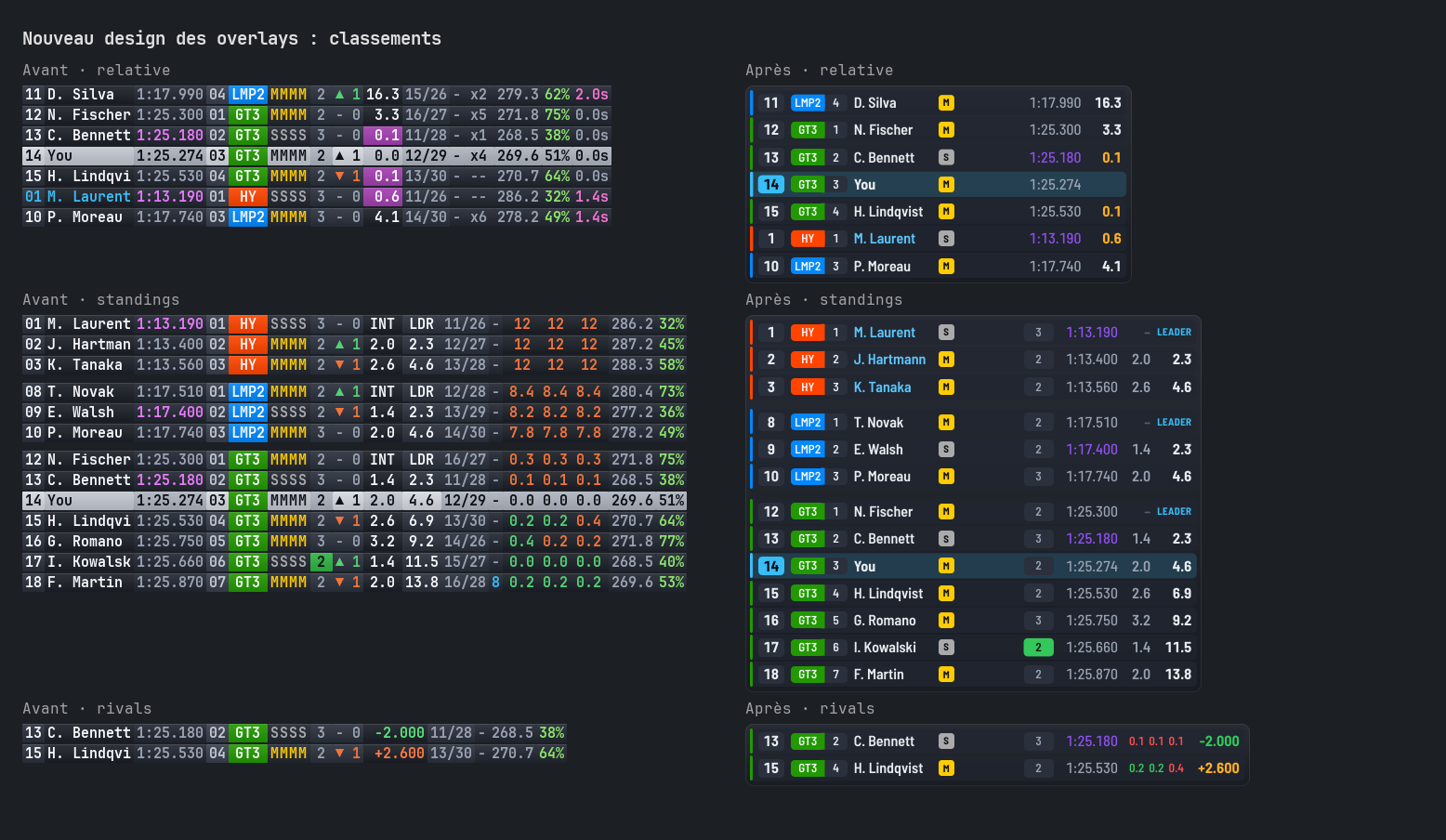
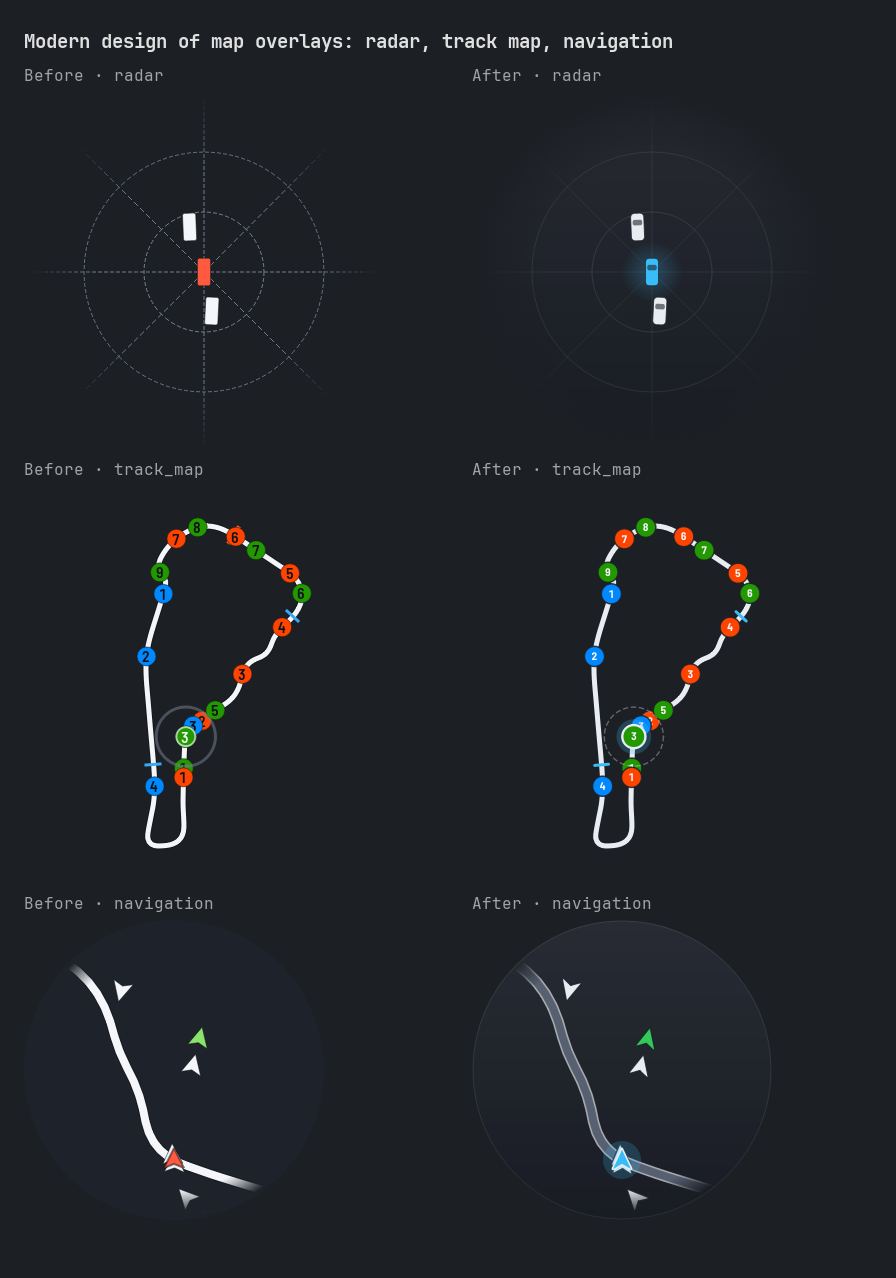
Every overlay has a modern design:
- one rounded panel per overlay, the bundled Barlow font for labels and monospace JetBrains Mono for values (
enable_modern_font), short labels above the values, translated into the app language; - values colored by meaning: gain, loss, warning, best time;
- standings as rows with a position badge, class pill and position in class, with selectable columns (
column_*options of Relative, Standings and Rivals); - fuel and energy with a gauge and markers, tyres and brakes as tiles in heatmap colors, LEDs as glowing dots.
- graphic overlays drawn for the design: round radar fading at its edge (amber, then red glow toward a car alongside), track map with cars as numbered dots in class colors (or race status colors) and a checkered start line, navigation view with road edge lines, friction circle with G rings, a trace fading with age and recent peaks, heading compass ring with yaw and front slip angle, drawn steering wheel, instrument and weather forecast icons drawn as shapes, trailing inputs with soft areas under throttle and brake, track notes card.
- flag items as chips in flag colors (caption above value, only while active, alerts flashing when raised, most urgent first if wanted), chat feed with a color per sender and new messages highlighted, elevation profile with the driven part in accent color and the car as a dot, race notifications with an icon per message and a bar shrinking with the time left, steering meter growing from center with a thumb, RPM LEDs keeping a faint tint of their color zone while unlit, spotter bars glowing toward the screen center.
- Dashboard HUD (formerly Black box) keeping its layout and options, in the Barlow font, theme colors and cards with a hairline border.
The modern design reads fewer options than the classic layout: the Overlay Options page only shows the options it uses. Display order options (display_order_*) apply to the modern rows and columns once you change one of them. In the Overlay Options page, Relative, Standings and Rivals list their columns in one Columns list, from left to right as the overlay draws them: switch each column on or off there, drag it or use the arrows to move it. Sections follow for the rows, the classes and number of cars (Standings), then the options of each column, dimmed while the column is hidden. The live preview of these three shows a sample race made with your list options.
The modern design also reads these options of the classic layout: trace_fade_out_step (Friction Circle), extra_digits (Sectors), show_inverted_delta_laptime_layout (Relative, Standings, Rivals), split_gap (Standings), reference_line_opacity (Telemetry Compare), leading_zero (Speedometer), show_compound_color_by_type (Tyre Pressure) and icon_size (Weather Forecast). The classic layout has its own switches for the parts made for the modern design, off by default: show_invalid_lap_highlight (Timing, Delta Best, Laps & Position) and show_wind_speed (Weather). The game overheating warning of Engine and Engine Temperature and the pit lane speed limiter reminder of Gear are one option for both designs, on by default: show_game_overheating_warning and show_speed_limiter_pit_reminder.
The classic layout is still available:
- for every overlay: choose a
Legacytheme (see below), the classic look; - for one overlay: turn on its
enable_classic_layoutoption (classic layout with modern colors).
Other options of Settings > Overlay Style (they apply to all presets): enable_modern_font (on: labels in modern_design_font_name, default Barlow Semi Condensed, and values in modern_font_name, default JetBrains Mono, monospace and bundled, also the font of classic layout overlays; off: each overlay in its own font_name option), corner_radius_scale, enable_depth_effects, minimum_bar_gap, overlay_scale (scale of all overlays) and enable_fade_animation.
Opacity of all overlays: overlay_opacity_percentage makes every overlay more see-through at once, text included (100 by default). It multiplies the opacity option of each overlay (right click › Opacity in edit mode), so 80 with an overlay at 0.9 shows it at 72%: one setting for all, each overlay keeps its own. It applies on screen, on stream and in VR.
Darker panels (modern design): background_opacity_percentage sets the opacity of the overlay panels (92 by default, 100 solid), and enable_black_background draws them in neutral black instead of the blue-tinted slate of the dark themes (Modern White keeps its panels).
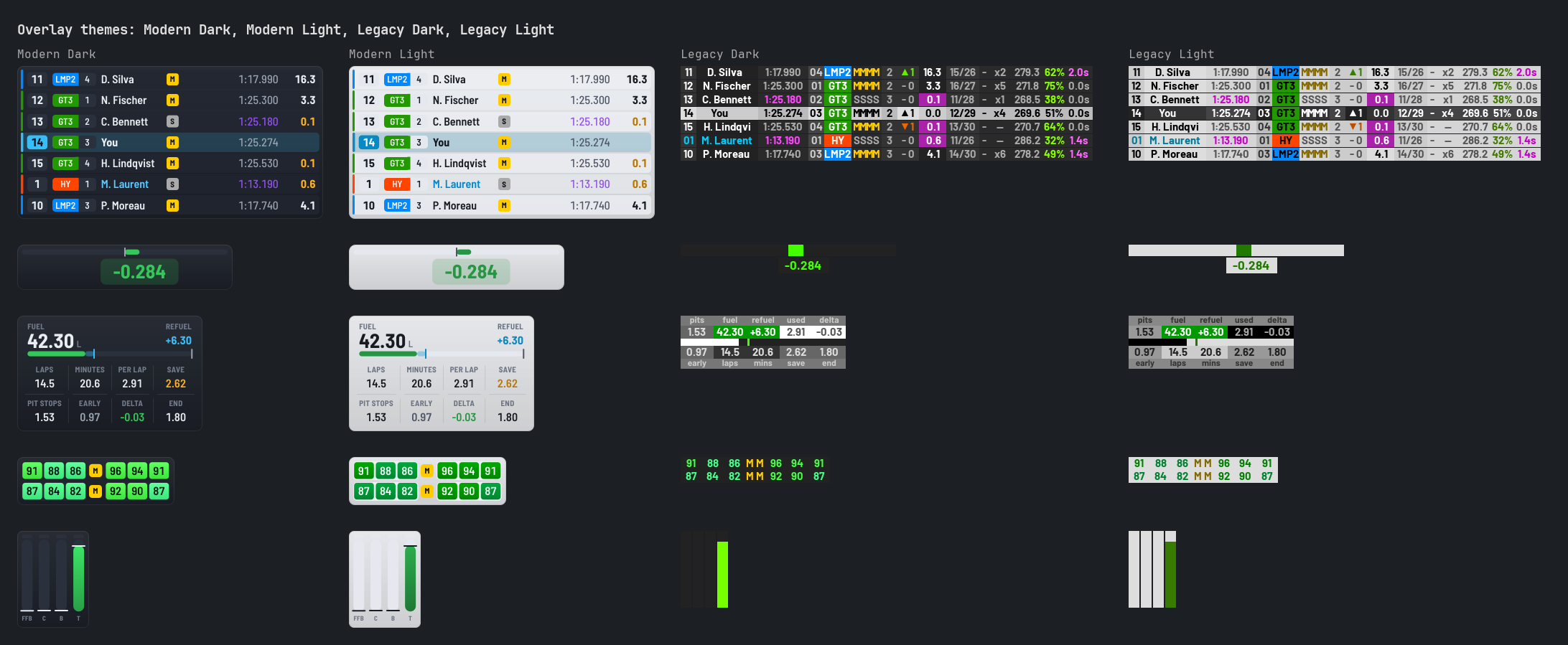
overlay_theme in Settings > Overlay Style sets the look of all overlays:
| Theme | Look |
|---|---|
Modern Dark |
Default: modern design, slate neutrals, softer accent colors |
Modern Grey |
Modern design, neutral gray panels (no blue tint) |
Modern White |
Modern design, light panels and dark text |
Legacy Grey |
Classic look: classic layout, colors and fonts |
enable_colorblind_colors turns on the colorblind safe variant of any theme (Okabe-Ito palette: red / green pairs become orange / blue).
Modern White inverts gray panels and text, keeps colored backgrounds (flags, warnings) and darkens the colors drawn on panels (heatmap temperatures, gains and losses) so they stay readable. Themes only change options that still have their default value: a color you customized is kept in every theme.
The window of the app has the same four themes (window_color_theme in Settings > Application > Interface). Window and overlays have separate themes.
-
Auto hide (tray menu
Auto Hide, on by default) hides every overlay when you are not driving, in the garage too. While you spectate a session or watch a replay, overlays are kept on the stream as long as a stream overlay source is on air (Show overlays while spectating, see Connections), but stay hidden on your screen and in VR. Theoverlay_visibilityhotkey shows them on screen anyway. - Each overlay has a
visibility_contextoption:Always(default),Race,Qualifying & Race,Practice & Qualifying,On TrackorIn Pits. - Overlays fade in and out when they appear or hide (
enable_fade_animationinSettings>Overlay Style).
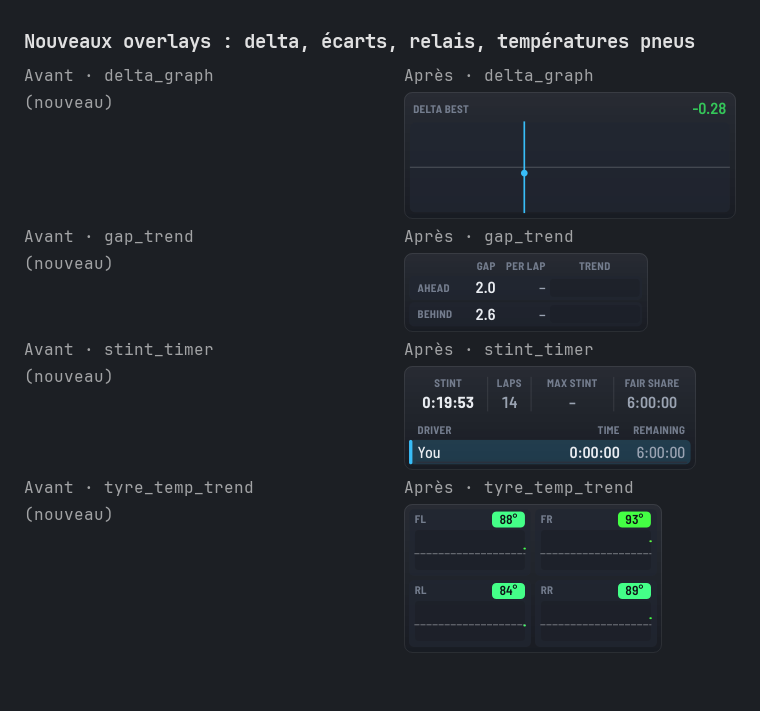
Seven overlays added in 0.20.0 help during a race. They are off by default: turn them on on the Overlays page.
| Overlay | What it shows |
|---|---|
| Delta Graph | Delta along the current lap (loss in red, gain in green), previous lap in the background. Reference: best lap, session, stint or last lap. |
| Gap Trend | Gap to the car ahead and behind over the last laps, and what you gain or lose per lap. All classes or your class. |
| Pit Lane Helper | Speed against the pit limit, speed limiter (warning if it is off), distance to your pit box and planned services. Shown only near and in the pit lane. |
| Stint Timer | Stint time and laps, countdown to the maximum stint, driving time of each driver against the fair share or the required minimum. |
| Spotter | Bars on the edges of the screen while a car is alongside, brighter when it is very close. A side flashes green ("clear") once the car is gone, and the bottom of a bar lights up while a car comes up behind on that side (show_clear_signal, show_approaching_cars). |
| Race Notifications | Short messages: places gained or lost (overall and class), penalty, class fastest lap, blue flag, full course yellow, invalid lap, and messages of the app (race reminders, server ready, race cancelled, errors and warnings, show_app_messages). Each type can be turned off. |
| Tyre Temp Trend | Surface temperature of each tyre over the last seconds or per lap, with the optimal temperature given by LMU. |
The Telemetry Compare overlay (off by default, Driver Inputs category) compares your live telemetry with the reference lap of the Telemetry Viewer, on track:
- Charts of speed, throttle and brake (on by default), steering and gear (off by default), over a window of distance around the car:
250m behind and150m ahead by default (distance_behind,distance_ahead). - The reference lap is drawn over the whole window, so its next braking point shows ahead of the car. Your current lap is drawn behind the car, up to the position mark. With the modern design, the reference lap is a soft area with a faint line, your lap a bright line.
- At the top: reference lap time, speed difference (green when you are faster) and delta to the reference lap at the same distance (red when you are slower).
-
reference_lap_source:Viewer(default) uses the lap set as reference in the Telemetry Viewer for the track and class (with a double-click or the flag button),Bestthe fastest valid recorded lap,Lastthe last recorded lap. Without a lap set in the viewer, the fastest valid lap is used. The reference lap is checked again every few seconds: a new best lap, or a reference changed in the viewer, is used while you drive. - Laps come from the Recorder module: drive a few laps first,
No reference lapis shown until the track and class have one. TheDeltamodule (on by default) keeps the charts moving smoothly between position updates of the game.
The Corner Coach overlay (off by default, Driver Inputs category) coaches you corner by corner against the same reference lap as Telemetry Compare (reference_lap_source: Viewer, Best or Last):
-
Next: the next corner, with its official number or name when the track has them (
T5,Tertre Rouge), and the distance to its apex (show_next_corner). -
Brake: distance to the braking point of the reference lap, then once you brake
On point,8 m earlyor8 m late(show_braking_point; withinbraking_point_tolerance,3m by default, counts as on point), orNo brakingfor a corner taken flat. -
Apex: minimum speed of the corner you just left and its difference to the reference lap, green when faster (
show_apex_speed).
Corners are found once per reference lap, in the background. No reference lap is shown until the track and class have a recorded lap.
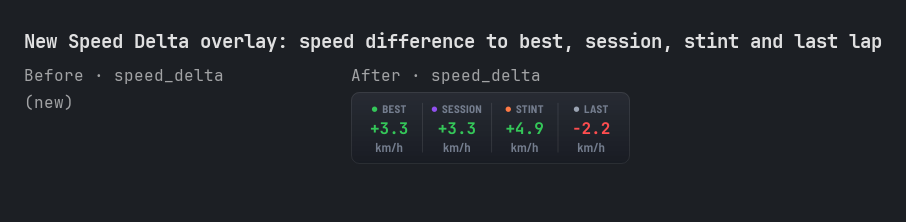
The Speed Delta overlay (off by default, Timing category) shows your speed difference to four reference laps at the same place of the lap: all time best, session best, stint best and last lap. It is positive when you are faster (green in the modern design, red when slower) and smoothed over speed_delta_smoothing_samples samples (10 by default).
- Each reference can be shown or hidden (
show_all_time_best,show_session_best,show_stint_best,show_last_lap), with its own prefix (prefix_*) and colors. - A dash is shown while there is no reference lap yet, on an out lap, or in the pit lane before the start line.
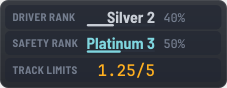
The Driver Rank overlay (off by default, Timing category, Le Mans Ultimate) shows your Driver Rank (DR) and Safety Rank (SR) as the game menu shows them (rank, tier and progress to the next tier), and your track limits points against the points allowed per penalty of the race (1.25/5; no limit in practice and qualifying, which have no penalty).
- Ranks are read from the game folder (
coherent_local_storage.json, written by the game menu, only read): they change once the game menu shows new ones, after an online race. A dash while they are unknown (game folder not found, never signed in online). - Recent game versions write ranks in that file when the game closes: the last ones seen are shown with their date (kept in
driver_ranks.historyof the global config folder). RaceOS (the online service of the game, read with the game's Steam ticket) is never asked: a developer of Le Mans Ultimate said third-party apps must not call it. - The game folder is found like for race results (folder chosen on the
Resultspage, else your Steam libraries); you are found by the Steam account last signed in, else by your game profile name. -
show_progressshows the progress to the next tier; each item can be shown or hidden (show_driver_rank,show_safety_rank,show_track_limits), with its own prefix and colors in the classic design. The modern design shows each rank in its color, with the progress as a bar.
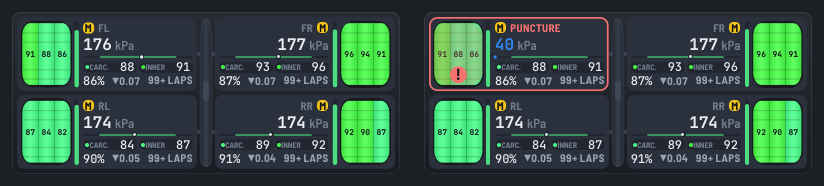
The Tyre Overview overlay (off by default, Tyres & Wheels category) shows every tyre reading in one card per tyre, placed as on the car (front left, front right, rear left, rear right). The modern design draws the car seen from above, its body in the middle and each tyre at its corner:
-
Compound badge, replaced by an alert when needed (card and tyre highlighted): detached wheel, puncture, flat spot (
flat_spot_threshold: tread lost by locking). - Surface temperatures inner / center / outer (or one average) on the tyre in heatmap colors, carcass and inner layer temperatures.
-
Pressure, blue below the target range and red above it: same ranges as the Dashboard HUD (
tyre_pressure_target_minimum/_maximum, own rear range, or per compound withtyre_target_by_compound), entered in kPa, psi or bar; the modern design shows its place on a scale around the target range. - Tread left as a gauge along the tyre and in percent, wear per lap and laps left on this tread, red at the warning thresholds.
Each part has its own on/off option (car body, wheel name, tyre drawing and its grooves, alert highlight, pressure unit and target scale, tread gauge…); the cards get smaller. Tyre drawing off, surface temperatures move to a row of the readings. Try it without driving with the race situations of the preview (Damage) and Test on Screen on the Overlay Options page.
-
Relative, Standings, Rivals:
Gap Trendcolumn (modern design,column_gap_trend, on by default in Relative, off in Standings and Rivals): how the gap to each car changes per lap, averaged over about 30 s. Green arrow when you gain (closing on the car ahead, pulling away from the car behind), red when you lose, a dash when steady (under 0.05 s per lap) or for a car in the pits. -
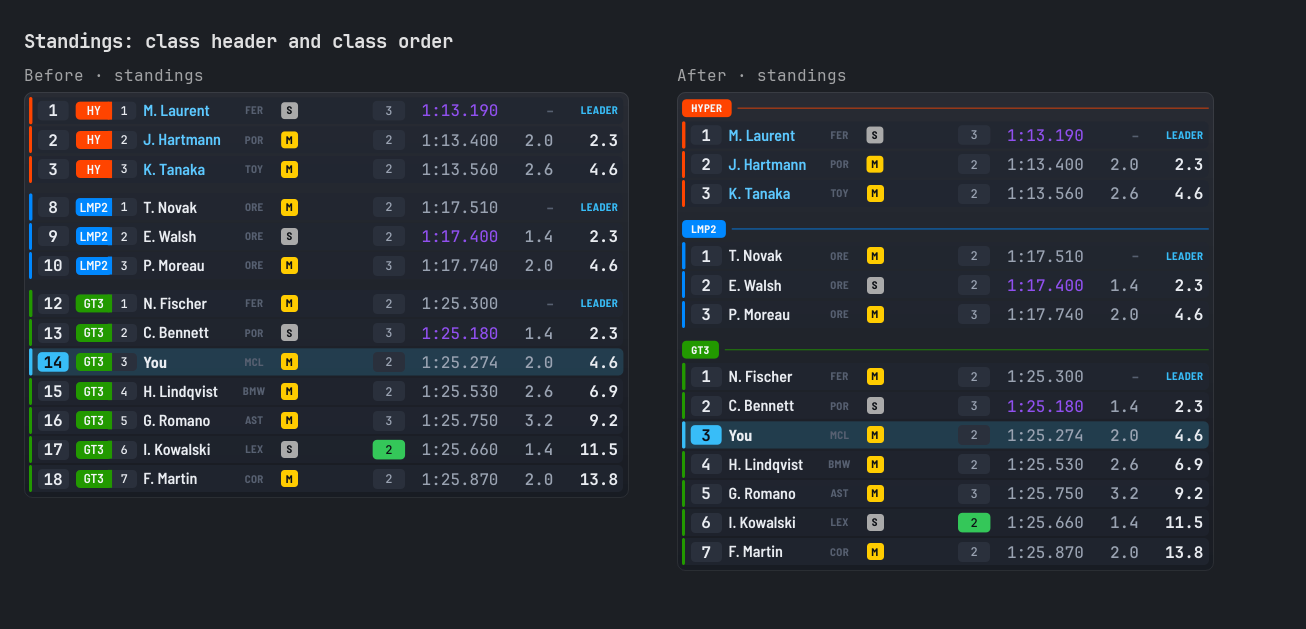
Standings: class header (modern design,
show_class_header, on by default): in multi-class split mode, or with one class shown (enable_single_class_exclusive_mode), each class starts with its name in a colored pill; the class column is left out and the position badge shows the place in class. -
Standings: class order (
class_order, both designs): the order of the classes in multi-class split mode (Hypercar, LMP2, LMP3, GT3... by default). InOverlay Options, drag the classes or use the arrows;Default Orderputs the default order back. Classes found in no list come after, fastest first. -
Standings: other classes:
maximum_vehicles_per_split_otherstakes any value from0;0hides the other classes. - Standings: skipped places shown apart (both designs): when the list cannot show every car, a space separates the top places from the places around you (combined mode, and your class in split mode), so a jump from P3 to P9 is visible at a glance. Cars that finished keep their gaps as they were at the line, and show their last lap instead of an empty pit time.
-
Relative, Standings, Rivals: lap time like a timing tower (modern design): running time of the lap, then after the line the completed lap and the time behind personal best in turn (same place: narrow column), sector bars colored as the game live timing,
OUT/INlaps, invalid lap in red, trend arrow. -
Relative, Standings, Rivals: pit status & stops in one column (modern design): the pit stops count or the penalty, replaced by the pit status pill (pit lane, garage, slow, finished) while there is one: one narrow slot.
show_pit_stops_beside_statusshows both side by side (wider column). -
Relative, Standings, Rivals: real penalties (Le Mans Ultimate): the pit stops column shows the penalty as the game gives it (
DT,SG10,+10s,DQ,+35sadded at finish) instead ofPENor-1. -
Standings: column labels (modern design,
show_column_headers, on by default): a row of short labels above the cars. -
Standings: gaps and intervals:
Time Gapis the gap to the leader (to the leader's best lap outside races),Intervalthe gap to the car ahead (best lap difference outside races). By class in multi-class split mode or with one class shown (show_time_gap_from_same_class,show_time_interval_from_same_class). -
Relative, Standings:
Energy per Lapcolumn (modern design, Le Mans Ultimate, off by default): virtual energy each driver used in the last lap, or the average of the last 5 laps, for every car of the session. -
Relative, Standings, Rivals: class column without class name (modern design,
show_class_name, on by default): off, the class column shows the position in class alone on a square of class color (3on green for third in GT3), narrower. -
Fuel, Virtual Energy: each value on its own (both designs): remaining, refuelling (refilling), estimated laps and minutes, consumption per lap, saving target, pit stops, early pit stops, delta consumption, end remaining, and fuel ratio and fuel bias (Virtual Energy) each have their own
show_*option, all on by default. Classic layout: a hidden value leaves an empty place while the value above or below it is shown, so both rows stay aligned. Modern design: the tiles follow one another, the top part is left out with both remaining and refuelling hidden. -
Relative, Standings, Rivals:
Track Limitscolumn (modern design, Le Mans Ultimate, off by default): the track limits points of each driver, amber once any, red one point before the penalty in races. -
Relative, Standings:
Car Numbercolumn (modern design, Le Mans Ultimate,column_car_number, off by default): the number the game shows for each car (#4), before the driver name. Online, the server gives every car of a split its own number whatever its livery (a McLaren in livery#397can be#4), the number of the game standings: it is read from the game Rest API every 5 seconds while the column is shown, a dash while the game does not answer (rFactor 2, menus). Your own number is brighter. -
Relative, Standings:
Nationalitycolumn (modern design,column_nationality, off by default): the flag of each driver's country, before the driver name (headerNat). Yours comes from your game profile (NationalityofUserData/player/Settings.JSON). Other drivers of an online server: the nationality the game gives for them (local Rest API,/rest/multiplayer/teams, no extra request). AI drivers carry the names of real FIA WEC, Le Mans and ELMS drivers: their nationality comes from a list of 464 drivers bundled with the app (2023 to 2026 entry lists), matched without accents or case. No flag when the nationality is unknown. Your flag is also shown on the Home and Driver Stats driver cards, and in a driver's profile in Upcoming Races. -
Standings, Relative, Rivals: team names (modern design,
show_team_namein theDriver Namecolumn options, off by default): the team of each car right after the driver name, smaller and dimmer (endurance and team races). Le Mans Ultimate gives the team the game shows (custom liveries online show the team their players chose), read from its Rest API every 10 seconds; otherwise the team comes from the livery name (BMW M Team WRT 2025 #15:LMgivesBMW M Team WRT).team_name_widthsets the room added for it. -
Relative, Standings, Rivals:
Driver & Safety Rankcolumn (modern design, Le Mans Ultimate,column_driver_ranks, off by default):S2 P3in rank colors, dashes while unknown. Yours and your team members' (game menu file); other drivers' ranks are not known (they came from RaceOS, which third-party apps must not call): dashes. The game badge of each driver is a column of its own (Driver Badge,column_driver_badge, off by default): shown with or without the ranks, moved on its own (the badge alone is enough to spot a risky driver ahead).
-
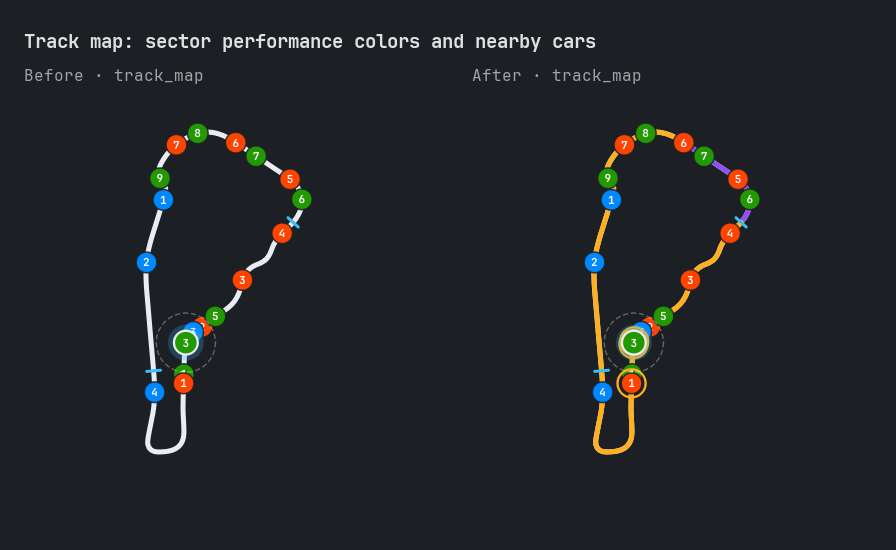
Track map: sector performance (modern design,
show_sector_performance, on by default): each sector of the road is colored by your most recent time there, as the game live timing: purple for the best of your class in the session, green for your personal best, orange slower. -
Track map: nearby cars (modern design,
show_nearby_vehicle_highlight, on by default): cars less thannearby_vehicle_threshold(1.0s) ahead or behind get a ring. -
Track map, Elevation: corner numbers (both designs,
show_corner_numbers, off by default): the official corner numbers (or names, translated) of the track, beside each bend of the map and under the elevation profile.V5in French, so they never read as a car position. -
Relative: lap time delta column (modern design,
column_delta_laptime, off by default): the last laps of each car against yours, as in Standings and Rivals.
Overlays are grouped by the categories of the Overlays page filter. Names are as shown in the app.
| Overlay | Shows |
|---|---|
| Delta Graph | Delta along the current lap, as a graph (race aid) |
| Deltabest | Delta to your best lap; optional official delta of LMU; a dash on out laps (pit lane, back to garage) |
| Deltabest Extended | Delta against several lap time sources; session best kept when the app restarts in the same session |
| Gap Trend | Gap to cars ahead and behind, lap after lap (race aid) |
| Driver Rank | Driver Rank (DR), Safety Rank (SR) and track limits points, see above |
| Laps And Position | Lap number, overall position, position in class |
| Lap Time History | Recent lap times |
| Pit Stop Estimate | Estimated pit stop duration and refuelling |
| Race Plan | Next stop of the Race Calculator plan |
| Relative | Cars around you on track, with class, tyres, pit status, gaps and gap trend |
| Relative Finish Order | Estimated finish order between the leader and you, with refuelling estimate |
| Rivals | Cars ahead and behind you in your class |
| Sectors | Sector times and gaps; best sectors from the first lap, the out and in lap included (only the sectors through the pit lane or of a lap invalidated by the game are left out) |
| Session | Clock, session name, time left, lap, position, field pace (community level of your class, option) |
| Speed Delta | Speed difference to the best, session best, stint best and last lap at the same place of the lap, see above |
| Standings | Classification with selectable columns, class headers and class order |
| Stint History | Previous stints |
| Stint Timer | Stint time and driving time of each driver (race aid) |
| Timing | Lap times, invalid lap indicator |
| Track Clock | Time of day on track, time scale, sunlight phase |
| Overlay | Shows |
|---|---|
| Friction Circle | G forces in a circle diagram |
| Slip Angle | Tyre slip angle |
| Slip Ratio | Tyre slip ratio |
| Tyre Carcass | Tyre carcass temperature |
| Tyre Deflection | Tyre vertical deflection |
| Tyre Inner Layer | Tyre inner layer temperature |
| Tyre Load | Tyre load and ratio |
| Tyre Overview | Every tyre reading in one card per tyre: compound & alerts, temperatures, pressure, wear (see below) |
| Tyre Pressure | Tyre pressure |
| Tyre Temp Trend | Tyre surface temperature over time (race aid) |
| Tyre Temperature | Tyre surface temperature; optional heatmap centered on the LMU optimal temperature |
| Tyre Wear | Tyre wear |
| Wheel Camber | Wheel camber angle |
| Wheel Dimension | Front and rear tyre radius measured while driving (Wheels module enable_wheel_dimension_measurement) |
| Wheel Toe | Wheel toe angle |
| Overlay | Shows |
|---|---|
| Brake Bias | Brake bias |
| Brake Performance | Braking performance |
| Brake Pressure | Brake pressure per wheel |
| Brake Temperature | Brake temperature |
| Brake Wear | Brake wear |
| Overlay | Shows |
|---|---|
| Pedal | Pedal inputs and force feedback; throttle & brake bars flash on TC, ABS, wheel lock & spin |
| Telemetry Compare | Speed, pedals, steering and gear against the reference lap of the Telemetry Viewer, with delta |
| Corner Coach | Next corner, braking point and apex speed against the reference lap of the Telemetry Viewer |
| Steering Angle | Steering and wheel angle |
| Steering Meter | Steering input |
| Steering Wheel | Virtual steering wheel |
| Trailing | Pedal, steering and force feedback plots, optional pedal bars beside them (same alerts as Pedal) |
| Overlay | Shows |
|---|---|
| Battery | Battery usage |
| Cruise | Compass, elevation, odometer |
| DRS | DRS (rear flap) usage |
| Electric Motor | Electric motor usage |
| Engine | Engine usage; engine overheating warning of LMU |
| Engine Temperature | Engine temperatures |
| Fuel | Fuel usage, laps and minutes left, refuelling |
| Fuel Energy Saver | Fuel or virtual energy saving targets |
| Gear | Gear, RPM, speed, battery; speed limiter reminder |
| Instrument | Vehicle instruments: headlights, ignition (red while ignition and engine are off, amber while stalled), clutch |
| Lift And Coast LED | Lift and coast, TC and ABS activation, wheel slip and lock |
| Push To Pass | Push to pass (P2P) usage |
| RPM LED | Shift lights |
| Speedometer | Speed |
| Virtual Energy | Virtual energy usage (LMU Hypercar, LMGT3) |
| Overlay | Shows |
|---|---|
| Acceleration | Acceleration timing |
| Damage | Vehicle damage |
| Damage Stats | Damage figures |
| Differential | Differential locking |
| Force | G forces and downforce |
| Rake Angle | Rake angle |
| Ride Height | Ride height, front and rear axle |
| Roll Angle | Front and rear roll angle |
| Suspension Force | Suspension force and ratio |
| Suspension Position | Suspension position |
| Suspension Travel | Suspension travel |
| Weight Distribution | Weight distribution |
| Overlay | Shows |
|---|---|
| Chat | In-game chat of LMU; scroll_direction: Upward (newest message at the bottom, default) or Downward (newest at the top); messages fade out at the end of their display time, also in the garage and menus |
| Dashboard HUD | All-in-one view of the car (formerly Black box), see below |
| Elevation | Elevation profile of the track |
| Flag | Flags, pit state, warnings, start lights, penalty to serve, last lap, heavy damage, gap of the car lapping you under blue flag, speed limiter against the pit speed limit (and pit lane driven without it) |
| Heading | Yaw angle, slip angle, heading |
| Navigation | Zoomed map centered on your car |
| Pace Notes | Pace notes and comments |
| Pit Lane Helper | Pit limit, speed limiter, distance to pit box (race aid) |
| Race Notifications | Short race messages (race aid) |
| Radar | Cars around you, seen from above |
| Spotter | Side bars while a car is alongside (race aid) |
| Track Map | Track map with every car; sector performance colors and a ring on nearby cars (modern design) |
| Track Notes | Corner and section names, notes |
| Traffic | Nearest cars closing in: slower car ahead, faster car behind |
| Weather | Weather; wind in LMU |
| Weather Forecast | Weather forecast |
| Wind Direction | Compass turning with your car and arrow of where the wind blows (up: tailwind), colored by wind strength; a dot while calm (no wind simulated) |
| Overlay | Shows |
|---|---|
| Onboard Setting | ABS and TC levels (LMU) |
| System Performance | CPU and memory usage of the system and of the app |
With Le Mans Ultimate, Track Map and Navigation show the official circuit of the game as soon as it answers (Rest API access of Settings > Le Mans Ultimate API on, the default): the shape first, the start line (and the Elevation profile) once a car drives on track, the sector lines once you cross them, then it is saved as the track map. Otherwise (rFactor 2, Rest API off) Track Map, Navigation and Elevation need one complete lap on the track: the Mapping module records the map (a node every minimum_node_distance meters, 5 by default). A short freeze of the app or the game while driving no longer loses the lap: it is shown with the gap, and the next lap without a gap is saved; a real jump (back to the garage, part of the lap skipped) is still not kept. Without any map yet, Track Map shows a line of text instead of a made-up circle. The Orient (°) column of the Tracks tab of Data Editors turns the map of one track in the Track Map overlay, added to display_orientation. Brand logos (column column_brand_logo of Relative, Standings and Rivals, on by default and turned on once in existing presets) are the real logos of Le Mans Ultimate: the app takes them from the game running on your computer (Rest API access of Settings > Le Mans Ultimate API on, the default) and keeps them in the gameimage folder, so they show up after the game was open once with the app. A PNG file of your own named after a brand in the brandlogo folder is shown instead; with rFactor 2, own files are the only logos. While a brand has no logo, its first letters are shown.
The Dashboard HUD (formerly Black box, setting name black_box) is an all-in-one view of the four wheels and the car. Its modern design keeps the same layout and options, drawn in the Barlow font and the theme colors (enable_classic_layout brings the classic look back):
- tyres at each corner seen from above, with temperatures, pressures, wear, wheel lock and spin outlines, steering and suspension movement, without overlaps even at full lock. Suspension movement is magnified 8 times by default (
suspension_motion_scale) so it can be seen, which makes the overlay about 15 % taller; set it to1for the previous size; - brakes, suspension, damage panel, fuel and energy gauges, battery, RPM LEDs, gear and speed;
- chips for ABS, TC, brake bias and engine map, icons for headlights, wipers (with their mode) and engine;
- a setting change pop-up in the center column: change TC, ABS, brake bias, engine map or an anti-roll bar in the car and it shows the new value and highest level for 2 seconds (
TC 4/9 ▲), green when it went up, red when it went down; pit limiter, headlights and wipers changes too; - optional center column items (LMU): track limits points (
LIMITS 1.25/5), gap to the car ahead and behind, lift & coast bar; - an event log and incident recorder: contacts (with the name of the other driver, or the wall, in LMU), penalties and track limits.
In the Overlay Options page its options are in its own sections (profile, size and layout, tyres, brakes, incident recorder...), with a simple mode for the main items (Advanced Options or a search shows them all) and default or colorblind safe colors. Click a part of its picture (a tyre, the center column, the damage panel...) to jump to its options. Display profiles (Minimal, Sprint, Endurance, and your own User 1 to User 3 saved with the Profile menu) set the items shown; the active one is named at the top of the page, and changing an option it sets switches to Custom, keeping its other values. Hotkeys black_box_next_incident (show older incidents) and black_box_open_incident_folder work with the incident recorder; incidents are saved in the blackbox folder of the global config folder. While incident file export is on, right-click the Dashboard HUD (overlay unlocked) for Open Incident Folder.
You can add your own overlays as plugins: a folder in plugins (next to the app) with a setting.json and a widget.py. The Plugin Manager, opened by the Plugins button (puzzle icon) of the Overlays page or the command palette (Ctrl+K), shows their state, enables or disables them, reloads their code and installs plugins from a .zip. A plugin runs only once you trusted it, and any change of a file in its folder asks you to trust it again; plugins with native code files (.pyd, .dll, .so, .pth) are refused. See Widget plugins.
Warning
Plugins are normal Python code with full access to your computer. Only install plugins from sources you trust.