Repository navigation
Telemetry Viewer
Every lap you drive is recorded, and the Lap Telemetry Viewer compares them: charts, racing line map, corner analysis, session pace, XY plots and a simple view drawn like the overlays. It is drawn by the graphics card (Qt Quick), so zooming and moving stay smooth.
Open it with the Telemetry entry of the navigation bar, or the Tools menu.
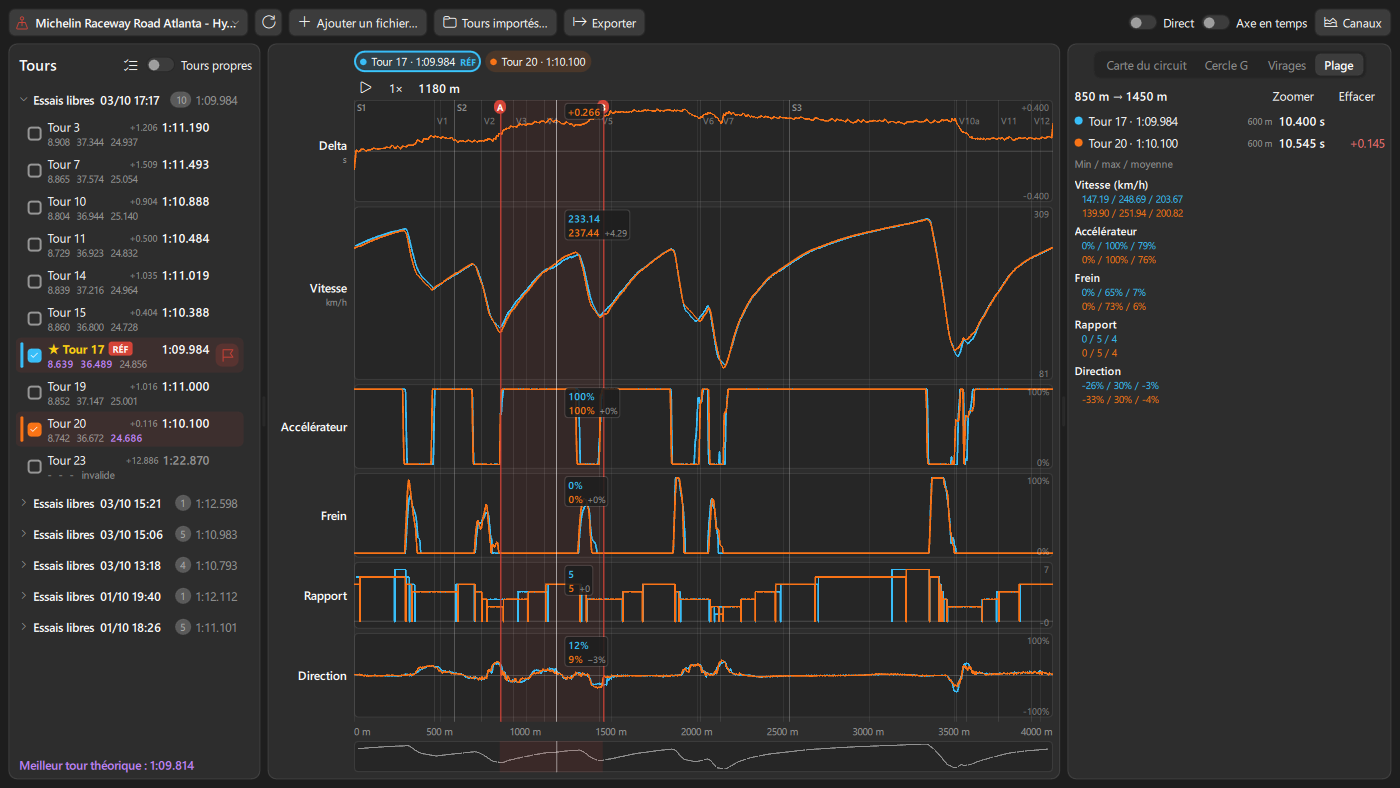
The Recorder module (on by default, Settings > Modules) saves each complete lap as a CSV file in the telemetry folder, one subfolder per track and car class. Laps are checked against the game lap time; laps that are not confirmed (track limits, invalid lap) are marked invalid.
Main options of the Recorder module:
| Option | Default |
|---|---|
number_of_saved_laps_per_track |
0: every lap kept (a number keeps that many laps per track and class, oldest removed) |
number_of_best_laps_kept_per_track |
3 fastest valid laps never removed |
save_invalid_laps |
On |
enable_out_and_in_lap_recording |
On |
enable_compressed_lap_files |
Off (.csv.gz, about 5 times smaller) |
enable_100hz_lap_recording |
Off (a sample every 10 ms instead of 20 ms: finer suspension, lockups and kerbs, files about twice larger) |
Recorded channels include pedals, steering, speed, gear, RPM, fuel, position, G forces, TC and ABS activity, battery, and per wheel: tyre temperatures (inner, middle, outer), pressures, wear, load, brake temperature, wheel speed, ride height, suspension, slip angle and camber. Newer laps also keep the pedals the car gets after driving aids (traction control cut, ABS, throttle blip), front and rear downforce and the wheel camber angle. Brake bias, TC and ABS levels, engine map, water and oil temperatures and the steering wheel rotation (degrees lock to lock) are recorded too, and with LMU the name of the setup loaded in the game. Each lap also gets a binary copy, so the viewer opens it without reading the CSV again.
- Select the track at the top.
- In the lap list, laps are grouped by session (newest first). Check laps to show them: each lap keeps its own color.
- The fastest valid lap is the reference (
REFbadge). Double-click a lap, or use its flag button, to make it the reference. - Colors follow the overlays: purple and ★ for a best (fastest lap of a session, best sectors, theoretical best, ideal lap, fastest between markers A and B), green and a
PBtag for your personal best on the track (fastest valid lap of all sessions).
Lap list tools:
-
Clean onlyhides invalid, out and in laps. The search field finds laps by vehicle, session, setup or note. -
Compare Laps ▾checksBest vs Last Lap,3 Best Laps,5 Best LapsorBest Lap in Similar Conditions(track temperature, compound, wet track), runsAnalyze My Last Lap, orUncheck All.Shift+ click checks every lap between two. With no lap shown, the charts offerBest vs Last Lapat once. - The
⋯menu next to it acts on the checked laps:Keep Checked Laps,Stop Keeping Checked Laps,Export Checked Laps (MoTeC)…,Move Checked Laps to Trash…, andRecently Deleted Laps…. -
Synthesis band under the lap chips (charts and simple view): the compared lap against the reference lap, its total gap, and the three corners where it loses most time with their likely cause. Click one to zoom the charts on it;
‹/›(orShift+[/]) step through them,1/3tells which one is shown. -
Analyze My Last Lap(toolbar): your best lap against your newest lap, the Corners tab opened and the charts zoomed on the corner where the newest lap loses most time. - Right-click a lap:
Set as Reference,Export MoTeC…,Keep Lap(never removed by the recorder),Note…,Use as Delta Best…(the lap becomes the delta best used on track; your first delta best is always kept as a backup, plus the 5 latest ones; a teammate's lap of the same track and class can be used too),Setup Differences with Reference…,Move to Trash. Session rows have the same actions for all their laps. - Deleted laps go to a trash:
Ctrl+Zrestores them, last deletion first (up to 20 deletions).Recently Deleted Laps…(quick selection menu of the lap list) lists every lap of the trash with aRestorebutton; laps stay there 30 days.Deletedeletes the highlighted lap, or else the checked laps, and/jumps to the search. -
Livelists new laps as soon as they are recorded and compares the newest lap with the best one (a new best lap with the previous best). A reference lap you picked stays the reference, and the viewer switches to the track you are driving.
-
Simple View / Advanced View: the switch in the toolbar shows the charts (
Advanced View) or the Simple View in their place. Both show the same channels. -
Channels: the
Showmenu picks what both views show, by group (Pedals & Steering Wheel,Timing,Engine,Tyres,Brakes,Chassis,Electronics,Track,Math Channels) or channel, with a search field (channels of one wheel are found there) and presets (Pedals, Tyres, Brakes, Suspension). Channels not recorded in the shown laps are greyed out. Four-wheel channels share one panel. The chart options are at the bottom of the same menu. -
Delta and time gain/loss: delta to the reference along the lap, and where time is gained or lost (
Gain/Loss windowfrom 20 to 150 m).Delta vs ideal lapcompares with the fastest clean lap in each mini-sector instead. - Cursor: move the mouse to read every lap's value and its gap to the reference.
-
Markers A and B (right-click, or
A/Bkeys) and theA-B Passagetab: time of each lap between the markers, gap to the reference, minimum, maximum and mean of each channel. - Distance to Center and Track Position: the game's values when the lap recorded them, else measured on the map once track edges are known.
-
Calculated channels: wheel slip (lock under braking, spin on throttle), steering rate, fuel used, tyre temperature spread, throttle and brake cut by the driving aids (driver pedal minus pedal the car gets; below 0 for a throttle blip), aero balance (front share of downforce), rake (rear minus front ride height) and damper velocity of each wheel. Presets
Driving AidsandAeroshow them.Math Channels…adds your own formulas (+ - * /,abs,min,max,d()change per second) and has built-in understeer angle, brake release rate and throttle application rate. -
Display:
Smoothingfor noisy channels,Min / max bandof the shown laps (3 laps or more),Time Axis(charts along lap time instead of distance). -
Align on braking: right-click >
Align Laps on Braking Point Hereshifts laps so their braking starts line up with the reference. -
Playback: the bar under the charts (same place in the simple view) plays the reference lap at real speed (0.1x to 4x,
Space), with optional loop between markers A and B; drag its position bar to move along the lap. -
Right-click menu: markers, zoom to sector or between markers, copy values or picture,
Open Replay Herewhen a Session recorder replay covers the lap,Add Track Note Here/Edit Track Note/Delete Track Note. - Track notes: a note at a track distance ("brake at the 100 board") shows on the charts and the map of every lap of the track. Notes are the track notes file of the Track Notes overlay: a note added here shows in game, and notes written for the overlay show here (pit lane notes left out). Double-click a note to edit it.
Zoom with the mouse wheel, Shift + drag to zoom an area, double-click or Reset to reset. Click S1, S2, S3 to zoom on a sector. Drag a channel name to reorder channels, drag a panel edge to resize it. Right-click a panel and choose Fit Values to Visible Part to scale its values to the zoomed part.
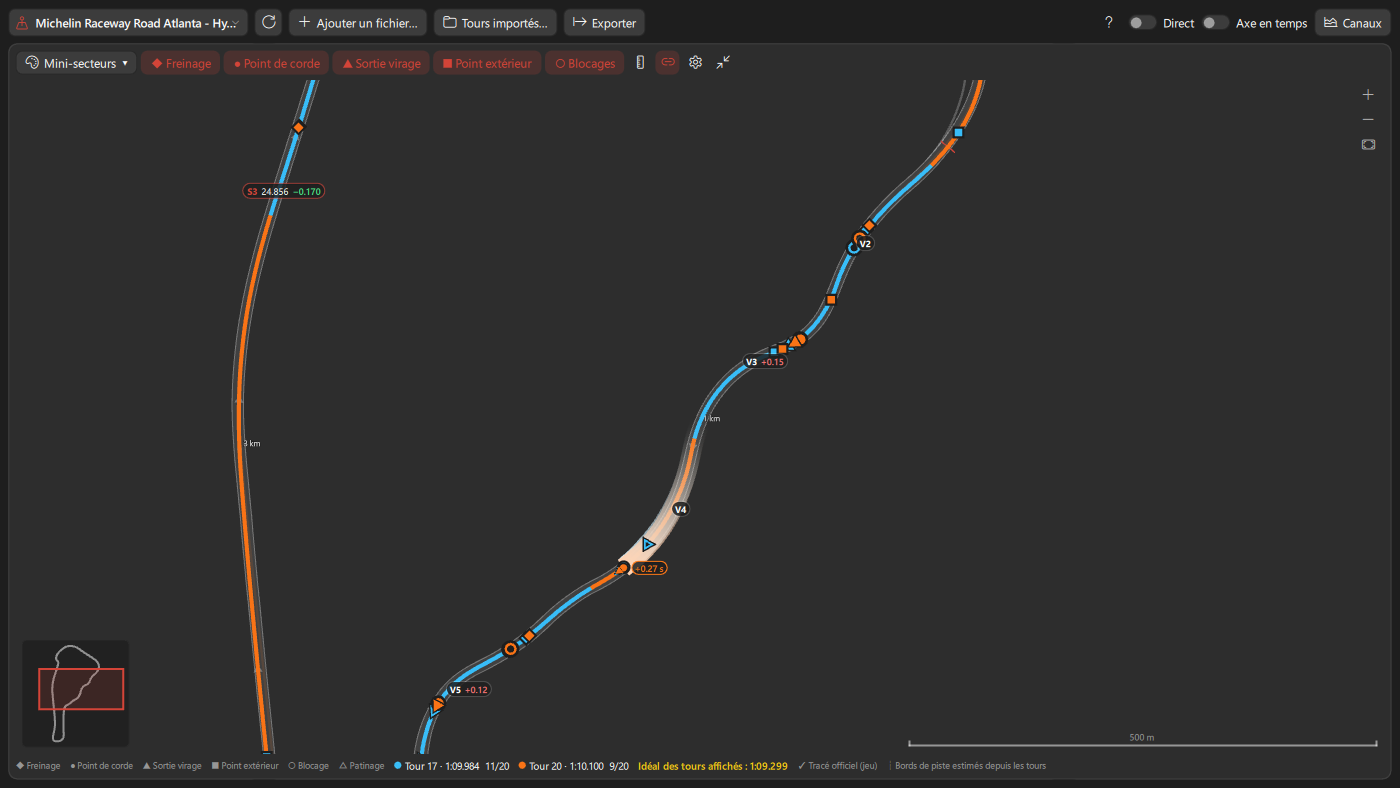
- Driving line of each lap over the circuit. With LMU, the official circuit path (a racing line) and pit lane come from the game and are kept for offline use; track edges come from laps that recorded them, else from the spread of your laps.
- Driving points of each lap in each corner: braking, apex (minimum speed), exit (back to full throttle) and track-out, with the margin to the track edge.
- Off track (2 wheels or more on grass, dirt or gravel) and track limits exceeded (4 wheels out), counted per lap.
-
Line coloring:
Laps,Gain / Loss,Speed,Pedals,Racing Line,Gear,Elevation,Delta per corner,Mini-sectors(with the ideal lap of the shown laps) andConsistency(spread of mini-sector times over the stint, session or shown laps). - Sector times, direction arrows, front lockups, rear wheelspin and bottoming (a wheel ride height near 0: floor on the track or a kerb), track notes, pedal zones, cursor trail, distance marks, ruler (
M), colorblind colors. - Zoom synchronized with the charts (or separate), large map over the charts, minimap, follow the cars during playback,
Export Map Picture…andCopy Map Picture.
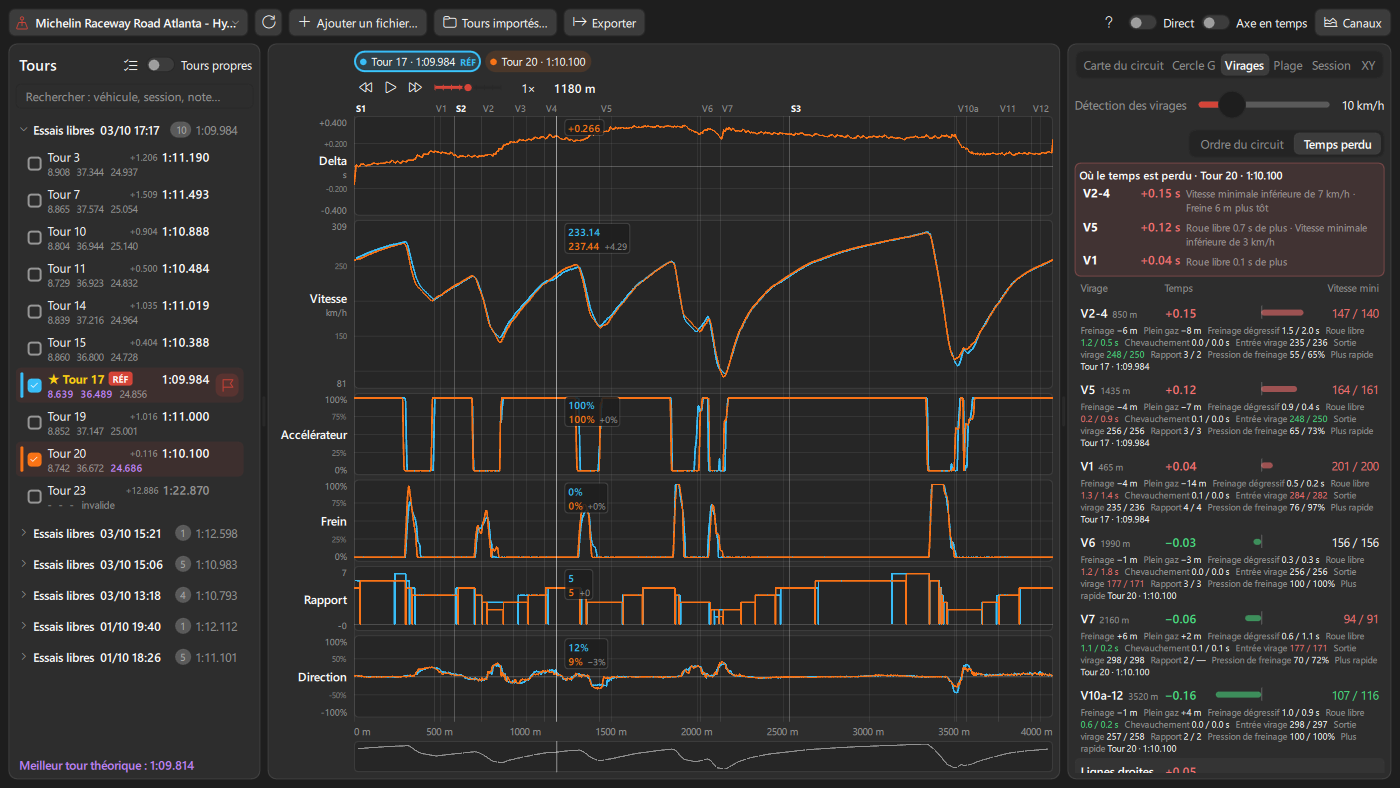
- Where time is lost: the corners that cost the most, with the cause in plain words (brakes earlier, lower minimum speed, longer coasting, later full throttle).
- For each corner: time lost or gained, entry, minimum and exit speed, gear, brake pressure, braking point, full throttle point, trail braking, coasting and pedal overlap, and the fastest lap in that corner (ideal lap).
- Official corner numbers (
T1,T10a...) for Silverstone, Imola, Spa-Francorchamps, Circuit of the Americas, Interlagos, Paul Ricard (F1 layout), Monza, Bahrain, Portimão, Lusail, Road Atlanta, Laguna Seca and Long Beach; named corners at Le Mans. Other tracks number corners in lap order. -
Corner detection(the⋯button of the tab) sets how big a speed drop counts as a corner.Report…exports a corner report (table, deltas, coaching notes and map) as HTML or PDF.
- G Circle: lateral against longitudinal acceleration of each lap, with the grip envelope.
- Session: every lap of the session with fuel and tyre wear per lap, off tracks and track limits, long-run pace (clean laps, slow laps left out), stints split on pit stops (refuel, tyre change), lap time trend per lap (also per % of tyre wear) and consistency. The value menu shows sector times, or for one corner the minimum speed, braking point or time in the corner of every lap, with its trend over the session. Click a lap to show or hide it.
- XY: one channel against another as a scatter plot (presets: speed / lateral G, steering / lateral G, throttle / wheel slip...) or a histogram. Limited to the zoomed part when zoomed.
Simple View (toolbar switch) shows the channels picked in Show at the cursor, drawn like the overlays, in place of the charts. It follows the cursor, the track map hover, the kept position and lap playback (playback bar or Space), so you can watch the lap as it plays. The keys of the charts still work.
- Summary band on top, whatever channels are picked: the delta of the lap at the cursor against the reference lap (or the ideal lap), with "Slower" or "Faster" under it; its speed and the speed difference with the reference lap; the delta of every compared lap over the whole lap (hover moves the cursor, a click keeps the position, the zoomed part of the charts is framed); and the three corners where the most time is lost, numbered on the delta line, with their likely cause. Click one to zoom the charts on that corner, with the cursor at its start.
- Every channel charted in the advanced view is shown here: pedal, steering, gear or speed channels give the pedal cards, a G channel gives the G circle, a 4-wheel channel (or one wheel of it) gives the 4-wheel tiles.
- Pedals & steering wheel of each lap, side by side when there is room: throttle, brake and clutch gauges (clutch only when the lap used it), a steering wheel turned by the steering input, gear and speed. Laps recorded from this version also save the wheel rotation: the wheel turns by its real angle, shown in degrees (older laps show steering in % of lock).
- Channel groups: timing (delta), engine (RPM, water and oil temperature, fuel, battery), tyres (temperatures, pressures, wear, load as 4-wheel tiles, colored from cold to hot for temperatures), brakes (temperatures, bias), chassis (G circle, body slip, wheel slip and speed, suspension, ride height), electronics (TC and ABS lights, levels), track (position on track, elevation, steering rate) and your math channels. Values are those of the main lap (the lap card clicked, else the reference lap); other laps are marks of their color on each bar, and the tooltip lists every lap.
- The lap chips above hide or show a lap in this view only. The view chosen is kept per telemetry folder.
The Telemetry Compare overlay shows the reference lap of the viewer while you drive: speed, pedals, steering and gear of your current lap over the reference lap, with the next braking point ahead of the car, delta and speed difference. Set a lap as reference here (double-click or flag button), the overlay picks it up within a few seconds.
-
Add File…adds laps from another folder or track, or imports a MoTeC i2 log (.ld), for example one from the LMU built-in logger or a lap shared by another driver. You can also drop a.ldfile on the main window. Laps are named with the log date, and engine temperatures, inner/middle/outer tyre temperatures, brake bias, tyre load and track position are imported too. Laps already imported are not copied again. -
Imported Laps…opens the library of imported laps as a panel over the viewer: search, select (Ctrl/Shift+click,Ctrl+A), add to the viewer (double-click orEnter), import MoTeC logs, rename a log (F2), move laps to the trash (Delete). Deleted imported laps share the viewer's trash:Undoin the message,Ctrl+Z, orRecently Deleted Laps…put them back (shown again if they were). - Right-click a lap >
Share Lap…saves it as one.csv.gzfile (track, car, your name and lap time in its name) to send to another driver, who adds it withAdd File…: the lap shows "shared by" with your name. -
Import Folder…imports laps of the same track and class from another folder (a teammate, a shared folder). They are marked as foreign. Importing the same folder again only adds its new laps. - Only laps of the reference lap's circuit are compared: a lap of another circuit stays in the list, greyed out, and is not shown (a message tells why). To look at it, set it as reference lap.
The Share menu is for people:
- pictures:
Picture (PNG)…,Copy Picture(to paste in Discord),Picture of Passage A ↔ B…; -
Share Reference Lap…(same as right-click a lap >Share Lap…); -
Corner Report…(alsoReport…in the Corners tab).
The Export Data menu is for other tools:
- MoTeC i2 logs (
.ld):Reference Lap…,Displayed Laps…orAll Laps of Track…, andMoTeC, Reference Lap A ↔ B…for the part between the markers; -
Reference Lap as Delta Best…; - CSV for spreadsheets:
CSV, Displayed Laps…,CSV, Displayed Laps on Time Base…,CSV, Passage A ↔ B…,CSV, Visible Part…(zoomed part).
Click the ? button for the full list. Main keys: Space play / pause, Left / Right move the cursor (Shift: the view), [ / ] previous / next corner, Shift + [ / ] previous / next corner where time is lost, A / B markers, Esc clears them, R sets the highlighted lap as reference, L loops the passage A-B, + / - zoom, Home resets. On the map (after a click on it): F fit, Shift + R turn, 1-9 coloring, Shift + B, C, S, O driving points, Shift + L lockups, Z zones, T trail, M ruler. B, L and R without Shift do the same as on the charts wherever the focus is. In the large map, the map keys go to the map and the others still reach the charts. On an AZERTY keyboard the digit row works without Shift. Esc never closes the viewer.
On a narrow window (below about 56 characters wide), the lap list moves into a drawer: the Laps button of the toolbar opens it over the charts, Esc or a click beside it closes it.
- Laps load in the background with a progress bar. Heavy computations (track limits, session values, MoTeC imports) run in a separate process, so the page stays fluid. Lap details are kept in an index (
telemetry/.lap_cache/info), so tracks with hundreds of laps open quickly. - On long laps, charts, map, delta to the best lap and MoTeC export are made in the background, so the page does not freeze, and the side tabs open without a stall.
- A lap read from its binary copy loads only the channels shown (the others when first shown): about half the memory per lap.
- When the page stays in the background for 3 minutes, loaded laps are released from memory, then reloaded with the same zoom when you come back.
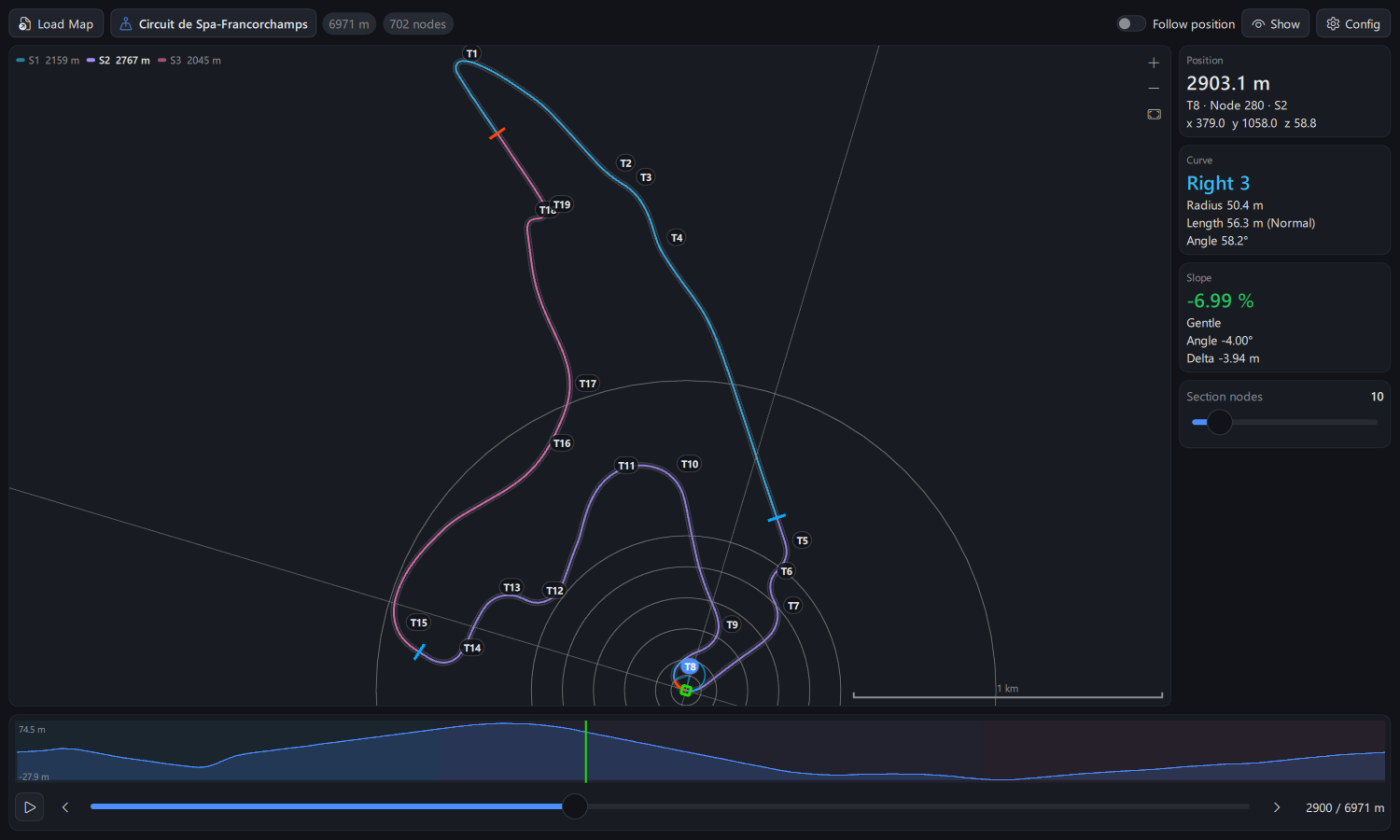
The track maps recorded by the Mapping module are shown in the Tracks tab of Data Editors (Tools menu), beside the table of tracks: selecting a track shows its map, with its pit entry, pit exit and speed trap marked (right-click one of these cells > Set from Map Position sets it at the position of the map). It replaced the former Track Map Viewer page, whose links (such as the map button of Driver Stats) open this tab on the track. Pick another map in the list of recorded maps at the top (search by name), open a .svg map from another folder with Open File, or drop it on the map. A map that cannot be read is named in the warning, and the map shown stays.
- road at its real width, line colored by sector, start and sector lines, official corner numbers (click one to go there);
- at the current position: curve section, osculating circle, distance circles, curve radius and angle, slope, XYZ position;
- elevation profile of the whole lap;
-
Play(orSpace) drives around the track,Follow Positionkeeps the position centered.
All options: Lap telemetry viewer, Track map viewer and Recorder module.