Welcome to the Code Crunch Marathon repo! This repository is designed for mentees participating in a full day of Python learning and coding. Here, you'll find several Python projects that you'll be working on throughout the day.
First, fork this repository to your own GitHub account to make it easier for you to commit changes and push your work.
Once you've forked the repo, clone it to your local machine.
git clone https://github.com/your-username/code-crunch-marathon.gitBefore you start coding, it's important to break down a problem into smaller, manageable steps. One way to do this is through flow diagrams. Below is an explanation on how to break down a problem and structure it visually:
Clearly state what the problem is. For example, "Build a calculator that can perform basic arithmetic operations."
For each problem, determine:
- Inputs: What information do you need to start the process? In the case of a calculator, this could be two numbers and an operation (e.g., addition).
- Outputs: What should be the result? For the calculator, this would be the calculated result (e.g., 5 + 3 = 8).
Write down each step needed to solve the problem. For example:
- Get user input (number 1, number 2, operation).
- Check if the operation is valid.
- Perform the operation.
- Output the result.
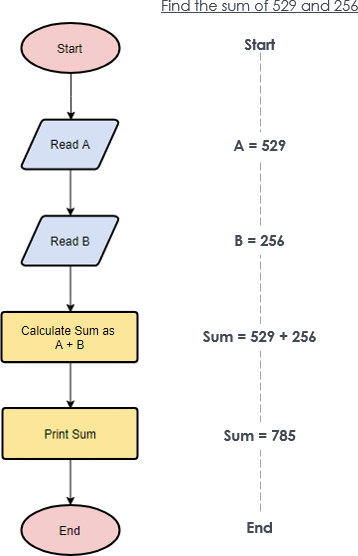
A flow diagram helps visualize these steps. Here's an example breakdown for a simple calculator:
To securely connect with GitHub (or any other service) via SSH, you'll need to generate an SSH key pair on your system. Below are the steps to generate SSH keys on both Windows (without Git Bash) and Linux.
-
Open Command Prompt or PowerShell: Press
Windows + R, typecmdorpowershell, and pressEnter. -
Generate the SSH Key: In the terminal, enter the following command:
ssh-keygen