In this document, we explain how to install Linux distributions on Bluefield. In our machine, we have the host CPU and the Arm of BF. We need to install the software on both the host and the BF side.
Firstly, we will install the OFED and rshim drivers in the host. [Mellanox OFED - is a Mellanox tested and packaged version of OFED and supports two interconnect types using the same RDMA (remote DMA) and kernel bypass APIs called OFED verbs – InfiniBand and Ethernet.] Secondly, we will install OFED + Ubuntu in the BF. Thirdly, we will set the configuration of the BF (Separated mode vs Embedded mode). Fourthly, we will test our OFED with one RDMA example and another with OFED examples. (local and remote rdma) Finally, we will create NAT; BF has its private network to the host via the USB connection, you can also move packages from host to BF via scp. In order to have network enablement inside the BF we have two options 1) Bridge, to give the BF an external ip address 2)SNAT and DNAT (source and destination NAT) via setting up the routing on the host.
Notes:
- In order to configure two remote machine with rdma, you need to have different ips for the interface two outgoing network interfacs. For example use for one machine, enp133s0f0 192.168.0.20/24 enp133s0f1 192.168.0.21/24 and for the another ens2f0 192.168.0.22/24 ens2f1 192.168.0.23/24
- if the two outgoing network interfacs are not UP (after the configuration) check that your cables are connected correctly to the switch. Additionally, a power outage may reset switch configuration especially for a split cable. See the switch configutation**. Anyway, you can use on port since each port is full-duplex (allows communication in both directions - transmit/receive)
- enabling the external network may cause failures if you use docker, etc. run sudo service docker restart to update everything..
- You can use the show_gids command and you will see the gid table.
- The first two entries: there are two different types v1,v2 (for RoCEv1,2). In the attached example, entries on port 1 index 0/1 are the default GIDs, one for each supported RoCE type.
- The second two entries: the infinband devices are matched with net devices, check with ibdev2netdev. In your case you have the only first interface/netdevice is UP, so entries on port 1 index 2/3 belong to IP address 192.168.0.22 on enp133s0f0 ( 2/3 are not mapped for enp133s0f1). Since all machines have the same table, we need to use the index 3 for all of them. ** We should have the GID index (network layer, similar to IP address) for RoCE - RoCE doesn't work with LID-based routing (performing RDMA over Ethernet not Infiniband).

- Host system is Ubuntu 18.04
- BlueField NIC inserted in a host PCIe slot
- USB cable connecting the NIC card and the host
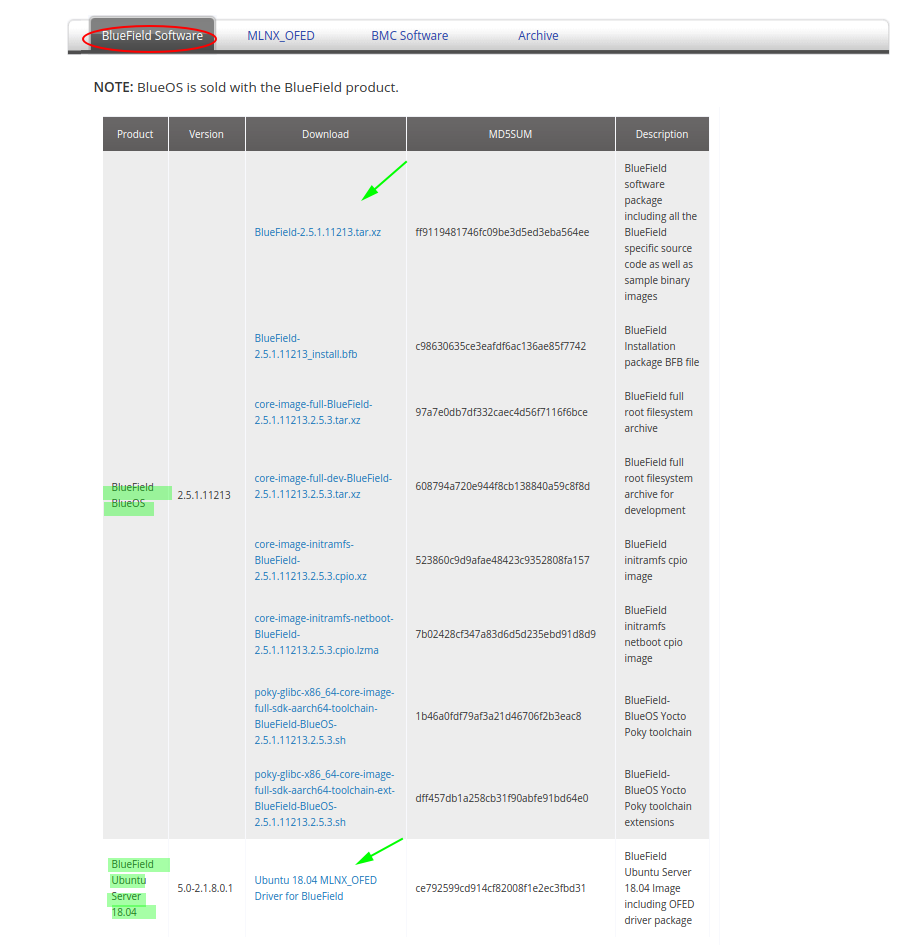
Go to: https://www.mellanox.com/products/software/bluefield
- Download (to host machine) MLNX_OFED. <mlnx_ofed>

- Download BlueField BlueOS. <BlueOS_dir>
- Download (to host machine) BlueField Ubuntu Server 18.04 image. <bf_img.bfb>
Run:
sudo apt install linux-signed-generic-hwe-18.04
sudo reboot --force
sudo apt install build-essential debhelper autotools-dev dkms
mount <mlnx_ofed>.iso /mnt
sudo /mnt/uninstall.sh --force
sudo /mnt/mlnxofedinstall --add-kernel-support
You should see that it is installed: Querying Mellanox devices firmware ...
Check your firmware version:
sudo mlxfwmanage
cd <BlueOS_dir>/src/drivers/rshim
sudo modprobe -vr rshim_pcie
sudo modprobe -vr rshim_net
sudo modprobe -vr rshim_usb
dpkg-buildpackage -us -uc -nc
sudo dpkg -i ../rshim-dkms_*.deb
sudo modprobe rshim_usb
sudo modprobe rshim_net
make -C /lib/modules/`uname -r`/build M=$PWD
sudo modprobe rshim_usb
sudo modprobe rshim_net

vim /etc/udev/rules.d/91-tmfifo_net.rules
Add this line to tmfifo_net.rules:
SUBSYSTEM=="net", ACTION=="add", ATTR{address}=="00:1a:ca:ff:ff:02", ATTR{type}=="1", NAME="tmfifo_net0", RUN+="/usr/sbin/ifup tmfifo_net0"
reboot --force
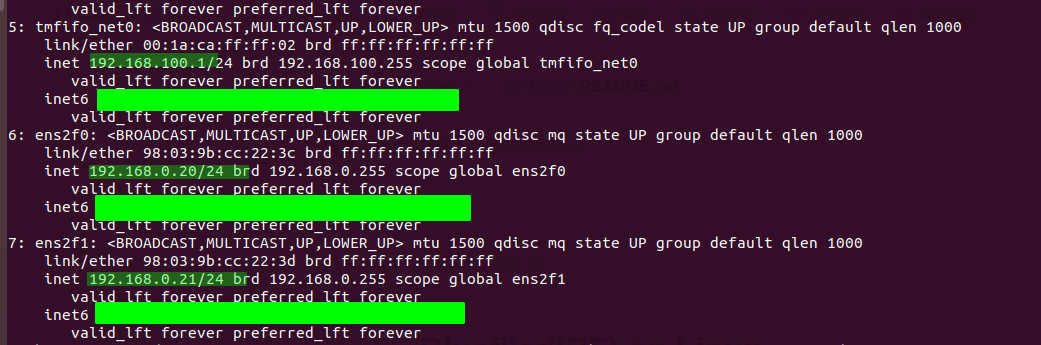
ip add
You should be able to see interface tmfifo_net and two outgoing network interfacs UP. tmfifo_net: when running the following command, you are declaring the gateway 192.168.100.1. you can then ssh using 192.168.100.2 which is the internal BF ip. you can change the 192.168.100.2 when you ssh use the sudo ifconfig tmfifo_net0 again with the new ip. Note that DON'T change the gateway 192.168.100.1 ips of the BF machines.
sudo ifconfig tmfifo_net0 192.168.100.1/24 up
This will make the 3 index GID available :
sudo ifconfig <first_interface> 192.168.0.20 up
sudo ifconfig <second_interface> 192.168.0.21 up
cat <bf_img.bfb> > /dev/rshim0/boot
Username: ssh ubuntu@192.168.100.2 Password: ubuntu Now you can also declare the internal ports of the BF by: This will make the 3 index GID available :
sudo ifconfig <first_interface> 192.168.0.23 up
sudo ifconfig <second_interface> 192.168.0.24 up
It is important to have different ips so you can use it also with connecting two BFs for example.
if you have a problem with ssh (or you want to change the defualt ip of tmfifo_net0) , you can enter the console
sudo screen /dev/rshim0/console
The firmware default mode is Embedded, in order to use RoCE you should switch to Separated mode. More information: https://community.mellanox.com/s/article/BlueField-SmartNIC-Modes
In your host machine:
mst start
mlxconfig -d /dev/mst/mt41682_pciconf0 s INTERNAL_CPU_MODEL=0
reboot --force
mst start
mlxconfig -d /dev/mst/mt41682_pciconf0 q | grep -i model
show_gids mlx5_1 or mlx5_0
use this index GID (RoCE doesn't work with LID-based routing), by picking any index from the GID table (it should probably be the same GID on both sides). My GID index is 3. Change it in the RDMA example in both client and server.
cat /sys/class/infiniband/mlx5_0/ports/1/gid_attrs/ndevs/
https://community.mellanox.com/s/article/howto-configure-roce-on-connectx-4
ip add
Make sure that both ports are UP. if not, use the one that is up in the code. In client.cpp and server.cpp, update the idx of the device_list.
struct ibv_context *context = ibv_open_device(device_list[idx]);
Try the RDMA example: (The example doesn't require to have the two interface ports UP with IPs, because we use ROCE and ROCE has a default GID that is configured with MAC address of the port, so it can be used without an IP address (at least locally). This GID is similar to the link local IP address).
git clone https://github.com/LinaMaudlej/BF-linux.git
cd rdma-RoCE-local-machine/
cd server
./server_rdma
cd client
./client_rdma <port number>

--ibv_rc_pingpong (if it doesn't work try with mlx5_0 and 192.168.0.20)
ibv_rc_pingpong -d mlx5_1 -g <gid_indx>
ibv_rc_pingpong -g <gid_index> 192.168.0.21
-- ibv_read_lat
ib_read_lat -a
ib_read_lat localhost -a
two machines, let's assume server machine has tmfifo_net0 192.168.100.1/24 and client machine tmfifo_net0 192.168.100.1/24. Your ip of the server is )
update the line in client.cpp with the correct ip address. (it is hardcoded)
server_addr.sin_addr.s_addr = inet_addr(ip_addr);
-- ib_read_bw, in server side run:
ib_read_bw -d mlx5_0 -g 3 -p 1234
in client side run:
ib_read_bw -d mlx5_0 -p 1234 <ip>
use the ip of (the BF port) you declared in the BF (internal port), for example 192.168.0.22 , to connect to BF ip. In this example if the ib_read_bw -d mlx5_0 -g 3 -p 1234 runs on the BF1 then ib_read_bw -d mlx5_0 -p 1234 will have the ip of the BF1. If it runs on host then will have the ip of the machine host.
git clone https://github.com/LinaMaudlej/BF-linux.git
cd rdma-RoCE-remote_machines/
cd server
./server_rdma
cd client_rdma
./client_rdma <port number>
-
In your host machine, show your DNS ip:
systemd-resolve --status
-
Go to BF and add to /etc/resolv.conf
vim /etc/resolv.conf
nameserver <DNS_ip> nameserver 8.8.8.8
vim /etc/network/interfaces.d/tmfifo
auto tmfifo_net0 iface tmfifo_net0 inet static address 192.168.100.2/30 gateway 192.168.100.1 dns-nameservers <DNS_ip>
sudo ifdown tmfifo_net0 && sudo ifup tmfifo_net0
you can reboot the BF to make sure the tmfifo_net0 has correctly changed
Activate IP-forwarding in the kernel.
echo "1" > /proc/sys/net/ipv4/ip_forward
Allow established connections from the public interface.
iptables -A INPUT -i <outgoing interface> -m state --state ESTABLISHED,RELATED -j ACCEPT
Set up IP FORWARDing and Masquerading
 iptables --table nat --append POSTROUTING --out-interface <outgoing interface> -j MASQUERADE
 iptables --append FORWARD --in-interface tmfifo_net0 -j ACCEPT
Allow outgoing connections
   iptables -A OUTPUT -j ACCEPT
   iptables -A FORWARD -i <outgoing interface> -o tmfifo_net0 -m conntrack --ctstate ESTABLISHED,RELATED -j ACCEPT
Example:
sudo iptables -A FORWARD -i enp0s31f6 -o tmfifo_net0 -m conntrack --ctstate ESTABLISHED,RELATED -j ACCEPT
sudo iptables -A FORWARD -i tmfifo_net0 -j ACCEPT
sudo iptables -t nat -A POSTROUTING -o enp0s31f6 -j MASQUERAD
TBD
Let's take for example a switch, its output is 40GB. We want to split it to 4 cables. Every cable will be divided into 40/4=10GB (note that the BF can work with 25GB for each one). We are working with two machines , in order to configure it again to work with 4 cables we do the following:
- $ssh to the machine that is connected to the switch
- $sudo screen /dev/ttyS0 115200
-Note that, the physical order of the splitted cables doesn't matter. The switch uses MAC learning to dynamically build a forwarding database, translating a MAC address to its port.
Find your switch interface number from the User Manual. For example, in my switch this is the manual https://www.mellanox.com/related-docs/prod_management_software/MLNX-OS_ETH_v3_6_3508_UM.pdf and I see that I am using ethernet 5.
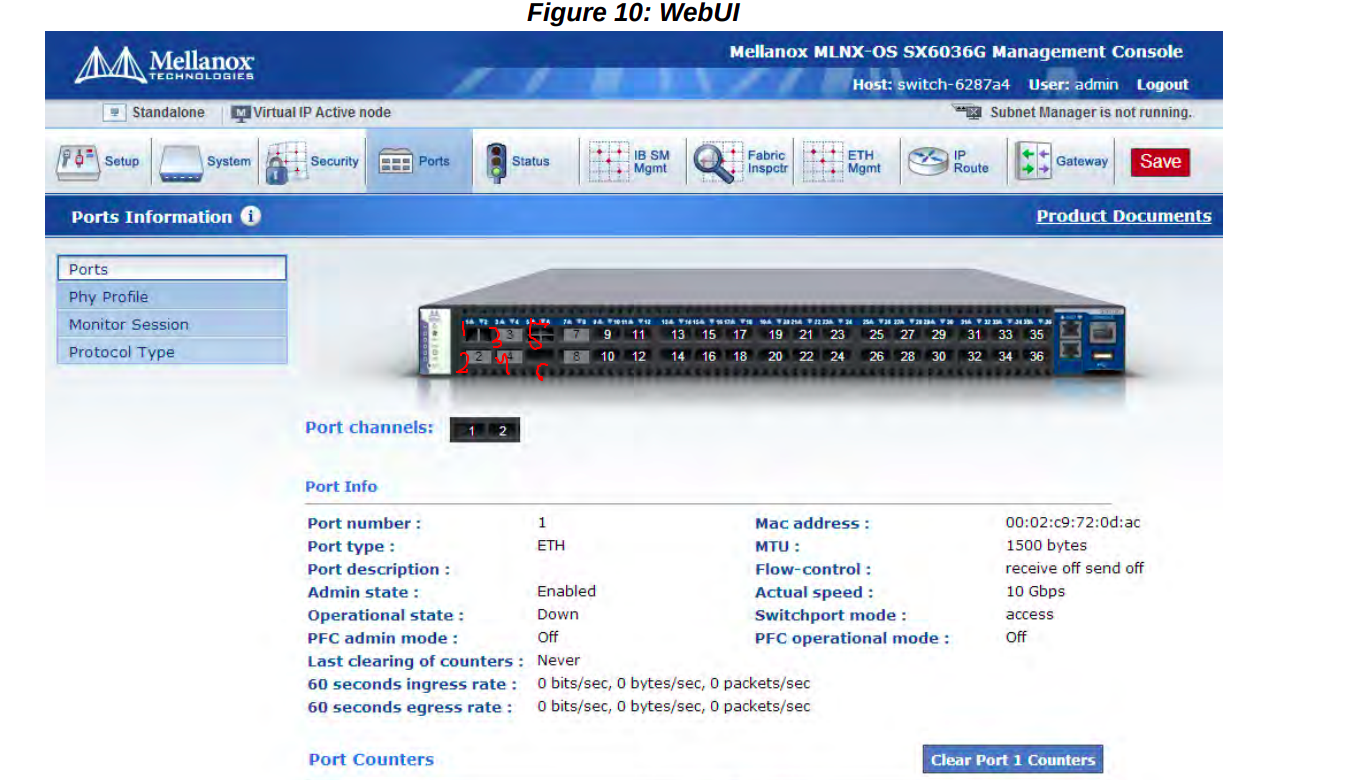
- $show interfaces ethernet 1/5
- $enable
- $configure terminal
- $interface ethernet 1/5 shutdown
- $interface ethernet 1/5 module-type qsfp-split-4 force
- mlx5_core 0000:04:00.1: port_module:247:(pid 0): Port module event[error]: module 1, Cable error, Bus stuck (I2C or data shorted)
This issue happened for me and I solved it with these techniques:
-
First, disconnect the USB port which is connected to the BF and the host machine.
-
Plug out the InfiniBand cables.
-
I reinstalled the latest OFED with the latest firmware, check the firmware compatibility with your Part Number here https://docs.mellanox.com/m/view-rendered-page.action?abstractPageId=25139410.
mlxfwmanager
take the Part Number. For example: MBF1M332A
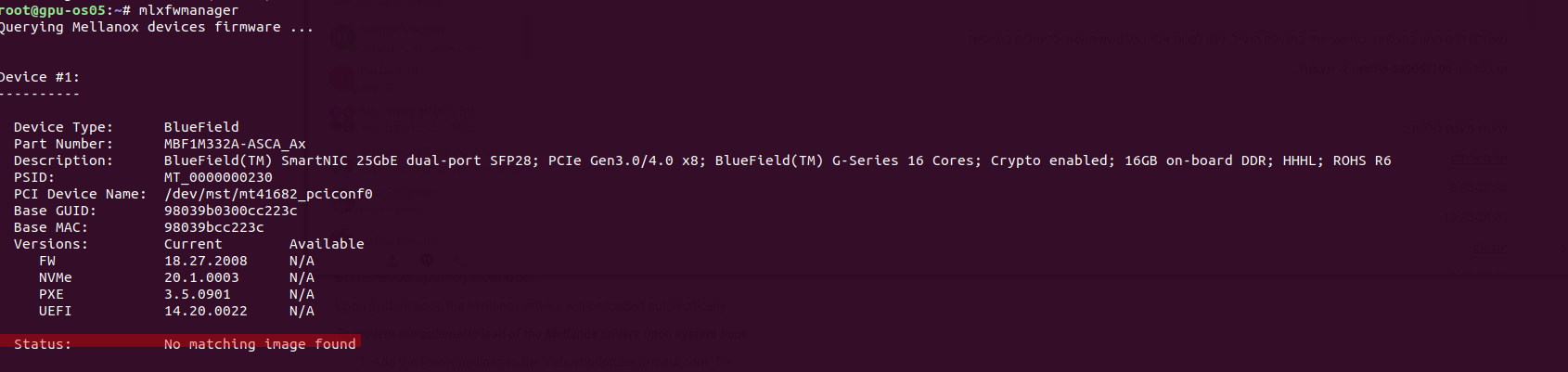
- Make sure you have the interfaces and the check your dmesg, you should not see the error here.
- Configure your switch (split-cable or not ..).
- Plugin the ports again, if the error appears again, then there is a problem with the connectivity or the cables.
- Make sure that you see the led blinking with yellow (Orange means there is a problem with the connection/the way it is connected)
- If this doesn't help, replace the cables.
- Make sure the yellow appears for both cables (ports) in each BF and the switch also blinks with yellow.
https://drive.google.com/open?id=1IHpo1s06yhV-4PouQiFSYelbkUWEgCpa https://docs.mellanox.com/display/BlueFieldSWv25011176/Installing+Popular+Linux+Distributions+on+BlueField