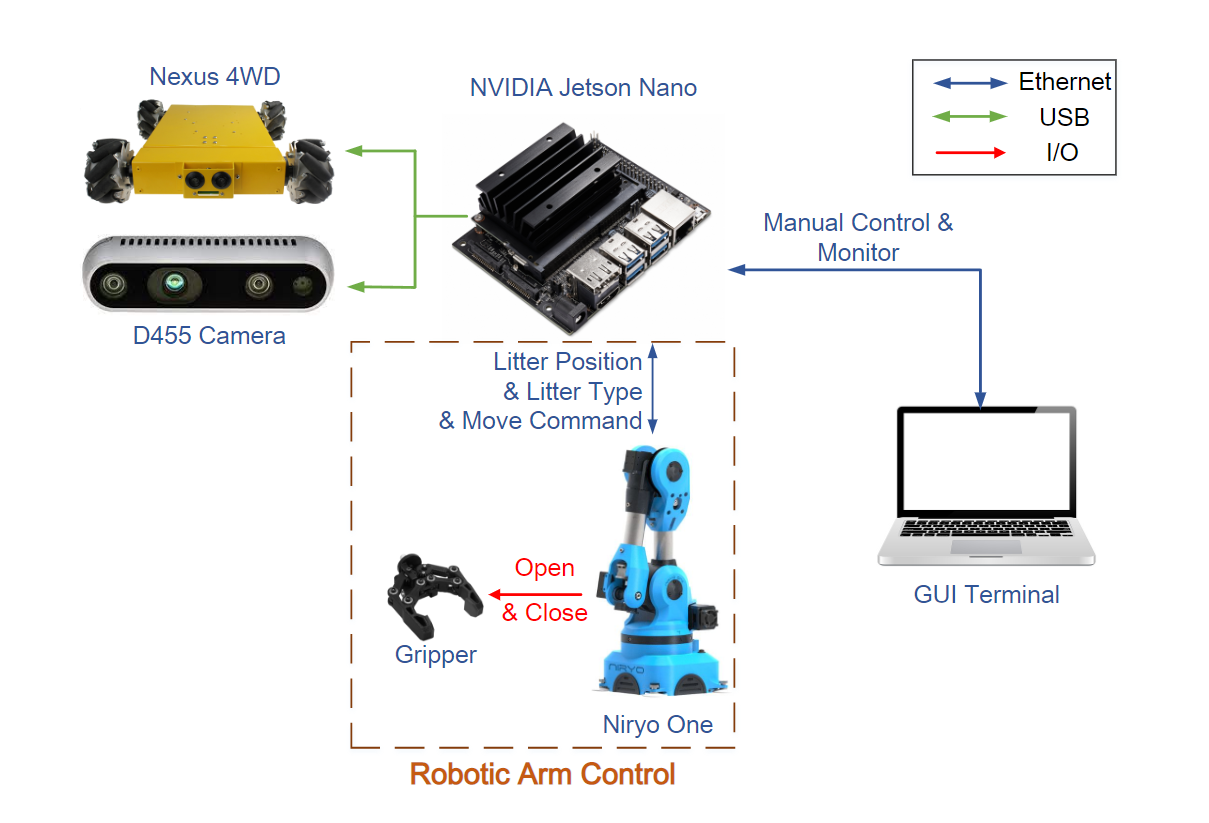
The requirements are:
- Ubuntu 18.04
- ROS Melodic
The detailed requirement can be found in Ubuntu 18 Installation
The official method is:
sudo -H pip install jsonpickle
However, you may encount some errors regrading pip install <package_name>.
If so, you can use:
sudo apt-get update -y
sudo apt-get install -y python-jsonpickle
Then, you have successfully downloaded the required package. You can check in the default path:
/usr/bin/python2.7/site-package
git clone https://github.com/NiryoRobotics/ned_ros
- Create a new folder
niryo_wsand initialize worksapce.
mkdir -p niryo_ws/src
cd niryo/src
catkin_init_workspace
- Copy
niryo_robot_descriptioninto new folder. Then, compile the folder.
catkin_make
Don't forget to add new setup.bash command into ~/.bashrc.
Although there already has a SRDF file in the folder, some mistakes are exsited. Therefore, we need to generate it by ourselves.
- Launch Moveit Assistant
roslaunch moveit_setup_assistant setup_assistant.launch
-
Choose "Create New Moveit Configuration Package".
-
Add
niryo_one_gripper1_n_camera.urdf.xacropath. Now, you can see the preview of your model on the right.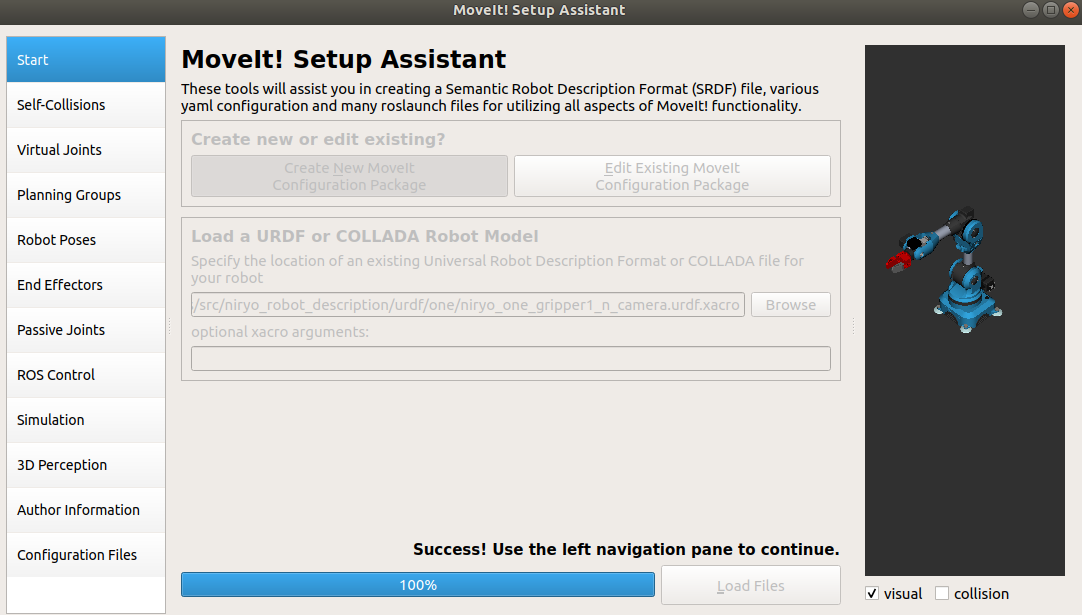
-
In "Self-Collisions" page, you can remain the default setting and click "Generate Collision Matrix".
-
The "Virtual Joints" is ignored.
-
In "Planning Group" page, here we can reference the file in
/catkin_ws_niryo_one/src/niryo_robot_moveit_config/niryo_moveit_config_w_gripper1/config/one/niryo_one.srdf. It can be derived from the picture that there are two groups, namely "arm" and "tool".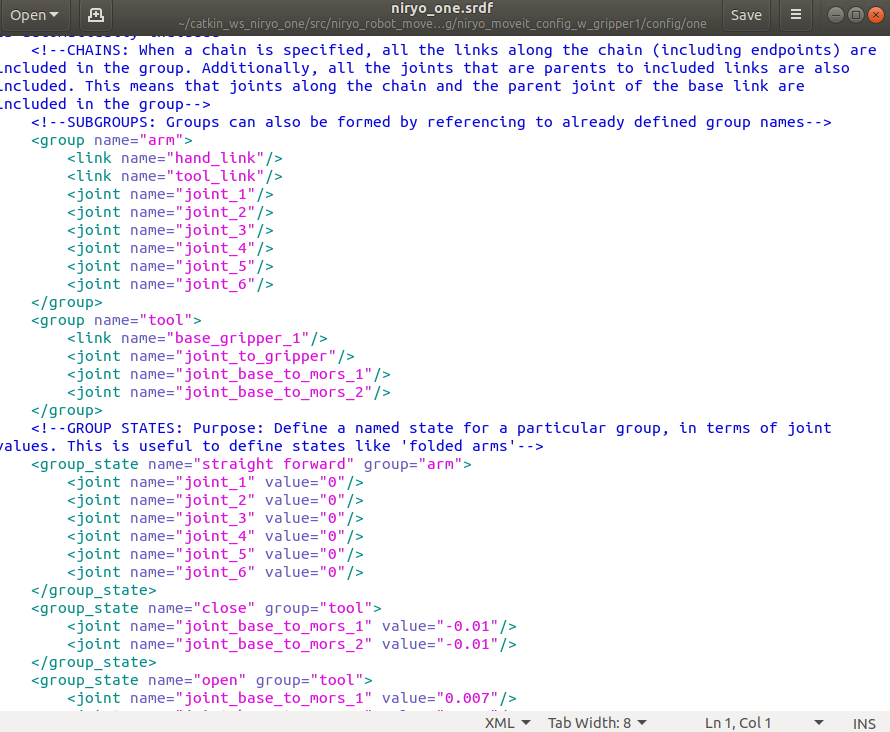
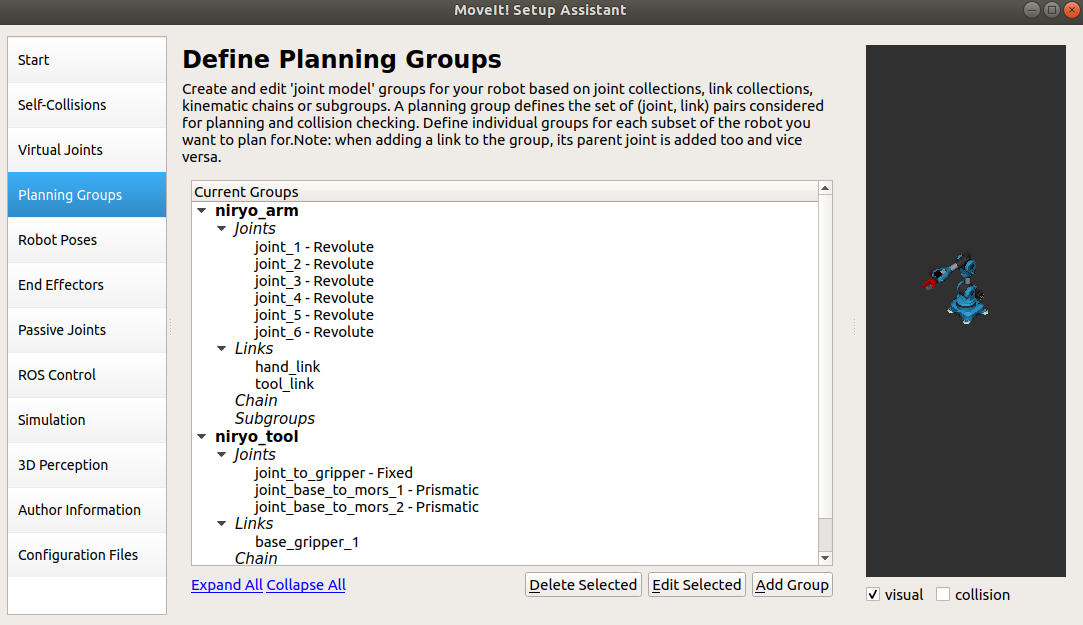
Add correspnding joints and links. In
arm group, we choose kdl_kinematics_plugin/KDLKinamaticsPlugin as Kinematic Solver and select RRTConnect as Group Default Planner. Intool group, we don't need to set these.Finally, it looks like this.
-
The "Robot Poses" is ignored here.
-
In "End Effectors" page, add as followed:
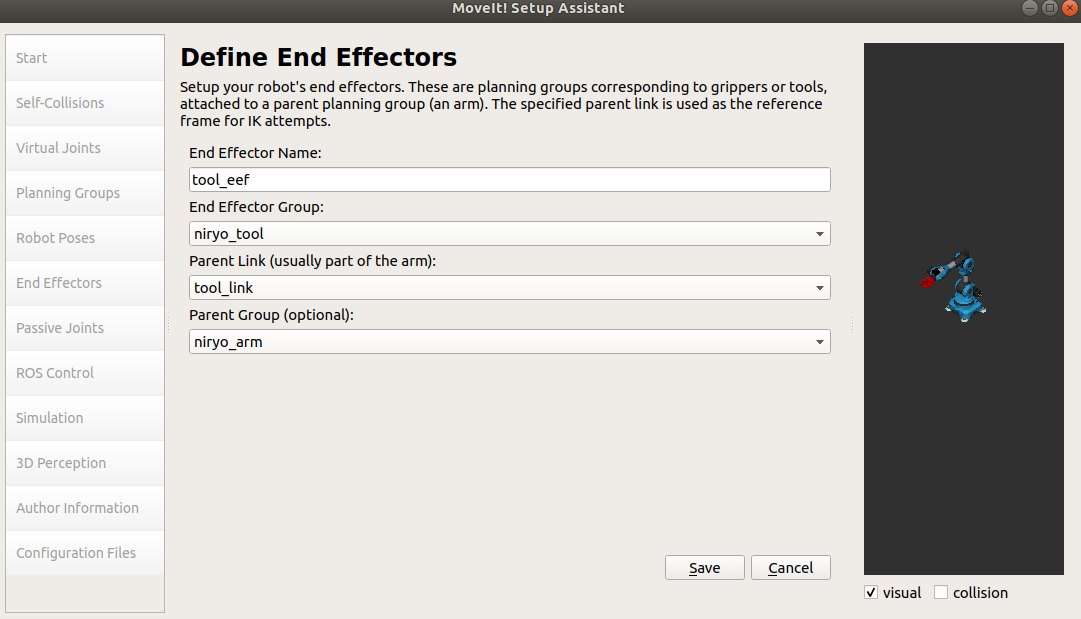
-
In "ROS Controller" page, enter arm_position_controller as Controller Name. Choose position_controllers/JointPositionController as controller type.
-
Finally, add author information as you wish. Set generate path as a new folder named
niryo_moveit_configin your workspace. Click Generate Package button.
-
Back to your workspace and compile configration files.
cd ~/niryo_ws catkin_make -
Open simulation model in Rviz.
roslaunch niryo_moveit_config demo.launchSome issues may encounter like:
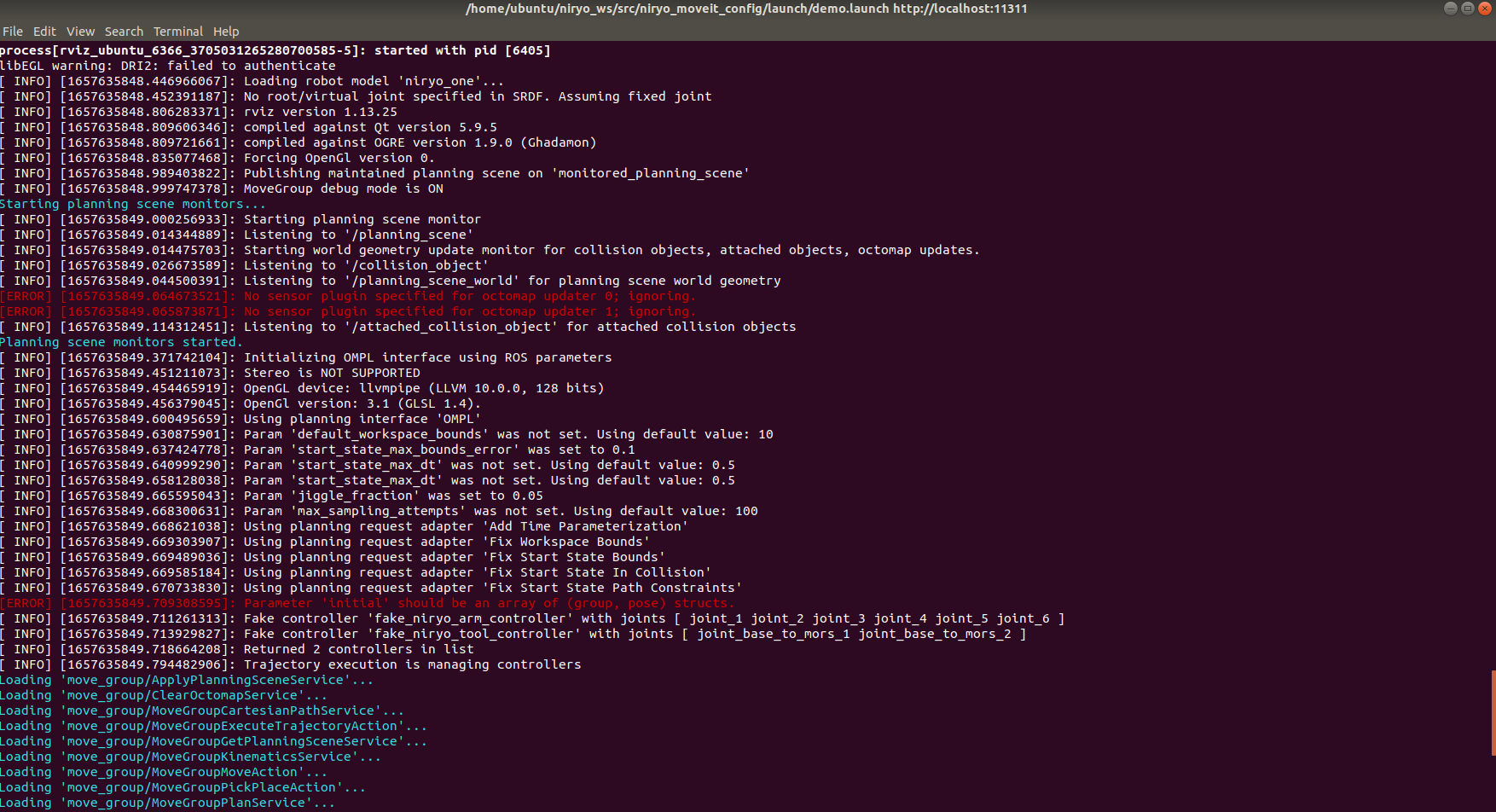
In such situation, just go to
/niryo_moveit_config/config/fake_controllers.yamland/sensors_3d.yaml. Than deleteinitialandsensors. Rerun the command and you will find the error messages have gone.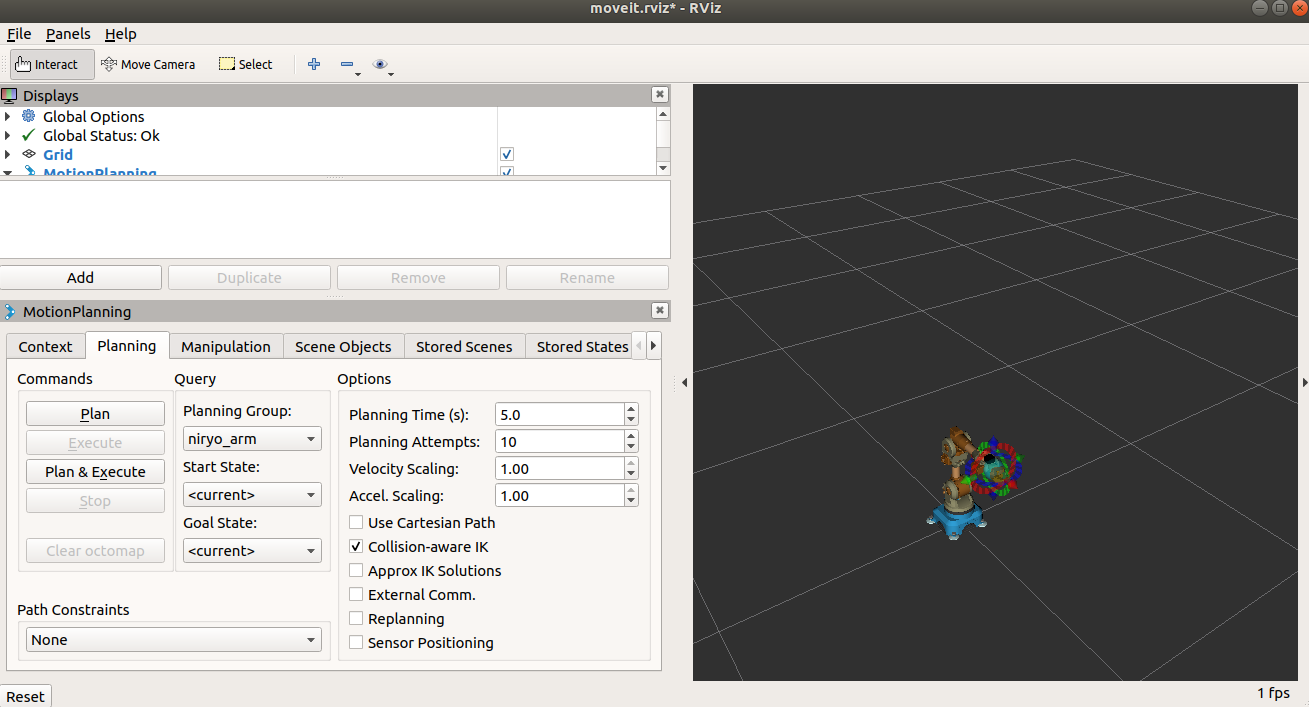
-
Create a new package to store python command files.
catkin_create_pkg niryo_robot_control roscpp rospy std_msgs
cd ~/niryo_ws
catkin_make

mkdir -p niryo_robot_control/scripts
cd niryo_robot_control/scripts
touch demo.py