Repository navigation
Fast_Shape_Replacer
As a modder, you know that opening 50 individual shapes in Inkscape and editing them one by one is an absolute headache. The Fast Shape Replacer automates this tedious process by packing all your raw shapes into a single SVG template. It allows you to load your own SVGs, place them in the correct positions, and easily replace all the shapes in your folder in one go.

Figure 4.1: The Fast Shape Replacer main interface.
Export all your shapes using the Sprite Exporter tool or directly via JPEXS. This will generate a Shapes folder containing multiple SVG files.
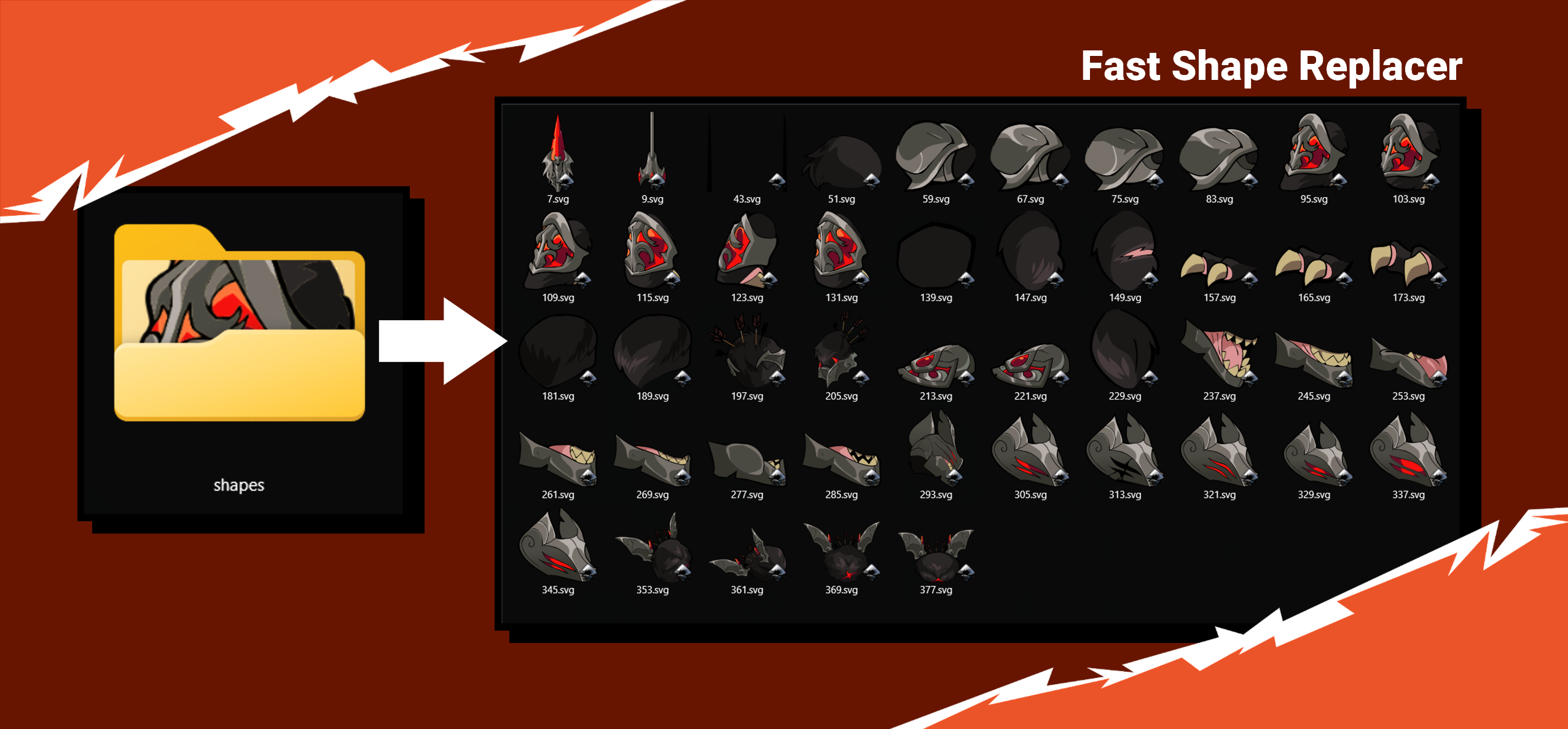
Figure 4.2: A folder populated with exported SVG shapes.
Select the folder where you saved your shapes using the orange button. Check the logs—if it says Loaded metadata for XX shapes at the end, congratulations! You have successfully completed the first step.

Figure 4.3: Successful shape metadata loading logs.
Press the "Generate Grid Template" button. Important: Move the generated template file outside of your shapes folder to avoid processing errors later.

Figure 4.4: Generating the template grid.
Open the generated SVG template with Inkscape. You will see an organized grid containing all your shape pieces, enclosed in red dashed lines as shown below:

Figure 4.5: The SVG template opened in Inkscape, showing the red bounding boxes.
Now you can load your custom Sprite Sheet SVG into Inkscape and place your modified graphics into their respective slots.
Important
For the system to work, it is VERY IMPORTANT that all your new shapes are placed entirely inside the red dashed lines (otherwise they won't be detected) and grouped within the shapes group in the SVG structure.

Figure 4.6: Correctly placing custom sprites inside the template's bounding boxes.
The final step is to press the "Load modified template" button and select your updated template. This action will seamlessly replace all the original shapes in your folder with the ones from your template, saving you a massive amount of time!

Figure 4.7: Successful shape replacement log.
Note
Currently, vector gradients are not fully compatible with the system. I am actively working on a fix. For now, if you need to add gradients, please apply them manually after the tool has replaced the base shapes.