Repository navigation
LCD pages
Devices with LCD: Logitech G13 (tested), Logitech G510, Logitech G15, Logitech G15 v2 (untested). The LCD is monochrome, 160 × 43 pixels.
| Page | Content |
|---|---|
| Start animation | a flame wall burns the start image and reveals Tux and the device name (about 9 s); see below |
| Profile name | the name of the profile, large, for 3 seconds when the profile changes; see below |
| Status | device, profile, layer M1–M3, "REC" while recording |
| System | load of CPU, RAM, GPU and VRAM as bars with percentages; CPU and GPU temperature, used RAM and VRAM |
| CPU | load, all CPU temperatures, the clock of each logical CPU (thread) as a bar; off by default |
| AMD GPU | load, core and memory clock, all temperatures, VRAM, power, fan; off by default |
| NVIDIA GPU | load, core and memory clock, temperature, VRAM, power, fan; off by default, untested |
| Clock | time with seconds, day and date in your language |
| Text | text from scripts, up to five lines (Scripting with D-Bus) |
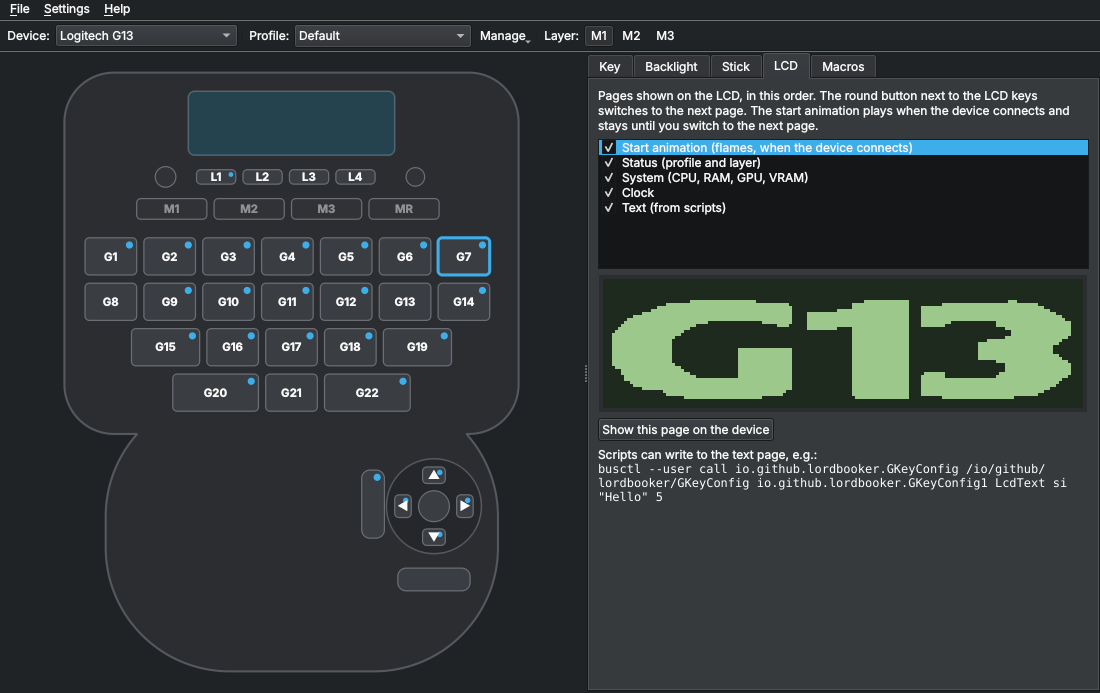
The LCD tab chooses the enabled pages and their order (global for all devices), shows a preview and can show a page on the device. The round button BD shows the next page; other keys can be bound to LCD page actions (next, previous or a specific page).
The flame intro known from linux-g13-driver. On the G13 it starts with the firmware's "G13" logo, on G15, G15 v2 and G510 with a dark display; at the end Tux and the device name appear.
- It is the first entry in the LCD tab and cannot be moved; untick it to switch it off.
- When enabled it plays every time the device connects – when the daemon starts at login, after replugging and after waking up – and its final image stays until you switch to the next page.
- It is not part of the pages the round button goes through; "next" goes to the first page.
- A text from a script interrupts it; after a temporary text it continues.
-
LcdPage s intro(D-Bus) or Show this page on the device plays it again.
New installations have it enabled; after an update from an older version it is listed unticked.
When you switch to another profile (with a key, in the application or over D-Bus), the LCD shows its name for 3 seconds and then returns to the page that was shown before. A change of the layer (M1–M3) and the first profile after connecting do not show it. Untick Profile name in the LCD tab to switch it off; it is not part of the pages the round button goes through.
The name is drawn as large as it fits:
| Length | Size |
|---|---|
| up to 5 characters | largest, about the size of the G13 logo of the start animation |
| 6, up to 8, up to 13 characters | one line, smaller step by step |
| up to 26 characters with a space | two lines, broken at the space, e.g. "Elite" / "Dangerous" |
| up to 26 characters without a fitting space | one small line |
| longer | one small line, cut with ~ after 26 characters |
New installations have the page enabled; after an update from an older version it is listed unticked.
- CPU load from
/proc/stat, RAM from/proc/meminfo(used = total − available). - CPU temperature: AMD (
k10temp,zenpower) or Intel (coretemp). - GPU: AMD graphics cards with the
amdgpudriver – load, VRAM and temperature of the card with the most VRAM. Intel graphics have no load value in sysfs; NVIDIA is not supported yet. - Without a supported GPU the page shows CPU, RAM and swap (if configured).
- The values are refreshed once per second, only while the page is shown.
- Top row: load and all temperatures of the CPU sensor (
k10temp,zenpowerorcoretemp), e.g.CPU 5% Tctl 45° CCD1 29°. If they do not fit, the values after the first are combined (70° 61/63/60°). - Intel (
coretemp, untested): besides the package it has a temperature per core; only the hottest core is shown, e.g.CPU 23% Pkg 61° Max 68°. - Below, over the whole width: one bar per logical CPU (every thread, so 16 bars on an 8-core CPU with SMT), from 0 up to the highest clock of the CPU (on Intel CPUs with P- and E-cores the highest of all cores). The bars get narrower with more CPUs: with a gap between them up to 52, one pixel each up to 158; with more, one bar stands for several CPUs and shows the highest clock among them.
- Needs
cpufreq(/sys/devices/system/cpu/cpu*/cpufreq); without it the page says so.
| Row | AMD GPU (amdgpu) |
NVIDIA GPU (NVML) |
|---|---|---|
| 1 | load as bar and percent | load as bar and percent |
| 2 | core and memory clock (MHz) | graphics and memory clock (MHz) |
| 3 | all temperatures (edge, junction, mem) | GPU temperature |
| 4 | VRAM as bar, used/total | VRAM as bar, used/total |
| 5 | power (W), fan (rpm) | power (W), fan (%) |
- AMD: the card with the most VRAM, read from sysfs and hwmon.
- NVIDIA: the first GPU, read through NVML (
libnvidia-ml.so.1), which comes with the proprietary NVIDIA driver (on Archnvidia-utils); nouveau is not supported. NVML gives consumer cards no hotspot or memory temperature. Not tested on hardware yet – feedback is welcome. - Values the driver does not report are shown as
--or left out. Without the GPU the page shows the reason, e.g.no NVIDIA driver (NVML). - Values are refreshed once per second, only while the page is shown.
busctl --user call io.github.lordbooker.GKeyConfig /io/github/lordbooker/GKeyConfig \
    io.github.lordbooker.GKeyConfig1 LcdText si "Build done" 5
Lines are separated by a newline character; in bash write $'Line 1\nLine 2'. With a duration in seconds the text is shown temporarily and the previous
page returns; 0 keeps it until the page is changed.