Repository navigation
Logitech G13
Status: supported, tested on hardware. Requires Linux 6.19 or newer (first kernel with G13
support in hid-lg-g15). USB ID 046d:c21c.
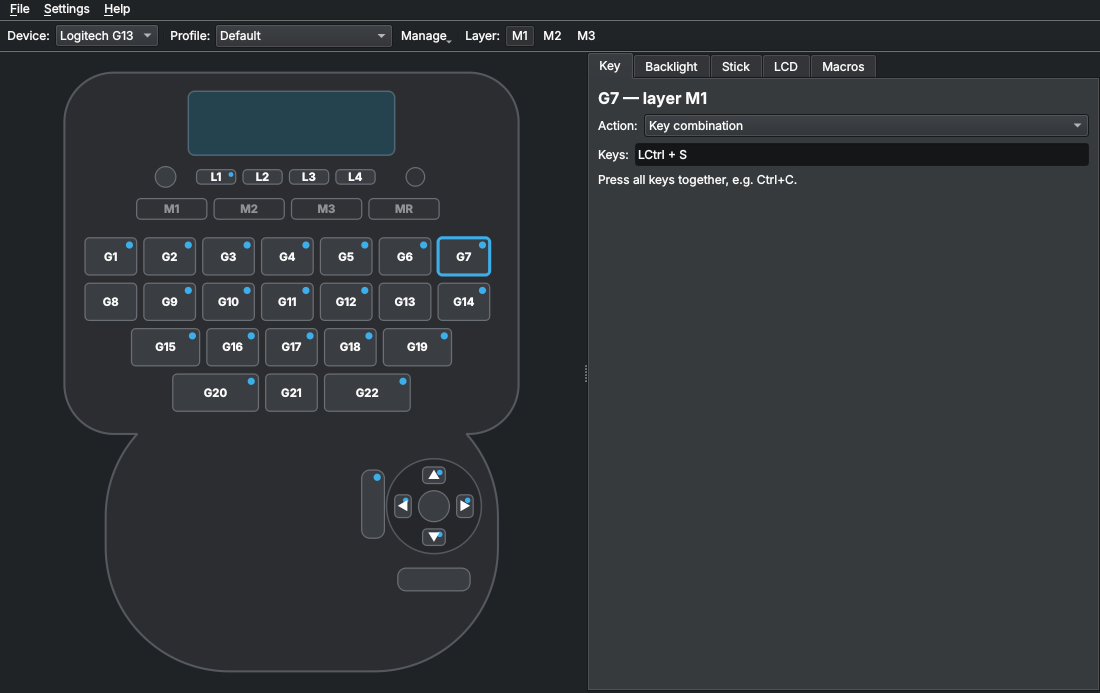
| Keys | Function |
|---|---|
| G1–G22 | bindable |
| L1–L4 (below the LCD) | bindable |
| BD (round button next to L1–L4) | fixed: next LCD page |
| M1–M3 | fixed: switch layer |
| MR | fixed: start/stop macro recording (while the application is open) |
| Light button | fixed: the device switches the backlight itself |
| Stick buttons: left, bottom, stick press | bindable |
| Stick directions | bindable in stick mode Keys |
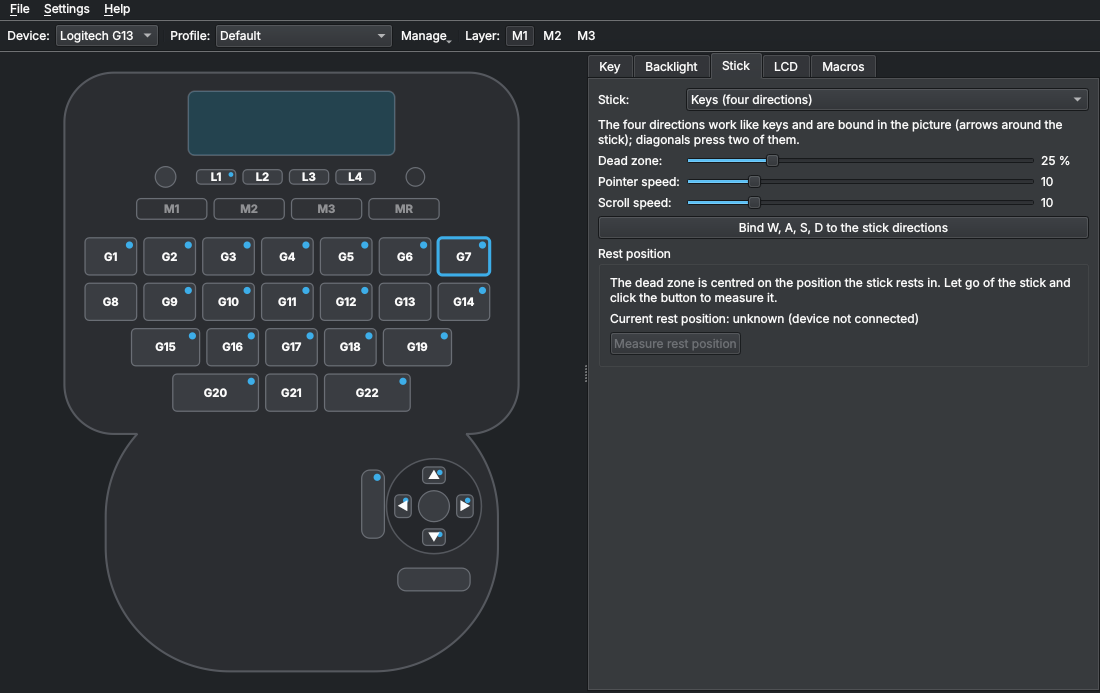
The Stick tab sets the stick mode of the profile:
| Mode | Behaviour |
|---|---|
| Keys (four directions) | up, down, left and right are bindable keys; diagonals press two. Bind W, A, S, D sets them in the current layer. |
| Mouse pointer | the stick moves the pointer; adjustable pointer speed |
| Scroll wheel | the stick scrolls vertically and horizontally; adjustable scroll speed |
| Joystick | the stick is left to the system: games see a normal joystick, the stick buttons are not bound |
Profiles without stick settings use Joystick. Keys without effect in the selected mode are greyed out in the device picture: in Joystick the three stick buttons (they go to games unchanged), in all modes except Keys the four stick directions.
Dead zone: movements inside the dead zone (default 25 % of the travel) are ignored. In mode Keys a direction is pressed above the dead zone and released slightly below it, so the stick does not chatter at the border.
Rest position: the dead zone is centred on the stick's real rest position, which is not exactly the middle on every device (about 138/139 instead of 128 on the test G13). Measure rest position stores the current position; let go of the stick before measuring. Without a measured value the daemon uses the position at connect if it is plausible, otherwise the middle.
Monochrome, 160 × 43 pixels. Pages and their order are set in the LCD tab, see LCD pages. BD pages through them; L1–L4 can be bound to LCD page actions, e.g. previous page or a specific page.
RGB colour per profile, chosen in the Backlight tab with live preview. The M LEDs show the layer, the MR LED lights while recording.