Git tutorial
This is the outline I will use for the Monday morning git tutorial. - Doug
Git is a powerful tool for use in collaborative software projects such as Macaulay2, and we encourage each group to use the workshop git repository.
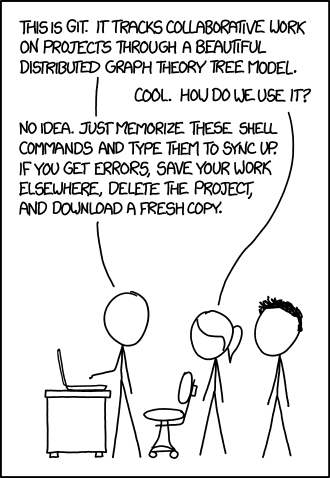
It's actually a DAG, not a tree...
- Vertices are commits, snapshots of the state of your repository.
- Directed edges are diffs between a commit and its parent(s).
-
Branches are pointers to specific commits.
HEADis the commit you're pointing to right now. - There are usually multiple copies of a git repository:
- Online copies known as remotes (hosted somewhere like GitHub).
- Local copies that people have cloned to their systems.
- If you update the repository in one place, then there are steps that need to be done to update it elsewhere.
If you plan on contributing to a project that uses git, then you'll likely have at least two remotes: the main repository and your "fork". You may end up adding additional remotes for your collaborators.
- Navigate to https://github.com/Macaulay2/Workshop-2026-Warwick and click the "Fork" button. This will create a new copy of the workshop repository with a url of the form https://github.com/your-github-username/Workshop-2026-Warwick.
Open your terminal and change to some directory where you want your repository to go. (I use ~/src/macaulay2.)
Then run:
git clone https://github.com/Macaulay2/Workshop-2026-Warwick
cd Workshop-2026-Warwick
git remote add personal https://github.com/Macaulay2/your-github-username/Workshop-2026-Warwick
This sets up your two remotes. The initial clone creates the origin remote. (You can rename it with git remote rename origin new-name if you'd like.). The third line creates the personal remote corresponding to the fork you created. (You don't have to use personal -- it's just what I tend to use for my forks.)
By default you'll be on the main branch. (You can check this with git status.)
Let's create a new branch:
git checkout -b tutorial
(There's also a newer git switch command that does the same thing, but I'm old school and I haven't learned the new way...)
Right now, tutorial and main point to the same commit (i.e., the same vertex in our DAG).
Now it's time to actually write some code. Let's create a simple GitTutorial Macaulay2 package in our favorite editor.
After we're ready to make changes:
git status # note that GitTutorial.m2 is red
git add GitTutorial.m2
git status # now it's green!
git commit -m "First draft of GitTutorial package"
You can skip the -m and git will open an editor to write the message.
You may see git commit -a in some tutorials. I strongly discourage this. This does git add for you, but it adds everything. That's a good way to get a bunch of junk you don't want in your git repos.
Best practice: Make small, self-contained commits with descriptive commit messages.
Note that at this point, both the tutorial branch and HEAD have been updated to this new commit. But main stays unchanged.
To update our fork with our changes
git push personal tutorial
Now let's say we have a collaborator who's done git remote add your-name https://github.com/your-github-username/Workshop-2026-Warwick and they want the latest changes to your tutorial branch:
git fetch your-name tutorial
(They can also just do git fetch your-name to get all your recent work.)
At this point, there are a few options:
- If they haven't checked out
tutorialyet, then justgit checkout tutorialwill create a new branch on their system matching yours. - If they already have a
tutorialbranch and their branch is an ancestor of yours, thengit checkout tutorialfollowed bygit merge your-name/tutorialwill "fast forward" their version to match yours. - If they already have a
tutorialbranch and their branch is not an ancestor of yours, then this is where things get messy. They can:- Say screw it, discard their changes, and do
git reset --hard your-name/tutorialto match yours exactly. - Create a "merge" commit bringing the two branches together with
git merge your-name/tutorial. (This is why a git repository isn't a tree.) - Keep the linear structure by moving their commits on top of yours with
git rebase your-name/tutorial. (My favorite.) - Open a pull request to merge or rebase in GitHub (more on this later).
- For all the options except for
git reset --hard, there's a chance of ugly conflicts! The nastiest part of git...
- Say screw it, discard their changes, and do
If you're old school like me, then you might write your Macaulay2 code in Emacs. And guess what -- you can also do git in Emacs. And it's fantastic!
The easiest way is through MELPA. If you have MELPA set up in your .emacs file, then it's just M-x package-install magit.
Browse to your workshop repository in dired (or any file in the repository) and then run C-x g or M-x magit.
The keybindings are simple:
-
b b- check out a branch -
b c- check out a new branch
If you don't know a keybinding, then just use C-c C-c.
Let's check out tutorial and create a new branch based on it -- tutorial-2.
Any time we make changes to our repository, we can run C-x g againt to pull up magit and we should see our changes. Just type g to refresh if we don't see them yet.
Use s to stage changes and u to unstage. When we're ready to commit, type c c. And when we're ready to push, type P.
VS Code is becoming more and more popular for Macaulay2 development. It supports git out of the box!
Open the workshop directory in VS Code. In the lower left-hand corner, you should see a little graph symbol next to the name of the current branch. Click on this for some options. Let's checkout tutorial again and then create a new branch tutorial-3.
Let's make some more changes to our package. Open the "Source Control" toolbar on the left (same graph symbol as the branch, but bigger). Click "+" next to the file we want to add, and write our commit. We can the push to our fork.
We actually don't need to work locally at all! We can do everything in the browser.
Navigate to our fork, click the link that says something like "X Branches". We can navigate to any branch and also create our own with the green "New branch" button in the upper right-hand corner. Let's create tutorial-4.
Click on the file we want to edit, and then look for the little pencil icon in the upper right hand corner. When we're happy, click the green "Commit changes" button. No reason to push, since we're already working straight from our fork!
One big downside with this method is that we're not testing our code locally when we do this.
We now have three new branches built on top of tutorial. Let's navigate to the "Pull requests" tab and open pull requests for each of them, targetting tutorial from our fork.
Note that there's a good change of conflicts. Fortunately, we can use the web interface to fix them! Often, it's as simple as removing the <<<<<<, =======, and >>>>>> lines, but sometimes it gets trickier than that.
Using pull requests is how I recommend groups work collaboratively. You might choose for group members to open pull requests against the group leader's fork, and then the group leader open pull requests against the main branch in the main workshop repository as things begin to take shape.