A simple and efficient Event Scheduler built using Java Swing. This application allows users to manage and track their events, save them to a .txt or .csv file, and modify or delete them as needed.
- Create, Modify, and Delete Events with details like title, description, date, time, and duration
- Save events as .txt or .csv files for easy backup and sharing
- Load events on startup to keep track of your schedule
- User-friendly graphical interface built with Java Swing
- Available as a .exe file – No need to install Java! Just download and run the application
This scheduler is perfect for organizing personal or work-related events efficiently. 🚀
The .exe version is now available! 🎉 You can download it from the EventScheduler Release section.
Run the .exe file directly on your Windows machine without needing to install Java.
Warning: Windows may detect the .exe file as potentially malicious. This is a false positive due to the file not being signed. If prompted, you can proceed by allowing the file to run:
- Click on More Info.
- Click on Run Anyway to bypass the warning and run the application.
This is a common issue with files that are not signed or from unknown sources, but rest assured the file is safe to use.
- Clone the repository or download the source code.
- Open the project in your preferred Java IDE (e.g., IntelliJ IDEA, Eclipse).
- Compile and run the
EventScheduler.javafile from src.
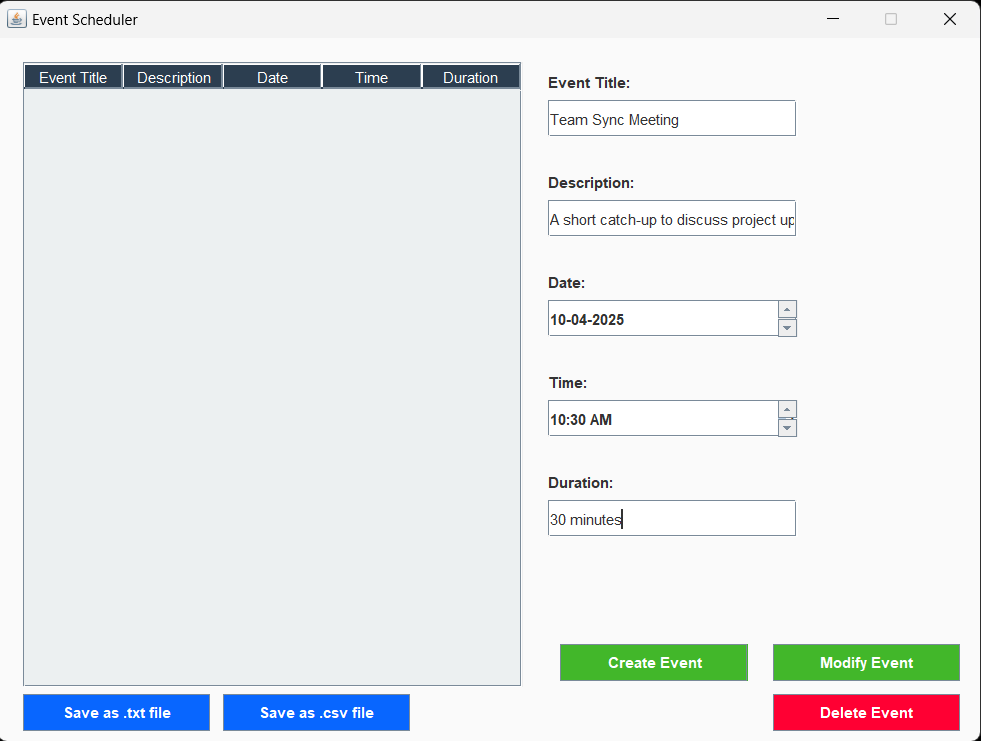
- Run the program and enter event details like title, description, date, time, and duration.
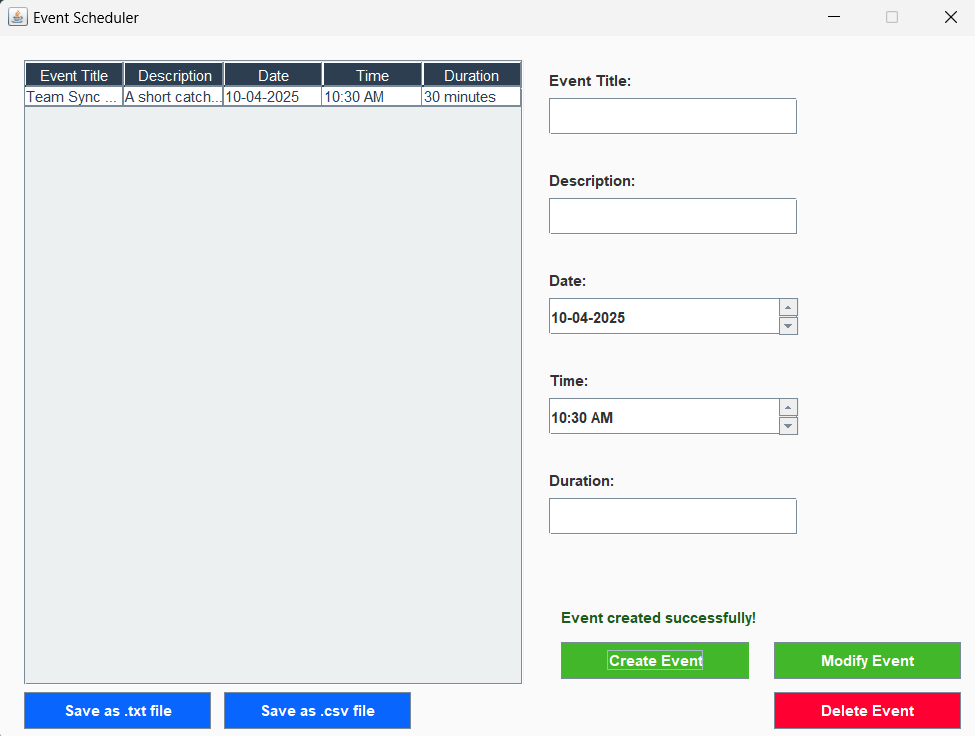
- Click "Create Event" to add a new event to the list.
- Modify or delete events using the "Modify Event" and "Delete Event" buttons.
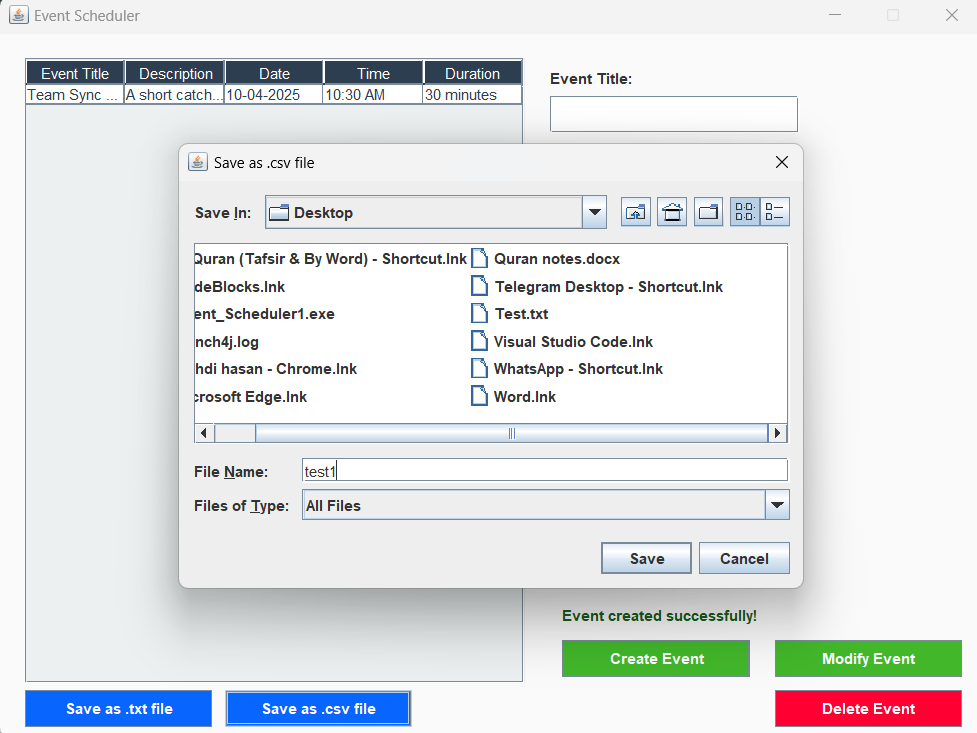
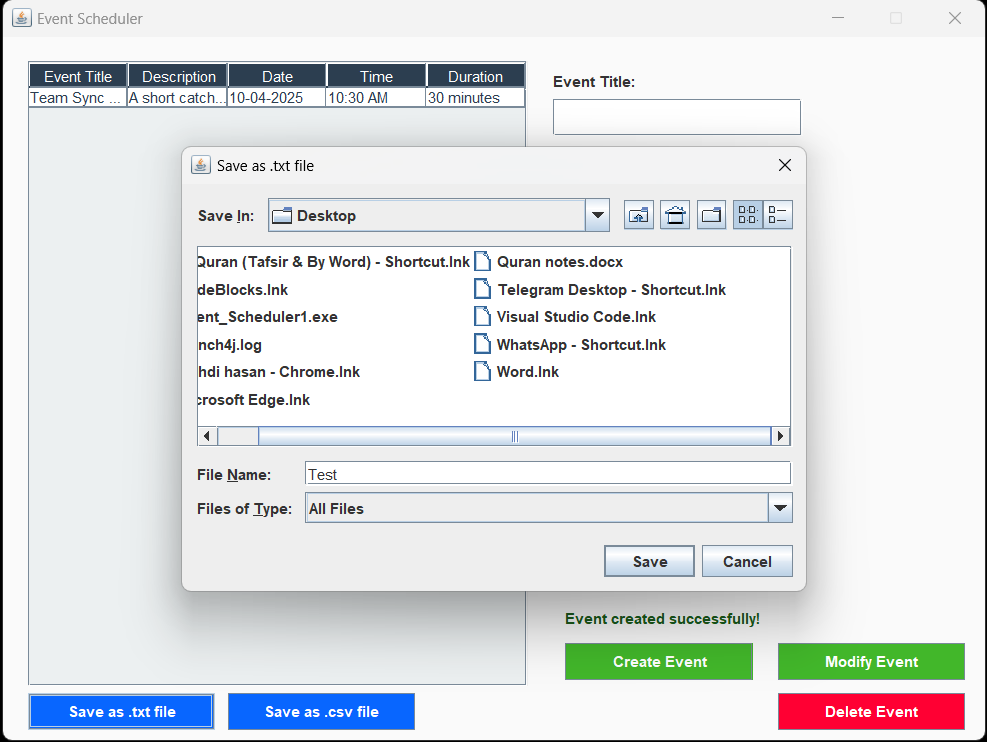
- Save events to a .txt or .csv file by clicking the "Save as .txt file" or "Save as .csv file" buttons.
- Events will be displayed in a structured table for easy management.
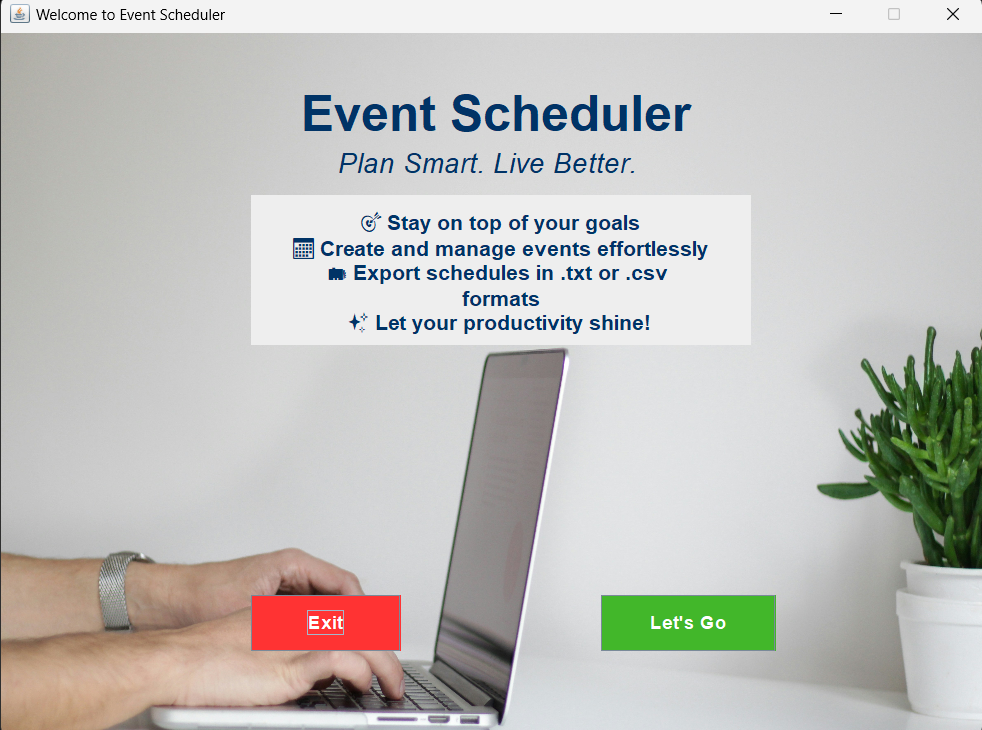
Upon running the application, this is the main screen that appears:
This is how you can input event details like title, date, time, and description:
After creating an event, the data is displayed in a table:
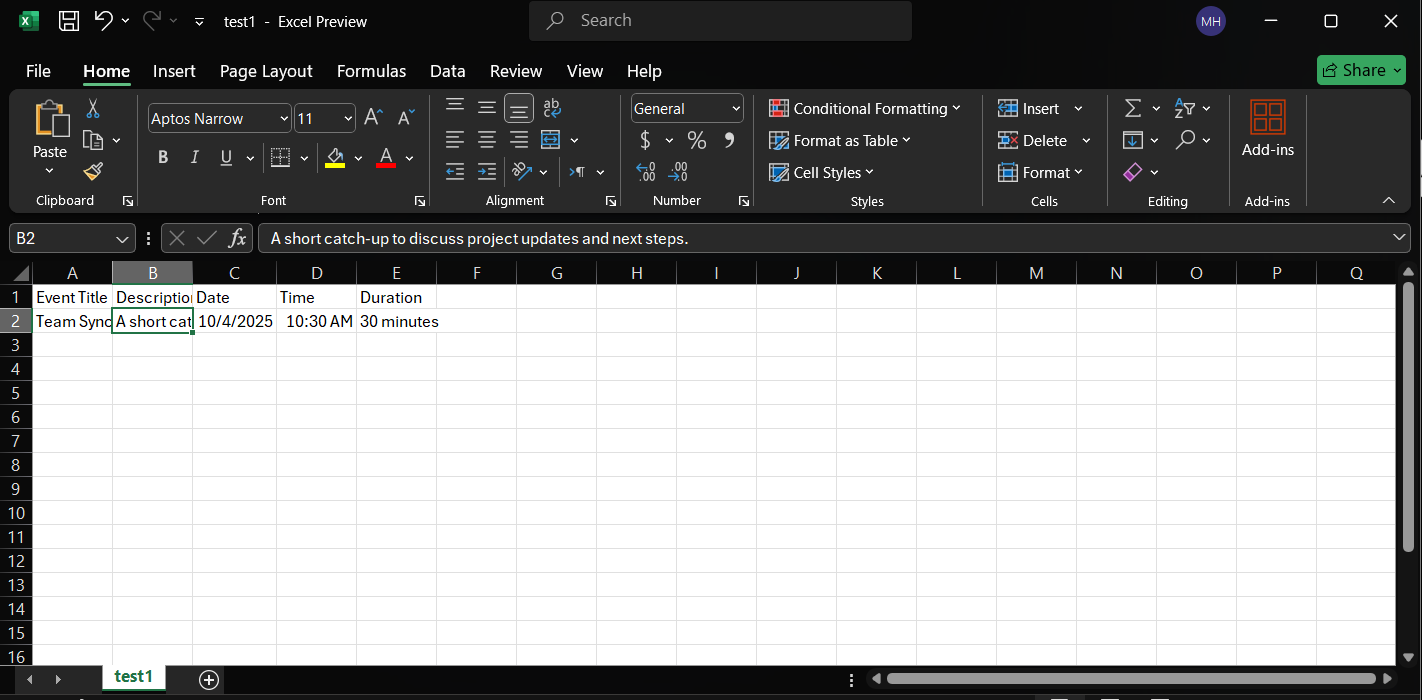
You can save the event data as a .csv, .xlsx, or Google Sheets file:
The event data saved in a .csv file:
The event data can also be saved as a .txt file:
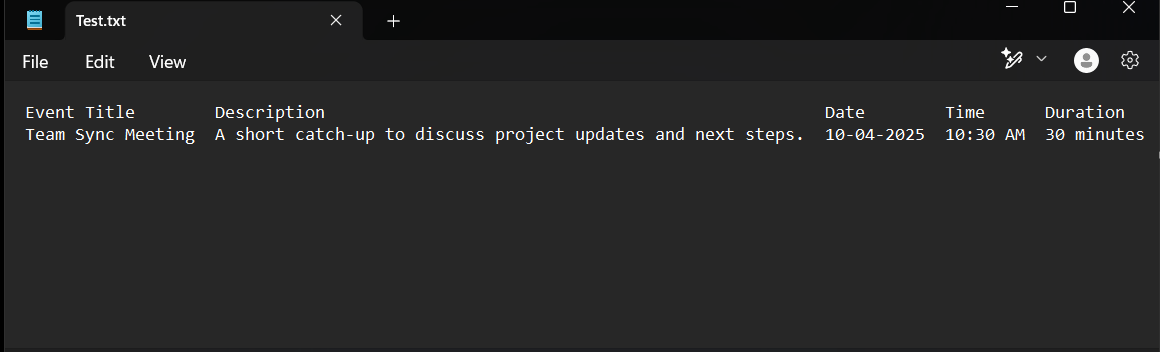
The saved event data in a .txt file format:
For any issues or suggestions, email me at (mehedi49891@gmail.com).