Repository navigation
Installation and first run
- calibre 5.35 or newer. The one-click column setup uses an API that was added in 5.35; older calibre versions cannot create the columns for you.
- A PocketBook that keeps its library in
system/explorer-3/explorer-3.db. Developed against an InkPad 3 Color on schema version 39. See Troubleshooting if yours is different. - The reader connected in USB storage mode, so it appears as a drive.
Nothing else is needed. The plugin uses the SQLite that ships inside calibre.
Download PocketBook Utilities v<version>.zip from the
releases page,
then in calibre:
Preferences → Plugins → Load plugin from file → pick the zip → restart calibre when asked.
From the command line it is:
calibre-customize -a "PocketBook Utilities v0.0.5.zip"
calibre's default toolbar layout is a fixed list of built-in actions, so no
plugin ever appears there on its own. Loading a plugin through the GUI offers
to add a button; calibre-customize -a does not, and resetting the toolbars
to their defaults removes it again.
The plugin checks for this at startup. If it cannot find itself on any toolbar, menu bar or context menu, it offers to add the button and rebuilds the toolbars straight away. Accept the offer, or place it yourself under Preferences → Toolbars & menus.
If you deliberately moved the button into a menu, the plugin sees it there and stops offering.
The first time a reader is connected, a setup dialog appears. It shows the device it found, the database path and the schema version, then a preview of the columns it wants to create.
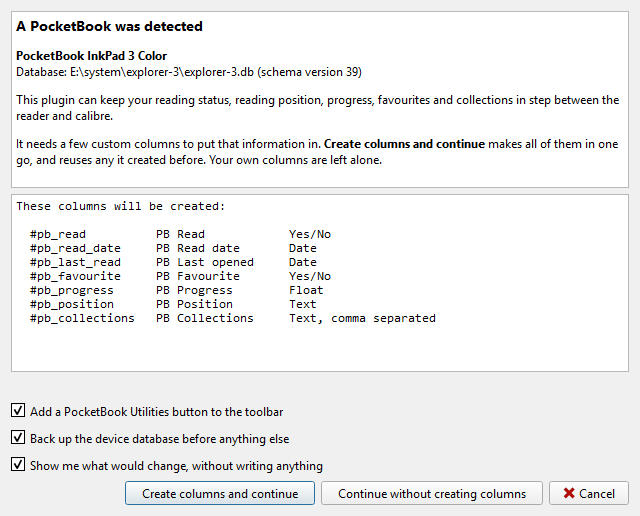
Three checkboxes:
| Default | |
|---|---|
| Add a PocketBook Utilities button to the toolbar | on, shown only if the button is missing |
| Back up the device database before anything else | on |
| Show me what would change, without writing anything | on |
and three buttons:
- Create columns and continue — makes the custom columns, then runs the dry run. This is the normal choice.
- Continue without creating columns — for when you want to map the fields to columns you already have, on the Columns tab of the settings.
- Cancel — nothing happens, and the dialog comes back next time.
Creating columns needs a calibre restart to take effect, and the plugin says so. Until you restart, the columns exist but calibre has not loaded them.
The dry run opens the review dialog read-only, so you can see what a first sync would do before it does anything. Nothing is written from that dialog.
Settings are stored per device, per library, keyed on the storage id in
the reader's driveinfo.calibre. Two readers sharing one library keep their
own column mappings and their own sync history. The same reader used with two
libraries likewise.