- Install JDK 11 by registering to oracle and downloading the installer from this link: https://www.oracle.com/technetwork/java/javase/downloads/jdk11-downloads-5066655.html
- If errors still persist after installing java, fix it by modifying
Get-Java.ps1powershell script which looks for the Java version, and point the $javaPath variable to the JDK 11 directory.
$javaPath = 'C:\Program Files\Java\jdk-11.x.x\'
Should be fixed now.
- Remove "pkg-resources==0.0.0" from requirements.txt
- pip install -r requirements.txt
- pip2.7 install thready
for zsh:
- edit ~/.zshrc
- add
bindkey -e; bindkey '\e\e[C' forward-word; bindkey '\e\e[D' backward-word - option+arrow works
https://superuser.com/questions/1143247/word-2013-bullets-dont-appear-when-creating-bullet-list
In case anyone else is having the issue (I had it with Word 2019 Office 365 for Mac): I realised that for me the problem was being caused by page breaks. If I hit enter then I could create a bullet list on the line above, just not for the line that included the page break. I hope this helps!
Restart vm-tools
# restart vm-tools
Access https://protection.office.com/antispam
Login with email@email.com Click on Expand Outbound spam filter policy and click Edit policy. Click on Expand Automatic forwarding and set the setting to On. Click Save.
# chown -Rf www-data:www-data test/*
# chmod -R o-rwx directory/
Error: Skipping bootstrap because certbot-auto is deprecated on this system. (When installing SSL thru Let's Encrypt)
https://snapcraft.io/docs/installing-snap-on-kali
https://certbot.eff.org/lets-encrypt/pip-apache
Error: nmap: netutil.cc:1319: int collect_dnet_interfaces(const intf_entry*, void*): Assertion `rc == 0' failed.
Solution: Uncomment "proxy_dns" from /etc/proxychains.conf then run:
proxychains nmap -Pn -sT -p 1433 -sC -sV 10.10.1.2
Error: E:\Tools\Creds\helpers\prac\execute_assembly_bin.nim(15, 13) Error: cannot open file: winim/clr
Fix: https://github.com/khchen/winim
PS E:\Tools\Creds\helpers\prac> nimble.exe install winim
openssl req -new -x509 -keyout ~/.cme/cme.pem -out ~/.cme/cme.pem -days 365 -nodes -subj "/C=US"
https://askubuntu.com/questions/1014172/virtualbox-unresponsive-area-on-desktop For me killing instances ran with --draganddrop parameter restored the functionality of that area.
You can open terminal using keyboard combination of ctrl+alt+t, and type:
ps aux www | grep VBoxClient --
to look for the process ID (PID) then kill it with
kill -9 PID
Alternatively pkill VBoxClient might do the trick.
After this to restore drag and drop support you can run
VBoxClient-all
https://superuser.com/questions/588304/no-mnt-hgfs-in-ubuntu-guest-under-vmware-fusion/1323483
sudo mkdir /mnt/hgfs
Use the above command first, followed by the following:
sudo /usr/bin/vmhgfs-fuse .host:/ /mnt/hgfs -o subtype=vmhgfs-fuse,allow_other
https://www.youtube.com/watch?v=XR5_hPT5i2g
set -g terminal-overrides 'xterm*:smcup@:rmcup@'
sudo xset b off
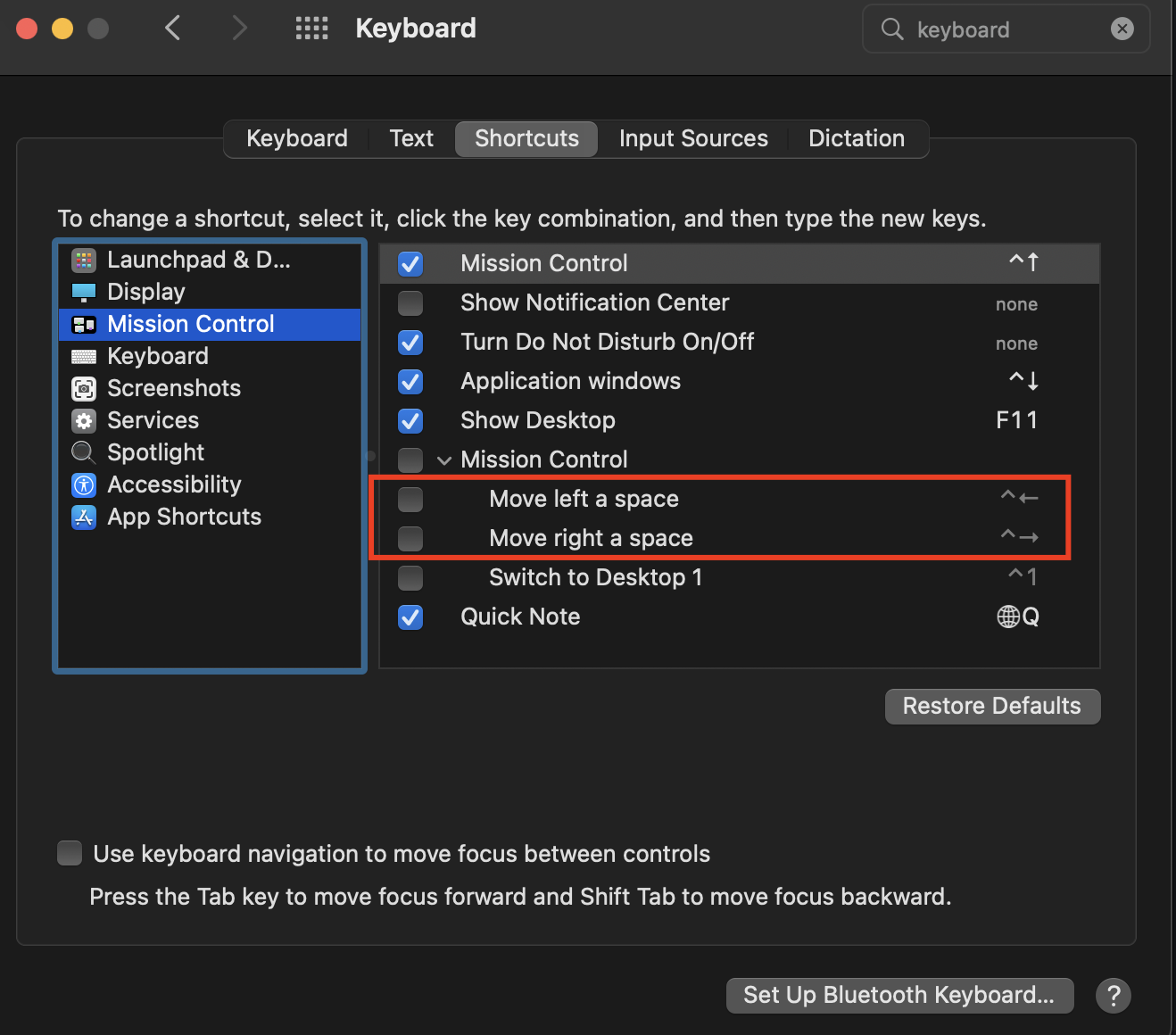
https://apple.stackexchange.com/questions/52147/control-arrow-key-to-jump-to-the-next-word
Uncheck the two boxes:
- Search "keyboard" and go to "Application Shortcuts"
- +Add a shortcut
- Command: /usr/bin/flameshot gui
- Select a shortcut by pressing keys

sudo wget https://archive.kali.org/archive-keyring.gpg -O /usr/share/keyrings/kali-archive-keyring.gpg
xattr -rd com.apple.quarantine /opt/Tools/bruteratel/lib64-mac/commander