In today's laboratory session we will deepen our knowledge about digital input and output. Therefore, we will turn our LEDs on or off with buttons and do some training on the handling of registers. See also below short description of the relevant registers for today's laboratory session.
Please clone the GitHub repository, as done in the previous lab. If you need a manual for that, click here
Important
TRISB sets the direction of a pin: "0" = output, "1" = input
PORTB reads the logic level at the pin: "0" = 0-0.8 V, "1" = Vdd (1.6-3.3 V or 2.0-5.0 V for TTL inputs)
LATB set the output voltage of a pin: "0" = 0 V, "1" = Vdd (3.3 V or 5 V)
ANSELB sets a pin as digital or analog: "0" = digital, "1" = analog
OSCCON sets the oscillator freq.: 0x50 = 4 MHz, 0x30 = 1 MHz. The instruction freq. are 1 MHz and 250 kHz respectively
<Register>bits.X TRISBbits.TRISB3 or LATBbits.LATB3 or PORTBbits.RB3 is the direct access to the bit 3 via a struct (see structures in C).
Describe the function of the code in main.c in your words using the following keywords (declaration of variables, call of the function, staying within the loop, checking bits of PORTB, reacting to buttons, ! Logical negation (NOT)).
Think, what happens, if jumper of LEDs is not set. This might be a trap.
Tip
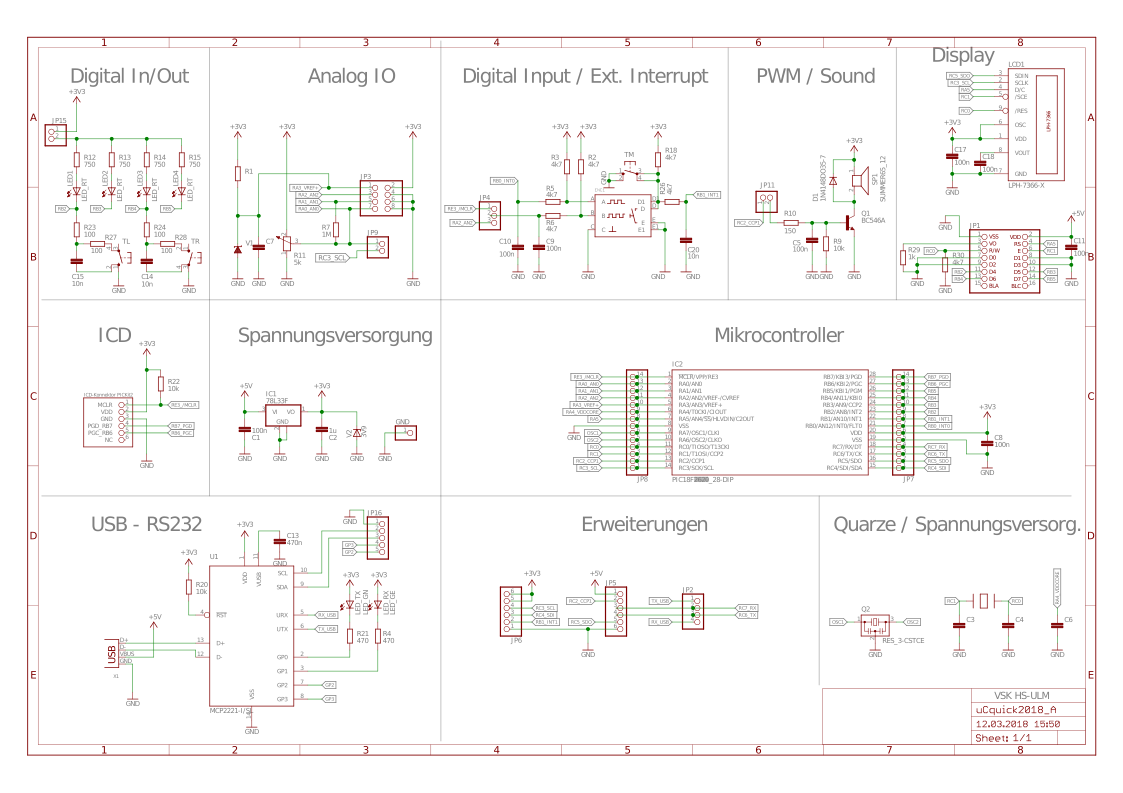
Look at the development board's schematic at Digital In/Out and search for a jumper (JP)
Next, we go through the code step by step , which is called debugging. You have written your own code or copied highly freaky code from us, but do not fully understand the function. Not to worry! For this you need an observation tool, the Watch, from the MPLAB X IDE. See below video for an instruction on debugging with MPLAB's watch-functionality.

The relevant register we want to track are:
- LATB, to see which values are set from the code
- PORTB, to see which (logical) value every pin in Register B currently has
Note
In Case the video is to fast, click here for a textual description.
If you set up all the registers to watch, you're ready for the following excercises. If not, ask for help if you need it! :)
Fill in the table below. Which values are in the registers LATB and PORTB after the given actions? Write the values in binary form and mark the bits 2 and 4 in column PORTB with a green circle and the bits 3 and 5 of column LATB with a red circle. Keep in mind to start counting from 0 and from right to left (bit 0 is far right, bit 7 is far left).
Important
Task: Clear all breakpoints (if you already set any), set a breakpoint into line 38
Nop(); // Do nothing, a breakpoint may be placed here),restart the programm from the beginning and follow the actions in the First column. Do hold the buttons as in the action stated, start the execution with F5 and read out the values PORTB and LATB from the Watch.
Warning
Within the new IDE breakpoints on lines containing a NOP() are not highlighted in green anymore. You need to check the IDE's output (bottom of the IDE) for the informative string Target halted. That means the program is, in our today's case, currently halted at line 38. Currently, the reason for this behaviour is unclear...
| Action | LATB | PORTB | LED2 | LED4 |
|---|---|---|---|---|
| no buttons pressed | 0b0001 1100 | 0b0001 1100 | off | on |
| press button TL and hold, then F5 to continue program |
||||
| release the button and press F5 afterwards | ||||
| press button TR and hold, then press F5, then press Pause! |
||||
| release the button, then press F5 | ||||
| press button TR again and hold, then press F5, then press Pause! |
||||
| release the button, then press F5 | ||||
| press button TR again and hold, then press F5, then press Pause! |
||||
| release the button, then press F5 |
In the following excercises we will add the middle button (TM) to our code to extend its functionality. To do so, we need to first check to which pin the middle button is connected. Therefore, we go back to our schematic and look at Digital Input / Ext. Interrupt. Look for TM and check which pin is connected to it. As soon as you have this information, continue to Excercise 4.
You don't have to keep the current code for this excercise. You can remove the code or comment it, if you want to. But maybe you can even re-use some parts of it. Extend your code in a way, so that it can recognize that the middle button is pressed. If that's done you can continue to implement the following functionality.
Note
Remember to handle the case, that the button is pressed but not yet released.
The LEDs should now be switched through each time the middle button is pressed. This means that (assuming all LEDs are currently off) LED1 should be switched on with the first press of the button, LED1 should be switched off and LED2 switched on with the next press of the button and so on. If LED4 is currently on and the button is pressed, all LEDs shall be switched off.
Tip
Look at the schematic at Digital In/Out to check which pin is connected to which LED. Write down the 8 bit representation of the PORTB register and replace the relevant bits with the LEDs. Can you find a pattern that makes it easy for you to turn the next LED on if the button is pressed? Furthermore, are the relevant pins configured correctly as In- or Output? Also remember the registers discussed in the lecture. Are all pins configured correctly for this task?
Change the code executed if the middle button is pressed so that it does not switch the LEDs through, but counts the times the button is pressed instead. Consider it as a binary counter. You will recognize, that the LEDs might count in the wrong direction (i.e. least significant bit is on the left, not on the right). Can you solve this issue, so that the least significant bit is on the right?
Here is a link to the standalone schematic (zoomable).

Execute the following to open the debug watch:
- click Debug (top of the IDE)
- click "New Watch ..." in the just opened submenu
- Type LATB (or whatever register you want to watch) into the textfield and click "Okay"
- a new tab opened at the bottom of you IDE -> "Variables"
- double click on "<Enter new watch>" and enter the next (PORTB) register (or variable) you want to watch (i.e. debug)
- DONE your watch is set up for this lab.