In today's laboratory we will check out the Analog to Digital Conversion (ADC) module. Therefore, we will first configure our ADC-module so that it uses the potentiometer of our development board as an input and print its current voltage level on the display. We will then automate the conversion so that it is performed at regular intervals to automatically receive voltage level updates. Last but not least, we will use our LEDs to show how many quarters of our reference voltage are currently measured by the ADC, like a battery level indicator.
The experts among you will get a simple exercise, a binary counter based on the ADC. But is it really simple, or is there a hidden trap?
Tip
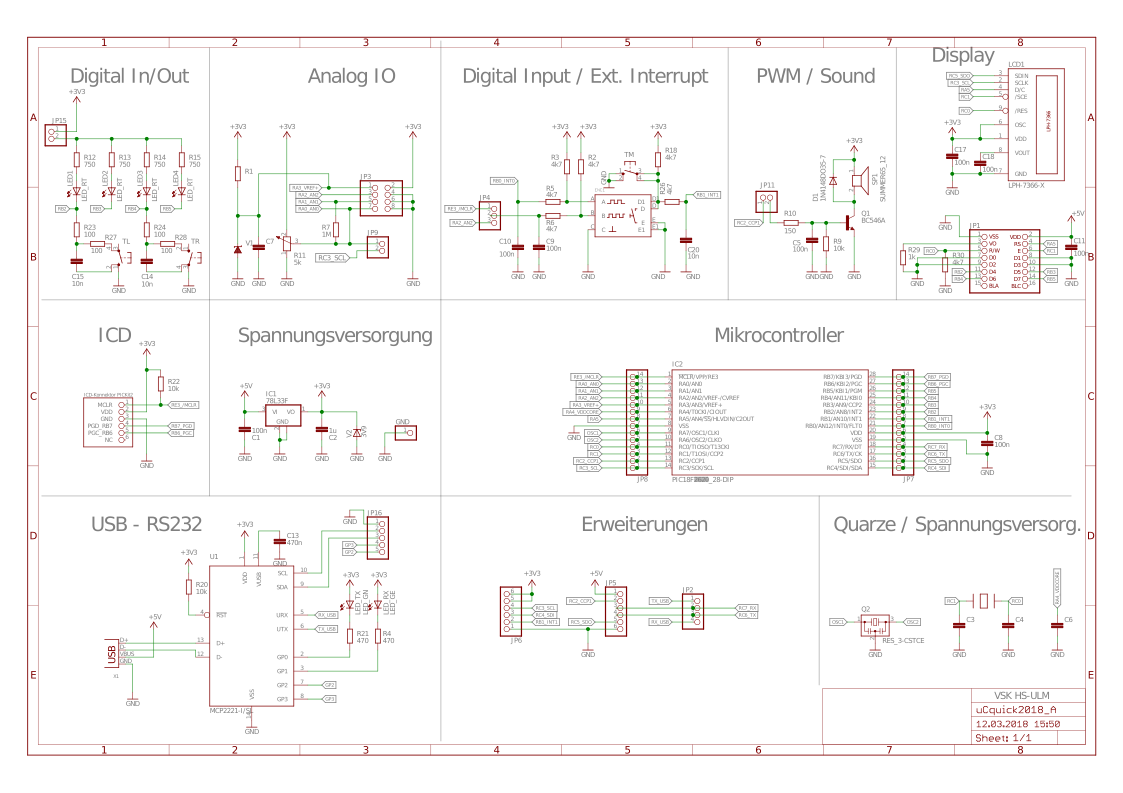
In case you need the manual for Git again, click here If you need the development board's schematic, click here The latest datasheet can be found here
For today's laboratory we will need the previously used registers to configure our Oscialltor, I/O pins, Timers, CCP Module, and the registers introduced in the lecture. All those registers are listed below. Please check them to ensure you are aware of all relevant registers for today.
Oscillator
| OSCCON | is used to set the frequency (IRCF) |
|---|
I/O
| TRISB | sets the direction of a pin: "0" = output, "1" = input |
|---|---|
| PORTB | reads the logic level at the pin: "0" = 0-0.8 V, "1" = Vdd (1.6-3.3 V or 2.0-5.0 V for TTL inputs) |
| LATB | set the output voltage of a pin: "0" = 0 V, "1" = Vdd (3.3 V or 5 V) |
| ANSELB | sets a pin as digital or analog: "0" = digital, "1" = analog |
| OSCCON | sets the oscillator freq.: 0x50 = 4 MHz, 0x30 = 1 MHz. The instruction freq. are 1 MHz and 250 kHz respectively |
| Registerbits.X | TRISBbits.TRISB3 or LATBbits.LATB3 or PORTBbits.RB3 is the direct access to the bit 3 via a struct (see structures in C). |
Timer X
| TxCON | to configure Timerx (today x will be 0 and 1) |
|---|---|
| TMRxH/L | to set the timer to a given (initial) value |
| INTCON | to check Timer0's interrupt (i.e. overflow) flag |
Capture Compare Module
| CCPxCON | configure the Capture Compare Module |
|---|---|
| CCPRxH/L | set comparison value for comparison mode of Capture Compare Module |
| CCPTMRS0 | set timer to be compared with CCPxH/L |
| PIR1 | to check Capture Compare Module's interrupt flag |
Interrupts
| INTCON | globally enable Interrupts, Peripheral Interrupts and Timer0 Interrupt. Read/Write Timer0 interrupt flag (overflow flag) |
|---|---|
| INTCON2 | configure interrupt behaviour for external signals (e.g. buttons) |
| INTCON3 | enable interrupts for special pins and read / write their interrupt flag |
| PIR | contains the flags for peripheral interrupts |
| PIE | contains the individual enable bits for the peripheral interrupts |
Analogt / Digital Conversion
| ADCON0 | Select Channel (i.e. pin) as input for conversion, enable ADC-module, and start conversion. |
|---|---|
| ADCON1 | Select positive and negatie voltage reference. |
| ADCON2 | Configure justification of conversion result, Acquisition time, and conversion clock. |
| ADRES | Read conversion result as 16 bit value. Use ADRESH and ADRESL to read result as two 8 bit values. |
We will use many of the available modules of our microcontroller today. Thus, the relevant chapters of the datasheet for today's laboratory are listed below.
- 2.0 OSCILLATOR MODULE (WITH FAIL-SAFE CLOCK MONITOR)
- 9.0 INTERRUPTS
- 10.0 I/O PORTS
- 12.0 TIMER1/3/5 MODULE WITH GATE CONTROL
- 14.0 CAPTURE/COMPARE/PWM MODULES
- 17.0 ANALOG-TO-DIGITAL CONVERTER (ADC) MODULE
Like in the laboratory sessions before, please clone this repository and open the project in MPLAB.
As told in the lecture, you need to configure the ADC-modules timings.
- Configure Port (look at the schematic, section Analg I/O, look for a pin connected directly to the potentiometer):
- Disable pin output driver (See TRIS register)
- Configure pin as analog
Note
You need to know the Oscillators frequency to determine the clock selection setting for the ADC, make sure to check configuration of the oscillator before configuring ADC-module's clock selection. Additionally, keep in mind that
- Configure the ADC module:
- Select ADC conversion clock
- Configure voltage reference
- Select ADC input channel
- Select result format
- Select acquisition delay
- Turn on ADC module
- Start conversion by setting the GO/DONE bit. Do this in main
- Wait for ADC conversion to complete by one of the following:
- Polling the GO/DONE bit
- Waiting for the ADC interrupt (we'll do this later)
- Read ADC Result from ADRESH and ADRESL
You will find comments, such as below example, in the given main.c showing you where to implement those steps. Follow the instruction from the datasheet and configure your ADC.
/*
 * ADC Conversion - Step 1: Configure Port
*/To check if your configuration is valid, we will implement a function to convert the ADRES register into a voltage level (given in mV) and show it on our display. To do this, the following function (line 15) must be implemented in such a way that it returns the voltage level.
uint16_t ADRES_to_mV(uint16_t register_val){
	// calculate measured voltage from register_val

	return 9999;
}
Remember, ADRES gives you the relative voltage compared to the set reference voltage. Due to the 10 bits of our ADC, ADRES will be in the range from 0 to 1023. And thus you can calculate the "percentage of the reference" using ADRES. This "percentage of the reference" then be used to calculate the measured voltage level.
To enhance our code, we want to get rid of the time wasting for loop. Therefore, we will use an already known approach - Interrupts! To do so we need to do the following:
- Configure Timer 1 so that it can be used to realize measurement frequencies up to 10 Hz.
- Check the CCP modules documentation. There is one instance of that module that offers a special functionality for the ADC module. Find out which one it is and configure it so that the analog to digital conversion is done every 100ms.
Look at the CCP modules compare mode. Read this chapter carefully, to find the correct CCP instance! - Implement the interrupt service routine.
- Modify the main program to not modify and poll ADCON0bits.GO anymore.
- Let a LED blink to have a visual update indicator.
Note
When done correctly, you don't need to start the Analog to Digital Conversion on the CCP interrupt. Nevertheless, you need to ensure, that the CCP interrupt is handled only once - keep in mind the interrupt flag!
A common use case for that an ADC is used is the monitoring of a battery. For this purpose, the battery's remaining voltage is measured in regular intervals. Let's use our potentiometer to simulate different battery levels (e.g. 25, 50, 75, and 100%) and realize a battery level indicator using the four LEDs. To do this we need to configure the relevant pins, in order to be able to turn the LEDs on and off. Furthermore, we need to check the voltage level within our main program (not only print it to the display) and test how many percent of our reference voltage is given by the potentiometer. See below table for a clarification.
| Voltage | Percentage | LED1 | LED2 | LED3 | LED4 |
|---|---|---|---|---|---|
| 320.86 | 9.8% | ||||
| 956.25 | 29.4% | ||||
| 2227.00 | 68.5% | ||||
| 3250.00 | 100% |
As we already measure our voltage level regularly, the only thing that needs to be done is adding the necessary logic to control the LEDs.
Tip
Don't try to solve this with a fancy solution. Keep it simple and remember basic commands such as if-else-statements and the possibility to store values inside a variable.
For this exercise, you need to analyze the direction of rotation of the potentiometer. Depending on this direction, you should switch through the LEDs to display the direction of rotation with the movement of the LED within the LED strip. Below tables show the LEDs behavior for both directions of rotation.
Clockwise rotation of potentiometer
| LED1 | LED2 | LED3 | LED4 |
|---|---|---|---|
Counterclockwise rotation of potentiometer
| LED1 | LED2 | LED3 | LED4 |
|---|---|---|---|
Tip
Remember that C offers you the possibility to shift a register using the Bitwise Rightshift (>>) or Bitwise Leftshift (<<) operators. Furthermore, keep in mind that our LEDs are connected with an inverted logic and that there is a Bitwise Operator that can be used to invert (1->0, 0->1) dedicated bits.
When you're done with implementing this functionality, answer yourself the following questions:
- what's a potential use case for this functionality?
- is there a speed limit for the potentiometer's rotation that ensures intermediate states (i.e. different form 0% and 100% turned) are still detected?
- what are your options to either speed up or slow down the movement of the LED?