Using the DryadLINQ job browser
The DryadLINQ job browser is a graphical user interface which provides a unified view of a large part of the distributed state of a DryadLINQ job. In this document we provide a brief overview of the main capabilities of the DryadLINQ job browser.
DryadLINQ is a compiler and runtime designed to allow users to run .Net programs on large computer clusters. The input language of DryadLINQ is .Net 4.5 or later. DryadLINQ compiles some .Net LINQ constructs into distributed execution plans, and uses the Dryad distributed runtime to execute these plans on a computer cluster reliably. Dryad runs on a variety of environments; in this manual we discuss the version of Dryad that runs on top of HDInsight, which in turns runs on top of Hadoop, which runs on top of Azure. An introduction to Dryad, LINQ, DryadLINQ, Azure and HDInsight is not in the scope of this manual. Some pointers can be found at the MSR SVC big data web page.
LINQ is essentially a language of operators that compute on collections of values, reminiscent of the relational algebra (SQL), and Lisp. A chain of LINQ operators is a LINQ query. Each LINQ query is translated by DryadLINQ into a Dryad job plan, which is then executed by Dryad on the cluster. A Dryad job is always a directed acyclic graph: the nodes of the graph (also called vertices) are processes that run independently on different machines. The edges of the graph (also called channels) are communication channels that move data between the vertices. While conceptually the user writes a single program that operates on collections, at runtime the program is executed using multiple machines, and on collections that are partitioned and stored on multiple machines. While DryadLINQ does a very good job of providing the illusion that the distributed computation occurs on a single machine, under some circumstances the single-machine abstraction breaks down. This happens especially when the application has (correctness or performance) bugs. The user of DryadLINQ is faced with the task of understanding the behavior of an application that spans multiple machines.
To start the job/cluster browser the user has to invoke the provided executable jobBrowser.exe While running the job browser a console window is shows the detailed log messages generated by the job browser.
The cluster browser is used to connect to a cluster and to retrieve the list of running, or recently run jobs.
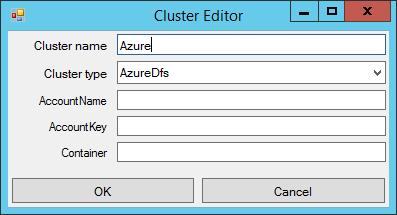
Prior to browsing jobs the cluster browser has to be taught how to connect to a cluster which is running jobs. Click the “Cluster” menu and select , as shown in Figure 1. This will bring a menu like the one in Figure 2. You can give your cluster any name you want; for using a HDInsight cluster choose a type “AzureDfs”.
Clicking on will attempt to add to this menu all clusters for which you have stored HDInsight certificates (if any are found).
Figure 1: Creating a new cluster
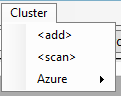
Figure 2: the cluster editor
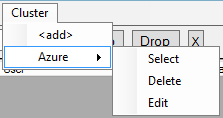
Once you have filled this form, clicking again on the “Cluster” menu will bring up a cluster with the name you have typed, as shown in Figure 3. Choosing “Select” in this menu will enumerate the jobs executed in that cluster.
Figure 3: manipulating a cluster
Once the user has connected to a cluster a display like the one in Figure 4 is shown.
Figure 4: Cluster browser window
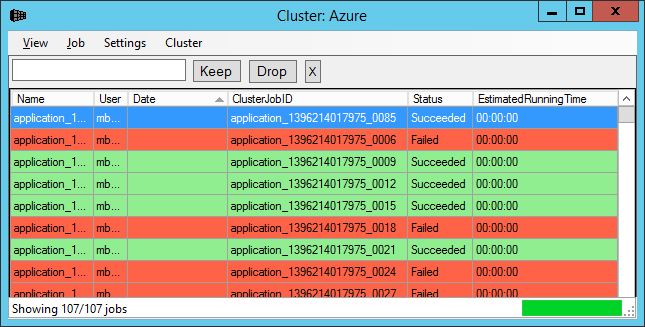
Each job is a displayed on a separate line. The jobs are color coded according to their status: red=failed, green=successful, cyan=running and yellow=cancelled. The cursor points to the currently selected job(s). Several operations can be applied to the selected jobs; some operations can be performed on a single job.
The jobs can be sorted on the displayed columns. They can also be filtered using the three buttons shown in Figure 5. The “Keep” button will only show jobs which match the filter, while the “Drop” button will only show jobs which do not match the filter. The “X” button removes all applied filters.
Figure 5: Filtering jobs

Figure 6: Functionality of the "View" cluster browser menu

Figure 6 shows the operations offered by the “View” menu:
- “cancel current work” can be used to interrupt long-running operations that take place in the background
- “new window” (or hotkey control-N) opens a new cluster browser window
- “Refresh” (F5) refreshes the view of the cluster is refreshed. If the “auto-refresh” checkbox is set, the view will automatically be refreshed every 30 seconds.
- Exit (control-Q) closes the cluster browser and saves some settings about the current view.
The user can perform per-job operations either by selecting a job in the display and using the “Job” menu, or right-clicking in the job display window. The set of operations available is shown in Figure 7.
Figure 7: contextual menu for job operations, invoked through right-click.

By double-clicking on a job, or selecting Job/open in job browser the user invokes the job browser, which is described below. The user can start multiple browsers by selecting multiple jobs.
Note that, although a job may be displayed in this window, the state of the job may not be available on the cluster, or may be only partly available. This is because the cluster job management may garbage-collect information about old jobs, and garbage collection is not instantaneous on all cluster machines: only parts of old jobs may be available for inspection. The user may need to have permissions to start the job browser on a specific job.
The menu item Job/Terminate can be used to terminate a (single) job executed on the cluster. The user may need to have adequate privileges to perform this operation.
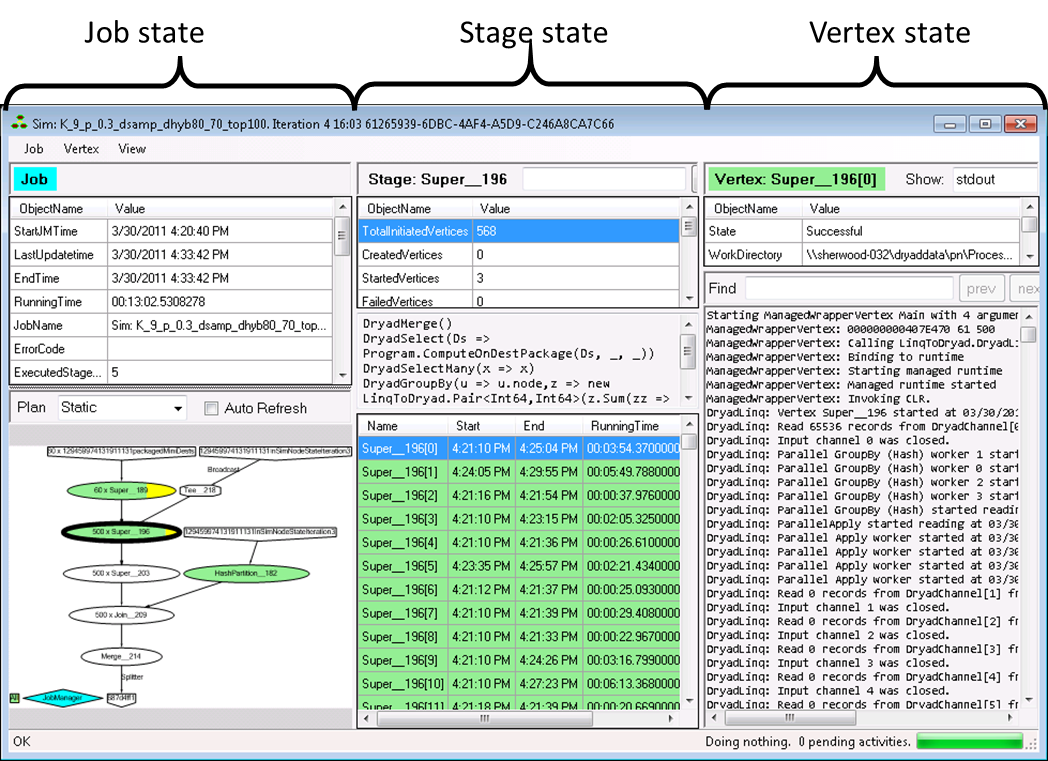
The job browser provides a hierarchical display of the DryadLINQ job information. The job browser shows a snapshot of the job state; the display has to be explicitly refreshed for a running job. There is an auto-refresh checkbox which causes the browser to automatically refresh the state periodically. A screen-shot of the job browser is shown in Figure 8.
Figure 8: The job browser window.
The job browser has to collect information from a potentially large number of large files spread among many machines in the cluster. Since the job browser is an interactive application that runs on a single client machine, data collection could be slow for large jobs. Some information is collected only on-demand, when initiated by user requests.
The job browser is divided into three vertical panes, representing a hierarchy from left to right. The job state pane (left) shows global job information. The user can select one of the job stages by clicking on the job plan. (A stage is a set of vertices that all operate on the same data collection and perform the same computation.) The selected stage is displayed in the middle pane. The stage information includes the list of all vertices in the stage. The user can click on a vertex to select it. Information specific about the selected vertex is shown in the right (vertex) pane.
The panes can be resized; the position and sizes of the panes are saved when the application is quit normally (through the Job/Close menu), and restored on the next execution.
In the remaining of the document we describe briefly the functionality provided by the job browser.
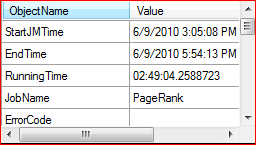
The job summary is in the leftmost top pane, shown in Figure 9. Some of the fields have meaningful values only after the job has completed.
Figure 9: The job summary