Repository navigation
Releases
MoonCast 1.0 beta 6

MoonCast 1.0 beta 6. It installs over beta 5 (or earlier betas) and keeps your settings.
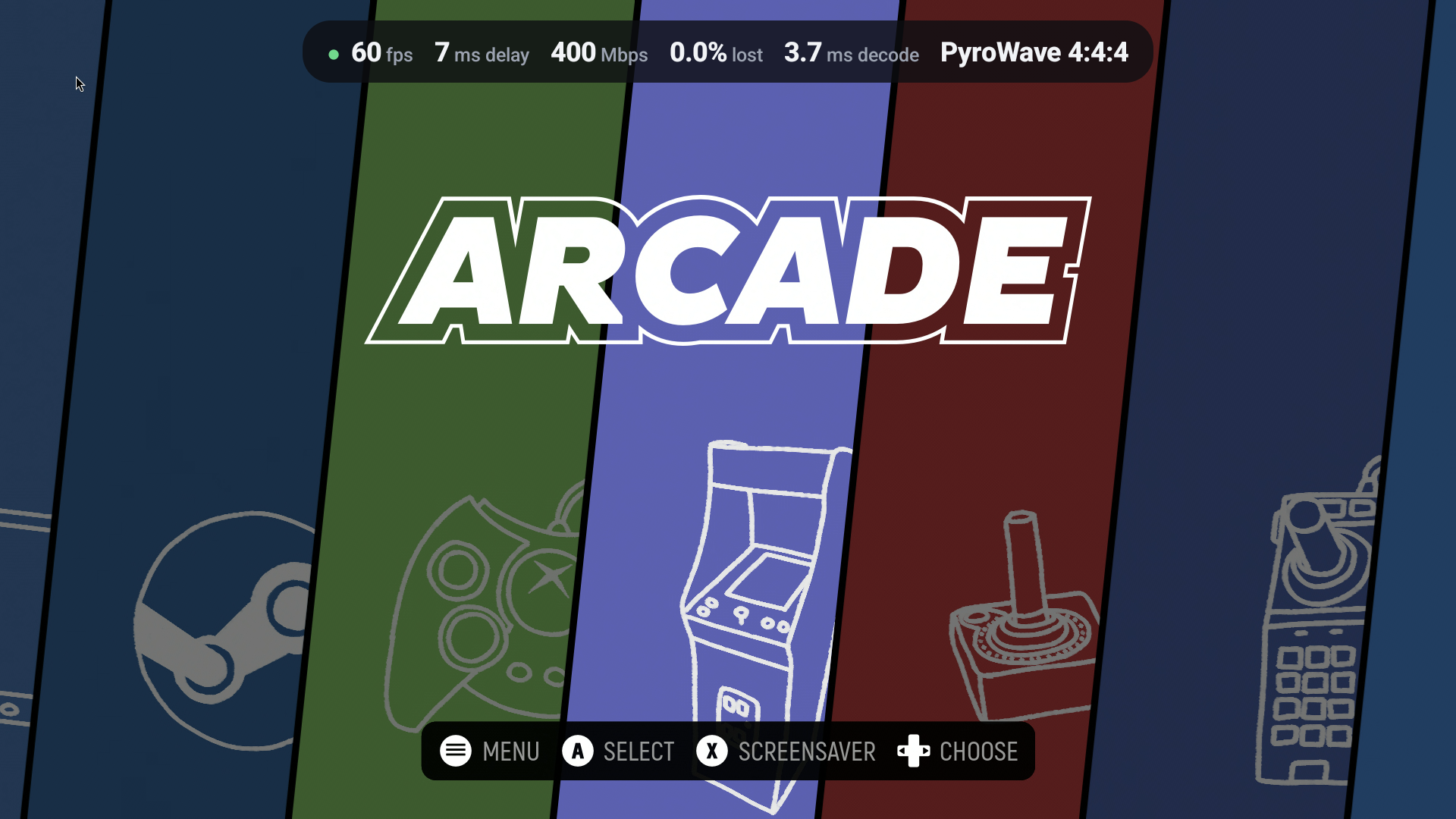
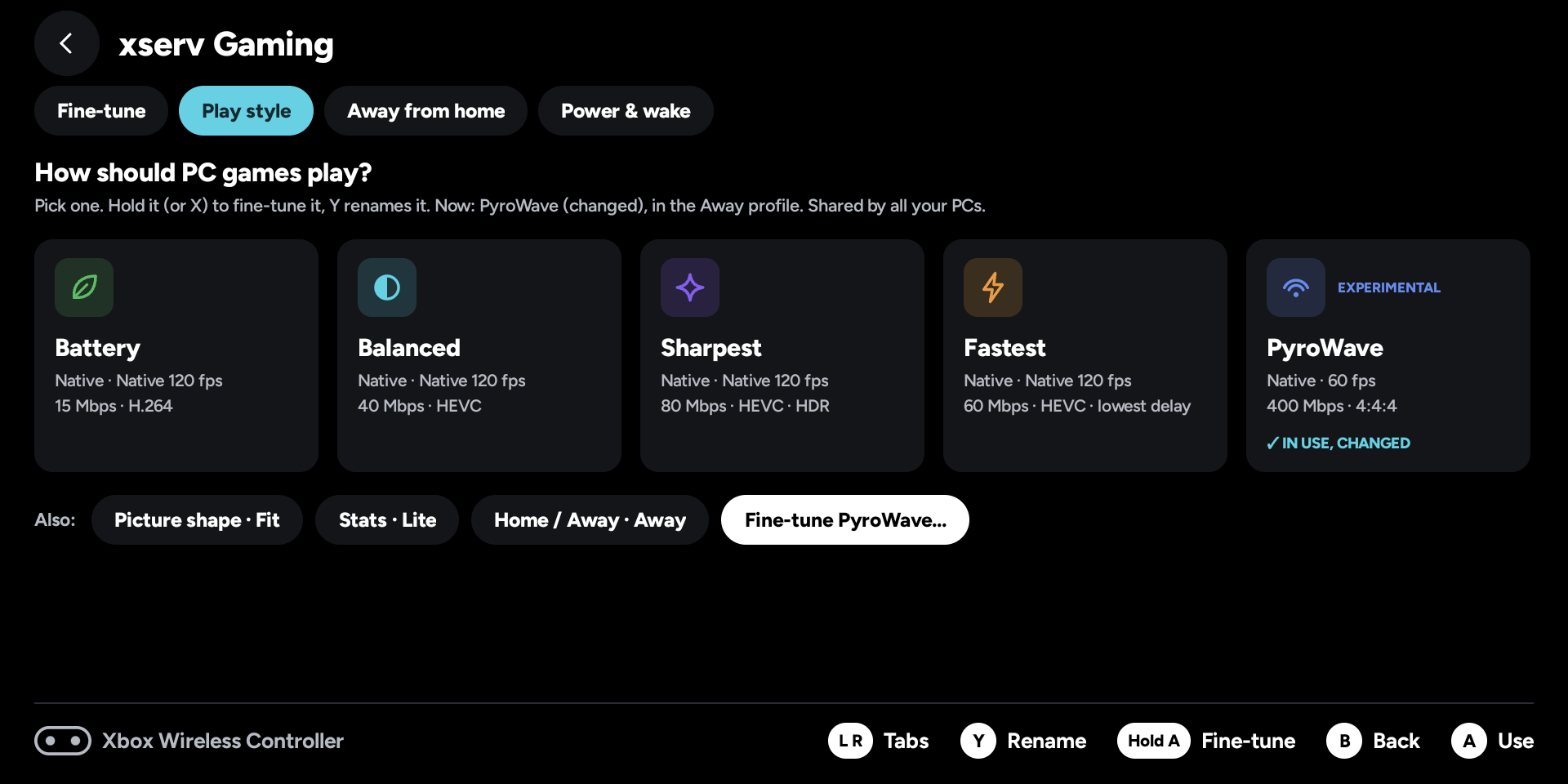
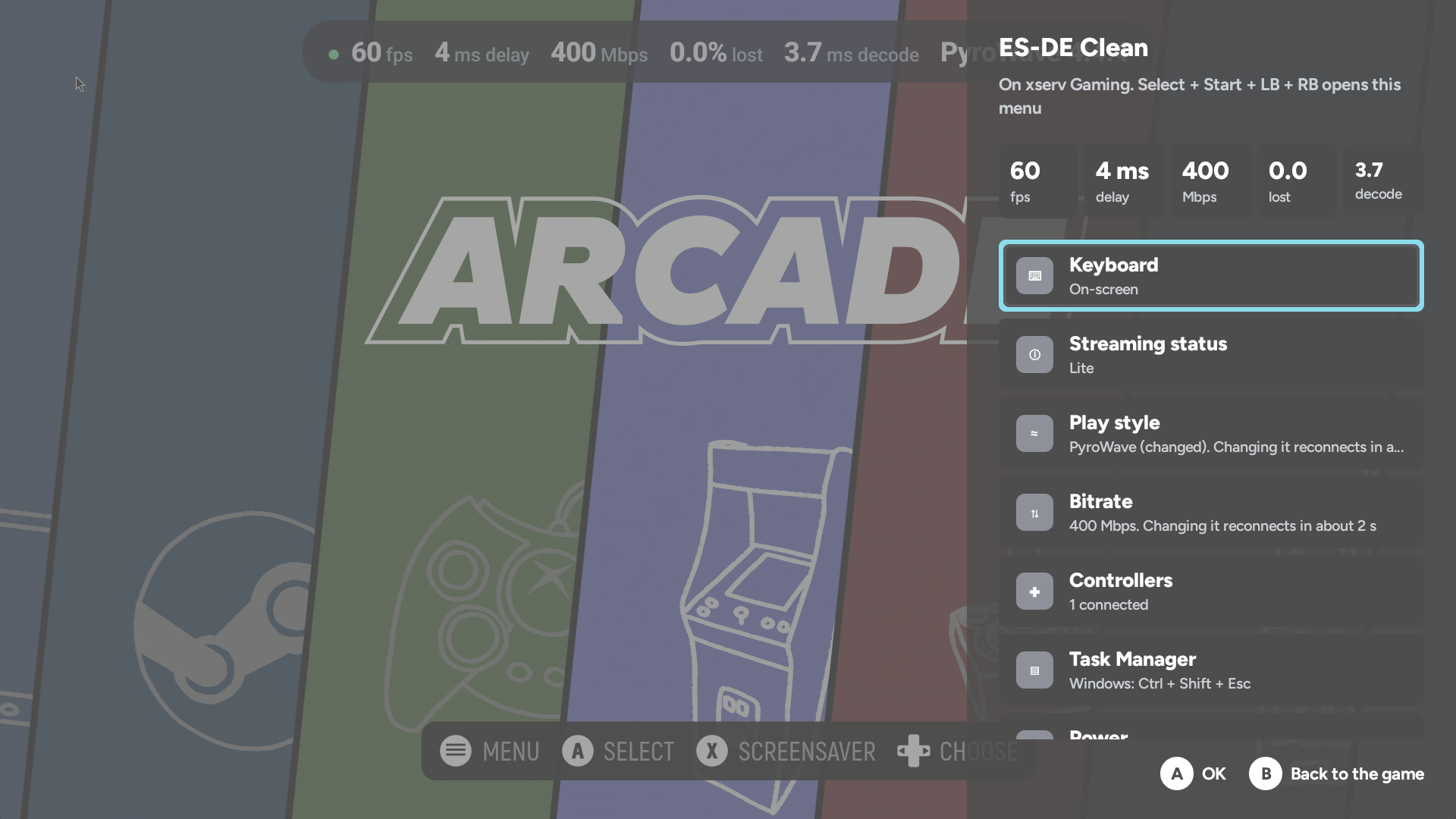
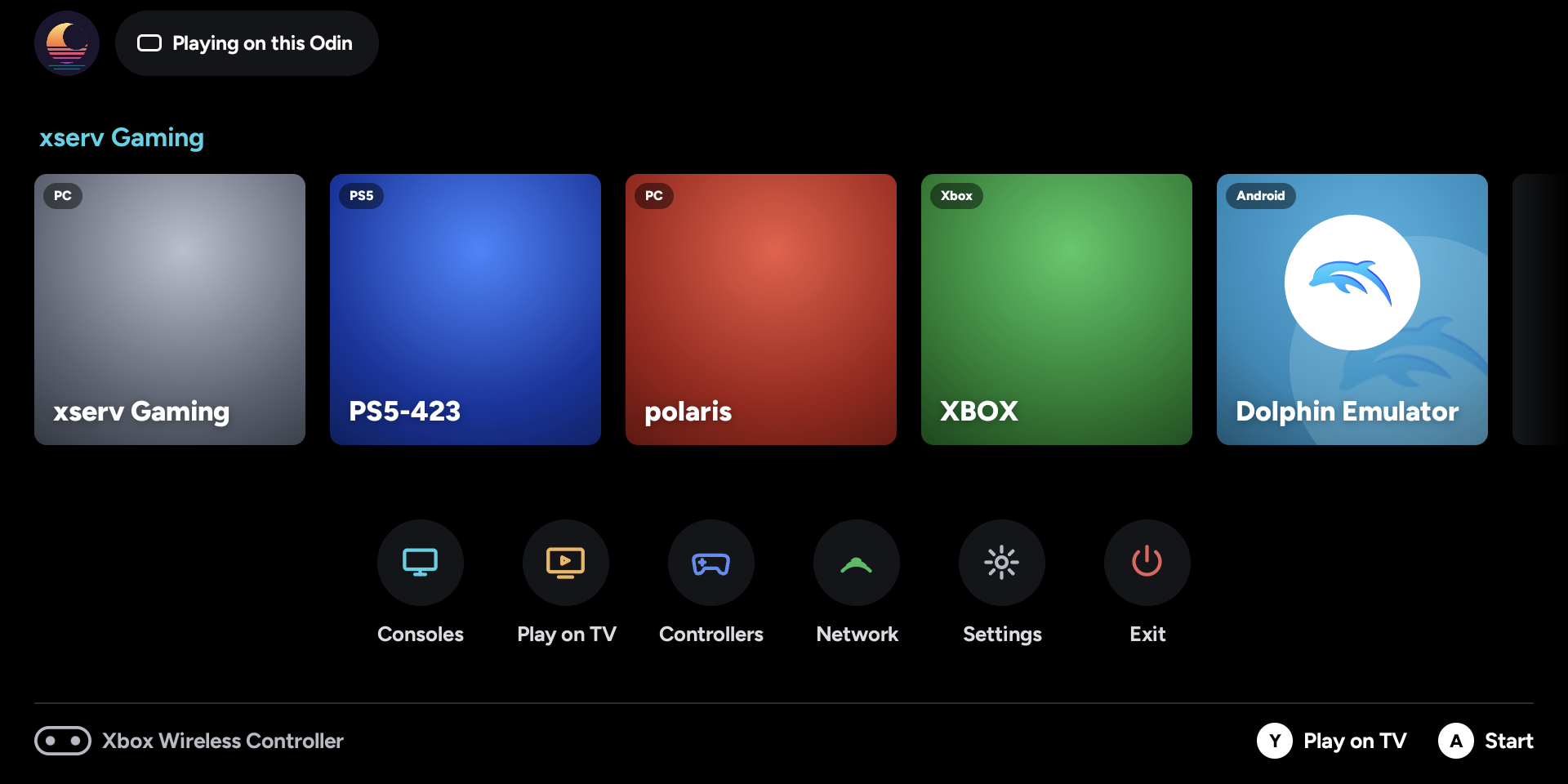
Screenshots (AYN Odin 2 Portal; all 8 are attached below)
 |
 |
 |
 |
- MoonCast-1.0-beta6.apk: phones and handhelds.
- MoonCastTV-1.0-beta6.apk: Android TV / Google TV.
Beta 6: everything since beta 5, as tested up to test292 (release-signed, version code 996).
Home and the in-game Quick menu
- Home shows one tile per PC. It shows the PC's name, "Running" when a game is on, and "Offline" when it's off. Press it for that PC's games; long-press (or X) for Wake, Pair and Resume.
- Quick menu (Select + Start + L1 + R1, or Back on the TV remote):
- Bitrate: pick another bitrate while playing. It reconnects to the same game in about 2 seconds; the game keeps running.
- Play style: switch between Battery, Balanced, Sharpest, Fastest (and PyroWave where this device can decode it) without leaving the game.
- Play on TV: pick a MoonCast TV (the last one you used is on top) and the game moves there; this device becomes its controller.
- The bitrate tile is short enough for small screens.
- Picture in picture (Settings, Handheld; off by default). Going Home keeps PC, PS5 and Xbox games in a small window.
Settings
- One card per device: each PC, PlayStation, Xbox and this device has its own card.
- PC play styles: Battery, Balanced, Sharpest, Fastest and PyroWave. Each one can be renamed and given its own icon and colour. Hold A on a style to fine-tune its own values.
- Fine-tune is the PC card's first tab. It has quick on/off tiles and a list of values, with a bitrate slider (A types an exact value).
- Native resolution and frame rate match the screen you play on.
- Profiles are Home and Away only. The Custom 1–3 profiles are gone; their settings stay saved.
- YUV 4:4:4 now comes only with the PyroWave style.
- The PlayStation and the Xbox have their own picture settings: Super resolution, sharpening and picture shape, plus frame pacing on the PS5. They start as "Same as Picture".
- PC bitrate goes up to 1 Gbps (1000 Mbps), with a warning above 300 Mbps. The PS5 goes up to 100 Mbps.
- Stick deadzone has an "Off" choice for the PC and the Xbox.
- The stats dot turns amber when the delay is over 30 ms.
PyroWave (experimental)
- A new codec for PC streams, from Moonlight X. It needs a Sunshine/Polaris build with PyroWave and a fast cable or Wi-Fi link: hundreds of Mbps.
- HDR and 10-bit, 4:4:4, spatial dithering, front buffer and GPU boost.
- New defaults: 4:4:4 on, GPU boost on, dithering Low.
- The PyroWave style only appears on devices whose GPU can decode it.
- Its bitrate follows the resolution and frame rate (Recommended).
Automatic bitrate (off by default)
- Turn it on in Settings (the PC card's Fine-tune tile, Classic, or the TV's Video settings). It lowers the bitrate when the network drops packets, then raises it again once the network has been clean for a minute. It never goes above the bitrate you set.
- How changes apply: on Polaris it changes the bitrate live, without reconnecting. With other PCs it reconnects briefly (the game keeps running), at most twice a minute, and never while a menu is open.
- It remembers each network's limit for a day. X on the tile shows the limit, with "Forget this network's limit".
- Off means the bitrate is exactly what you set.
- Earlier test builds had it on by default.
- Updating switches it off once: if you want it, turn it on again.
Networks, Native and folding
- Automatic Away: a PC reached over the internet uses the Away settings: no PyroWave, and at most 100 Mbps. If Away was never set up, Home's values are used.
- Native is the exact screen size on Polaris. Folding or unfolding mid-game reconnects at the new size and Polaris resumes the game.
- Other PCs (Sunshine, GeForce Experience) are never quit or restarted when you fold. The picture re-fits the screen instead.
- Wake after Hibernate (TV, as on the handheld): Wake keeps trying until the PC answers, then resumes the game.
Controllers
- A DualSense or DualShock 4 on Android 11 and other older systems now works. On a TV without the PlayStation driver, such as the AQUOS, every button used to be shifted and the triggers were wrong. Cross, Circle, Square, Triangle, L1/R1, analog L2/R2, Create, Options, PS, L3/R3, the touchpad click and the right stick now reach the PC correctly. Android 11 sometimes reports the pad's buttons from a "virtual" device; those now go to the real pad too.
Streaming fixes
- Better recovery from lost frames: three upstream Moonlight fixes:
- no loss reports when reference-frame invalidation is off;
- a half-lost key frame;
- recovery after a multi-block frame loss.
- Smoother at high bitrates:
- a bigger video receive buffer;
- the receive thread runs at a higher priority;
- far fewer "Unrecoverable frame" log lines.
Credits
- PyroWave support is ported from Moonlight X (MoreOrLessSoftware/moonlight-android, GPL-3.0).
- The codec: PyroWave by Hans-Kristian Arntzen (MIT), with Granite and volk (MIT).
Source
App: branch release/1.0-beta6. Streaming library: MoonCastDev/moonlight-common-c branch mooncast-android. Clone with git submodule update --init --recursive.
SHA-256
3419fcf17c2fe340295fdfa5977925de1854e74ac020d654def624f087ed591a  MoonCast-1.0-beta6.apk
776fc7a67eb3b8bdd7d1d2dcec1991f03c2e22fdcfb1d3681a939cce6d054102  MoonCastTV-1.0-beta6.apk
Signed with the MoonCast release key (certificate SHA-256 ac7cce06b53c84cdfdaf7f05c29479e332b434bd5799dc5716cba632173dff07).


MoonCast 1.0 beta 5
MoonCast 1.0 beta 5. It installs over beta 4 (or earlier betas) and keeps your settings.
What's new since beta 4
Xbox sign-in
- Pick any Microsoft account: on a phone or handheld, Microsoft's sign-in page now opens inside MoonCast with the code already filled in and no account remembered, so you can always choose which account to use.
- Accounts without Xbox: if Xbox network turns an account away (no Xbox profile, a child account, country or age limits), MoonCast doesn't keep it and says why, e.g. "This Microsoft account has no Xbox profile. Sign in with the account you use on your Xbox."
- Settings → Xbox shows "Signed in, no Xbox profile" (with Sign out) if a sign-in was left that way.
- TV: the sign-in card has a QR code: scan it with your phone and the page opens with the code filled in. To use a different account, open it in a private browser window.
Also in this beta (from beta 4): the Xbox picture no longer closes as soon as it connects. Everything else is as in beta 3.
Thanks for testing! MoonCast plays your PC, PS5 and Xbox on Android phones, handhelds and TVs.
Download
| For | File |
|---|---|
| Phones, handhelds, tablets, foldables | MoonCast-1.0-beta5.apk |
| Android TV / Google TV (Chromecast with Google TV, Google TV Streamer, Shield, TV sticks) | MoonCastTV-1.0-beta5.apk |
Both need Android 5.0 or later. Later betas and 1.0 install over this one and keep your settings.
Install
Phone or handheld: open this page on the device, tap the APK, and allow your browser to "install unknown apps" when Android asks.
TV: the easiest way is the free Downloader app (by AFTVnews) from the TV's app store. Enter this page's address and pick MoonCastTV-1.0-beta5.apk. Or install from a computer with adb install MoonCastTV-1.0-beta5.apk.
Before you play
- PC: install Sunshine on your PC and pair MoonCast with it (MoonCast shows a PIN to enter in Sunshine). In Sunshine's settings, keep Input → Gamepad on
auto(the default). Then your controller reaches the PC as what it is. - PS5: in MoonCast, Settings → PlayStation → sign in to PlayStation Network once, then register your PS5 with the code it shows (PS5: Settings → System → Remote Play → Link Device). On the PS5, turn on Settings → System → Power Saving → Features Available in Rest Mode → Stay Connected to the Internet and Enable Turning On PS5 from Network, and use rest mode, not power off.
- Xbox: Settings → Xbox → sign in. MoonCast shows a code to enter at microsoft.com/link. Remote features must be on in the Xbox's settings.
What to try
- Stats while playing (Settings → Picture, or Streaming status in the Quick menu): Off, Lite or Detailed.
- Power in a PC game's Quick menu (Windows): Hibernate, then Wake the PC from MoonCast and start the game again: it should be where you left it.
- YUV 4:4:4 (HEVC) in Settings → Picture, if your PC's Sunshine offers it: sharper text. The row says if your device can't show it.
- Theme: Dark, Light or OLED, and Background Follows the game or Static.
- A handheld and a MoonCast TV together: Play on a TV, then Quit game from the handheld.
- Touch screen: PC games now start with Touch (click where you tap). Change it in Settings → Handheld.
Known limits
- The on-screen controller is for PC games only (not PS5 or Xbox yet).
- Power types the command into Windows' Run box, found by typing "run": that works on English Windows; other Windows display languages may not find it.
- PS5 and Xbox need their sign-ins. MoonCast never sends your sign-ins or pairings anywhere but Sony, Microsoft and your own devices.
- Streaming is for your home network, or away from home for the PS5 through PlayStation Network. For a PC away from home you need your own way in (a VPN, or Sunshine's ports forwarded).
Found a problem?
Report it here (a free GitHub account), or just message the person who sent you this link. Say which device, what you were playing and what happened. A screenshot helps.
Checksums: see SHA256SUMS.txt. Signed by CN=MoonCast, O=MoonCastDev (SHA-256 ac7cce06b53c84cdfdaf7f05c29479e332b434bd5799dc5716cba632173dff07).
MoonCast 1.0 beta 4
MoonCast 1.0 beta 4. It installs over beta 3 (or earlier betas) and keeps your settings.
What's new since beta 3
- Xbox works again: in beta 3 the Xbox picture closed the moment it connected (the low-latency video decoder threw on the first frame). Fixed and tested on an AYN Odin 2 Portal: 1080p at 60 fps, Ultra low latency on.
Everything else is as in beta 3: Stats Off / Lite / Detailed, YUV 4:4:4 (HEVC), Power (Hibernate, Restart, Shut down), OLED theme, Play on a TV fixes and more.
Coming next: an Xbox sign-in that always lets you pick the Microsoft account, and a clear message when an account has no Xbox profile.
Thanks for testing! MoonCast plays your PC, PS5 and Xbox on Android phones, handhelds and TVs.
Download
| For | File |
|---|---|
| Phones, handhelds, tablets, foldables | MoonCast-1.0-beta4.apk |
| Android TV / Google TV (Chromecast with Google TV, Google TV Streamer, Shield, TV sticks) | MoonCastTV-1.0-beta4.apk |
Both need Android 5.0 or later. Later betas and 1.0 install over this one and keep your settings.
Install
Phone or handheld: open this page on the device, tap the APK, and allow your browser to "install unknown apps" when Android asks.
TV: the easiest way is the free Downloader app (by AFTVnews) from the TV's app store. Enter this page's address and pick MoonCastTV-1.0-beta4.apk. Or install from a computer with adb install MoonCastTV-1.0-beta4.apk.
Before you play
- PC: install Sunshine on your PC and pair MoonCast with it (MoonCast shows a PIN to enter in Sunshine). In Sunshine's settings, keep Input → Gamepad on
auto(the default). Then your controller reaches the PC as what it is. - PS5: in MoonCast, Settings → PlayStation → sign in to PlayStation Network once, then register your PS5 with the code it shows (PS5: Settings → System → Remote Play → Link Device). On the PS5, turn on Settings → System → Power Saving → Features Available in Rest Mode → Stay Connected to the Internet and Enable Turning On PS5 from Network, and use rest mode, not power off.
- Xbox: Settings → Xbox → sign in. MoonCast shows a code to enter at microsoft.com/link. Remote features must be on in the Xbox's settings.
What to try
- Stats while playing (Settings → Picture, or Streaming status in the Quick menu): Off, Lite or Detailed.
- Power in a PC game's Quick menu (Windows): Hibernate, then Wake the PC from MoonCast and start the game again: it should be where you left it.
- YUV 4:4:4 (HEVC) in Settings → Picture, if your PC's Sunshine offers it: sharper text. The row says if your device can't show it.
- Theme: Dark, Light or OLED, and Background Follows the game or Static.
- A handheld and a MoonCast TV together: Play on a TV, then Quit game from the handheld.
- Touch screen: PC games now start with Touch (click where you tap). Change it in Settings → Handheld.
Known limits
- The on-screen controller is for PC games only (not PS5 or Xbox yet).
- Power types the command into Windows' Run box, found by typing "run": that works on English Windows; other Windows display languages may not find it.
- PS5 and Xbox need their sign-ins. MoonCast never sends your sign-ins or pairings anywhere but Sony, Microsoft and your own devices.
- Streaming is for your home network, or away from home for the PS5 through PlayStation Network. For a PC away from home you need your own way in (a VPN, or Sunshine's ports forwarded).
Found a problem?
Report it here (a free GitHub account), or just message the person who sent you this link. Say which device, what you were playing and what happened. A screenshot helps.
Checksums: see SHA256SUMS.txt. Signed by CN=MoonCast, O=MoonCastDev (SHA-256 ac7cce06b53c84cdfdaf7f05c29479e332b434bd5799dc5716cba632173dff07).
MoonCast 1.0 beta 3
MoonCast 1.0 beta 3. It installs over beta 2 (or beta 1) and keeps your settings.
What's new since beta 2
Playing
- Stats while playing has three levels: Off, Lite (one row at the top: fps, delay, Mbps, lost, decode, codec) and Detailed (a full panel). The Quick menu's Streaming status steps through them. Same card on PC, PS5 and Xbox.
- YUV 4:4:4 (HEVC) (Settings → Picture): full colour detail, for sharper text and coloured edges, when the PC and your device support it.
- "H.265" is now called HEVC everywhere.
In-game Quick menu
- Power (PC, Windows): Hibernate, Restart or Shut down, each asked again with Cancel first. After Hibernate, Wake brings the PC back without restarting MoonCast, and starting the game again opens the PC's Desktop, so the game is where you left it.
- The menu stays open after Task Manager, PS button, Touchpad, Xbox button, Streaming status and Controllers, with a short note of what happened.
- Touch screen moved to Settings → Handheld, and PC games now start with Touch.
Look
- OLED theme (true black), and Background: Follows the game or Static.
- Change picture for any tile, Add to home screen for a game, and On this device: your own Android apps (emulators, Steam Link…) next to your games.
Play on a TV
- Quit game from the handheld now really quits on the PC, and a game that can't start on the TV says why instead of waiting for ever.
- A TV that knows several PCs plays the game on the PC the handheld names.
- Release-built TVs can now receive a handheld's identity (a TV that isn't paired with your PC can still play it).
Also
- An anonymous usage check-in, off unless you say yes (asked once; Settings → About).
- Quit, Unpair and Remove prompts pick Cancel first.
- On battery, stream at (beta 2) is gone: it saved little battery.
Thanks for testing! MoonCast plays your PC, PS5 and Xbox on Android phones, handhelds and TVs.
Download
| For | File |
|---|---|
| Phones, handhelds, tablets, foldables | MoonCast-1.0-beta3.apk |
| Android TV / Google TV (Chromecast with Google TV, Google TV Streamer, Shield, TV sticks) | MoonCastTV-1.0-beta3.apk |
Both need Android 5.0 or later. Later betas and 1.0 install over this one and keep your settings.
Install
Phone or handheld: open this page on the device, tap the APK, and allow your browser to "install unknown apps" when Android asks.
TV: the easiest way is the free Downloader app (by AFTVnews) from the TV's app store. Enter this page's address and pick MoonCastTV-1.0-beta3.apk. Or install from a computer with adb install MoonCastTV-1.0-beta3.apk.
Before you play
- PC: install Sunshine on your PC and pair MoonCast with it (MoonCast shows a PIN to enter in Sunshine). In Sunshine's settings, keep Input → Gamepad on
auto(the default). Then your controller reaches the PC as what it is. - PS5: in MoonCast, Settings → PlayStation → sign in to PlayStation Network once, then register your PS5 with the code it shows (PS5: Settings → System → Remote Play → Link Device). On the PS5, turn on Settings → System → Power Saving → Features Available in Rest Mode → Stay Connected to the Internet and Enable Turning On PS5 from Network, and use rest mode, not power off.
- Xbox: Settings → Xbox → sign in. MoonCast shows a code to enter at microsoft.com/link. Remote features must be on in the Xbox's settings.
What to try
- Stats while playing (Settings → Picture, or Streaming status in the Quick menu): Off, Lite or Detailed.
- Power in a PC game's Quick menu (Windows): Hibernate, then Wake the PC from MoonCast and start the game again: it should be where you left it.
- YUV 4:4:4 (HEVC) in Settings → Picture, if your PC's Sunshine offers it: sharper text. The row says if your device can't show it.
- Theme: Dark, Light or OLED, and Background Follows the game or Static.
- A handheld and a MoonCast TV together: Play on a TV, then Quit game from the handheld.
- Touch screen: PC games now start with Touch (click where you tap). Change it in Settings → Handheld.
Known limits
- The on-screen controller is for PC games only (not PS5 or Xbox yet).
- Power types the command into Windows' Run box, found by typing "run": that works on English Windows; other Windows display languages may not find it.
- PS5 and Xbox need their sign-ins. MoonCast never sends your sign-ins or pairings anywhere but Sony, Microsoft and your own devices.
- Streaming is for your home network, or away from home for the PS5 through PlayStation Network. For a PC away from home you need your own way in (a VPN, or Sunshine's ports forwarded).
Found a problem?
Report it here (a free GitHub account), or just message the person who sent you this link. Say which device, what you were playing and what happened. A screenshot helps.
Checksums: see SHA256SUMS.txt. Signed by CN=MoonCast, O=MoonCastDev (SHA-256 ac7cce06b53c84cdfdaf7f05c29479e332b434bd5799dc5716cba632173dff07).
MoonCast 1.0 beta 2
MoonCast 1.0 beta 2. It installs over beta 1 and keeps your settings.
What's new since beta 1
Picture
- Super resolution (AMD FSR 1.0) and a Sharpening slider (Settings → Picture). When the stream is smaller than your screen, FSR upscales it and sharpens edges. Works on PC, PS5 and Xbox, on devices with OpenGL ES 3 (older TVs fall back to the normal picture).
- Unlock all frame rates (adds 144 and 240), Custom bitrate (0.5 to 150 Mbps), Full range colour.
- Handheld, On battery, stream at: unplugged, PC and PS5 streams go no higher than the height you pick.
PS5
- Decoder (Settings → PlayStation): Low latency (default), Ultra low latency or Standard. The Quick menu shows Decode time so you can compare them.
- Frame pacing (Settings → PlayStation): Lowest delay, Balanced or Smoothest.
- Leaving while it connects really stops the attempt, so your next try isn't refused. A console woken over PlayStation Network that turns up on your home network switches to the faster home connection.
In-game Quick menu
- Streaming status (PC, PS5, Xbox): the stats corner on or off while you play.
- Touch screen (PC): Off, Mouse (trackpad) or Touch (click where you tap). Every game starts Off, so a hand on the screen can't click by accident; set a different start in Settings → Handheld → Touch screen.
- Task Manager (PC, Windows): opens it with Ctrl + Shift + Esc.
- The menu scrolls to the selected item when there are more than fit.
Thanks for testing! MoonCast plays your PC, PS5 and Xbox on Android phones, handhelds and TVs.
Download
| For | File |
|---|---|
| Phones, handhelds, tablets, foldables | MoonCast-1.0-beta2.apk |
| Android TV / Google TV (Chromecast with Google TV, Google TV Streamer, Shield, TV sticks) | MoonCastTV-1.0-beta2.apk |
Both need Android 5.0 or later. Later betas and 1.0 install over this one and keep your settings.
Install
Phone or handheld: open this page on the device, tap the APK, and allow your browser to "install unknown apps" when Android asks.
TV: the easiest way is the free Downloader app (by AFTVnews) from the TV's app store. Enter this page's address and pick MoonCastTV-1.0-beta2.apk. Or install from a computer with adb install MoonCastTV-1.0-beta2.apk.
Before you play
- PC: install Sunshine on your PC and pair MoonCast with it (MoonCast shows a PIN to enter in Sunshine). In Sunshine's settings, keep Input → Gamepad on
auto(the default). Then your controller reaches the PC as what it is. - PS5: in MoonCast, Settings → PlayStation → sign in to PlayStation Network once, then register your PS5 with the code it shows (PS5: Settings → System → Remote Play → Link Device). On the PS5, turn on Settings → System → Power Saving → Features Available in Rest Mode → Stay Connected to the Internet and Enable Turning On PS5 from Network, and use rest mode, not power off.
- Xbox: Settings → Xbox → sign in. MoonCast shows a code to enter at microsoft.com/link. Remote features must be on in the Xbox's settings.
What to try
- Play a PC game, a PS5 game and an Xbox game, at home.
- Away from home (another Wi-Fi, mobile data, or a phone hotspot), start your PS5. Then press Back while it's connecting, start it again straight away, and tell us whether it connects.
- A handheld and a MoonCast TV together: pick a game on the handheld and Play on a TV.
- The on-screen controller for PC games: Settings → Controls → On-screen controller → PlayStation or Xbox.
- Super resolution: set Settings → Picture → Resolution to 720p, turn on Super resolution, and compare.
- The Quick menu in a PC game (Select + Start + LB + RB, or Back): Streaming status, Touch screen, Task Manager.
- A foldable: fold and unfold while playing a PC game.
Known limits
- The on-screen controller is for PC games only (not PS5 or Xbox yet).
- PS5 and Xbox need their sign-ins. MoonCast never sends your sign-ins or pairings anywhere but Sony, Microsoft and your own devices.
- Streaming is for your home network, or away from home for the PS5 through PlayStation Network. For a PC away from home you need your own way in (a VPN, or Sunshine's ports forwarded).
Found a problem?
Report it here (a free GitHub account), or just message the person who sent you this link. Say which device, what you were playing and what happened. A screenshot helps.
Checksums: see SHA256SUMS.txt. Signed by CN=MoonCast, O=MoonCastDev (SHA-256 ac7cce06b53c84cdfdaf7f05c29479e332b434bd5799dc5716cba632173dff07).
MoonCast 1.0 beta 1
MoonCast 1.0 beta 1. Thanks for testing! MoonCast plays your PC, PS5 and Xbox on Android phones, handhelds and TVs.
Download
| For | File |
|---|---|
| Phones, handhelds, tablets, foldables | MoonCast-1.0-beta1.apk |
| Android TV / Google TV (Chromecast with Google TV, Google TV Streamer, Shield, TV sticks) | MoonCastTV-1.0-beta1.apk |
Both need Android 5.0 or later. Later betas and 1.0 install over this one and keep your settings.
Install
Phone or handheld: open this page on the device, tap the APK, and allow your browser to "install unknown apps" when Android asks.
TV: the easiest way is the free Downloader app (by AFTVnews) from the TV's app store. Enter this page's address and pick MoonCastTV-1.0-beta1.apk. Or install from a computer with adb install MoonCastTV-1.0-beta1.apk.
Before you play
- PC: install Sunshine on your PC and pair MoonCast with it (MoonCast shows a PIN to enter in Sunshine). In Sunshine's settings, keep Input → Gamepad on
auto(the default). Then your controller reaches the PC as what it is. - PS5: in MoonCast, Settings → PlayStation → sign in to PlayStation Network once, then register your PS5 with the code it shows (PS5: Settings → System → Remote Play → Link Device). On the PS5, turn on Settings → System → Power Saving → Features Available in Rest Mode → Stay Connected to the Internet and Enable Turning On PS5 from Network, and use rest mode, not power off.
- Xbox: Settings → Xbox → sign in. MoonCast shows a code to enter at microsoft.com/link. Remote features must be on in the Xbox's settings.
What to try
- Play a PC game, a PS5 game and an Xbox game, at home.
- Away from home (another Wi-Fi, mobile data, or a phone hotspot), start your PS5. Then press Back while it's connecting, start it again straight away, and tell us whether it connects.
- A handheld and a MoonCast TV together: pick a game on the handheld and Play on a TV.
- The on-screen controller for PC games: Settings → Controls → On-screen controller → PlayStation or Xbox.
- A foldable: fold and unfold while playing a PC game.
Known limits
- The on-screen controller is for PC games only (not PS5 or Xbox yet).
- PS5 and Xbox need their sign-ins. MoonCast never sends your sign-ins or pairings anywhere but Sony, Microsoft and your own devices.
- Streaming is for your home network, or away from home for the PS5 through PlayStation Network. For a PC away from home you need your own way in (a VPN, or Sunshine's ports forwarded).
Found a problem?
Report it here (a free GitHub account), or just message the person who sent you this link. Say which device, what you were playing and what happened. A screenshot helps.
Checksums: see SHA256SUMS.txt. Signed by CN=MoonCast, O=MoonCastDev (SHA-256 ac7cce06b53c84cdfdaf7f05c29479e332b434bd5799dc5716cba632173dff07).