Repository navigation
Android 4.4 tablet client
The main app needs Android 7.0 or later. For older tablets on Android 4.4 (KitKat) there is a separate client written in plain Java. It is about 300 KB, needs no Google Play services, and pairs and encrypts exactly like the phone app, so an old tablet can sit beside your desk as a screen for your agents.
It has the phone app's main tools: sessions, live conversations, approvals, alerts, files and git, plus the session chips (model, permission mode, context, rename, End), "/" commands, camera photos, the MCP sheet, PC sessions (Live on PC, fork), git pull and, when the PC turned it on, the Terminal.
The screenshots on this page come from an Android 4.4 emulator paired with a companion serving its demo data, so the agents and sessions are marked Simulated.
- Download
chernobyl-kitkat-0.2.0-android4.4.apkfrom the latest release (app IDin.ndcompany.chernobyl.kitkat). Check it if you like. - On the tablet, open Settings, Security and turn on Unknown sources.
- Copy the APK to the tablet over USB and open it in a file manager, or install it from a PC with
adb install chernobyl-kitkat-0.2.0-android4.4.apk. - Open CHERNOBYL. It starts on Pair.
-
On the PC, with the companion running, create an offer for an address the tablet can reach:
& "$env:LOCALAPPDATA\Programs\CHERNOBYL\chernobyl-companion.exe" --pair --endpoint ws://<your PC's LAN address>:8787
or use your tunnel's
wss://address. Offers expire after 5 minutes and work once. -
Paste the
payload: {...}line into the first field (or tap Scan QR and point the camera at the QR code). -
Type the access token into the second field. Unlike the phone app, the tablet takes the token on the same screen.
-
Tap Pair and connect.
The rail on the left shows Online and Home fills in. "Keys stored in" on the Pair screen says whether the Android Keystore protects the stored key (the normal case) or only app-private storage.
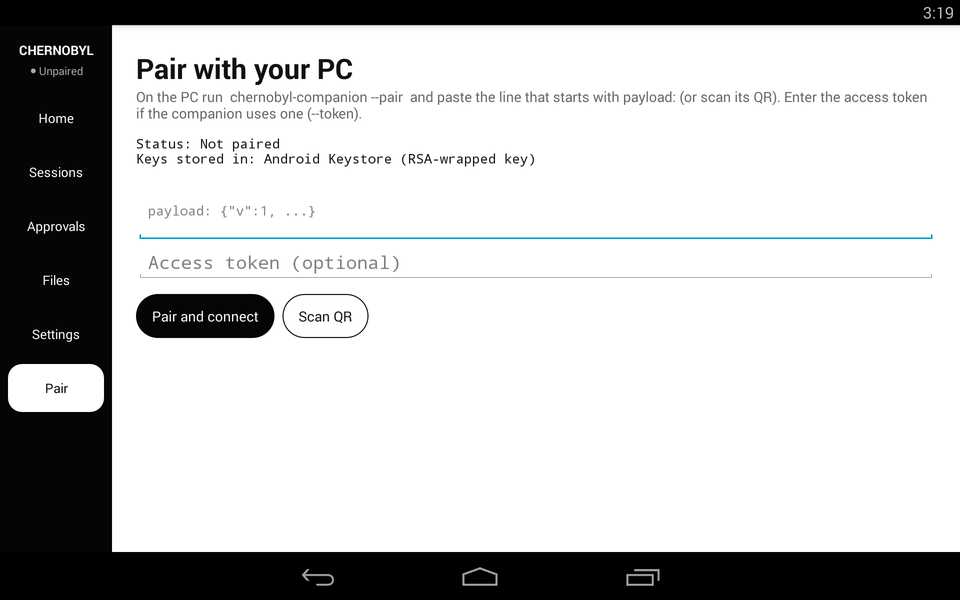
The Pair screen, where the tablet client starts.
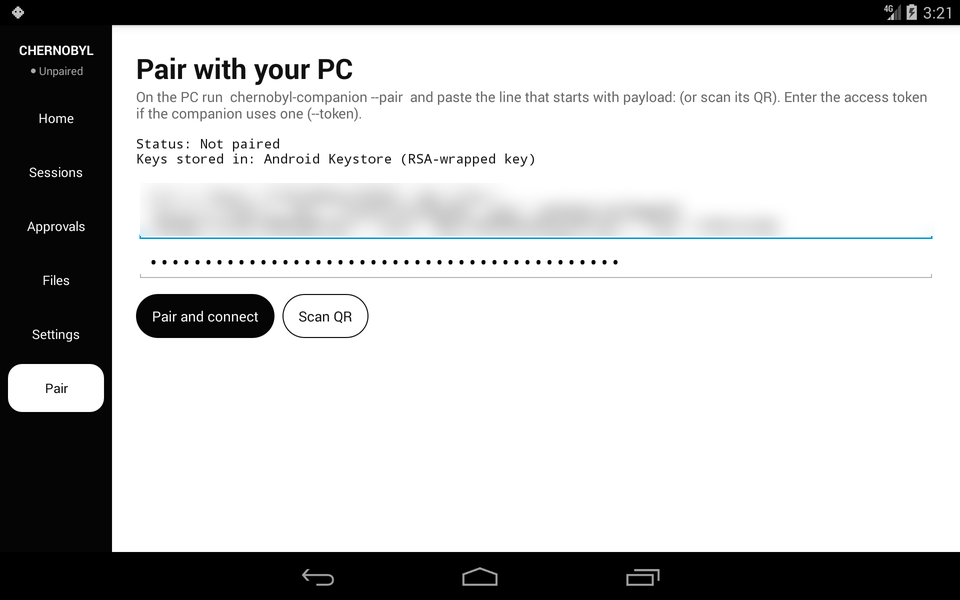
Payload and token filled in. The key in the payload is blurred here.
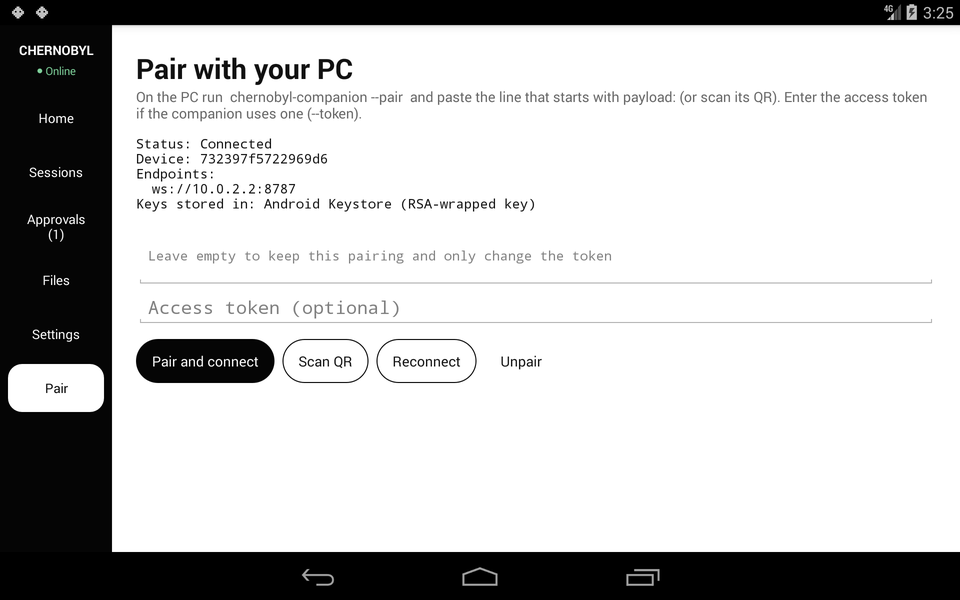
Once paired, the Pair screen shows the status, device and addresses, and adds Reconnect and Unpair.
To change only the token later, type the new one and leave the payload field empty: the pairing is kept.

Home on the tablet.
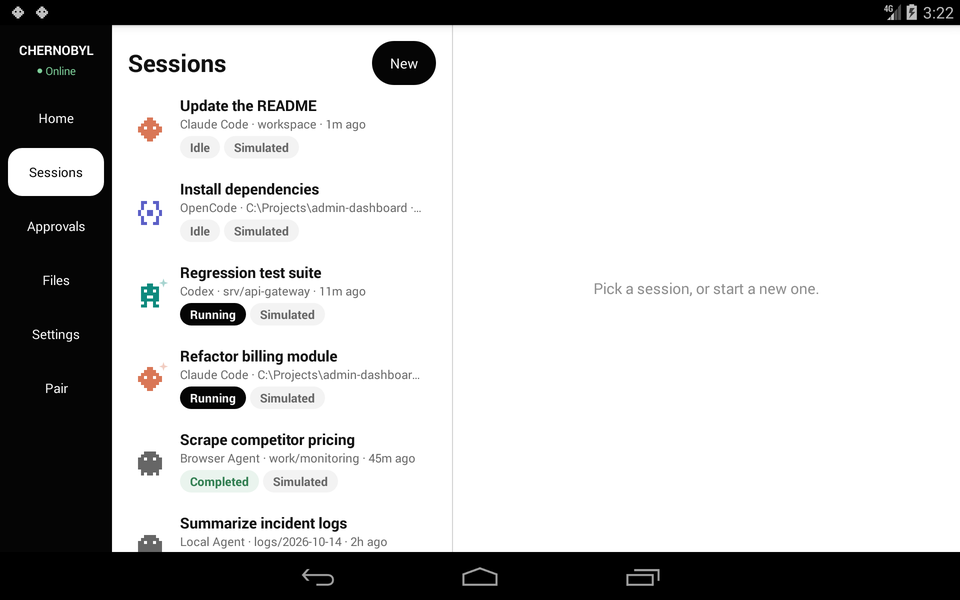
Sessions, with a New button to start one.
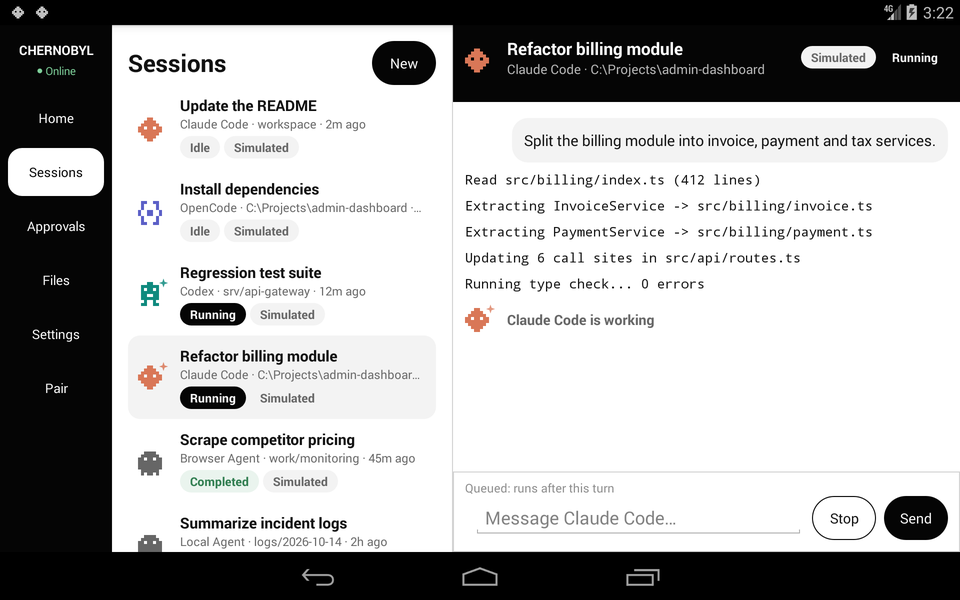
A live conversation beside the sessions list.
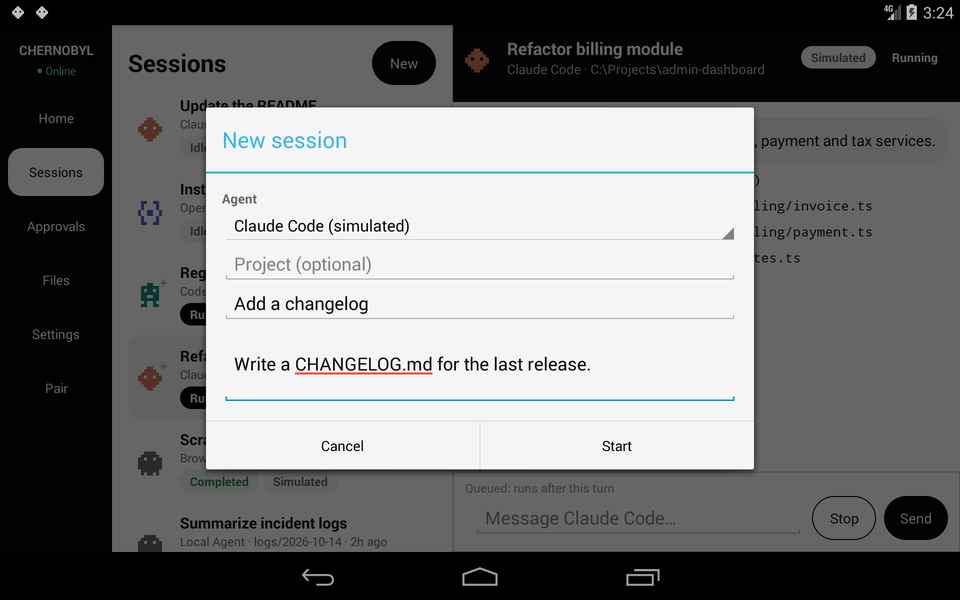
Starting a new session.
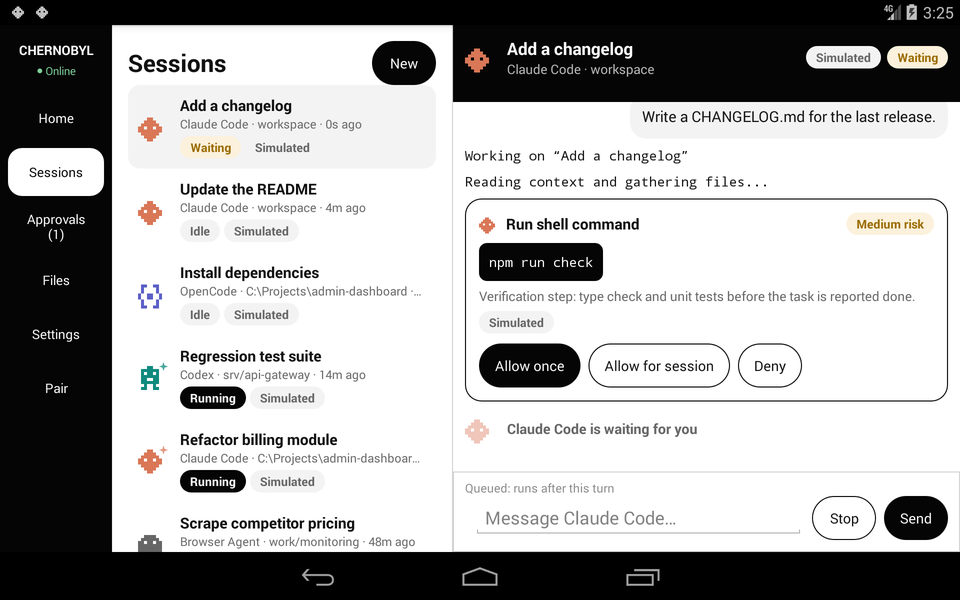
An approval inside a live session: the exact command, its risk and the answers the agent offers.

The Approvals screen lists what is waiting and what you decided.
The Files tab shows each workspace with Files, Changes and, when the PC turned it on, Terminal.
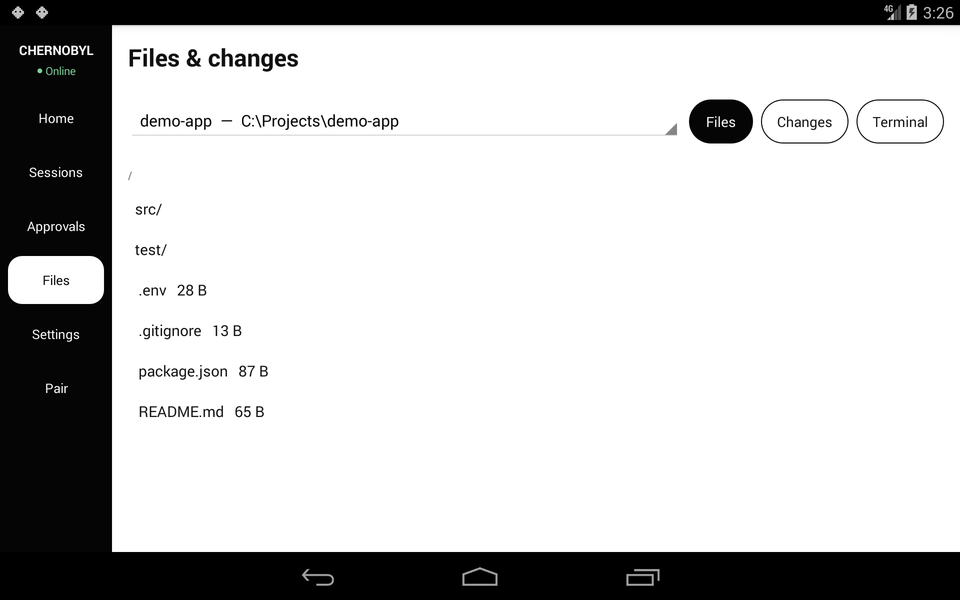
Browsing a workspace on the tablet.
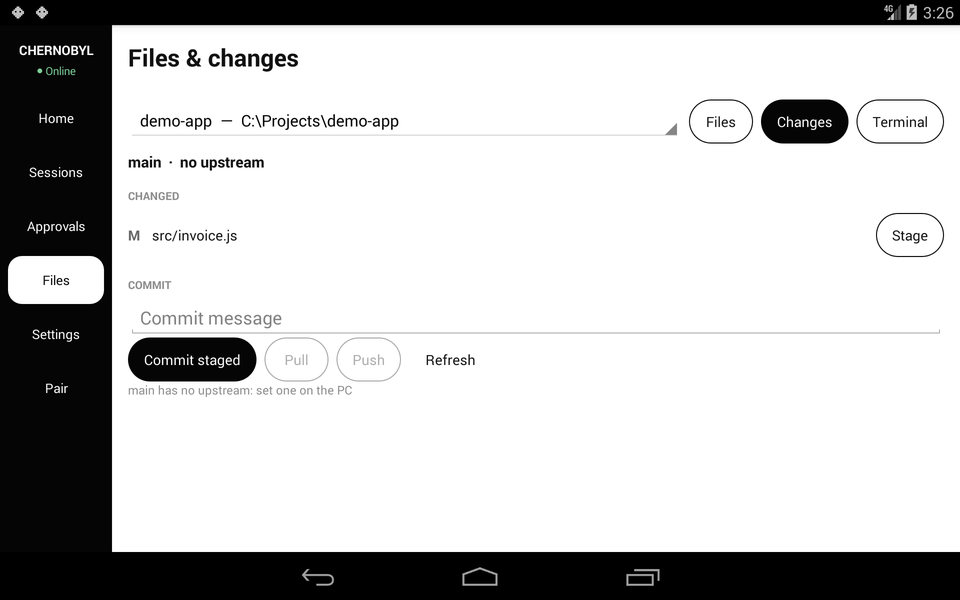
Changes on the tablet.

The terminal, shown only when the PC turned it on.
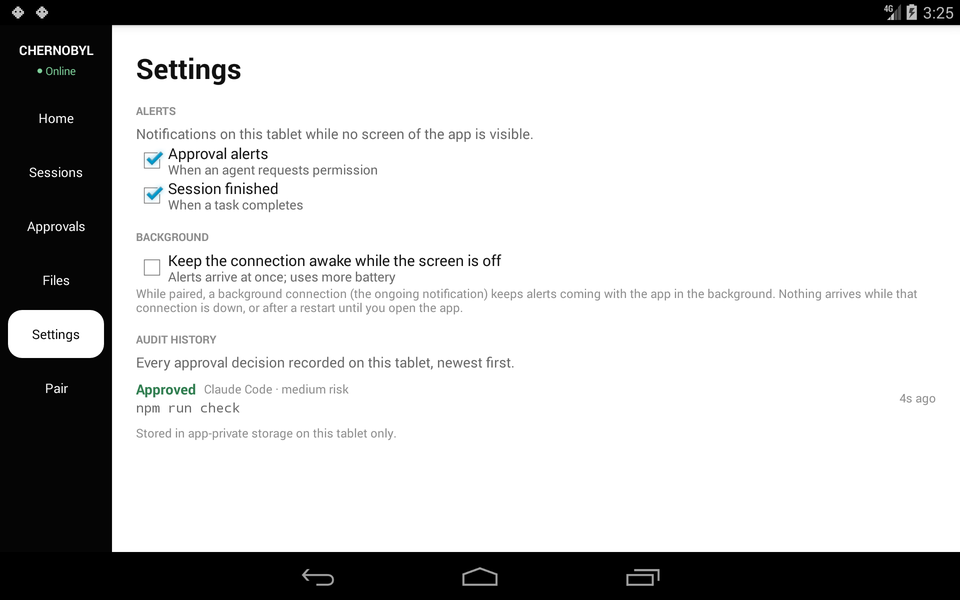
Alerts, the keep-awake option and the tablet's own audit history.
- Approval alerts and Session finished turn the two kinds of alert on or off.
- A foreground notification keeps the connection while the app is in the background. When the screen is off, Android 4.4 may sleep the CPU and Wi-Fi, and alerts then arrive when it wakes. Tick Keep the connection awake for instant alerts; it costs battery.
- Audit history lists every approval decision made on the tablet, stored in app-private storage on the tablet only.
-
wss://works on Android 4.4: the app turns on TLS 1.2 itself and carries the Let's Encrypt (ISRG) root certificates that Android 4.4 lacks, so ngrok addresses validate. A certificate error in "Status" means the tunnel uses some other certificate authority. - Android 4.4 has no ChaCha20-Poly1305 built in, so the client carries its own implementation of the same encryption as the phone app.
- Removing or changing the lock screen can wipe Android 4.4's keystore; the app then asks you to pair again.
| Status | Meaning | What to do |
|---|---|---|
| Refused: unauthorized | Wrong or missing token | Type the right token and leave the payload field empty to keep the pairing |
| Refused: unknown device, or offer expired | The pairing offer was not found or ran out | Make a new offer on the PC and pair again |
| Refused: device revoked | The PC revoked this tablet | Pair again with a new offer |

A revoked tablet. The rail and the Pair screen both say so.