Repository navigation
Pairing
Pairing connects your phone to the companion on your PC. It happens once per phone. There are no accounts: the phone's identity is the key it receives when you pair.
Before you start, install the companion and keep its PowerShell window open. You need the pairing QR code it printed and, if the companion uses one, its access token. The setup script always creates a token.
- The companion prints a QR code that works once and expires after 5 minutes.
- The QR code carries the PC's address (or several), a host id, a device id and a 256-bit key made for this one phone.
- When the phone connects, phone and PC prove to each other that they hold that key. The first connection then replaces the key with a new one, so the same QR code is refused if anyone tries it again.
- From then on every message is encrypted end to end. The key stays in the Android Keystore on the phone and is protected by Windows on the PC.
- Open CHERNOBYL and tap Pair with a host on the welcome screen. (If you are already in the app, open Profile, Connected hosts, Connect a host.)
- Tap Scan QR code and allow the camera when Android asks.
- Point the camera at the QR code in the PowerShell window.
- Check the details the app shows under the payload: host, device, every address it will connect to, and when the offer expires.
- Tap Pair with this host.
The app shows "Paired, reconnecting" and returns to Home. When the connection is up, the top of Home says how many hosts are online.

The Connect a host screen. Scan the QR code, or paste the payload line into the box.

The camera is used only to read the pairing QR code.

The scanner. Hold the phone close to the screen. (This capture comes from an emulator's test camera.)
The companion prints a line that starts with payload: above the QR code. Copy everything after payload: (the part in curly brackets) to your phone, paste it into the box under Scan QR code, and tap Pair with this host. The companion also prints only that line when the QR code would be too large, for example with several addresses.
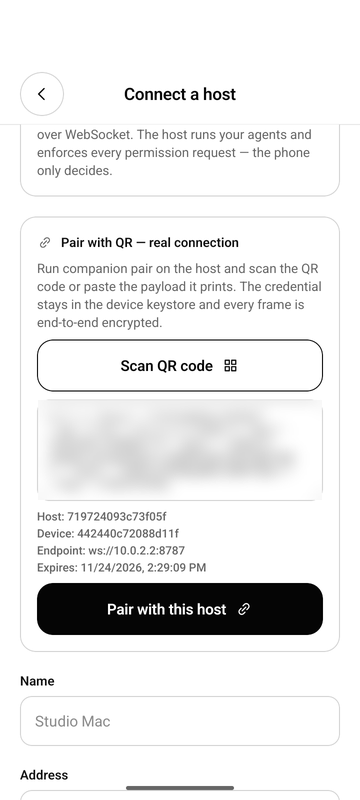
A pasted payload. The app lists every address it will connect to before you pair. The key in the payload is blurred here.
If a pairing payload reaches the app as a link (for example a QR code read by the system camera, or a shared link), the app opens this screen with the payload filled in and warns you that it came from another app. It never pairs on its own: you still tap Pair with this host. Only continue if you started the pairing yourself.

A payload that arrived as a link carries a warning.
If the phone is already paired, the screen also says which host the new pairing replaces.
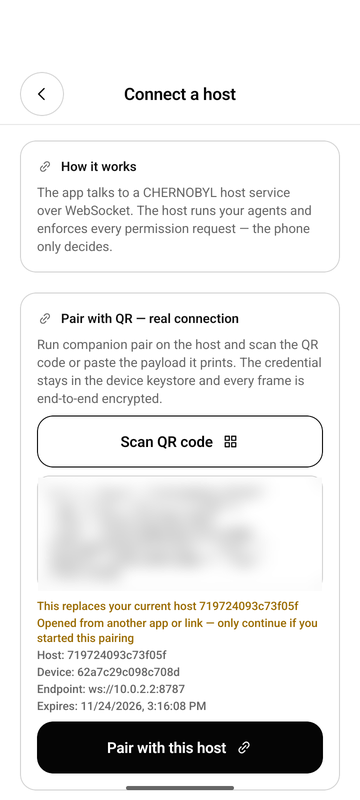
Pairing again replaces the current host.

After you tap Pair with this host.
The setup script turns on an access token, and every connection beyond loopback needs one.
Version 0.1.1 of the phone app fixes the token order, so the setup script's instructions work as written:
- Open Connect a host and paste the token from the PowerShell window into Access token (optional), in the form under the pairing box.
- Scan or paste the pairing QR code and tap Pair with this host. The token is saved with that pairing.
Already paired without the token? Open Connect a host again, fill in Name, Address and the token, and tap Connect host: the app reconnects with the token straight away, with no restart.
A token belongs to the PC it was entered for. Pairing a different PC deletes it, so the phone never sends one PC's token to another.
In version 0.1.0, saving a pairing clears any token stored before it, so enter the token after you pair:
- Pair as above. Home shows Access denied, re-pair this phone while the app has no token. This is expected at this point.
- Open Profile, Connected hosts, Connect a host.
- Scroll down to the form under the pairing box. Fill in Name and Address (any name, and your PC's address with the port, such as
192.168.1.50:8787), and paste the token from the PowerShell window into Access token (optional). - Tap Connect host. The token goes into the phone's keystore.
- Close the app fully and open it again: tap Force stop in the app's Android settings (App info), or swipe it away from recent apps. It then connects with the token.
The setup script's own instructions say to enter the token first and then scan. With app 0.1.0 that order leaves no token stored, so use the order above.
The form itself only adds a host card to the dashboard; it is the token it stores that matters. To check, open Profile, Security & device: Host token should say Stored in keystore.

The form under the pairing box. Its token field stores the access token in the keystore.

Paired, with the token stored.
After the first connection Android asks whether CHERNOBYL may send notifications. Allow it if you want alerts for approval requests and finished sessions. See Notifications and background.

Android 13 and later ask once.
Profile, Connected hosts shows the paired host marked Real, its host id, this phone's device id, every address in dial order, and whether it is connected.

A paired host. "Real" means a desktop companion, not demo data.

Security & device names this phone's device id and the exact command to revoke it on the PC.
Each phone needs its own QR code. On the PC, print a new one:
& "$env:LOCALAPPDATA\Programs\CHERNOBYL\chernobyl-companion.exe" --pair --endpoint ws://<your PC's LAN address>:8787If the companion is running, --pair asks it to create the offer, so you do not need to restart it. Add more --endpoint options for other addresses (see Remote access).
Revoke a phone from the PC if it is lost, or when you stop using it.
-
List the paired phones:
& "$env:LOCALAPPDATA\Programs\CHERNOBYL\chernobyl-companion.exe" --devices
-
Revoke one by its device id (the phone shows its own id under Profile, Security & device):
& "$env:LOCALAPPDATA\Programs\CHERNOBYL\chernobyl-companion.exe" --revoke <device-id>
If the companion is running, the phone's live connection closes at once, and every later attempt from that phone is refused. A later --restore of an older backup keeps the revocation.

Listing devices and revoking one. The revoked phone's connection closes straight away.

What a revoked phone shows. It stops trying until it is paired again.
Profile, Security & device, Unpair this host deletes the pairing key and token from the phone. The app then falls back to demo data. To pair again you need a new QR code from the PC. Unpairing on the phone does not revoke the phone on the PC; do both if the phone should never connect again.