Repository navigation
Sessions
A session is one agent working on one task in one folder on your PC. From the phone you can follow it as it runs, send the next instruction, stop it, and start new ones.
Home shows connected hosts, active agents, running sessions and pending approvals, then the active agents, pending actions and recent activity. The search box at the top finds agents and sessions.

Home on a phone paired with a PC running Claude Code.
Agents lists every agent with its host, status and number of sessions. Tap an agent to see its details, capabilities, workspaces, sessions and recent activity, and to start a session.

The agents list (demo data).

An agent's details and capabilities (demo data).

A real Claude Code agent and its allow-listed workspace.

Each workspace has Files, Changes and, when turned on, Terminal.
Sessions lists every session. Filter by All, Running, Waiting or Completed, or search.

The sessions list (demo data).
- Tap New task on the Sessions or Agents screen, or Start Session on an agent.
- Pick the agent.
- Give the task a title and write the first message. It is sent to the agent as soon as the session starts.
- For a live agent, pick the workspace (one of the folders you allow-listed on the PC) and, where offered, the model.
- Tap Start session.

A new Claude Code task. Claude Code starts only in folders allow-listed on your PC.
For Claude Code, Codex, OpenCode and Antigravity sessions, the session screen is a live conversation: the agent's text as it streams, its reasoning (shown as "Thought", collapsed), tool cards with their input, output and diffs, and the agent's plan.

The agent's plan and reasoning as it works (demo data).
At the top of the conversation are chips for the session's settings. Which ones appear depends on the agent:
- MCP shows how many MCP servers are connected. Tap it to see them, sign in, or reconnect one. Adding or removing servers stays on the PC.
- Permission mode switches between Ask before edits, Accept edits (file edits apply without asking; commands still ask) and Plan (read and plan only until you approve the plan). Modes that bypass permissions are never offered.
- Model, context use, rename and End session, where the agent supports them.

Permission modes for a Claude Code session.

MCP server status.
- Type in the message box and tap Send. A message sent while the agent is working joins the current turn (or, for OpenCode, runs as its own turn afterwards).
- You can attach photos from the camera and run the agent's slash commands, where the agent supports them.
- Stop interrupts the current turn. The session stays open for your next message.
- End session ends it (asks first). Not every agent can be ended from the phone.
With Claude Code workspaces configured, the phone also lists the newest Claude Code sessions in those folders, including ones you started in a terminal or VS Code. A session that is running on the PC right now shows Live on PC and streams as it runs. Sending from the phone forks it into a new session; the PC session is not touched. Codex threads in your workspaces, including the Codex app's, are listed the same way, and Antigravity's history comes from agy's own list.
To answer the permission prompts of terminal and VS Code sessions from the phone as well, see Approvals.
Other sessions show Output, Files and Activity tabs, a progress bar with the agent's steps, the last prompt, a message box and Stop.

A running session (demo data).

Files the session changed.

The session's activity.
From an agent's workspace (the agent screen, or the Files and Changes chips on a live conversation) you can browse the allow-listed folder and review its git changes. The phone never edits files.

Browsing a workspace, read-only.

A text file opened on the phone.

Every value in a .env file is masked before it leaves the PC. Content is also cleaned of known secret formats.
The Changes screen shows the branch, the changed files and their diffs. You can stage and unstage, commit with a message, pull and push:
- Pull is fast-forward only from the branch's upstream. It never creates a merge commit or rebases.
- Push sends the current branch to its upstream, never forced.
- Both ask you to confirm. Pushes rely on a git credential helper or SSH key that already works on the PC without asking, because the companion never opens a prompt.
- Git actions need the workspace to be the repository's root folder.
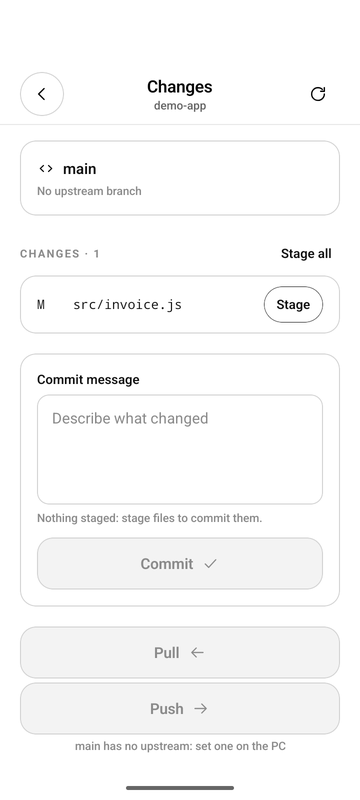
Changes waiting to be staged.
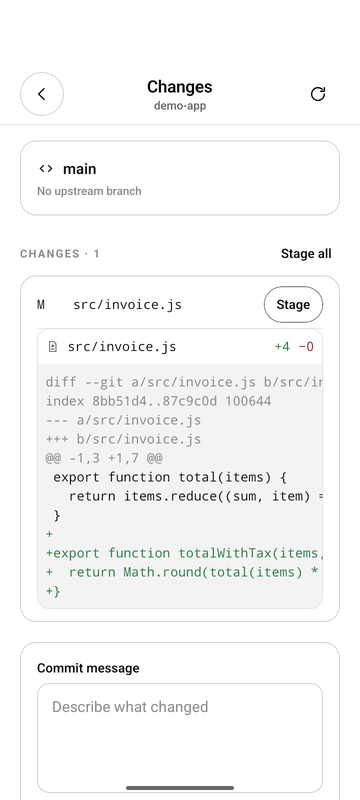
Tap a file to see its diff.
The terminal is off by default. It appears only if you turned it on on the PC (-EnableTerminal in the setup script, or "terminal": {"enabled": true} in companion.json).
It runs one command line at a time in the workspace through the PC's shell (cmd.exe), without the agents' approval prompts. A run lasts two minutes at most, Stop ends it, the output is limited to 1 MiB and cleaned of known secret formats, and every run is logged on the PC. The phone keeps your last 20 command lines per workspace.

The terminal warns that commands run without approval prompts.

A finished command with its output and exit code.
Only turn the terminal on if you accept that anyone holding your paired phone can run any command in those folders.