Repository navigation
Camera
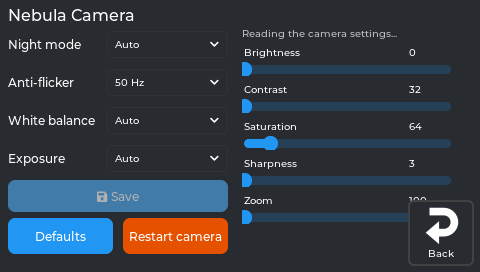
NebulaOS streams any USB webcam to Mainsail. For Creality's Nebula Camera it also controls the camera's own settings: night mode, anti-flicker and the picture.
| Setting | Choices |
|---|---|
| Night mode | Auto (the camera switches to black-and-white in the dark), Always colour, Always black-and-white |
| Anti-flicker | Off, 50 Hz (Europe), 60 Hz (Americas): removes banding from room lights |
| White balance | Auto, or Fixed with a Colour temp. slider |
| Exposure | Auto, or Manual with an Exposure slider |
| Sliders | Brightness, Contrast, Saturation, Sharpness, Zoom |
A slider applies when you let go. The page shows whether a Nebula Camera is connected and its firmware version.
- Saved: the settings are kept on the printer and applied again by themselves at every start, after unplugging and plugging the camera back in, and after a camera restart. The camera itself forgets everything when it loses power. Without a camera connected, changes are saved and applied when it is.
- Manual exposure is one-way: the camera cannot switch back to automatic exposure by itself. The page asks first; only Restart camera (or Defaults) brings automatic back.
- Restart camera restarts the camera's firmware: the picture is gone for a few seconds, then your settings come back. Refused while printing (the camera shares the USB hub with the printer board).
- Defaults puts every camera setting back to its default (asks first).
- Flip or rotate the picture in Mainsail's webcam settings.
Mainsail's Camera macro group has them next to the quality presets:
| Macro | What it does |
|---|---|
NEBULA_CAMERA_NIGHT_MODE MODE=AUTO |
Night mode: AUTO, COLOR or BW
|
NEBULA_CAMERA_ANTI_FLICKER HZ=50 |
Anti-flicker: 50, 60 or OFF
|
NEBULA_CAMERA_RESTART |
Restart the camera (not while printing) |
NEBULA_CAMERA_DEFAULTS |
Every camera setting back to its default |
They change the same saved settings as the screen. The console shows the result.
| Macro | Stream |
|---|---|
SET_CAMERA_QUALITY_LOW |
640×480 (least Wi-Fi traffic) |
SET_CAMERA_QUALITY_MED |
1280×720 |
SET_CAMERA_QUALITY_HIGH |
1920×1080 at 30 fps (the default) |
All camera macros are part of the NebulaOS image (/etc/nebulaos/klipper/camera.cfg).
The same camera can record a timelapse of a print - off until you switch it on, and it needs no slicer changes. See Timelapse.