Repository navigation
Getting started
Download ORQWA for your system from the
Releases page. No GitHub account is needed.
Open the installer, or unpack the archive if you choose a portable version.
In the filenames below, <version> is the release number.
| System | Download | Keep together |
|---|---|---|
| macOS (Apple silicon) | ORQWA-<version>-macos-arm64.zip |
— |
| Windows |
ORQWA-<version>-windows-x86_64.msi (installer) or ORQWA-<version>-windows-x86_64.zip
|
ORQWA.exe and orqwa_gd.dll, if you use the zip |
| Linux (x86_64, arm64) | ORQWA-<version>-linux-<arch>.tar.gz |
ORQWA.<arch> and liborqwa_gd.so
|
| Android tablets (64-bit, Android 10 or newer) | ORQWA-<version>-android-arm64.apk |
— |
On Windows, use the .msi installer and allow it to make changes, then open ORQWA from
the Start menu. Uninstall under Settings → Apps → Installed apps.
Installing, updating or uninstalling keeps your riders, rides and settings.
Linux builds need glibc 2.35 or newer (Ubuntu 22.04+, Debian 12+, Fedora 36+).
Download ORQWA-<version>-android-arm64.apk from the
Releases page on the tablet and open it.
ORQWA is not in the Play Store. Phones are untested; Android starts with Low graphics.
-
Installing: Android asks you to allow your browser (or file manager) to
install unknown apps; allow it, go back and tap Install. Google Play Protect may warn
about an app it does not know: tap More details → Install anyway. With Android's
Advanced Protection on, no app may install apps, the browser included, and it allows no
exception. To install, turn it off under Android's Security & privacy settings and
back on afterwards, or use
adb install -rfollowed by the downloaded APK's path. On a managed tablet, ask its administrator if installation is blocked. - Bluetooth: at the first start ORQWA asks for Nearby devices, to find and connect your trainer and sensors. Before Android 12, Android calls that permission Location; ORQWA never reads your location.
-
Updating: ORQWA tells you when a newer version is out, and Update now installs it
(Settings → About).
You can also open a newer
.apkto update manually and keep your rides. - Uninstalling removes your rides, riders and courses with the app, as Android deletes an app's own storage. Export the rides you want to keep from the history first.
ORQWA's macOS and Windows downloads are not signed by a publisher Apple or Microsoft knows, so both warn the first time you open a newly downloaded copy, again after each update:
- macOS: it says Apple could not verify ORQWA and does not open it. Click Done, open System Settings → Privacy & Security and, under Security where it says ORQWA was blocked, click Open Anyway; confirm with your password or Touch ID, then Open Anyway once more.
-
Windows: "Windows protected your PC" appears, for the installer as well as for
ORQWA.exefrom the zip: click More info, then Run anyway. With Smart App Control on (Windows Security → App & browser control), Windows blocks ORQWA without that choice; it then runs only with Smart App Control turned off.
- Turn on Bluetooth. Wake the trainer by pedaling and close other apps connected to it.
- Open Devices, press Search beside the trainer and wait for Connected. Connect any sensors or shifter the same way.
- On Profile, press the pencil to set your rider's weight, FTP and maximum heart rate. Under Drivetrain, choose Cassette: shift on the bike or Single cog: virtual gears to match your bike and trainer.
- Open Courses → Twann – Chasseral and press Ride. The sample course works offline. Initial preparation may take a little time.
- Pedal to ride. Press P or space to pause and S for ride settings.
- Choose Finish & save, then Done on the summary to keep the ride. Find it later on History.
For a ride without hardware, enable Fake trainer under Devices. See Devices and riding for shifting, controls and connection troubleshooting.
Riding never does. Courses, workouts, devices (Bluetooth), history and analysis all work offline, and your library starts with a sample course to ride before you import anything. ORQWA goes online only for:
| When | Why | Offline |
|---|---|---|
| Importing a GPX route or a video with GPS | Downloads the area's map (OpenFreeMap) and terrain (Mapterhorn, AWS Terrain Tiles); a course file then keeps them | It still imports, but rougher: the track is not put onto the roads and keeps the GPX's own heights. Areas imported before come from the cache |
| A course card's map and countries | Downloads map tiles of the land around the route | Filled in by itself the next time ORQWA is online |
| Riding a video course in 3D for the first time | Its file holds only the route's data, not the world around it | Ride it along the video |
| Connecting to and uploading to intervals.icu or Strava | They are online services | Upload later from the history |
| Opening the Workouts tab with an intervals.icu account | Reads the workouts planned for today on your calendar | The section says so; the library's workouts stay |
| Starting ORQWA, unless turned off under Settings → About | Asks GitHub whether a newer version is out; on Windows and Android, Update now downloads its installer | ORQWA starts as always and asks again next time |
Importing a .tqc course file or a workout file needs no internet. Map and terrain requests
reveal only the area of the route; ORQWA has no account, server or tracking of its own.
These are all the servers ORQWA contacts, e.g. to allow them in a firewall:
| Server | For |
|---|---|
tiles.openfreemap.org |
Map (roads, buildings, water, land use) |
tiles.mapterhorn.com |
Terrain heights |
s3.amazonaws.com |
Terrain heights where Mapterhorn has none (AWS Terrain Tiles) |
intervals.icu |
Uploads and today's planned workouts, once connected |
www.strava.com |
Uploads, once connected; logging in opens it in your browser |
api.github.com |
Whether a newer version of ORQWA is out |
github.com, release-assets.githubusercontent.com
|
The new version's installer, when you choose Update now (Windows, Android) |
While you log in to Strava, ORQWA briefly listens on 127.0.0.1 (your own computer only) for the
browser to hand back the login.
The remote, once you turn it on, listens on your local network at port 8571 (or the port you chose) for your phone or tablet. It contacts no server; allow incoming connections to ORQWA on that port if your firewall asks.
ORQWA opens on six tabs:
| Tab | What it is for |
|---|---|
| Courses | Your course library: import, find and ride courses |
| Workouts | Hold a power or heart rate, structured workouts, FTP tests |
| History | Your past rides |
| Analysis | Your power and fitness across rides |
| Profile | Riders, their zones, HUD and accounts |
| Devices | Trainer, power meter, cadence, heart-rate strap, Di2 or Zwift Click (original or v2) |
The cog at the top right opens the settings: graphics and full screen for this computer, and About, with ORQWA's version and licences.
You can also go through ORQWA with the keyboard: the arrow keys move between the tabs, the courses and the buttons, Enter presses, and Escape goes back, from a course to the gallery or from a ride's summary to the start page. A blue ring shows where you are. The remote's pad on a phone or tablet does the same, so you can start a ride from the bike.
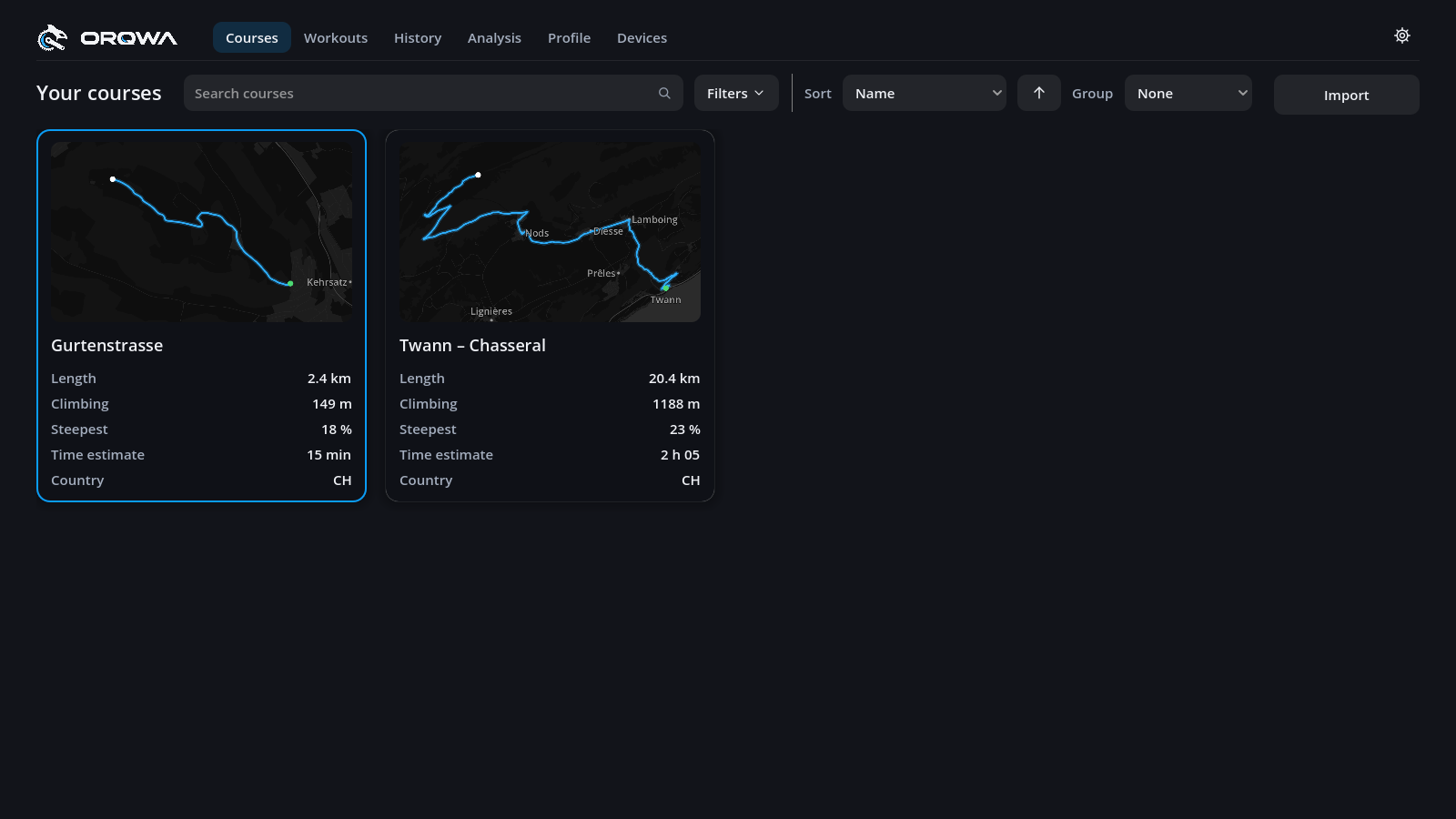
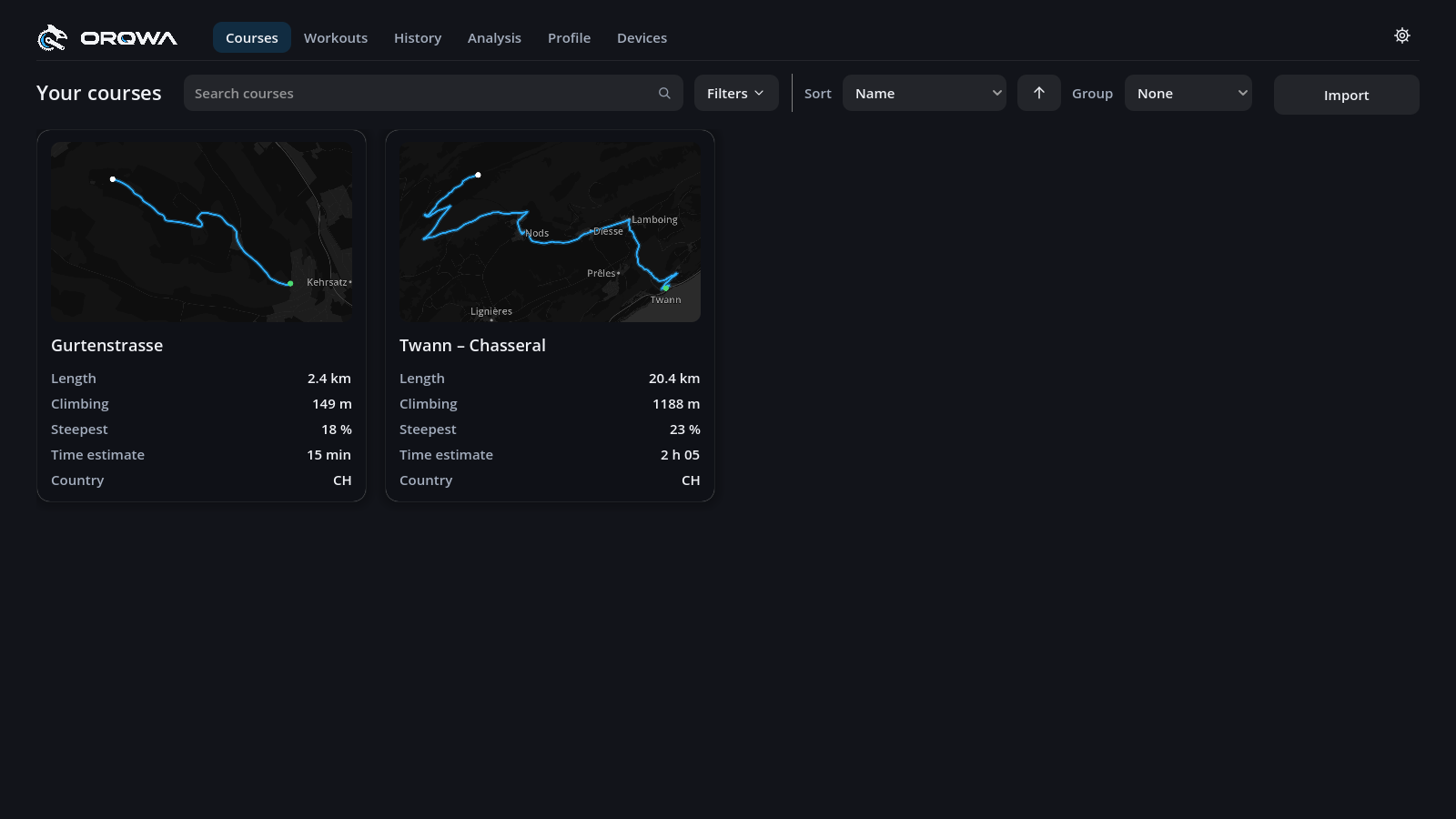
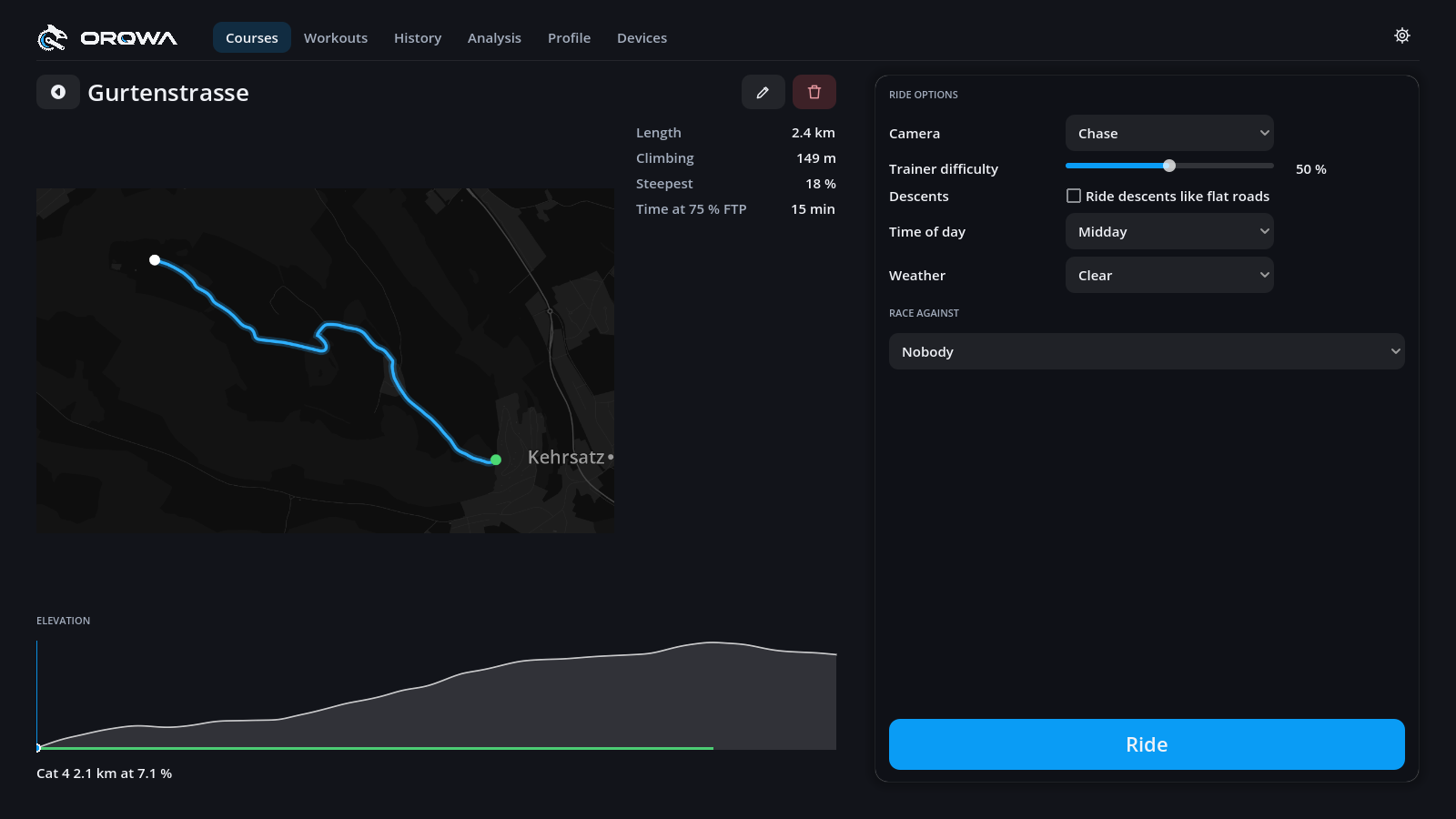
Click a course card to open its page: the route, elevation profile with its climbs, your best times, the ride options (camera, difficulty, time of day, weather) and who to race. Press Ride to go.
Wait for the spinner to stop before pressing Ride. If the course cannot open, its error appears above the button. Enable Keep courses ready to ride to start repeat rides faster.
Time at 75 % FTP estimates how long the course takes you at a steady endurance pace.
The pencil beside the name renames the course or adds a video; the bin deletes it (your rides on it are kept).
Trying development builds
Between releases, download artifacts from the latest successful CI run on main (a GitHub login is required). These files omit the version from their names. Android development builds and releases use different signatures: switching requires uninstalling, which deletes app data. Export rides first.