CAD Client Setup
OdooPLM provides a desktop client that integrates your CAD editor with the Odoo server. It handles check-in / check-out of CAD files, revision creation, and the upload of parts, assemblies and drawings into Odoo as PLM documents.
Supported CAD editors include SolidWorks, Solid Edge, Autodesk Inventor, AutoCAD, ThinkDesign, FreeCAD and DraftSight.
| Build | Link |
|---|---|
| Stable | Download from SourceForge |
| Development | SourceForge / Client / Development |
| Candidate | SourceForge / Client / Development |
The stable build is recommended for production. Development/candidate builds expose newer features that may not yet be final.
The client connects to Odoo over HTTP on port 80. Configure the client login screen with the address of your Odoo server, the database name, and your Odoo user credentials.
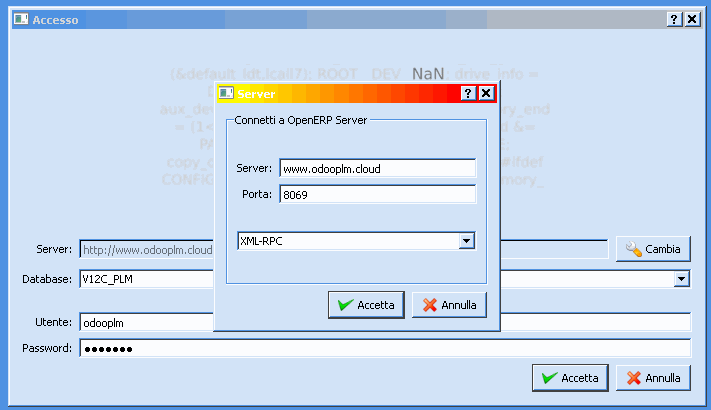
Login over Odoo.sh / standard hosting: use port 80 in HTTP. A step-by-step guide for logging in (including the Odoo.sh case) is here: How to login OdooPLM to Odoo.sh
You can point the client at the public demo to try it without your own install:
-
URL:
https://www.v15.odooplm.cloud -
Username:
odooplm -
Password:
odooplm
Once connected, the client lets you:
- Upload / check-in — push the active CAD document (and its linked components) into Odoo as PLM documents, creating the corresponding products automatically.
- Check-out — lock a document for editing so other users can't overwrite it.
- Revise — create a new controlled revision of a part/assembly and its drawing.
- Open from server — browse the PLM structure and open documents directly in the CAD editor.
The exact menu names depend on your CAD editor, but the concepts (check-in, check-out, revise, release) are the same across all of them. See Core Concepts for what these states mean, and the User Guide for a full walkthrough.
The client communicates with Odoo over the document REST API exposed by the plm module (e.g. /plm_document_upload/download, /plm/download, /plm/download_structure). You normally never call these directly — the client does — but they're worth knowing about for integrations or debugging. The full set of endpoints used during login and upload is described in the repository README.
With the plm_web_3d module you don't even need the CAD editor to inspect a model. The web viewer (built on Three.js) opens engineering documents directly in Odoo and supports 3MF, STEP, GLTF, STL, OBJ, DXF and SVG. Its features include:
- Section planes with a capped (stencil) cross-section view;
- a measurement tool with point/face snapping;
- zoom-to-window;
- per-part colour and transparency picker with persistence;
- a markup system integrated with the Odoo chatter;
- model screenshots saved as the attachment preview.
This makes it possible for non-engineers (sales, purchasing, shop floor) to review geometry without any CAD software installed.
If the client cannot connect, the most common causes are:
- Wrong port — the client expects HTTP on port 80, not 8069 directly. Make sure a reverse proxy or the host exposes port 80.
- Wrong database name — if the server hosts multiple databases, the DB name must be set explicitly.
- Credentials — the user must exist in Odoo and have the PLM access rights.
More cases are listed in FAQ & Troubleshooting.