Repository navigation
Design API CALL Panel


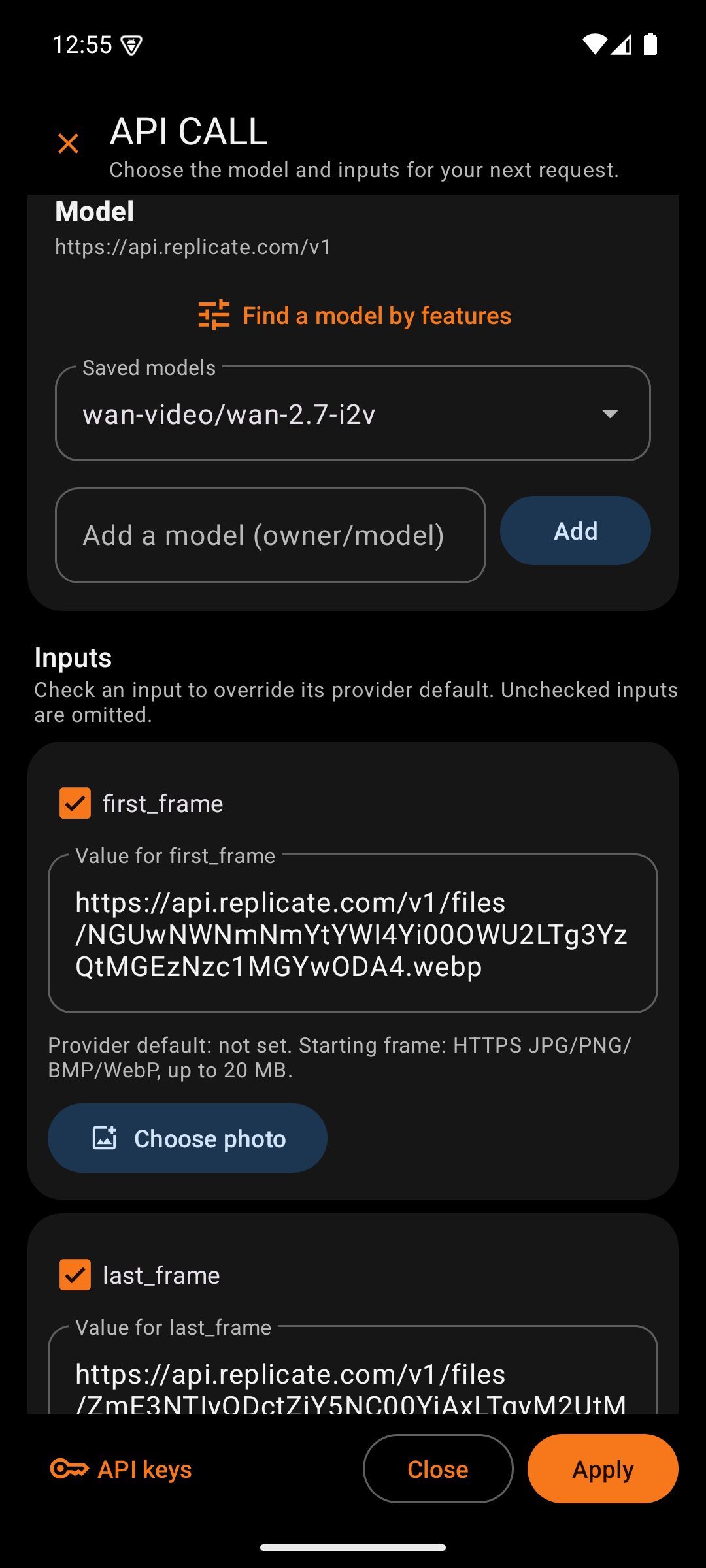
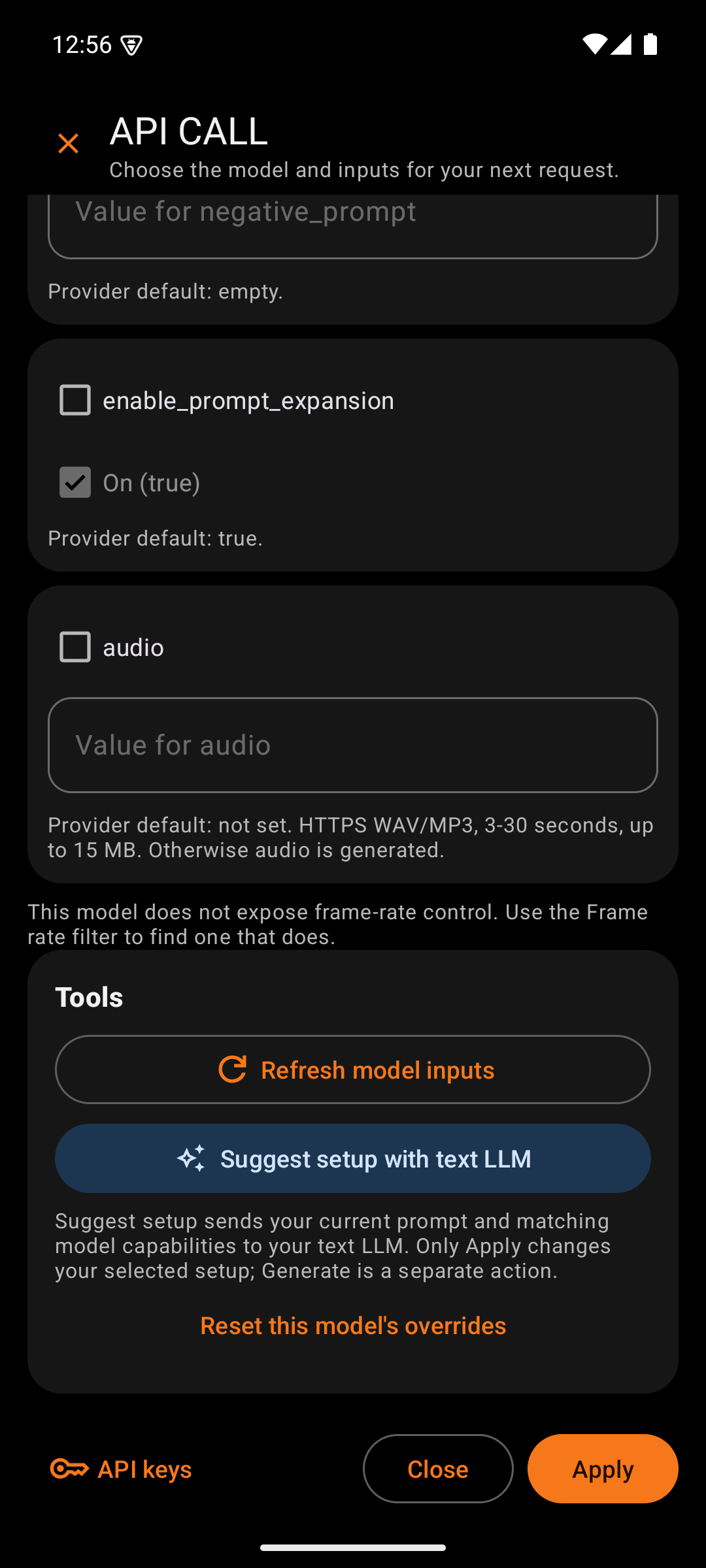
API CALL is where the user chooses a model and sets its inputs. The name says what it builds: the exact request the next Generate will send. Opening the panel costs nothing. Only the Suggest setup tool sends anything, and it asks first.
The panel fills the screen, because a model can have dozens of inputs. It remembers its scroll position while it redraws, so checking a box never throws the user back to the top. It also keeps the keyboard closed until the user taps a field.
| Box | What it holds | Why |
|---|---|---|
| Close (X) | Leaves without saving | A plain exit for browsing. Unsaved changes are dropped on purpose, because Apply is the only commit. |
| Title and subtitle | "API CALL" and "Choose the model and inputs for your next request." | States the panel's single job |
| Progress bar | Shows while inputs load, a photo uploads, or a suggestion runs | Explains why the controls are grayed out |
| Notice banner | A blue card with the latest result, such as "Inputs refreshed" or "Photo uploaded and set as image" | Sits above the scroll area, so the user sees the outcome without scrolling. Screen readers announce it. |
| Box | What it holds | Why |
|---|---|---|
| Chat, Image, Video | A segmented button, words only | Lets the user set up another mode without closing the panel. Unapplied edits in each mode are kept until Apply or Close. |

| Box | What it holds | Why |
|---|---|---|
| Base URL | The provider address under the card title, such as https://api.replicate.com/v1
|
Confirms which provider and which key the request will use |
| Find a model by features | A button that opens two rows of filter chips (Image and Video only) | Answers "which model can do this?" without reading every model page |
| Resolution chips | Any, 480p, 720p, 1080p | Video price and quality depend on resolution, so it is the first filter |
| Feature chips | Editing, Starting frame, Ending frame, Frame rate, Fast generation, LoRA, Image guidance, Audio input, Negative prompt, Seed, Safety controls | Each chip keeps only models whose real inputs support that feature. Editing keeps the nine editing models, for manual control of an edit. |
| Saved models | A dropdown of the preloaded models plus any the user added. It becomes "Matching models (n)" while filters are on. | One list for every model on this provider |
| Mismatch warning | A red line when the current model fails a selected filter | Stops a user from applying a model that cannot do what they asked for |
| Add a model | A field for any owner/model ID, with an Add button |
Any Replicate model with a compatible input schema can join the list. The app remembers it. |
| WAN 2.1 resolution | A dropdown that appears only for the WAN 2.1 models | On WAN 2.1, 480p and 720p are separate models. Choosing a resolution switches the model, which is how that provider works. |
This card appears only for black-forest-labs/flux-dev-lora.
| Box | What it holds | Why |
|---|---|---|
| Saved FLUX dev LoRAs | A numbered dropdown of LoRAs from the LoRA Library, with each trigger word | Fills lora_weights and lora_scale in one step. The numbers keep two LoRAs with the same name apart. A notice then reminds the user to put the trigger word in the prompt. |
The panel opens in a simple view. It shows the model by a plain name and price, such as "Quick draft (FLUX schnell), under 1 cent", with its provider ID in small type. Below come only the settings most people change: Shape, Number of pictures, Length and Resolution for video, the Safety checker, picture inputs, and any required input. A picture input shows "A picture is attached" with Remove the picture, not a web address. Show all settings opens every input, the model finder, Add a model, and the Tools card; Show fewer settings goes back, and the app remembers the choice. Settings hidden by the simple view keep their saved values when the user taps Apply.
Some settings count only together with another. The panel reads this from the model's own description of a setting ("only used when size='custom'"), or, for Width and Height, from a list beside them that offers "custom". For Seedream 4.5, Width and Height appear only when Size is custom, and Shape only when it is not; changing Size redraws the panel. A setting that does not apply is never sent.
For an OpenRouter model, Choose photo keeps the photo on the phone instead of uploading it to Replicate. The notice reads "Keeping the photo on this phone. It goes to OpenRouter with each request.", the photo joins the Image feed, and the input holds it until it is removed. A photo uploaded to Replicate for another model cannot go to OpenRouter, and a photo kept for OpenRouter cannot go to a Replicate model; the panel says so before anything is sent. Refresh model inputs keeps the app's own list for OpenRouter and SpicyAPI models.
Pictures in a list input are labeled @img1, @img2, and so on, in the order they are sent. A description can name them that way, and the model receives "image 1", "image 2".
Each input of the model gets its own card, in the provider's order. Every card has one control, which shows what will be sent. An input starts at the model's default and is sent only after the user changes it. People who find ComfyUI and similar tools hard to read are the reason for this layout.
| Box | What it holds | Why |
|---|---|---|
| Title | A plain name, such as "Safety checker", "Shape", or "Number of pictures", marked "(required)" when needed | The provider's own names, such as disable_safety_checker, read like code |
| Provider name | The input's exact name, in small gray type under the title | Matches the provider's documentation and the summary line on cards |
| Value | A list for fixed choices, a switch for yes or no, or a text field for numbers and text | One control per input. A list starts with "Model default", and an empty field means the model's default. Numbers use the number keyboard, and a comma typed as a decimal point is accepted. |
| Safety checker switch | "Safety checker on", on or off | It shows the checker itself, so on means on. The app sends the provider's reversed setting (disable_safety_checker) for you. |
| Use default | A link on a card the user has changed | Puts that input back to the model's default, so it is no longer sent |
| Helper line | The allowed range and the provider's description | Tells what the input does |
| Choose photo | A button on image and frame inputs, such as image, first_frame, and last_frame
|
Opens the phone's photo picker, uploads the photo to the user's Replicate account, and fills the input. Without it, the user would need a public web address for the photo. |
Below the cards, a note lists any inputs the panel cannot edit, such as nested settings. A required input of that kind blocks the model, because the request would fail. Video models without a frame rate input show a note that points to the Frame rate filter.
| Box | What it holds | Why |
|---|---|---|
| Refresh model inputs | Reads the model's current inputs from Replicate (Image and Video) | Providers change their models. Refreshing keeps the input cards true to the live model. It is free and runs no generation. |
| Suggest setup with text LLM | Sends the prompt and the matching models' inputs to the chat model, then shows its suggestion for review | Helps choose a model and values for a prompt. The suggestion fills the panel only after the user taps Use in panel, and nothing generates until the user taps send. It costs one small chat request. |
| Reset this model's overrides | Puts every input of this model back to its starting value | Undoes experiments without hunting through every card |
| Box | What it holds | Why |
|---|---|---|
| API keys | Leaves the panel and opens Settings for this mode | Fixes a missing key in two taps. Tap Apply first to keep panel changes, because this button does not save them. Back from Settings returns to the main screen. |
| Close | Leaves without saving | Same as the X, placed near the thumb |
| Apply | Saves the model and inputs, then returns to the main screen | The single commit point. It refuses a model that fails the active filters. |
OT Studio by OrangeTiger. Prices and provider steps were checked in October 2026 and can change.
Start
Design
- Design System
- Splash Screen
- Main Screen
- Output Actions
- API CALL Panel
- Settings
- Model Manager
- Memory
- Job Card
- Help Screen
- LoRA Library
Procedures