Repository navigation
Design Memory

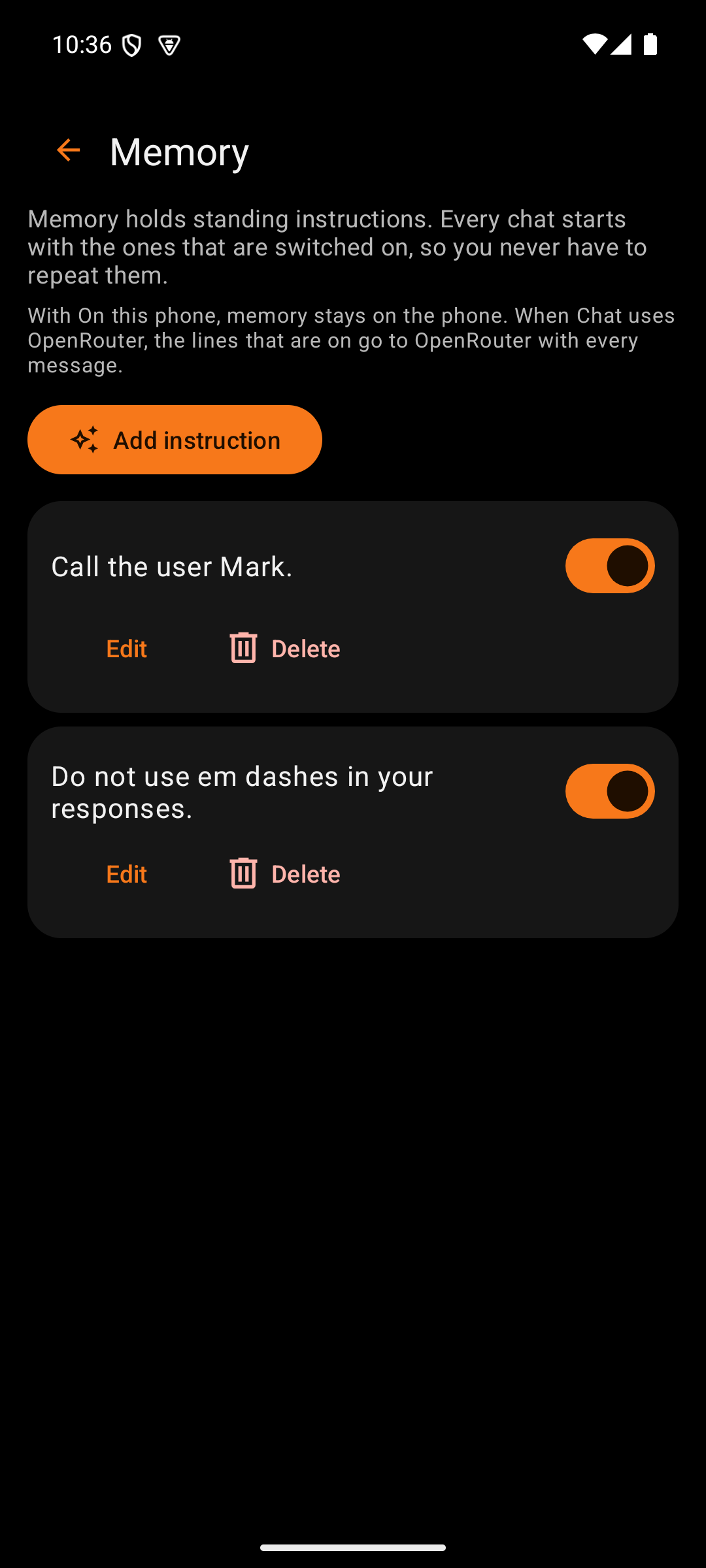
Memory holds standing instructions that open every chat. A user writes each one once, such as a name to use or a writing rule, and never has to repeat it. Open Memory from Settings, under Chat, with Edit memory.
| Box | What it holds | Why |
|---|---|---|
| Back arrow | Returns to Settings | The phone's Back gesture does the same |
| Title | "Memory" | Names the screen |
Two short notes follow the title. The first explains what memory does. The second says where the instructions go. With on-device chat they stay on the phone. When Chat uses OpenRouter, they go to OpenRouter with each message.
| Box | What it holds | Why |
|---|---|---|
| Add instruction | An orange button that opens a dialog with one text field | The field suggests an example, so a first-time user sees what an instruction looks like |
| Instruction card | The instruction's text in full | Shows exactly what the model receives |
| Switch | On or off for each instruction | An instruction can rest without being deleted. A card that is off turns gray. |
| Edit | Opens the same dialog with the text filled in | Fixes a word without retyping the rest |
| Delete | Removes the instruction after a confirmation | The dialog repeats the text, so the user knows which one goes |
An empty list shows two examples: "Call the user Mark." and "Do not use em dashes in your responses." Each instruction may hold up to 500 characters, and the list holds up to 50.
The instructions that are on form the first part of the system prompt for every chat, on the phone or through OpenRouter. They come before the conversation, so they apply from the first message. The model reads them as the user's own standing request. A later message in the same chat can still override one.
Memory is stored as plain text in the app's private database. It is not a secret, so it is not encrypted the way keys are. Clear chat history leaves memory in place.
The Memory and history card in Settings also holds two controls for chat history.
| Box | What it holds | Why |
|---|---|---|
| Save chat history | A checkbox, on by default | When it is off, new chat messages live only in the app's memory and vanish when the app closes. The on-device engine also stops saving its conversation state. Images and videos are still saved, so their files can be kept. |
| Clear chat history | A red button with a confirmation | Deletes every chat message on the phone, saved or not. Images, videos, and memory stay. |
Turning Save chat history back on hides the unsaved chat and shows the saved one again.
OT Studio by OrangeTiger. Prices and provider steps were checked in October 2026 and can change.
Start
Design
- Design System
- Splash Screen
- Main Screen
- Output Actions
- API CALL Panel
- Settings
- Model Manager
- Memory
- Job Card
- Help Screen
- LoRA Library
Procedures