5.1
Review and ensure that you have setup your development environment before going through the steps below.
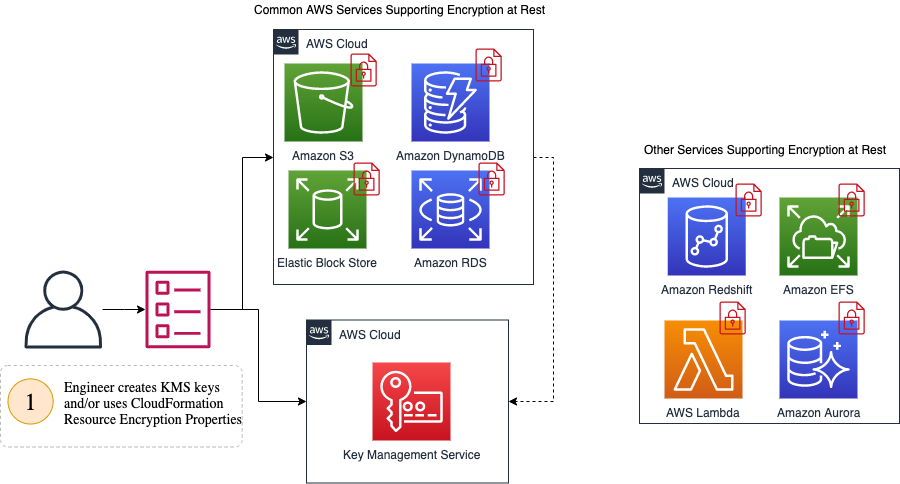
- Go to the EC2 Console.
- Click on Volumes.
- Click the Create Volume button.
- Select the Encrypt this volume checkbox.
- Enter
(default) aws/ebsin the Master Key field. - Click the Add Tag button.
- Enter
Namein the Key field andencryptedin the Value field. - Click the Create Volume button.
- Select the checkbox next to the EBS volume you just created and click on the Actions button. Then, click on Attach Volume from the menu.
- Search for an available EC2 instance in the Instance field.
- Click the Attach button.
- Verify the instance is attached under the Attachment Information column for the volume.
- Go to the RDS Console.
- Click on Databases.
- Click the Create Database button.
- Click on Additional configuration.
- Ensure that the Enable Encryption checkbox is selected in the Encryption section.
- Click the Create database button.
- Go to the DynamoDB Console.
- Click on Tables.
- Click the Create table button.
- Under Table settings section, select the Use default settings checkbox.
- Under the Encryption At Rest section, click on the KMS radio button.
- Click the Create button.
- Go to the S3 Console.
- Click the Create bucket button.
- Enter
ceoa-5-s3-ACCOUNTIDin the Bucket name field. ReplaceACCOUNTIDwith the results of the following command:aws sts get-caller-identity --output text --query 'Account'. Click the Next button. - On the Configure options page, click the Automatically encrypt objects when they are stored in S3 checkbox in the Default encryption section. Then, choose the
AWS-KMSradio button. - Enter a key name. Then click the Next button.
- Leave the defaults on the Set permissions page and click the Next button.
- Click the Create bucket button.
To determine if a key is owned by AWS or Customer Managed, run the following from the command line:
aws kms list-aliases