Repository navigation
App Settings
Home · Getting started · Flow actions
In Homey, open Apps, select Simple (Sys) Log, and open its settings. In the full log grid, open the grid menu and choose Settings for retention, Timeline and export preferences; press Save after editing.
With the full interface, entries appear in a grid with these columns:

The app-bundled screenshot uses Dutch labels; the interface can vary by version.
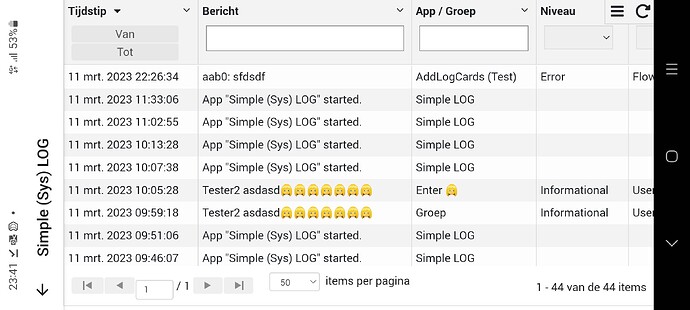
Historical 2023 screenshot shared by the developer in the community topic; labels and layout may differ today.
| Column | Contents |
|---|---|
| Timestamp | When the entry was recorded |
| Message | The logged text |
| App | The group name, when one was supplied |
| Severity | The entry's severity |
| Facility | The entry's facility |
| Hostname | The hostname, when one was supplied |
The grid opens with the newest entries first and shows 50 entries per page by default. Choose 10, 15, 20, 25, 50, 75, 100 or 250 entries per page. Resize or move columns to suit the screen, or use a column menu to hide a column. The grid menu's Save columns option stores column visibility, order and filter state for the next visit. Column widths return to their default size.
- Timestamp: choose start and end dates.
- Message and App: enter text to find matching values. The Hostname column is visible, but its filter is not currently passed to the log query; use an API query when hostname filtering is essential.
- Severity and Facility: choose a value from the dropdown.
Text matching is case-insensitive and finds partial matches.
Filters narrow the displayed page; they do not delete or change log entries. Clear a filter to show entries that it was hiding.
The grid menu offers Refresh Log, Auto refresh, and Show hints. Auto-refresh is enabled by default and adds new entries as they arrive. Turn it off when you prefer to refresh manually. Show hints reopens the overlay with basic grid and orientation guidance. The rotate icon turns the view by 90 degrees for a different screen orientation.
Use the grid menu to download the complete log as Excel, CSV or JSON. The export is not limited to the rows currently visible after filtering.
The export columns include timestamp, severity, facility, app/group and message. JSON and CSV carry the full log data; Excel presents the fields in columns. The option Include UTC in Excel adds an ISO timestamp in UTC alongside the local timestamp; it is off by default. Some facility names are not mapped by the export, even though the grid offers them.
In the settings panel, configure the filename used for each format. The default names include a date and time so repeated exports do not overwrite one another. These filenames support optional BLL expressions; plain filenames work too. See BLL coding for examples and the behavior when BLL is unavailable.
The full settings interface uses Better Logic Library's file-download service to deliver exported files. The community topic notes that remote downloads do not require opening a port on your router. If remote downloads are unavailable, check the File Server settings in BLL.
In the settings panel:
- Number of days to keep the log removes older entries automatically. Leave the field empty to disable automatic cleanup. Cleanup runs once a day, shortly after the storage day changes, and catches up when the app starts. Once file storage is ready, it also checks any existing daily files. File-based retention keeps today and the configured number of preceding calendar days, deleting older daily log files and their indexes together. It does not promise an exact rolling number of hours.
- Show group in Timeline is on by default and prefixes the group to messages created by the grouped Timeline-and-log action.
- Debug is intended for developer diagnostics and can use a lot of memory. Leave it off unless requested by support.
The filename defaults are Logs_{[date('yyyy-MM-dd_HH-mm-ss')]} with .xlsx, .csv, or .json. Save settings after changing these options.
A full clear writes a confirmation entry. Age-based cleanup can also add a note when it removes old logbooks. See Flow actions for details.
Better Logic Library is optional. If its settings assets are unavailable, the app retains a simpler log view with basic display controls, refresh, CSV and clear-log actions. The full grid, filters and export settings are available when the BLL-provided interface assets are present. Ordinary Flow logging does not require BLL. The basic view reads the temporary backlog; it is not the full file-based log viewer after migration. Before full file storage is ready, the app keeps a temporary settings backlog of at most 2,000 entries, dropping the oldest when full. When full storage initializes it migrates the backlog to daily files. Empty retention means no automatic age limit for those files: watch available storage and keep external backups if needed.
Next: try a Flow, export safely, or troubleshoot.