Creating a Game
Quick note: all of the files created in this tutorial can be accessed here.
ModernRift uses json to store configuration information. The first step whenever you're creating a game is to create a configuration file. The recommended name for the configuration file is either configuration.json or config.json. You can use whatever name you want, as long as it ends with .json. I use configuration.json in all of the tutorials for consistency.
Now that you've created the file, you need to add some information. ModernRift looks for a section in the file called Config, so let's create that:
{
  "Config": {

  }
}
Now, you'll need to fill out the information in it. There are 8 variables for data:
| Variable Name | Variable Title | Description | Default Value | Required? |
|---|---|---|---|---|
| Name | name |
The name of the game | N/A | Yes |
| Description | description |
A brief description of the game | An empty string ("") |
No |
| Creator Name | creatorName |
Your name or username | An empty string ("") |
No |
| Version | version |
The semantic versioning number of the latest release of the game | N/A | Yes |
| WindowTitle | windowTitle |
What the title bar of the console should be | The value of name
|
No |
| Prompt | prompt |
The text displayed in the console when asking for commands |
name + " > ", for example "ModernRift Example 01 > "
|
No |
| Background Color | backgroundColor |
The ConsoleColor of the background | "Black" | No |
| Text Color | textColor |
The ConsoleColor of the text | "White" | No |
Here's what I did:
{
  "Config": {
    "name": "ModernRift Example 01",
    "description": "A simple 'Hello, world!' program using ModernRift",
    "creatorName": "ModernRift",
    "version": "1.0",
    "windowTitle": "ModernRift Example 01: A “Hello, world!” program",
    "prompt": "Enter Command: ",
    "backgroundColor": "DarkBlue",
    "textColor": "White"
  }
}A configuration file isn't useful if we never use it. In this step, you'll create a game class and point it towards the configuration file. First, create a class that extends Rift.ModernRift.Core.Game:
using Rift.ModernRift.Core

namespace Example01 {
  public class GameClass : Game {

  }
}
Got it? Now, create the constructor method. Unfortunately, this is a step that is required when creating a game. We're working on removing it. Here's how your file should look:
using Rift.ModernRift.Core

namespace Example01 {
  public class GameClass : Game {
    public GameClass(Configuration config) : base(config) { }
  }
}If you haven't already, create a main class for your program and the static Main method inside. In the main method, create an instance of your configuration:
static void Main(string[] args)
{
  Configuration configuration = new Configuration.ConfigurationBuilder()
    .FromConfigFile("configuration.json")
    .Build();
}
Remember to replace configuration.json with the name of your configuration file!
Now, you need to tell the engine what your game reference is. Put this line just after the line where you define your configuration (still in the main method):
Engine.GameReference = new GameClass(configuration);Remember to replace GameClass with the name of your game class!
Finally, you need to call the initialization and start functions to the program. At the very end of the main method, add these 2 lines:
Engine.Initialize();
Engine.Start();
Now, you can run your program and you should see a console window appear. If you used my configuration file, it should look like this:
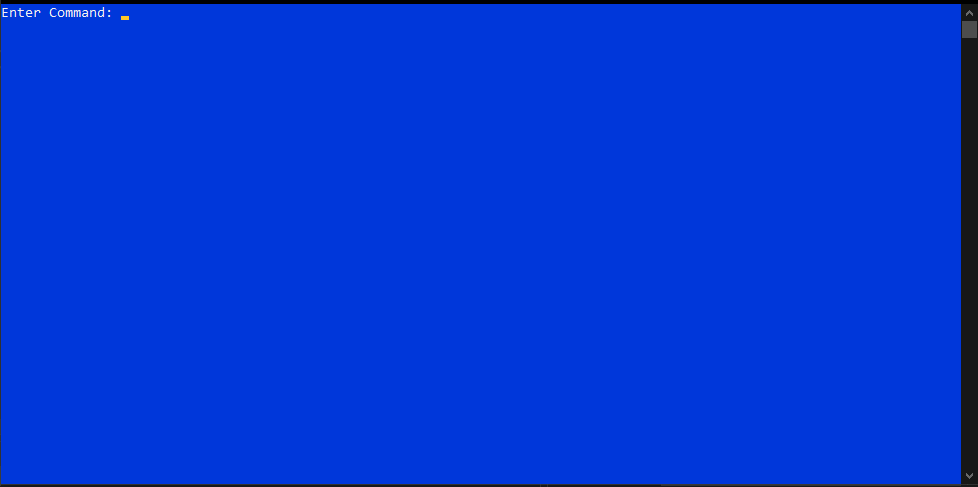
If that worked, congratulations! You’ve created your first game! You can test it out by typing help, clear, or quit. Clear clears all the text from the window and prints a new prompt. Help writes a short description of all of the commands. Quit safely shuts down the program.