




Audio system that generates code to allow playing FMOD events or Unity native audio with a strongly-typed syntax.
Out-of-the-box, audio solutions can be tedious to work with. Even frameworks like FMOD require you to access events and parameters via inspector references or by name.
Dispatching an event this way requires you to define a bunch of fields, assign things in the inspector, and then the syntax for setting parameters is weakly-typed. You could try dispatching events/setting parameters by name but that is time-consuming, error-prone, and highly sensitive to to renames.
It would be much nicer if they were known at compile-time, then you could reference them in a strongly-typed way. For example:
AudioEvents.PlayerJump.Play(transform);This would require a little bit of code generation, and that's where Audio Syntax comes in. With a simple setup wizard and one line of code in your audio service to call an Update function you can start dispatching audio events (with parameters) in as little as one line of code.

This setup allows events and parameters to be renamed gracefully as you can do it via your IDE, update your banks accordingly and then re-generate the code. If events are renamed in the banks and you still reference those events by their old names, warnings will be thrown to give you a chance to refactor without immediately getting compile errors, and it even offers to perform the rename in your code automatically.
Overall this system significantly speeds up your audio implementation workflow and makes it more robust, at the expense of a little bit of boilerplate code that you won't even have to maintain yourself.
This system was originally built for FMOD (FMOD Syntax) but now supports Unity's own native audio system as well (Unity Audio Syntax).
You can use both of these systems simultaneously, which is useful when you wish to transition from one system to the other.
Warning
Does your project use the original FMOD-Syntax package and are you looking to update to Audio-Syntax?
This is fully supported. Add Audio-Syntax alongside your FMOD-Syntax install and open Audio Syntax > Setup Wizard and a Migration Wizard will open that will perform the migration for you automatically. Then you can safely remove FMOD-Syntax.
Please see the wiki for more information.
- Install the package to your Unity project
- Open
Audio Syntax > Setup Wizardand set the system up to your liking. If any migration is necessary, the Migration Wizard will now open and guide you through it. - If your project uses Assembly Definitions, then add a reference to
RoyTheunissen.AudioSyntaxto your assembly definition. - Use
Audio Syntax > Generate Audio Codeto generate the audio static access code. - Call
AudioSyntaxSystem.Update();in anUpdateloop somewhere. I recommend putting this in your audio service. - You can now fire your audio events in a strongly typed way.
// Parameterless one-off sound (global)
AudioEvents.TestOneOff.Play();

// Parameterless one-off sound (spatialized)
AudioEvents.TestOneOff.Play(transform);

// Spatialized one-off with parameters (for FMOD)
AudioEvents.Footstep.Play(transform, FootstepPlayback.SurfaceValues.Generic);// Start a looping sound
TestContinuousPlayback testContinuousPlayback = AudioEvents.TestContinuous.Play(transform);
// Set the parameter on a looping sound (for FMOD)
float value = Mathf.Sin(Time.time * Mathf.PI * 1.0f).Map(-1, 1);
testContinuousPlayback.Strength.Value = value;
// Stop a looping sound
testContinuousPlayback?.Stop();
// Cancel a looping sound in OnDestroy
testContinuousPlayback?.Cleanup();// Setting global parameters (for FMOD)
AudioGlobalParameters.PlayerSpeed.Value = value;// Get a reference to the event that you can assign via the inspector
[SerializeField] private AudioReference parameterlessAudio;
// Dispatch as per usual
parameterlessAudio.Play(transform);In FMOD there are three types of parameters: "Continuous" (int), "Discrete" (float) and "Labeled" (enum).
Labeled parameters are sent and received as integers, but they are associated with a name for convenience, exactly like enums in C#.

For convenience, Audio Syntax generates an enum for every event with a labeled parameter, so auto-complete conveniently suggests all valid values when you are invoking the event.
AudioEvents.Footstep.Play(transform, FootstepPlayback.SurfaceValues.Generic);But let's say you have several events that share the same "Surface" parameter, for instance a Jump and a Footstep event. It could be inconvenient if you just want to determine the current surface type, and then fire jump and footstep events with that type, because you would have to cast it to the appropriate event-specific enum.
AudioEvents.Footstep.Play(transform, FootstepPlayback.SurfaceValues.Generic);
AudioEvents.Jump.Play(transform, JumpPlayback.SurfaceValues.Generic);
Furthermore, the enums in FMOD may actually represent an enum in your game. So it's inconvenient to have to map from that game enum to the FMOD enum. But there's a solution for that: User-specified labeled parameter enums.
Simply tag your game enum with [FmodLabelType] and specify the names of the labeled parameters that it represents, and then when code is generated instead of generating event-specific enums, it uses the game enum you specified for those events.
No more duplication, no more mapping.
[FmodLabelType("Surface")]
public enum SurfaceTypes
{
    Generic,
    Dirt,
    Rock,
}AudioEvents.Footstep.Play(transform, SurfaceTypes.Generic);
AudioEvents.Jump.Play(transform, SurfaceTypes.Generic);The above 'Labeled parameter enums' feature now also works for the Scriptable Object Collection. Simply add the [FmodLabelType] attribute to the Scriptable Object Collection Item the same way you would with an enum.
Important
If you installed Audio Syntax or ScriptableObjectCollection to the Assets folder instead of via the Package Manager / in the Packages folder, a SCRIPTABLE_OBJECT_COLLECTION scripting define symbol will not be defined automatically and you will have to manually add this to the project settings for this feature to work.
Audio Syntax has a two-tiered solution for allowing you to move/rename events and update your code accordingly:
- Alias Generation - When an event is detected as having been moved or renamed, 'aliases' are generated under the old name, tagged with an
[Obsolete]attribute that informs you what the event is currently called. This causes the game to throw a compile warning everywhere that the old incorrect syntax is used, and you can copy/paste the correct name from the warning. This lets you manually migrate your event code without compile errors and with reminders for what the new syntax is. - Auto-Refactoring - When an event is detected has having been moved or renamed, you are also presented with the option to Auto-Refactor. If chosen, Audio Syntax will look through your .cs files, find any references to the old events and automatically refactor them to use the new event syntax.
Audio Syntax provides three syntax formats for defining events:
- Flat: All events are defined in
AudioEvents. Simplest / shortest syntax, but event names have to be unique.
An event calledPlayer/Footstepis invoked viaAudioEvents.Footstep.Play(); - Flat (With Path Included In Name): Slightly longer names, but event names don't have to be unique. Requested by @AldeRoberge
An event calledPlayer/Footstepis invoked viaAudioEvents.Player_Footstep.Play(); - Subclasses Per Folder: Subclasses are generated inside the
AudioEventsclass for every folder holding their events. Longer syntax, but events are neatly organized and names don't have to be unique. An event calledPlayer/Footstepis invoked viaAudioEvents.Player.Footstep.Play();
The default syntax is Flat, and you are recommended to use that and give unique names to your events.
For example, you can use the following naming convention: Object_Event. That way you can have a footstep event for both a player and a monster without getting a name clash, and it doesn't matter if the event is in a folder called Core/World1/Gameplay/Characters/Enemies/Monster/Monster_Footstep, because including all those folders in the name is cumbersome.
However, as you may be integrating Audio Syntax into an existing project and may not have the ability to affect the naming convention of events much, we recognize that different projects have different structures and you are free to choose whatever syntax suits your project best.
Switching syntax formats supports all the same migration features as renaming or moving events.
- Code is also generated for playing Snapshots. Basically treated like events, though it's separated in its own
AudioSnapshotsclass. - Code is also generated for Buses and VCA's, which can be accessed via an
AudioBusesandAudioVCAsclass respectively.
This system was developed for Unity 2021 and upwards, it's recommended that you use it for these versions.
If you use an older version of Unity and are running into trouble, feel free to reach out and I'll see what I can do.
- There is a setup for automatically regenerating the code when the FMOD banks update, but this would require you to modify the FMOD Unity plugin so that feature is currently disabled.
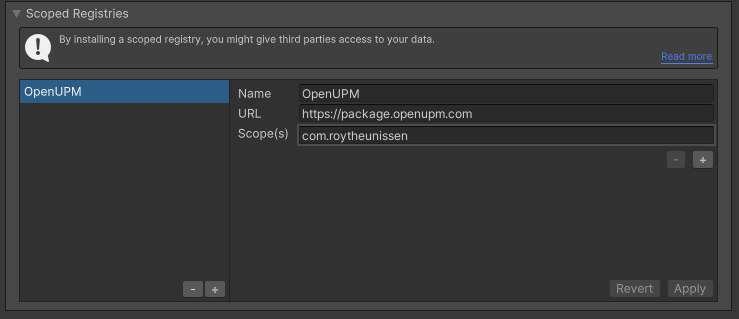
Go to Edit > Project Settings > Package Manager. Under 'Scoped Registries' make sure there is an OpenUPM entry.
If you don't have one: click the + button and enter the following values:
- Name:
OpenUPM - URL:
https://package.openupm.com
Then under 'Scope(s)' press the + button and add com.roytheunissen.
It should look something like this:
All of my packages will now be available to you in the Package Manager in the 'My Registries' section and can be installed from there.
You can check out this repository as a submodule into your project's Assets folder. This is recommended if you intend to contribute to the repository yourself.
The package is available on the openupm registry. It's recommended to install it via openupm-cli.
openupm add com.roytheunissen.audiosyntax
You can also install via git URL by adding this entry in your manifest.json (make sure to end with a comma if you're adding this at the top)
"com.roytheunissen.audiosyntax": "https://github.com/RoyTheunissen/Audio-Syntax.git"
From Window->Package Manager, click on the + sign and Add from git:
https://github.com/RoyTheunissen/Audio-Syntax.git