Development should be done with any modern distro of Linux. Support for Windows is not tested and should be done at your own risk.
Interview Bot is a simple slack bot that deals with (re?)scheduling appointments. Jira webhooks are fed to a simple backend flask server. This bot then works in liaison with slack users to manage the scheduling data.
Install docker (Docker Engine): https://docs.docker.com/engine/install/ubuntu/
sudo apt-get updatesudo apt-get install \ ca-certificates \ curl \ gnupg \ lsb-releasesudo mkdir -p /etc/apt/keyringscurl -fsSL https://download.docker.com/linux/ubuntu/gpg | sudo gpg --dearmor -o /etc/apt/keyrings/docker.gpgecho \ "deb [arch=$(dpkg --print-architecture) signed-by=/etc/apt/keyrings/docker.gpg] https://download.docker.com/linux/ubuntu \ $(lsb_release -cs) stable" | sudo tee /etc/apt/sources.list.d/docker.list > /dev/nullsudo apt-get updatesudo apt-get install docker-ce docker-ce-cli containerd.io docker-compose-pluginsudo docker run hello-world
Install git: https://github.com/git-guides/install-git
sudo apt-get updatesudo apt-get install git-all
Install ngrok: https://ngrok.com/download
snap install ngrok
git clone https://github.com/SI-Interview-Bot/BotApp.git
To test your bot you will need to redirect localhost to a forwarding url that
is visable to slack. ngrok is a simple way to accomplish this.
- Once installed, visit ngrok.com, create an account, and go to Setup & Installation.
From step 2, copy and paste the command to add your authorization token.
It should look something like this:
ngrok config add-authtoken 2GfobMBf*&^785V876b887n87^*%%^%^bfg8b66UYJYYF^67
The bot is hosted on port 3000 by default. To start the session, simply run the following:
- In a new terminal window run,
ngrok http 3000
You should see the following
Session Status                online
Session Expires               1 hour, 58 minutes
Terms of Service              https://ngrok.com/tos
Version                       3.1.0
Region                        United States (us)
Latency                       168ms
Web Interface                 http://127.0.0.1:4041
Forwarding                    https://fbb7-12-147-112-74.ngrok.io -> http://localhost:3000

Connections                   ttl     opn     rt1     rt5     p50     p90
                              0       0       0.00    0.00    0.00    0.00
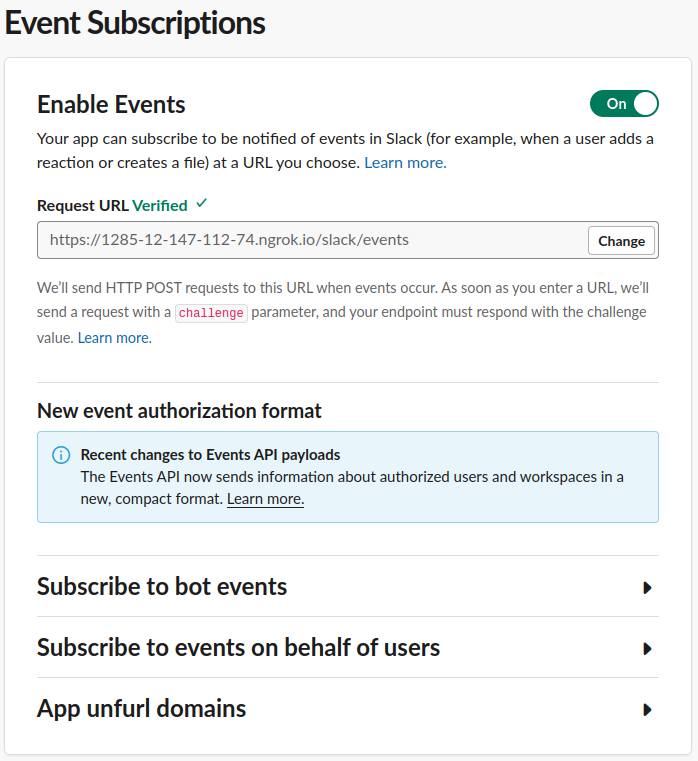
The Forwarding address will need to be added to the Slack Workspace.
- Copy ngrok's forwarding address to your app settings in api.slack.com
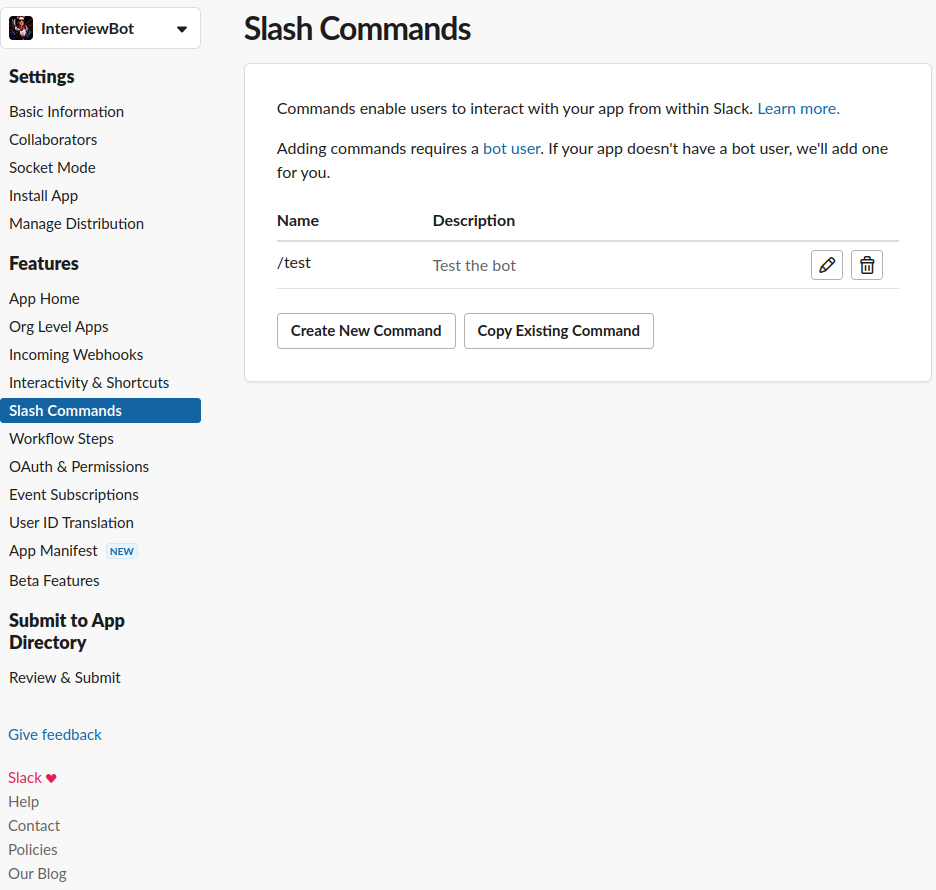
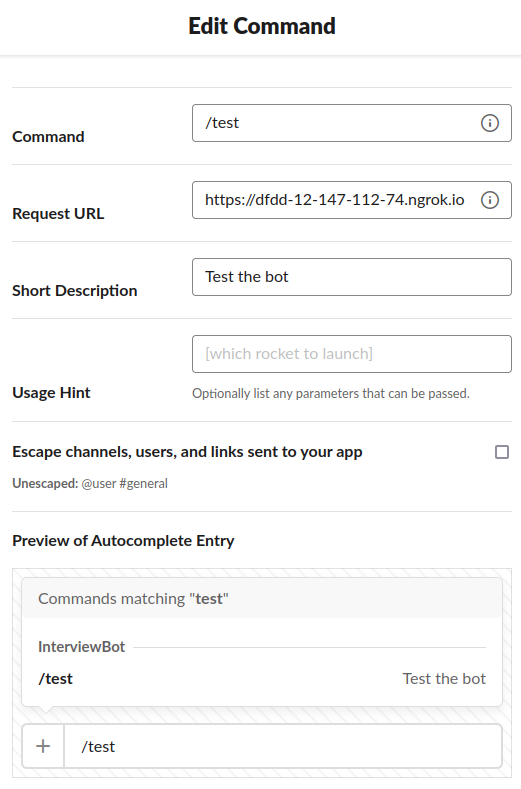
In your app's settings, go to Slash Commands. For every Slash Command
update the Request URL with ngrok's forwarding address. The forwarding
address will likely change with every new running instance of ngrok.
Manually add
/slack/eventsat the end of the forwarding address.
- You must also update your app's Event Subscriptions