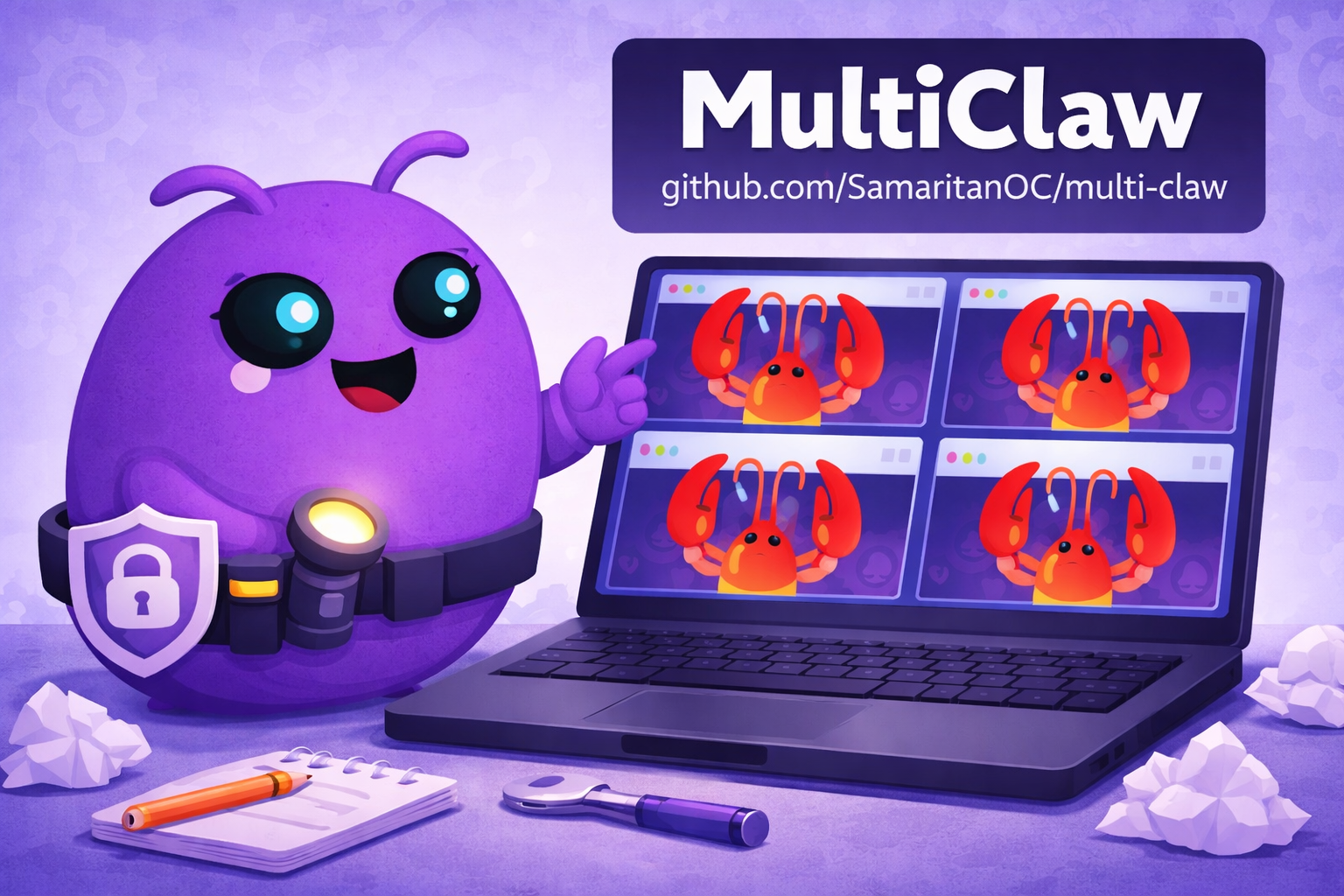
Built with OpenClaw administrators in mind, MultiClaw lets you run multiple, fully functional, OpenClaw Mission Control dashboards on a remote Windows or Linux computer. Each window is independent, with its own login, its own session, arranged however you want on your desktop
OpenClaw administrators who run multiple installations and need an easier way to access thier Mission Control panels from one, remote device.
| OS | Download |
|---|---|
| Linux (Debian/Ubuntu/Parrot) | multi-claw-amd64.deb |
| Windows 11 | multiclaw-windows-setup.exe |
For Windows installation instructions see windows/README.md.
- Open MultiClaw — the OpenClaw Mission Control login screen appears automatically
- Enter your gateway URL and token to connect to your first installation
- Log into a second OpenClaw installation in the new window
- Repeat for as many installations as you manage
- Arrange and resize your windows however you want. Your sessions persist between launches
- One or more OpenClaw installations, each running and accessible
- Tailscale with each host on your tailnet
- Each host gateway exposed via Tailscale Serve
- Debian-based Linux on the machine running MultiClaw
Download the latest release:
wget https://github.com/SamaritanOC/multi-claw/releases/latest/download/multi-claw-amd64.deb
sudo dpkg -i multi-claw-amd64.deb
Or install the AppImage:
wget https://github.com/SamaritanOC/multi-claw/releases/latest/download/MultiClaw.AppImage
chmod +x MultiClaw.AppImage
./MultiClaw.AppImage- Open the MultiClaw app
- Enter your gateway URL (e.g. https://your-machine.tailnet-name.ts.net)
- Enter your gateway token (found in ~/.openclaw/openclaw.json under gateway.auth.token)
- Click Connect
- On your OpenClaw host, approve the pairing request:
openclaw devices list
openclaw devices approve <requestId>- Pairing is a one-time step per device. After that the app connects automatically on every launch.
- Pairing codes expire after 1 hour. If approval times out, close MultiClaw, reopen it, and approve the new pairing request before the hour is up.
- If you do not see a pending device, confirm your gateway URL is correct and that Tailscale is connected on both machines.
Each window remembers its session between launches, you won't need to log in again unless your token expires.
Right-click anywhere in any MultiClaw window and select New Window, or use the MultiClaw menu in the menu bar and select New Window (Ctrl+N). Repeat the process.
MultiClaw is an Electron app. On Linux systems running Wayland, the app may fail to launch or render a blank window.
Fix — force XWayland mode:
multi-claw --ozone-platform=x11Or set it permanently by editing your launcher/desktop entry to include --ozone-platform=x11 in the Exec= line.
git clone https://github.com/SamaritanOC/multi-claw.git
cd multi-claw
npm install
npm run electron:build
sudo dpkg -i dist-app/multi-claw-*-amd64.debMIT
This tool is part of the Samaritan Project, a build-in-public OSINT platform running on self-hosted AI infrastructure. Follow along and contribute at The Samaritan Project — Buy Me A Coffee